 Skava
Skava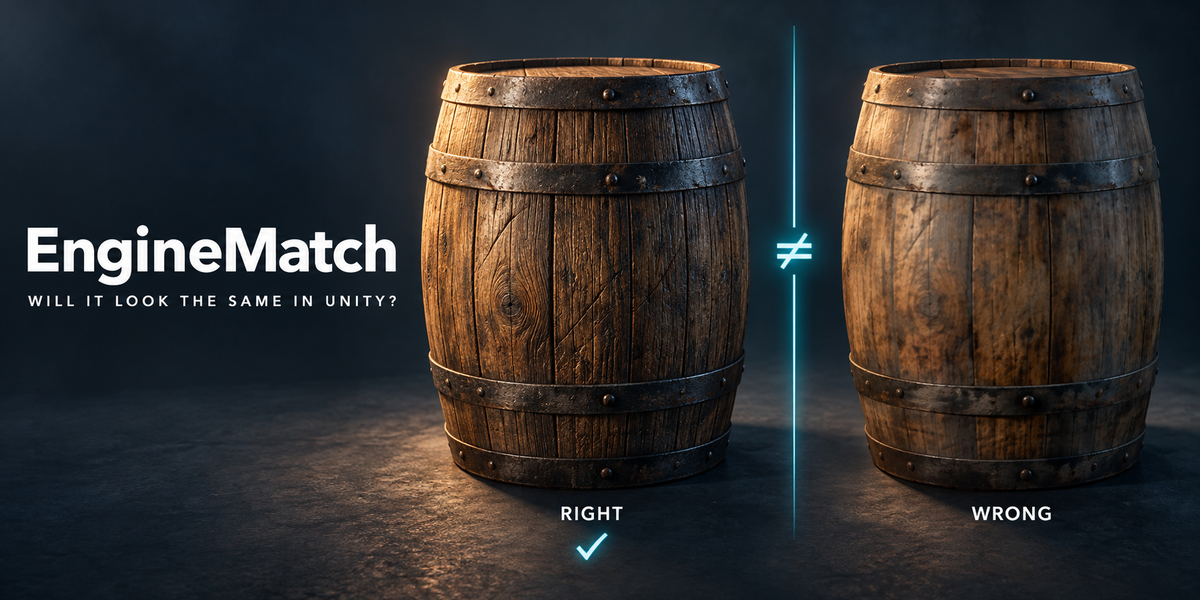
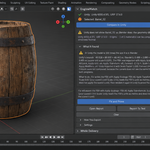
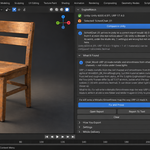
What EngineMatch does
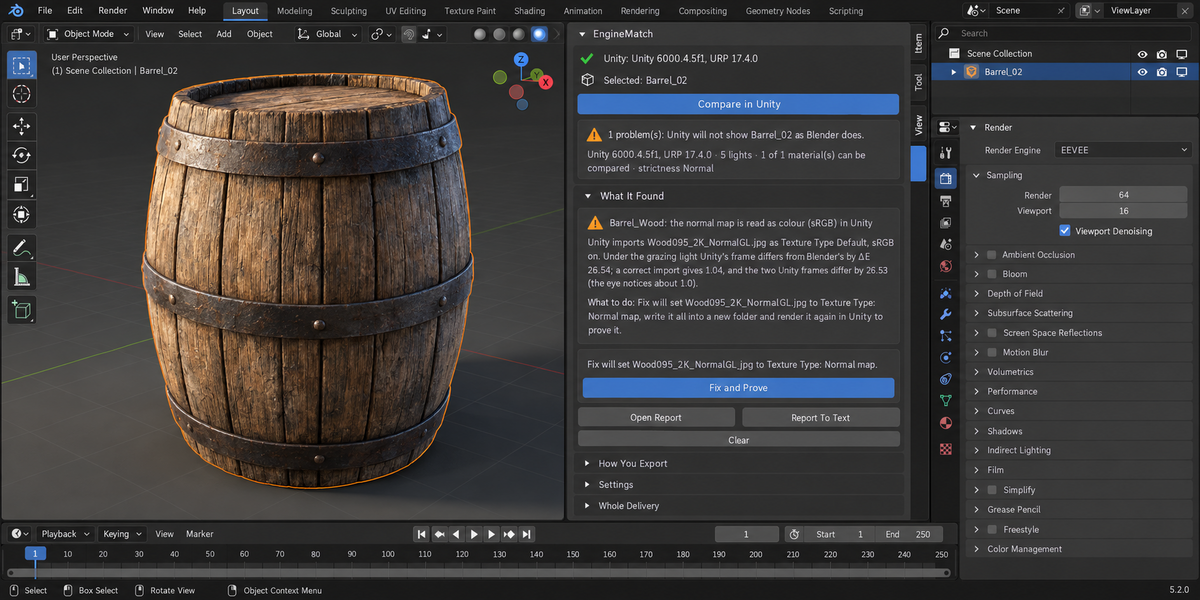
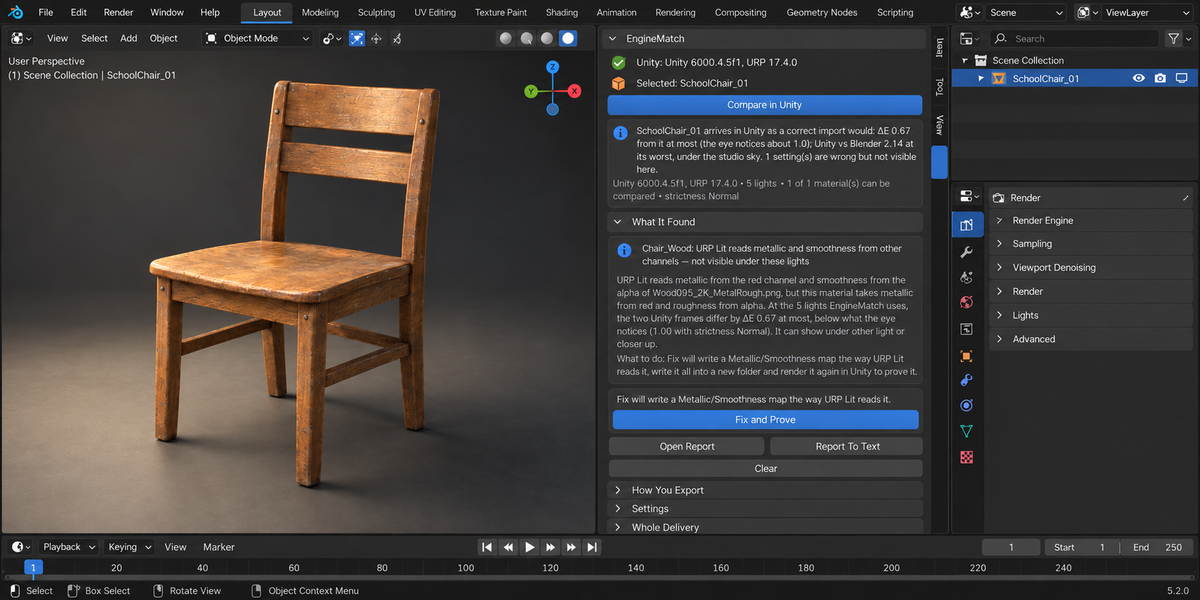
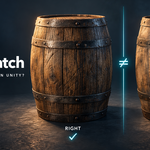
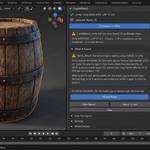
EngineMatch answers one question before you ship: will Unity URP show your model the way Blender does? It sends your selection to Unity the way you export it, renders it there and in Blender with the same camera and the same five lights, and compares the frames pixel by pixel (ΔE2000, the colour-difference scale where 1.0 is what the eye just notices). When something differs, it reads Unity's own import settings, redraws the model in Blender with each known mistake, and names the cause. Fix and Prove writes a Unity-ready folder and renders it in Unity again, so you see the numbers before and after.
Requirements
- Blender 4.2 or newer.
- Unity 6 (6000.x) or Unity 2022.3 LTS, installed with Unity Hub and activated (Personal is fine). Checked with Unity 6000.4.5f1 (URP 17.4) and 2022.3.62f3 (URP 14.0.12).
- macOS or Windows. Checked on macOS (Metal) and Windows 11 (Direct3D 11). Linux has not been checked, and there EngineMatch says so and does not start.
- Disk: EngineMatch's own Unity project takes 1.5 to 2 GB (measured 1.6 GB with Unity 6000.4.5f1), and the last four check runs are kept next to it — 70 to 200 MB each in our runs with 4K textures (measured 0.6 and 0.8 GB for four). The add-on preferences show the current size. No Python packages, no cloud, no account. Unity 6 carries the Universal Render Pipeline in itself; Unity 2022.3 downloads it once from Unity's own package registry on the first check.
Install
- Keep the archive zipped. In Blender open Edit > Preferences > Add-ons.
- Press the arrow button in the top right corner and choose Install from Disk, pick the archive, tick EngineMatch.
- EngineMatch looks for Unity editors installed by Unity Hub and takes the newest. If it found none, set Unity Editor in the add-on preferences (macOS: …/Unity.app/Contents/MacOS/Unity; Windows: …\Editor\Unity.exe), or press the magnifier to look again.
- Optionally set Cache Folder: where EngineMatch keeps its own Unity project and the check runs.
Press N in the 3D Viewport; the sidebar tab is called EngineMatch.
Check
- Close Unity if it is open. EngineMatch does not start a second editor while Unity is open — close it first; it tells you so instead of starting.
- Select the mesh object(s) you want to send to Unity.
- Open How You Export and set it the way you work:
- the FBX settings you export with — Apply Scalings, Scale, Forward, Up, Apply Unit, Apply Transform, Apply Modifiers and Smoothing (the defaults are Blender's own);
- Import Settings: Unity Defaults (what Unity does when you drag the files in), From My Unity Project (the .meta files of the same files in a folder you choose; that folder is only read — see below how a file is matched), or EngineMatch's Settings.
- Press Compare in Unity. The first check sets up EngineMatch's own Unity project: about 2 to 6 minutes, once. After that a check usually takes under a minute or two, and longer for a very heavy model (measured on 265 library checks: 9 to 33 seconds for 95% of them on an Apple M4; 32 to 134 seconds for 90% of them, half under 49 seconds, on a 2017 laptop with a GTX 1050 Ti; a tree of 8 million triangles took 3 to 4 minutes on the M4 and 7 to 30 minutes on the laptop). A progress bar shows each stage; Blender stays usable; Cancel stops it and closes the background processes.
What is sent to Unity
Exactly what your export would send: the FBX written with your settings, and the image files your materials use — the same files under the same names, not repacked and not converted. (Only characters a file name cannot carry on Windows, such as : or ?, are replaced; letters of any alphabet and spaces stay.) The materials are set up in URP Lit the way you would set them up by hand: base colour, normal map, and the Metallic map in URP's Metallic slot.
URP Lit reads smoothness from the alpha of that one map and has no slot for a separate roughness image. So if your material takes roughness from its own image, Unity does not read it; EngineMatch says exactly that, shows how much it changes the picture, and Fix packs the map URP reads (metallic in red, smoothness = 1 − roughness in alpha). If your material already uses a packed image, that image goes as it is — which is how a wrong channel layout gets caught.
An image packed into the .blend is written out with the same bytes under the file name it was packed from. A format Unity has no importer for (.webp, for example) also goes as it is: Unity does not read it, and EngineMatch reports that as a finding — Fix writes it as PNG. If Unity does not load a texture the materials name, EngineMatch reports the missing file as a finding and does not call the result a match. An image whose file is no longer on disk is named, and its material is left out.
From My Unity Project — how a .meta is found. If the image Blender uses lies inside the folder you chose, the .meta next to it is taken. Otherwise EngineMatch looks for a file of the same name in that folder; if there are several (a/diffuse.png and b/diffuse.png), it takes the one whose content is byte for byte the image Blender uses. If that does not single one out, it does not take the first: the check stops with Not checked: … matches several files in your Unity project and lists them. A file with no .meta in the folder gets Unity's defaults.
Modifiers. The FBX is written with your Apply Modifiers setting. On (Blender's default), modifiers are baked into the mesh — and Blender's exporter then writes a mesh that has shape keys in its current shape, without blend shapes. Off, the meshes go as they are before their modifiers. EngineMatch reports either case from what actually arrived in Unity. The correct delivery, and so the Unity-ready folder, is always written with modifiers applied.
Alongside, EngineMatch renders a correct delivery in the same Unity run. The difference between your delivery and the correct one, inside the same engine, is what decides whether your export added a visible problem. The difference to Blender is used to name the cause — and as a second check: the summary gives Unity vs Blender at the worst of the five lights and names that light, and if even the correct delivery is far from Blender with nothing to explain it, EngineMatch says so instead of calling it a match.
Standard view, not AgX
Both programs are compared in the Standard view transform, without tone mapping, because that is the only place where the same numbers mean the same thing in Blender and in Unity. Blender's default view is AgX, and Unity has no AgX: if your scene uses AgX or Filmic, the tone you see in Blender's viewport is Blender's own look, not something an export can carry. The panel says so in a note ("Compared in the Standard view; your scene uses AgX") whenever your scene is not in Standard. EngineMatch does not change your scene's view transform, render settings or frame.
Reading the findings
- : the normal map is read as colour (sRGB) in Unity and the other named causes (must look at) — read in Unity and confirmed by the picture: Blender drawn with that mistake matches Unity's frame, and the next cause is clearly further away. The numbers are given: Unity vs Blender, a correct import vs Blender, and your delivery vs the correct one.
- … — not visible under these lights (worth a look) — Unity reads a setting wrong, but at EngineMatch's five lights the difference stays below what the eye notices. It is not called a match: it can show under other light or up close.
- … differs — two causes fit about equally (must look at) — both are named; EngineMatch does not pick one at random.
- Unity's picture differs from Blender's (must look at) — visible, and none of the known mistakes explains it.
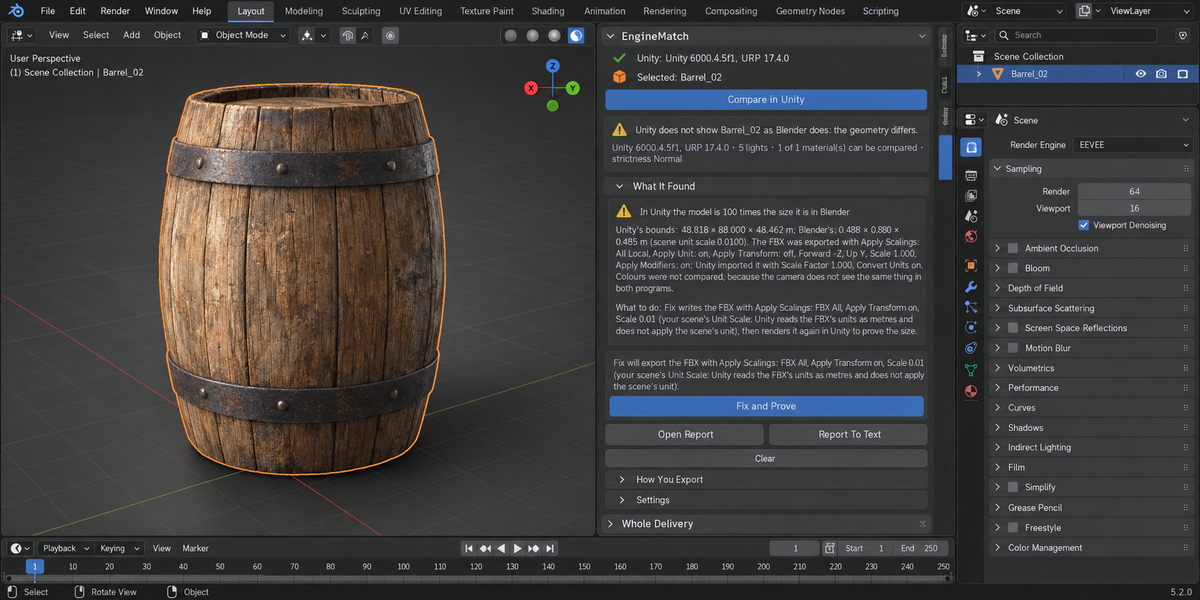
- In Unity the model is 100 times the size it is in Blender, turned, or moved (must look at) — measured from Unity's own bounds, with your FBX and Unity's import settings listed. Colours are not compared then, because the camera does not see the same thing.
- Unity does not show part of what Blender draws (must look at) — measured on the frames: a share of what Blender draws has nothing behind it in Unity (the finding gives the share of the model's picture and of the frame), or Unity's bounds are those of the mesh alone. EngineMatch names what it read in the file — instances made by Geometry Nodes, which Blender's FBX exporter does not write; a hair particle system; true displacement — or, if it read nothing, lists the usual causes. Instances made by Geometry Nodes are written into the Unity-ready folder as real geometry, and the second render proves they are there; what a folder cannot carry is said to be so, and Fix is not offered for it. Unity shows parts that Blender does not draw is the same measurement the other way round.
- In Unity the model's size or shape differs from Blender's, and a correct export differs the same way (must look at) — the FBX settings are not the cause, so no FBX fix is offered.
- Blender draws a height map that Unity does not get (must look at when visible) — a map on the material's Displacement output or in a Bump node. FBX and URP Lit carry no height. The finding gives how much the height changes Blender's own picture; bake it into a normal map.
- Matches Blender / imported right; URP draws it ΔE … from Blender (for the record) — your delivery adds nothing visible, and the number says how far URP Lit's picture still is from EEVEE's. Where URP Lit has no equivalent (clear coat, sheen, transmission, subsurface and so on), it names the feature and how big that difference is. If that distance is larger than on any material EngineMatch was measured with (ΔE 7.5) but short of what it calls a fault (10.4), the line reads imported right, but URP draws it ΔE … from Blender (worth a look).
- … % of what the camera sees are back faces (must look at) — Blender draws both sides of a face, URP Lit only the front. Flipped normals or a one-sided plane seen from behind show up in Unity as holes. A folder cannot fix this: recalculate the normals in Blender (or give the faces thickness), then compare again. Where a front face lies in the same place (a leaf modelled as two faces back to back) and Unity's frame shows the same, it is a note, not a fault.
- Even a correct import does not look like Blender (must look at) — the correct delivery is further from Blender than the engines themselves differ (ΔE 10.4 and more) and EngineMatch has read no reason. It is reported as a problem, not as a match, and no fix is offered for it. It is said next to a named cause too, and after Fix and Prove: a folder that matches a correct delivery but is still that far from Blender is not called proven.
- Shape keys did not reach Unity: the FBX carries no blend shapes (worth a look) — the object has shape keys and modifiers, Apply Modifiers is on, and Unity received a mesh with no blend shapes. Shape keys are on in Blender; Unity starts them at weight 0 — the blend shapes did arrive, and the weights to set are listed. Apply Modifiers is off (worth a look) — the objects reach Unity without the modifiers Blender draws them with.
- … selected object(s) are not meshes and were not compared (worth a look) — curves, text, metaballs and collection instances in your selection are named; convert them to mesh to check them.
- Unity did not load a texture (must look at) — the file the material names is missing in Unity.
- Unity smooths a texture Blender shows pixel-sharp, Unity repeats a texture Blender clamps, Unity reads a different UV map (must look at when visible) — Closest in Blender needs Filter Mode: Point in Unity, Extend needs Wrap Mode: Clamp, and URP Lit always takes the first UV map. Fix writes those settings. Blender's Extension: Clip has no twin in Unity; when the UVs leave the 0–1 square EngineMatch says a folder cannot fix it.
- Compared in the Standard view; your scene uses AgX (for the record) — see above. With the Standard view but an Exposure, Look or Gamma set in Color Management, the note reads Compared without your scene's exposure.
- Not compared (worth a look) — a material EngineMatch cannot build for URP Lit without guessing (a Mix of textures, a node group, transparency, a rotated Mapping node…). The reason is named and its pixels are left out of every number. In the Unity-ready folder such a material is a plain grey placeholder; the panel names it next to the Fix button, and the line after the fix says Not carried into the folder: ….
- Unity shrinks texture(s) below their own size (worth a look) — Unity's Max Size is smaller than the image. EngineMatch's frames are too small to show this, so it is reported, not measured.
- Unity rescales texture(s) that are not a power of two (worth a look) — by default Unity stretches a 300 × 200 image to 256 × 256. Fix sets Non-Power of 2 to None, which keeps the size; Unity then leaves such a texture uncompressed on platforms that cannot compress those sizes.
- The root object is rotated or scaled (for the record) — it looks right, but Unity's root carries a rotation or scale. EngineMatch names where it comes from: Blender's default FBX settings (−90° and ×100), a negative scale on the object, or the object's own unapplied rotation and scale.
Fix and Prove
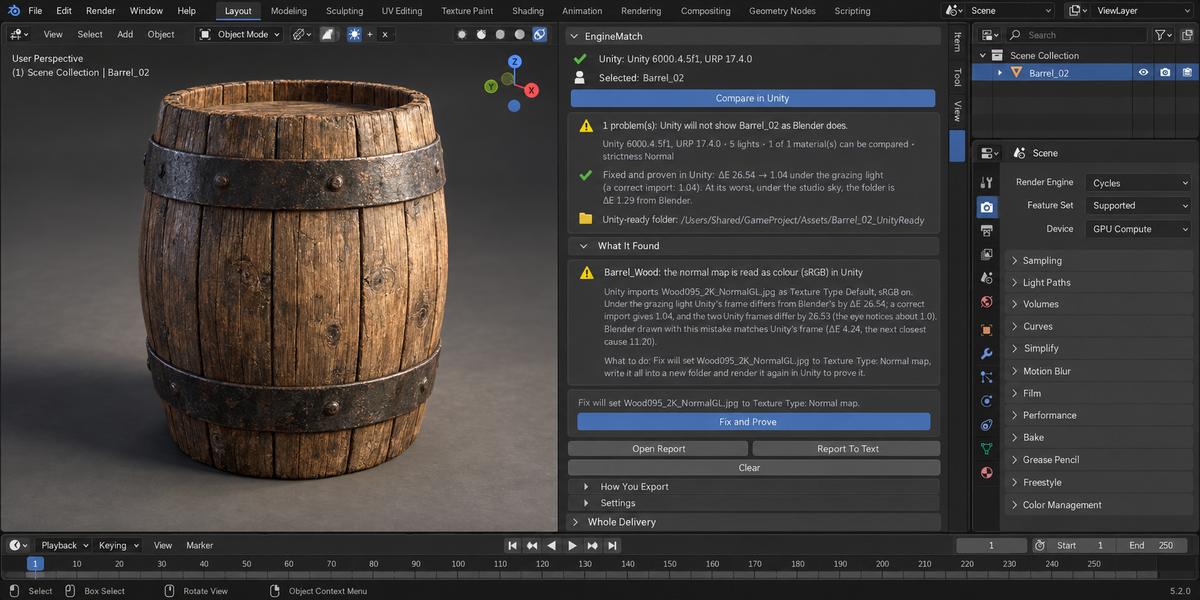
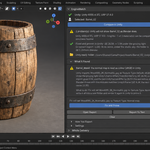
Press Fix and Prove and choose a folder. EngineMatch creates a new folder there under a free name (an existing folder with the same name is left alone and the next name is taken) and writes a Unity-ready set: the FBX exported with settings that land at the right size and orientation, the textures (normal map converted to OpenGL if yours is DirectX; Metallic/Smoothness packed for URP), Unity's own .meta files with the right import settings, and URP Lit materials already assigned. Instances made by Geometry Nodes are written as real geometry. Then it renders that folder in Unity again and shows before and after, for example ΔE 26.54 → 1.04 under the grazing light (a correct import: 1.04).
"Proven" means the second render measured all of this: Unity read every texture of the folder; the model has the right size and place; the folder differs from a correct delivery by less than the eye notices on every compared material; it shows everything Blender draws; and it is no further from Blender than the engines themselves differ. If Unity could not render the folder, if nothing could be compared, or if a problem a folder cannot fix remains (back faces, Clip, a height map, shape keys), the panel says Not proven or names what remains — never "Fixed". If the named cause is fixed but the folder is still further from Blender than the engines account for, the line reads Written: what was named is fixed (…) — but Unity still differs from Blender by ΔE … under …, and EngineMatch has not read why. The line after the fix gives the worst of the five lights, not the first. Every written folder gets its own Unity GUIDs, so two of them can live in one project.
What the folder does not carry. A material EngineMatch cannot read is a plain grey placeholder in the folder (named next to the Fix button and in the line after the fix). The folder's FBX is exported with modifiers applied, so a mesh with shape keys and modifiers arrives in its current shape, without blend shapes; if your own FBX does bring blend shapes, the panel says the folder will not.
To use it, drag the folder into your project's Assets. Your Unity project is never opened or changed.
Settings
- Strictness — the smallest difference reported as visible: Strict ΔE 0.5, Normal 1.0 (what the eye just notices), Relaxed 2.0.
- Frame Size — 256, 512 or 1024 pixels for the compared frames.
The report
Open Report opens a single HTML file in your browser: every finding, and for each of the five lights Blender's frame, Unity's frame of your delivery, Unity's frame of the correct delivery (or after the fix), and a ΔE map. It has no external links and opens offline. Report To Text writes the findings to a text block named EngineMatch.
Pipeline mode
EngineMatch also runs from the Whole Delivery panel in the same tab and from the command line with the rest of the Proof line; there it checks all visible meshes of each file with the settings saved in the file, each file in its own background Blender, so your open scene is untouched. From a pipeline:
blender --background --factory-startup --python-expr "import engine_match; engine_match.proofkit_cli()" -- --folder /assets --report engine_match.html
With --factory-startup Blender does not load add-on preferences, so two environment variables take their place: ENGINEMATCH_UNITY — the path to the Unity editor (without it, the newest Unity 6 or 2022.3 LTS found in the usual Unity Hub folders); ENGINEMATCH_CACHE — the folder for EngineMatch's own Unity project and runs (without it, Blender's user data folder). Keep every pipeline run on the same cache folder: the first check there sets up the Unity project, the next ones reuse it. Each file has 900 seconds by default; --timeout sets another limit in seconds. Give more time to a run that starts on a new cache folder, where the first check sets up the Unity project, and to very heavy models: a tree of 8 million triangles took up to 30 minutes on a 2017 laptop. A file that does not finish in time is reported as could not be checked (code 2), never as a pass.
Return codes: 0 — nothing blocking (worth-a-look findings alone do not fail a build unless you add --warn-is-error); 1 — at least one blocking finding; 2 — at least one file could not be checked (for example, no Unity was found), which is never counted as a pass; 3 — no .blend file was given. A misspelt option prints the usage and stops with code 2 before anything is checked. A report path you name with --report is written there; if a file of that name is already there, it is replaced and a line on the console says so.
Your files and Unity projects
EngineMatch renders in its own Unity project in its cache folder, under a name of its own, marked as its own; it never opens your Unity projects. With From My Unity Project it only reads .meta files. The selection is copied to the check in the background: your objects, materials, images and scene settings are not changed. EngineMatch keeps its own result in the scene (the findings the panel shows), and Report To Text adds a text block named EngineMatch — so Blender marks the file as edited after a check. Objects linked from another .blend are not checked from here: EngineMatch names the library file and asks you to make them local or open that file. Remove EngineMatch's Unity Project and Runs in the add-on preferences deletes everything EngineMatch keeps in its cache folder — its Unity project and the saved runs — and nothing else there.
Limits
- Unity URP only in this version; HDRP, the built-in pipeline and Unreal are not checked.
- macOS and Windows; not Linux.
- On Windows a helper process of Unity can crash and stay behind a Windows error window until someone closes it; Unity waits for it. EngineMatch names it in the progress line ("Windows is showing an error window for a Unity helper … — close it and Unity will continue"); close the window and the check goes on. A Unity run that goes past its limit — 30 minutes, 60 for the very first check — is stopped, and the panel says so. If Unity stops at start-up because its licence client or package manager did not answer in time, the panel says that too: press the button again.
- Shape keys left on in Blender arrive in Unity as blend shapes at weight 0 when the FBX carries them: EngineMatch names this and lists the weights to set, but a folder cannot carry them. If the model also arrives at the wrong size, that is named as a separate finding and Fix corrects the size; the panel then says the size is right and the basis shape remains. With modifiers on the object and Apply Modifiers on, the FBX carries no blend shapes at all — EngineMatch says so, and the Unity-ready folder cannot keep them either.
- "Unity does not show part of what Blender draws" is measured from one camera direction: a part hidden behind the model from that side is caught only if it changes the model's bounds. A difference smaller than 1% of the model's picture (or 40 pixels) is not reported; on the library a correct delivery measured 0 pixels missing in all 265 checks and at most 0.64% of the model's picture extra.
- Only instances made by Geometry Nodes are written as real geometry, and only up to 5000 instances or 2 million vertices; beyond that EngineMatch says it did not make them real. Hair, curves, text, metaballs and true displacement are named when read, and a folder does not carry them.
- Selected objects that are not meshes are not sent; EngineMatch names them.
- The comparison is EngineMatch's clean URP project, not your project's pipeline asset, post-processing or lighting, and it is made in the Standard view without tone mapping: it answers "is the export right?", not "how will my game look?".
- URP Lit and EEVEE are different renderers. A correct import of a plain material still differs from Blender by ΔE 1.1 to 4.3 at the worst of the five lights (median 1.7; measured on 41 library models with six 4K material sets), and by up to 7.5 on the models' own materials (metal fence posts under the studio sky); EngineMatch prints that number for every material instead of hiding it.
- Surfaces EngineMatch reads: Principled BSDF with images straight into its inputs (through Reroute, Separate Color, 1 − x, Invert, a green-channel flip, Mapping with scale and offset). Emission (colour, strength and map) is carried and compared. Transparency, node groups, procedural textures and texture mixes are named and left out.
- Roughness swapped for smoothness can stay invisible under even light; EngineMatch then names it from the file's channel layout and says it is not visible at these lights.
Licence
The Blender add-on is GPL-3.0 (full text in LICENSE.txt). The script EngineMatch runs inside Unity, unity/EngineMatchRunner.cs, is a separate file under the MIT licence (unity/LICENSE-MIT.txt).
Have questions about this product?
Login to message
| Published | about 7 hours ago |
| Blender Version | 4.2 - 5.2 |
| Extension Type | N/A |
| Render Engine Used | Eevee |
| License | GPL |
Discover more products like this
normal map proof Game Engine unity urp Export sRGB import settings metallic smoothness Game asset validation fbx