Reference
Panel Reference
Limit Deform Weights
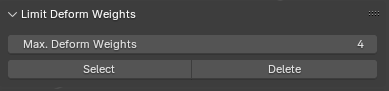
Select
Finds and selects vertices on the active mesh that have more than a specified number of deform weights affecting them.
Delete
Limits deform weights on selected vertices to a specified number by removing the lowest weights, then normalizes all remaining deform weights. Normalization has a built-in safety to avoid normalizing non-deform vertex groups.
Max. Deform Weights
The maximum number of allowed deform weights on a vertex, referenced by Select and Delete.
Game Rig Generation
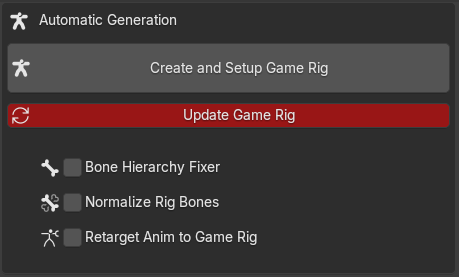
Create and Setup Game Rig
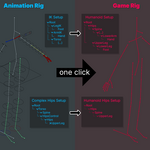
A batch operator that runs, in order, on the selected Animation Rig armature:
1Generate Game Rig
2Bone Hierarchy Fixer (if enabled)
3Normalize Rig Bones (if enabled)
4Retarget Animation Rig ➜ Game Rig (if enabled)
Update Game Rig
A batch operator that does the same as Create and Setup Game Rig, except it takes a selected Game Rig, determines what Animation Rig generated it, then cleans up the Game Rig before regenerating it with the current settings.
Generation Settings
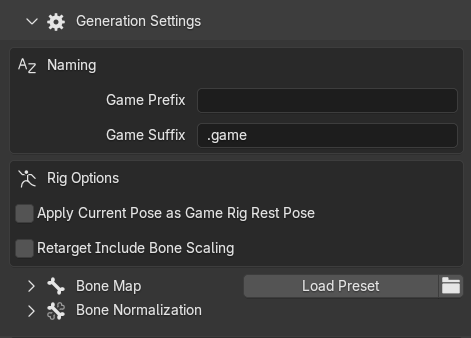
A dropdown of options that apply to Create and Setup Game Rig, Update Game Rig, and all Manual Operators.
Game Prefix / Game Suffix
What prefix/suffix will be added to the generated rigs, meshes and Actions. Aesthetic only. At least one of the fields needs to be used.
Apply Current Pose as Game Rig Rest Pose (checkbox)
Applies current pose as Rest Pose for duplicated game meshes by applying armature modifiers before adding new ones. Relevant if you want a different Rest Pose between the Animation Rig and the Game Rig (e.g. A-pose to T-pose).
Since Blender doesn't currently support applying armature modifiers to meshes with shapekeys, this setting can't be used on rigs with meshes that have shape keys.
Retarget Include Bone Scaling (checkbox)
If enabled, retargeted Game Rig pose bones also mimic bone scaling. Different game engines interpret bone scaling in different ways, usually getting better results with scaling off.
Bone Map
•Load Preset: loads a preset bone mapping file, editable within the panel. Bone name assignments should match the Animation Rig's bone names.
•Open Presets Folder: opens a file explorer at the presets location. Add your own custom bone mapping files by duplicating Default.json and editing it in a text editor.
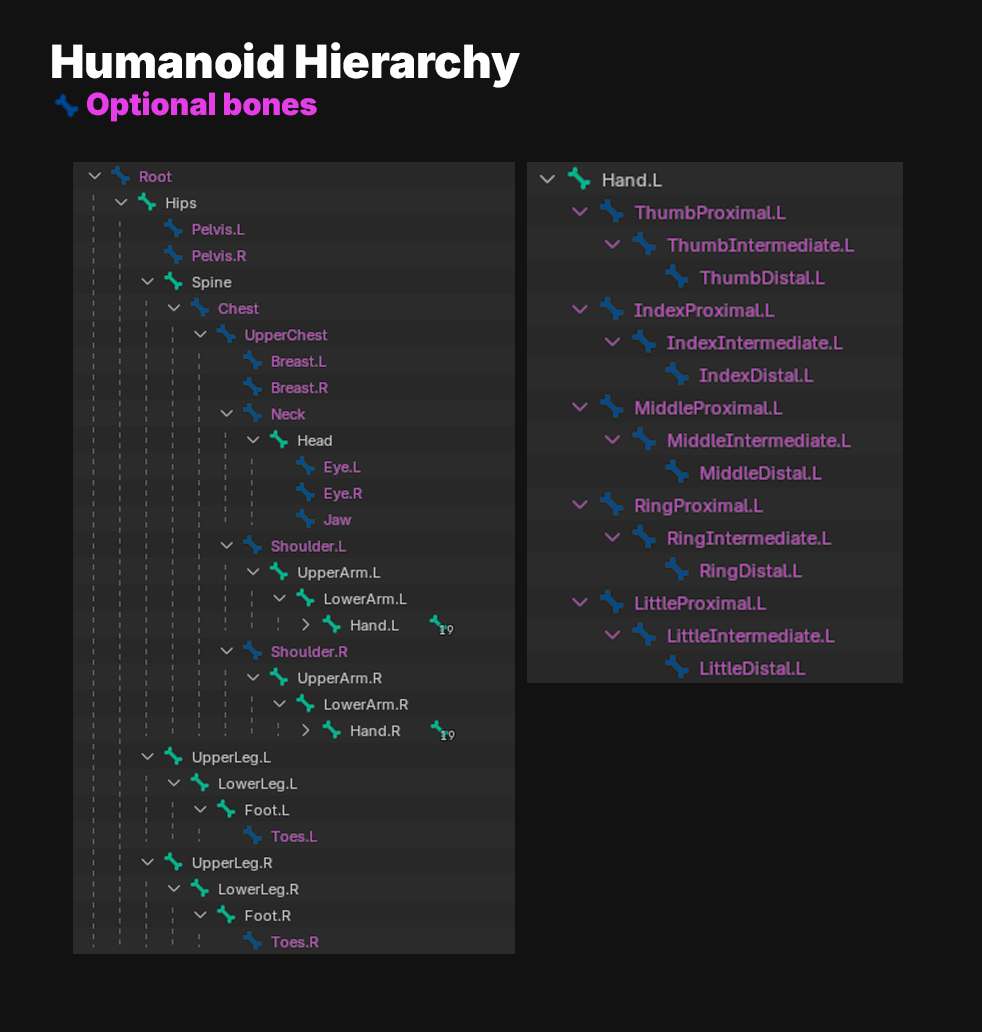
Required bones must be present in the Animation Rig for the Bone Hierarchy Fixer operator to work.
Optional bones aren't required but are still recognized by the Bone Hierarchy Fixer operator and Unity's Humanoid system.
Non-humanoid bones are ignored by this operator; they are not reparented.
Bone Normalization — Exclude bones
Comma-separated bone names to skip normalization, e.g.:
Z_helper_Hips.L, Z_helper_Hips.R
Manual Operators
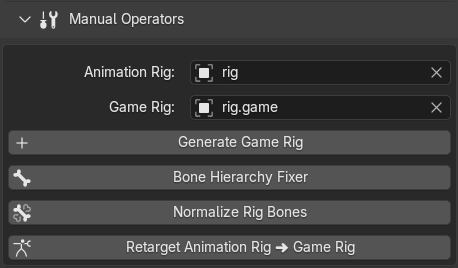
Animation Rig / Game Rig — instead of taking a selected rig, Manual Operators reference/operate on the armatures selected in the panel.
Generate Game Rig
Duplicates the Animation Rig and its meshes into a Game Rig, and removes bone constraints, bone shapes, and animation data/drivers/custom properties from the copy.
Important: The pose at the time of generation becomes the Game Rig Rest Pose. Put the Animation Rig in the desired pose (e.g. A or T pose) before running. If this desired pose isn't the Animation Rig's Rest Pose, consider enabling Apply Current Pose as Game Rig Rest Pose.
Bone Hierarchy Fixer
Reparents humanoid bones of the Game Rig to match Unity's Humanoid hierarchy. Bone names are case-sensitive, and only bones listed in the bone mapping panel are affected.
The heuristic parents each humanoid bone to its ideal parent; if that parent doesn't exist or wasn't assigned a name in the panel, it looks for the next best parent. E.g. if "Neck" and "UpperChest" don't exist, "Head" is reparented to "Chest".
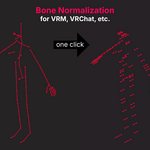
Normalize Rig Bones
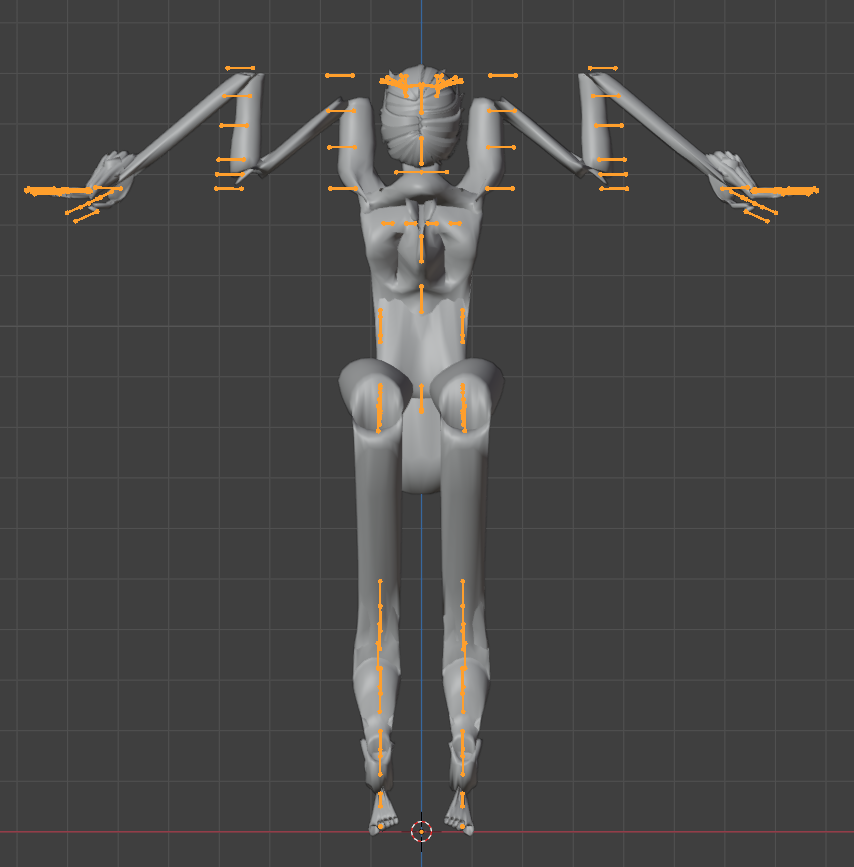
•Sets all bone vectors to +Y and rolls to 0.
•Adds leaf bones to tip bones.
•Bones listed in Exclude Bones are skipped.
Some export formats (e.g. VRM, Warudo, VRChat) require humanoid bones to be normalized. Most file conversion tools do this for you automatically (e.g. when using UniVRM in Unity). However, doing this step within Blender offers you the advantage of being able to animate a normalized rig using the retargeting system.
It's generally fine to normalize all bones, even non-humanoid bones (e.g. twist bones). Non-humanoid bones that get procedural constraints in-engine need special attention, turn normalization on/off depending on what rest pose the external engine's bone constraint expects in order to avoid unwanted offsets.
Retarget Animation Rig ➜ Game Rig
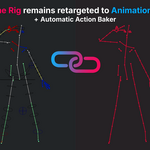
Retargets the Game Rig to follow the Animation Rig using bone constraints.
•Generates a Retarget Rig from the Game Rig, and creates retarget bone constraints on both.
•Any previously existing bone constraints on the Game Rig are destroyed.
Important: If running from Manual Operators, make sure Animation Rig and Game Rig poses match roughly to avoid baking-in unwanted offsets!
Retargeting

Enable/Disable unmutes or mutes the retarget bone constraints on the selected Game Rig.
Baking Actions
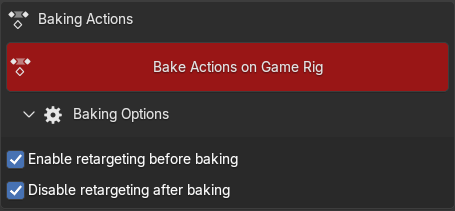
Bake Actions on Game Rig bakes Animation Rig Actions to the Game Rig using the Blender native Bake Actions operator. This operator is dependent on the NLA editor.
•The baker only considers Animation Rig Actions that are stashed as unmuted Strips under the Animation Rig object.
•Baked Game Rig Actions are automatically stashed under the Game Rig object for easy exporting.
•Actions are baked, not the visual results the NLA strips produce.
•Old Game Rig actions are overwritten.
•Actions cannot contain multiple Action Slots; only the Animation Rig should be animated.
The baked result is expected to be exported using the "NLA Strips" option in the FBX exporter. Note that for single-action exporting to FBX, baking is not needed; leaving the retargeting on during export is sufficient.
Baking Options
Enable retargeting before baking automatically enables retargeting before baking.
Disable retargeting after baking automatically disables retargeting after baking.
Both settings reflect the expected baking setup; retargeting should be on during a bake, and after a bake retargeting should be off to be able to check the result.
 Epsinym