Equal Area Sphere
 Scripting Blender


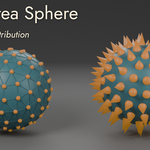
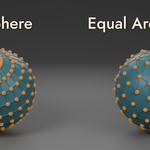
Equal Area Sphere Documentation
This documentation is for the Equal Area Sphere Addon, available on SuperHive. If you have questions not covered here, please use the Contact Creator button on the product page.
Installation
Blender 4.2 and newer (Extensions system)
- Download the
.zipfile from your SuperHive purchases - Open Blender
- Go to Edit → Preferences → Get Extensions
- Click the dropdown arrow (▾) next to "Get Extensions" and choose Install from Disk...
- Select the downloaded
.zipfile - The Addon is now installed and enabled automatically
Blender 2.80 – 4.1 (Legacy Addon system)
- Download the
.zipfile from your SuperHive purchases - Open Blender
- Go to Edit → Preferences → Add-ons
- Click Install... at the top of the panel
- Navigate to the downloaded
.zipfile and select it - Enable the Addon by checking the box next to Add Mesh: Equal Area Sphere
Note: Do not extract the .zip file before installing. Blender handles the extraction automatically.
Quick Start
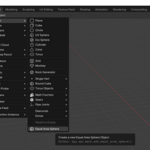
- In the 3D Viewport, press Shift + A (or use the menu: Add → Mesh)
- Select Equal Area Sphere at the bottom of the Mesh menu
- A sphere appears at the 3D cursor
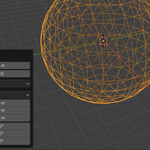
- Adjust the settings in the operator panel (bottom-left of the viewport)
That's it! The operator panel stays open until you perform another action, so you can experiment with different settings interactively.
Parameters
After adding an Equal Area Sphere, the operator panel provides these controls:
Radius
The radius of the sphere in Blender units. Accepts values from 0.001 to 100.0 (soft limits), with a default of 1.0 meter.
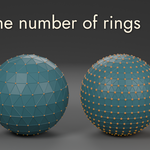
Number of Rings
Controls the vertex density. This is the number of horizontal latitude rings that divide the sphere. More rings means more vertices, distributed evenly.
- Minimum: 3 rings
- Default: 6 rings (produces a clean low-poly sphere)
- Soft Maximum: 100 rings (higher values are possible but will be slower, especially with face generation)
The actual number of vertices per ring is calculated automatically by the algorithm to maintain approximately equal spacing in all directions.
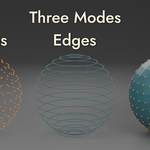
Mesh Type
Choose what geometry to generate:
- Vertices Only vertex points, no edges or faces. Ideal for use with Geometry Nodes (Instance on Points), particle systems, or as a point cloud.
- Edges Vertices connected by edges along each ring. Useful for wireframe effects or as a cage for other operations.
- Faces Full polygon mesh with quads and triangles. Ready for rendering, sculpting, or further modeling.
Standard Controls
The operator also includes Blender's standard placement controls: Align (World, View, Cursor), Location, and Rotation.
Working Modes
Object Mode
Adds the Equal Area Sphere as a new object in the scene, placed at the 3D cursor position.
Edit Mode
Adds the Equal Area Sphere geometry into the currently active mesh object and merges it. The existing object's name is preserved. This is useful for combining the sphere with other geometry in a single mesh.
Use Cases and Tips
Geometry Nodes — Instancing objects on a sphere
Set Mesh Type to Vertices, then use an Instance on Points node to scatter objects evenly across the sphere surface. Because the vertices are uniformly distributed, you won't get the clustering at the poles that you'd see with a standard UV Sphere.
Particle systems
Use the vertex-only mode as an emitter for particles. The equal distribution ensures uniform emission density across the entire sphere surface.
Low-poly art
Set the Number of Rings to a low value (3–8) with Mesh Type set to Faces for clean, balanced low-poly spheres where every face reads clearly.
Procedural modeling and displacement
The even face sizes make this an excellent base mesh for displacement and subdivision — you won't get the stretched or compressed faces near the poles that cause issues with UV Spheres.
Higher density spheres
For dense spheres (50+ rings), consider starting with Vertices mode first to check the distribution visually, then switch to Faces once you're happy with the density. Face generation at very high ring counts can take a moment to compute.
How It Works
The Addon implements the Deserno equal-area distribution algorithm. Instead of placing vertices at fixed longitude/latitude grid points (which bunches them at the poles), it:
- Divides the sphere into horizontal rings spaced at equal angular intervals
- For each ring, calculates how many vertices fit while maintaining approximately equal spacing along the ring as between rings
- The result is faces that all cover roughly the same surface area
This is fundamentally different from Blender's UV Sphere (which uses a fixed grid causing polar clustering) and the Ico Sphere (which only allows specific subdivision levels and produces only triangles).
Known Limitations
- At very high ring counts (200+), face generation can take several seconds. Vertex-only mode is fast at any ring count.
- The face stitching between rings with different vertex counts produces a mix of quads and triangles.
- The Addon does not currently support UV unwrapping. The generated mesh can be UV unwrapped using Blender's standard tools after creation.
Troubleshooting
The Addon doesn't appear in the Add menu:Make sure the Addon is enabled. Go to Edit → Preferences → Add-ons (or Get Extensions in 4.2+) and search for "Equal Area Sphere." Ensure the checkbox is ticked.
The sphere looks the same as a UV Sphere:At high ring counts the visual difference becomes subtle in solid shading. Switch to wireframe view (Z → Wireframe) to see the even vertex distribution, or use a low ring count (6–12) where the difference is most obvious.
Face generation is slow:Reduce the Number of Rings. For most use cases, 6–24 rings provides an excellent balance of quality and speed. If you only need points for Geometry Nodes, use Vertices mode which is instantaneous at any ring count.
Have questions about this product?
Login to message
| Blender Extension Compatible | Yes |
| Dev Fund Contributor | |
| Published | 7 months ago |
| Blender Version | 2.8 - 5.1 |
| Extension Type | Add-on |
| Render Engine Used | Cycles, Eevee |
| License | GPL |

Discover more products like this
procedural low poly Geometry primitives point cloud parametric mesh tools mesh topology sphere Mesh Generation modeling