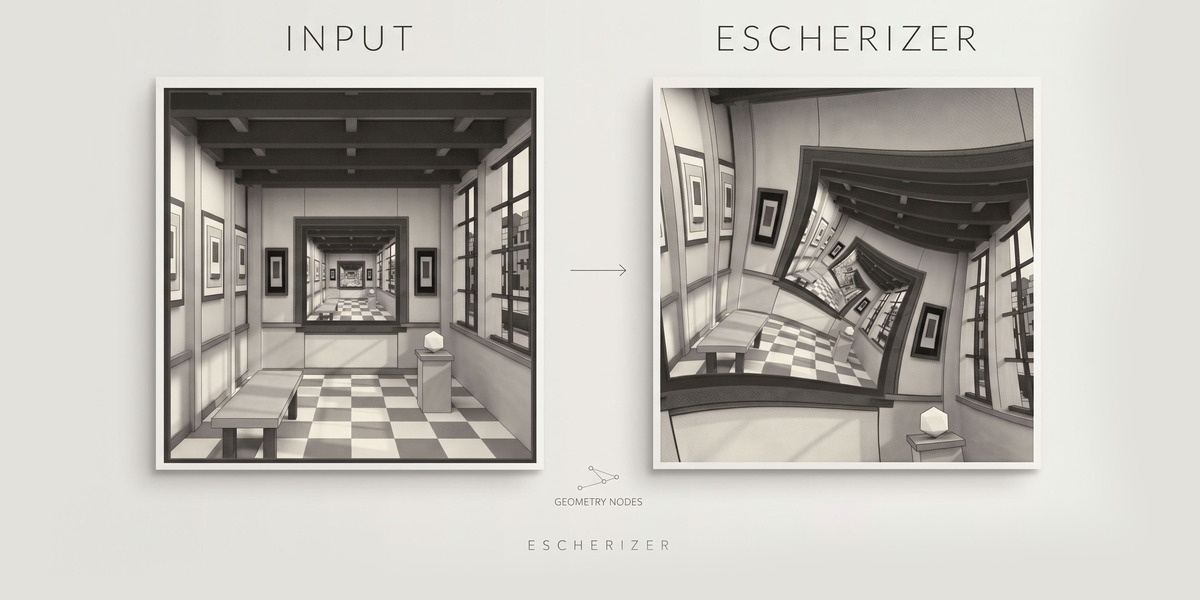
The Escherizer - Seamless Escher Zoom Spiral From Any Image (In Geometry Nodes)
 codesignprojects
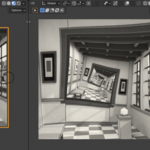
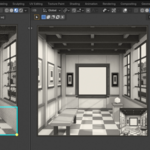
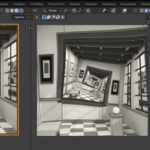
Can I use any custom image or aspect ratio (widescreen, portrait, square)?
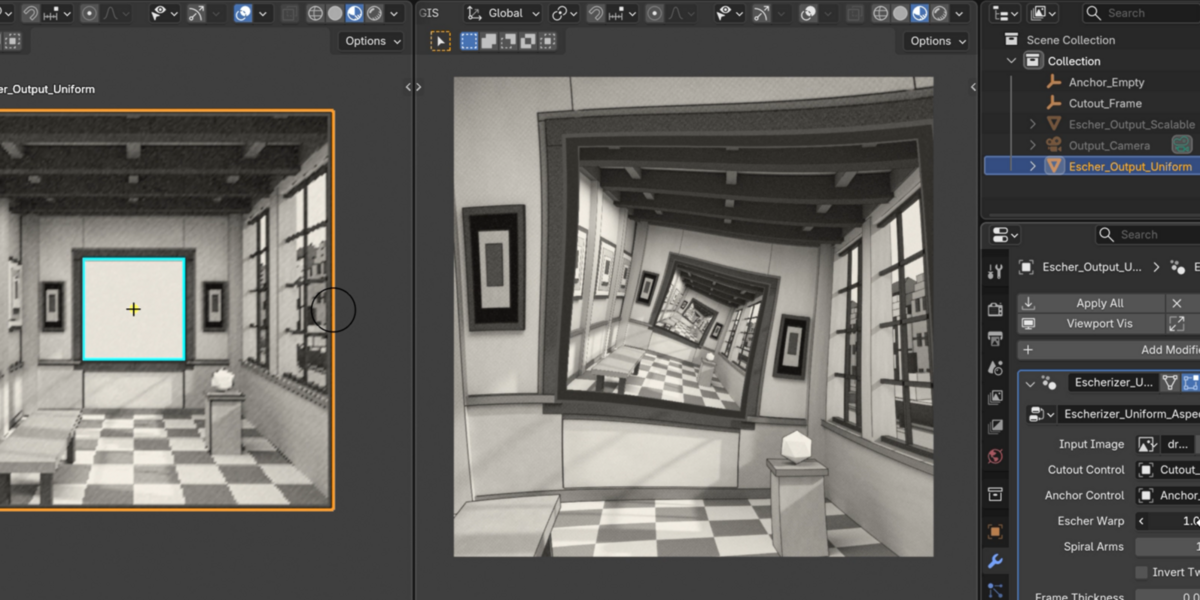
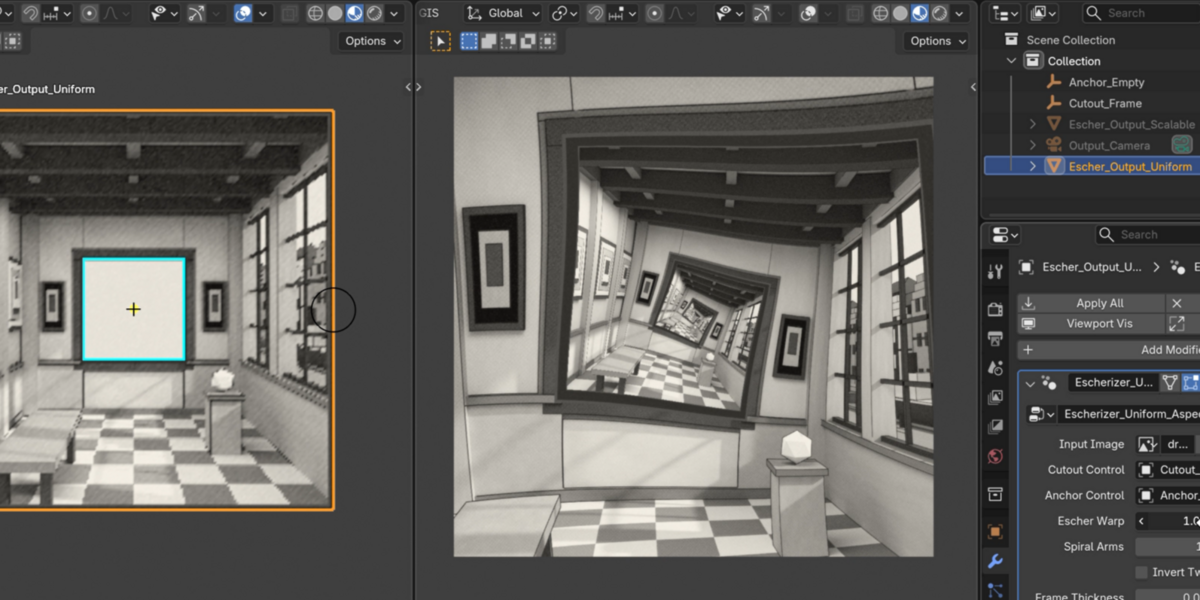
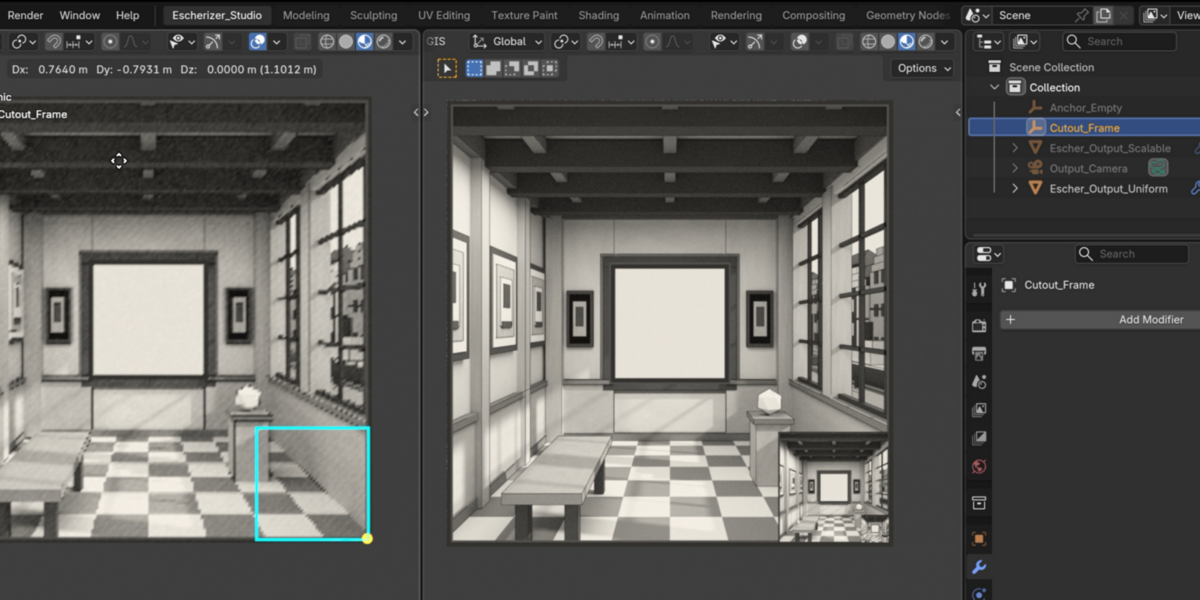
Yes. Select Escher_Output, go to Modifiers → Escherizer, and pick any image in Input Image. The Image_Aspect group reads your photo's pixel dimensions automatically. Even if you scale Cutout_Frame non-uniformly (e.g., fitting a wide window inside a square photo), the auto-crop system displays an Amber crop guide and lets you slide Crop Offset X/Y so nested copies never stretch or squash.
Why do some photos look completely seamless while others show a visible border?
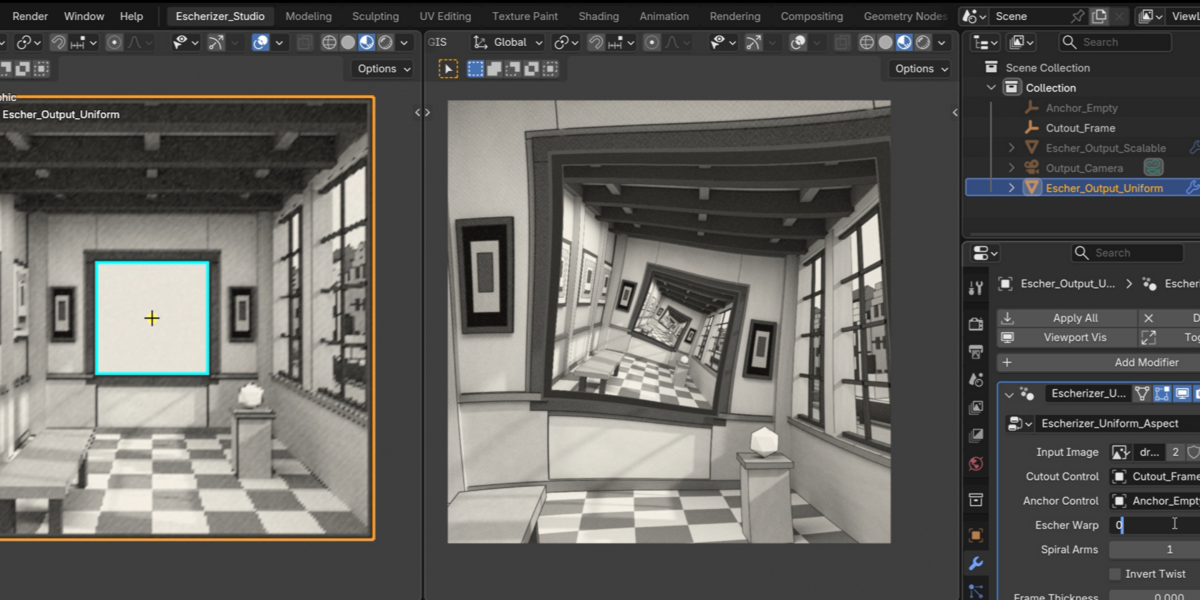
Conformal Droste mapping stitches the four outer edges of the active picture area directly onto the four edges of your cutout portal. For the most natural look, either place Cutout_Frame inside a real-world opening (a window, doorway, mirror, or picture frame) with Frame Thickness = 0.0, or place it on a clean wall/background and raise Frame Thickness (around 0.006–0.012) so the procedural frame creates a crisp gallery border around every nested copy.
How do I animate a seamless infinite-zoom loop?
Animate Anchor_Empty orbiting in a circle around the Amber vanishing-point dot (z0) in the Left Viewport. One full 360° orbit smoothly advances the spiral by exactly one complete recursion layer, looping seamlessly back onto the first frame. You can also keyframe Escher Warp from 0.0 to 1.0 to morph smoothly from a flat Droste image into a twisting spiral.
Why do curved edges look slightly soft in the viewport, and how do I make final renders sharper?
To keep dragging Cutout_Frame and Anchor_Empty fast and responsive (~30 FPS), the modifier automatically evaluates Viewport Resolution = 512 in the viewport and switches to Render Resolution = 1536 when you press F12. Because colors are sampled per vertex onto the mesh grid, simply raise Render Resolution (e.g., to 2048 or 3072) for ultra-crisp 4K stills or close-up detail.
Q: Will the Left Control Canvas and colored guides show up in my F12 render? A: Not with the default
Will the Left Control Canvas and colored guides show up in my render?
Not with the default Output_Camera, which is framed strictly on the live output at X = 0 while the Control Canvas sits off-screen at X = -1.6. If you zoom/move the camera out or drop Escher_Output into a reflective 3D scene, simply uncheck Show Control Canvas in the modifier before rendering. If you want to render the guides for a tutorial or breakdown, leave Show Control Canvas checked and frame X = -1.6.
Why is Output_Camera greyed out in the Outliner?
Output_Camera has Disable in Viewports enabled so its camera wireframe doesn't clutter the top-down studio viewports—it still renders normally with F12. To show it in the viewport (e.g., to re-frame for a widescreen image), select Output_Camera → Object Properties → Visibility → check Viewports (or enable the Monitor toggle in the Outliner's filter funnel).
Are the node trees unlocked so I can inspect, learn from, or modify the math?
Yes - open and unlocked. All 6 main frames and 6 shared helper groups (Image_Aspect, Cutout_AutoCrop_Rig, Escher_Multiplier, Complex_Log, Complex_Exp, Complex_Mul) use local in-situ inputs with zero wire spaghetti, yellow/blue sub-frame color coding, in-graph InfoNodes (including an everyday-language Concept Explanation), and a complete 3-part Info guide inside the Text Editor.
Have questions about this product?
Login to message
| Published | about 1 hour ago |
| Blender Version | 4.2 - 5.3 |
| Render Engine Used | Cycles, Eevee |
| License | Creative Commons |
Discover more products like this
procedural infinite zoom transform escherizer logarithm escher escher spiral fractal optical-illusion 1b3b droste effect math