Everclay: Non-Destructive Sculpt Layers for Blender Multires
 Paulo Antunes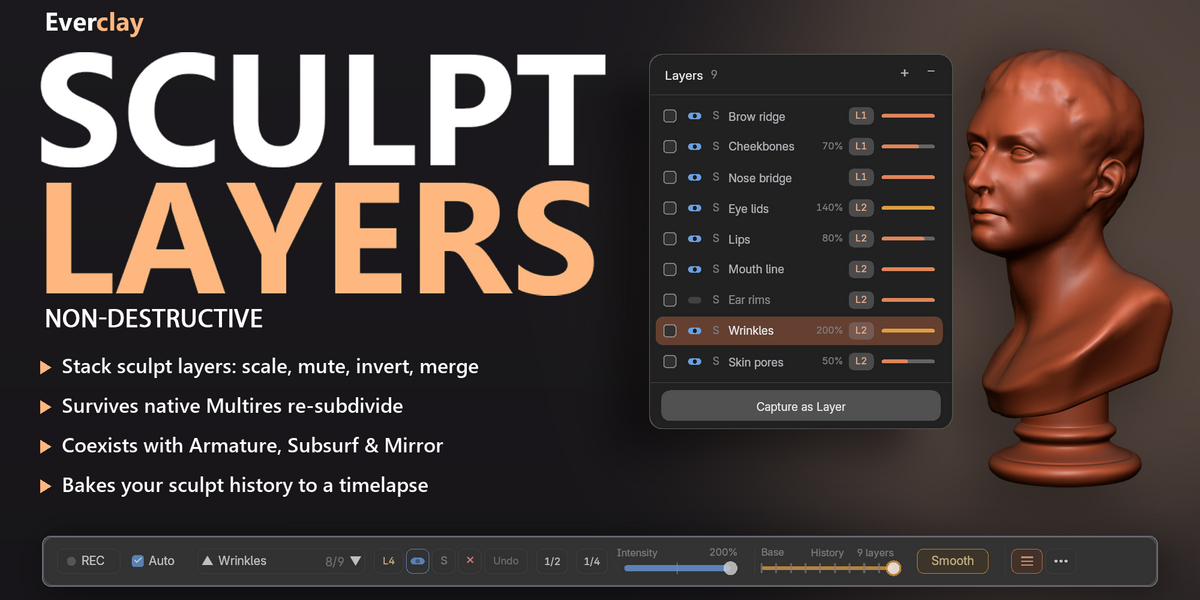
Everclay quickstart
Non-destructive sculpt layers for Blender 5.2+. This gets you from install to your first layer stack in a few minutes. Button names below match the N-panel.
Install
- In Blender: Edit > Preferences > Get Extensions > Install from Disk, pick the Everclay .zip, and enable it.
- In the 3D viewport, open the N-panel (press N) and select the Everclay tab.
1. Initialize
- Select your object (a Multires object or a plain mesh; both work).
- Click Initialize Everclay. The layer list appears.
2. Make your first layer
Manual: click Record, sculpt your pass, then click Commit to Layer. The pass becomes a new layer in the list. Use Cancel Recording to throw a pass away.
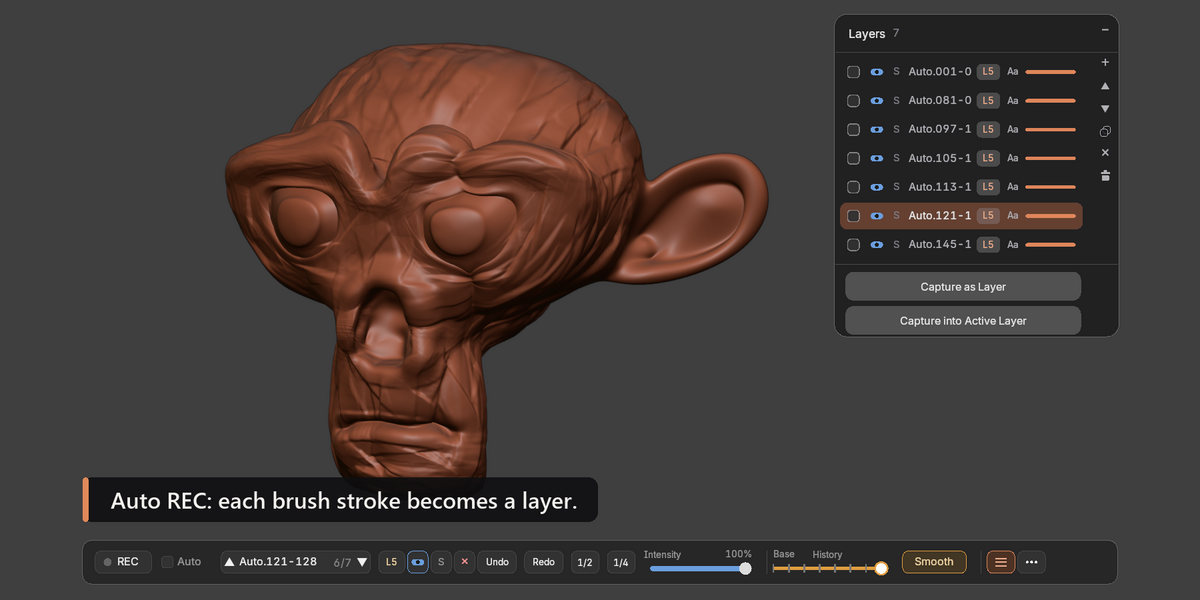
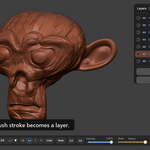
Automatic: turn on Auto REC and just sculpt. Every brush stroke becomes its own layer.
3. Control layers
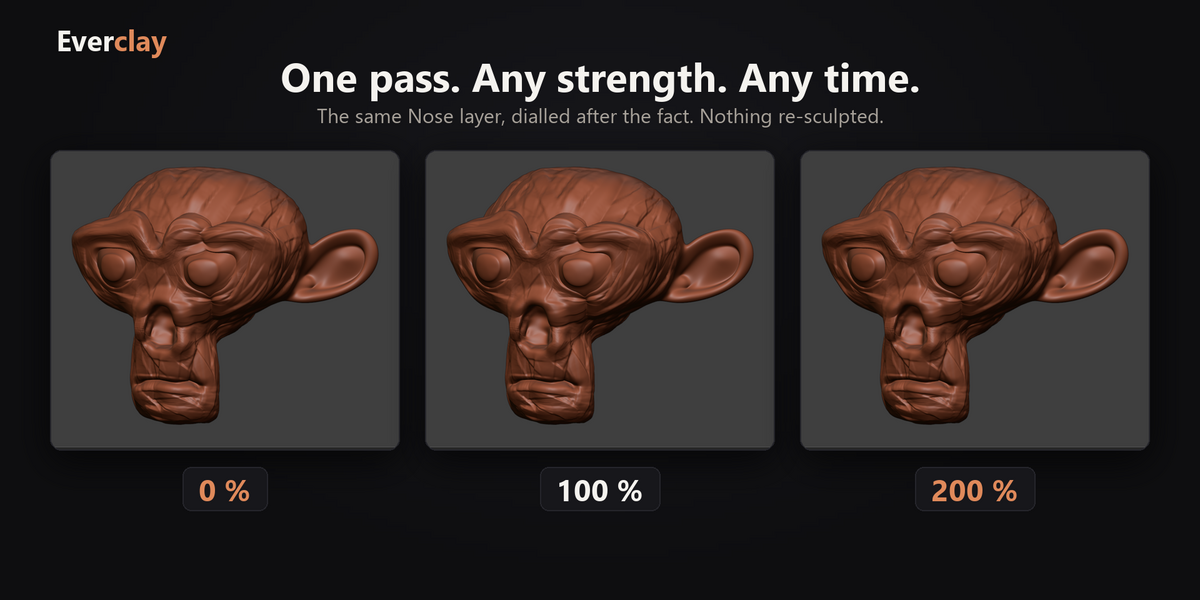
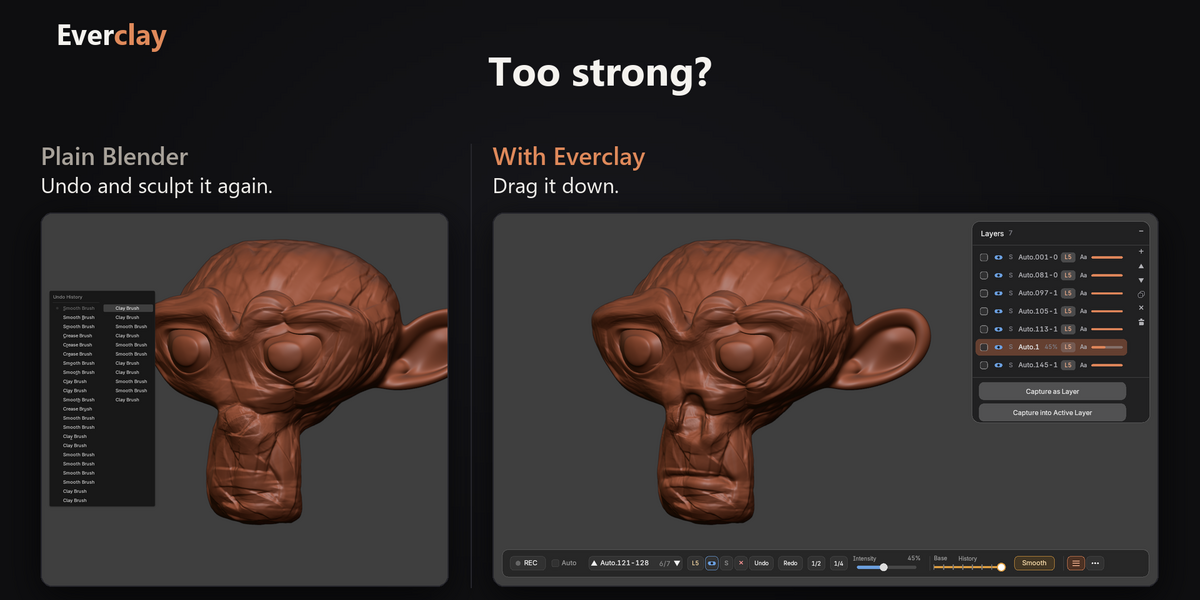
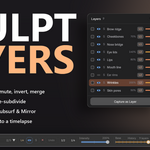
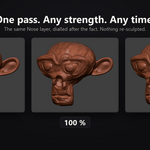
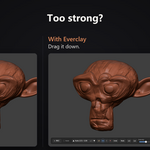
- Intensity: drag a layer's slider to scale its effect (-200% to 200%).
- Visibility: toggle a layer on/off with its eye.
- Solo / Mute: isolate one layer, or silence others, from the layer row.
- Reorder: use Move Layer. Reordering is instant.
4. Organize
- New Group creates a folder; Assign Checked to Group moves checked layers in.
- Groups collapse and carry their own solo and mute, built for 20+ layer stacks.
5. Layer tools
- Duplicate Layer: copy a pass.
- Invert Layer: turn a push into a pull.
- Merge Selected Layers: combine checked layers into one.
- Flatten to Base: bake everything down into a clean base (the one destructive, opt-in operation).
6. Survive a re-subdivide
- Sculpt and commit a few layers.
- Add a native Multires level (Subdivide in the Everclay panel).
- Your layers stay live. Keep tweaking intensity or sculpt more.
7. ZBrush / external round-trip
- Send the mesh out (GoB, GoZ, or export OBJ) and edit it elsewhere.
- Bring the changed mesh back over the same object (same topology and vertex order).
- Click Capture as Layer: the external change returns as one non-destructive layer.
8. Shape key from a layer
Select a layer and click Create Shape Key from Layer. Animate the key's Value with Blender's standard shape-key workflow.
9. Bake a timelapse
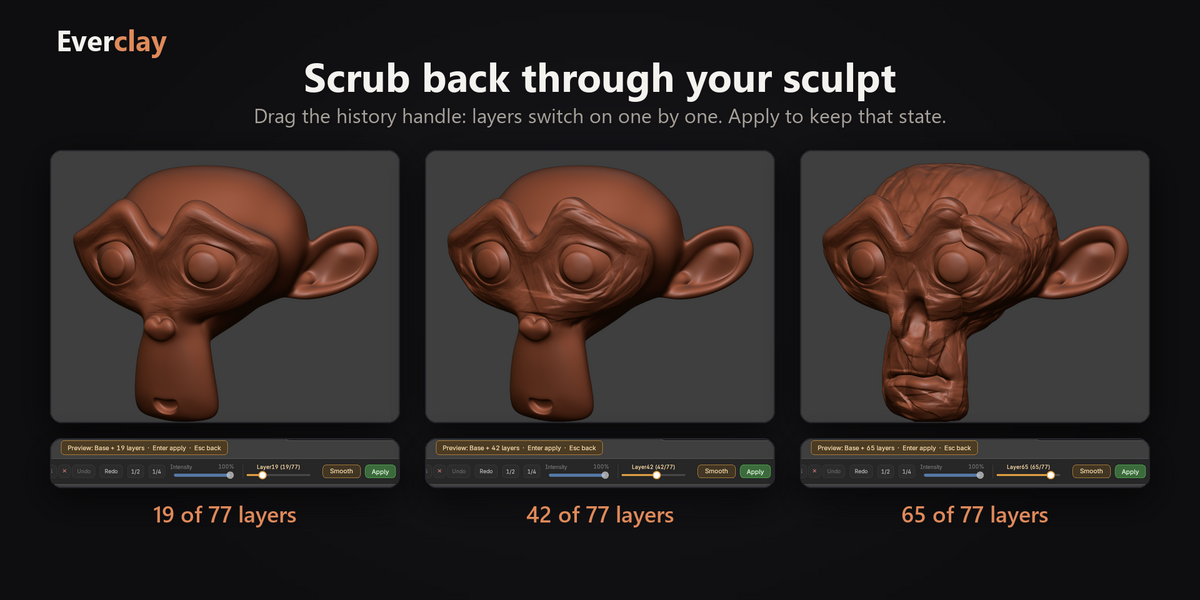
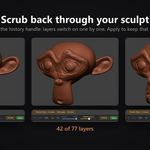
Click Bake Timelapse. Everclay builds a copy that morphs from base to final sculpt, keyframed and render-ready. Scrub the timeline to preview, then render a progress video.
Troubleshooting
- Panel missing? Confirm the add-on is enabled and you're on the Everclay N-panel tab.
- Nothing records? Make sure you clicked Initialize Everclay and you're in Sculpt Mode.
- Cleaning up: Purge Orphan Layer Data removes stale data left by deleted objects.
Have questions about this product?
Login to message
| Blender Extension Compatible | Yes |
| Published | about 5 hours ago |
| Blender Version | 5.2 |
| Extension Type | Add-on |
| License | GPL |

Discover more products like this
non-destructive zbrush sculpt layers timelapse Sculpt multiresolution Multires shape keys sculpting layers Brush Workflow