Export Director Pro
 Steven Seidler (Blendscapes3D)



Export Director Pro Documentation
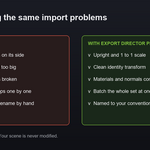
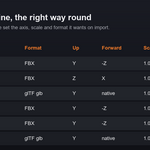
One click game engine export for Blender. Pick your engine, pick a folder, click Export. Meshes land upright and at one to one scale with the axis, scale and format that engine wants on import. Everything is non destructive, so your scene is never modified.
Installation
- Download the zip file from your Superhive purchase.
- In Blender open Edit, then Preferences, then Get Extensions.
- Open the drop down menu in the top right corner and choose Install from Disk.
- Pick the zip file.
- Open a 3D Viewport, press N, and click the Export tab.
Requires Blender 4.2 or later. Tested through 5.1.
Quick start
- Select the object or objects you want to export.
- In the N panel Export tab choose your Output Folder.
- Click a quick button for Unity, Unreal, Godot or Roblox, or pick an engine and click Export.
That is it. The file is written with that engine correct axis and scale.
The panels
Export Director Pro is the main panel. It shows how many objects will be exported, the engine selector, the output folder, the big Export button, Re Export Last and Open Folder.
Quick Export gives you one click buttons for Unity, Unreal, Godot and Roblox. Each button exports your current selection straight to that engine settings.
Export Profiles lets you save and load complete setups. Save the current engine, folder, naming and options under a name, then switch between projects in one click. Profiles are stored in the add on preferences and stay available across files.
Batch and Naming controls how objects are grouped into files and how those files are named.
Mesh and Transform holds the export options such as Apply Modifiers, Triangulate, Export at Origin, Apply Transform and Multi Format.
Preflight Health Check scans your selection for problems that break engine imports before you export.
Engine reference
| Engine | Format | Up | Forward | Scale |
| Unity | FBX | Y | negative Z | 1.0 |
| Unreal | FBX | Z | X | 1.0 |
| Godot | glTF glb | Y | native | 1.0 |
| Roblox | FBX | Y | negative Z | 1.0, hard normals |
| Generic FBX | FBX | Y | negative Z | 1.0 |
| Generic glTF | glTF glb | Y | native | 1.0 |
Batch modes
- One File Per Object writes a separate file for every selected object. Perfect for prop libraries.
- One File Per Collection groups objects by their collection, one file per collection.
- Single File writes every selected object into one combined file.
Filename templates
Build filenames from a prefix, a template and a suffix. The template understands three tokens.
- object becomes the object name.
- collection becomes the first collection the object belongs to.
- scene becomes the scene name.
For example a prefix of SM with the object token names a whole batch to a static mesh convention without typing a single name.
Mesh and transform options
- Selected Only. On by default. Turn it off to export every visible mesh in the scene.
- Apply Modifiers. Evaluates the modifier stack into the exported mesh.
- Triangulate. Adds triangles on export only. Your scene keeps its quads.
- Export at Origin. Writes each object centred at the world origin in the file. Your scene objects do not move.
- Apply Transform. Freezes rotation and scale into the exported mesh so the engine sees a clean identity transform. This removes the most common cause of wrong scale and broken lighting on import.
- Also Export glTF or FBX. Writes the other format alongside the engine native one, so you get both in a single click.
All of these run on temporary copies. Your real objects keep their position, rotation, scale and topology.
Preflight Health Check
Open the Preflight Health Check panel and click Check Selection. The report flags the problems that quietly break engine imports.
- Scale that has not been applied.
- Negative scale that will flip normals on import.
- N gons, which many engines fan triangulate badly.
- Missing UV maps.
- Missing materials.
- Very high poly counts.
In the add on preferences you can turn on Block Export on Health Errors to refuse exporting while error level problems remain.
Profiles
Set up the engine, folder, naming and options the way a project needs. In the Export Profiles panel click Save Current as Profile and give it a name. Later pick the profile and click Load to apply it instantly. Use the trash button to delete a profile. Profiles persist across files.
Re Export Last
After any export the add on remembers the objects and settings you used. Tweak a mesh, then click Re Export Last to write the same files again, even if your selection has changed. This is built for fast iteration.
Preferences
Open Edit, then Preferences, then Add ons, then Export Director Pro.
- Default Engine. The engine selected for new scenes.
- Open Folder After Export. Opens the output folder when an export finishes.
- Warn Before Overwriting. Reports when a file of the same name is replaced.
- Block Export on Health Errors. Stops the export when the health check finds errors.
Tips
- Point your Output Folder straight at the project assets folder of Unity or Godot. Those engines watch the folder and import automatically, so Re Export Last gives you a live update workflow.
- Use Export at Origin for prop libraries so every asset sits at the origin in the engine.
- Turn on Apply Transform whenever an object has a non identity scale or rotation.
- Run the health check before a big batch to catch missing UVs and unapplied scale early.
Troubleshooting
- Nothing exports. Make sure at least one object is selected and that an output folder is set.
- The mesh is upright but lit wrong in the engine. Turn on Apply Transform so rotation and scale are frozen into the mesh.
- Files import flipped. Run the health check. Negative scale flips normals. Apply the scale and export again.
Compatibility
Blender 4.2 through 5.1 plus. Windows, macOS and Linux. Pure Python with no external dependencies. Uses the built in FBX and glTF exporters.
Support
Questions or requests are welcome by email at [email protected]
Have questions about this product?
Login to message
| Blender Extension Compatible | Yes |
| Published | 3 months ago |
| Blender Version | 4.2 - 5.1 |
| Extension Type | Add-on |
| Render Engine Used | Cycles, Eevee |
| License | GPL |