Ez Grass
 HD Assets


Introduction
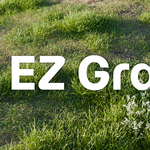
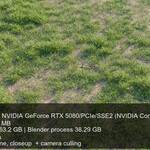
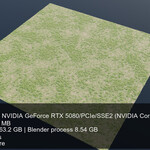
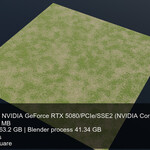
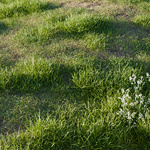
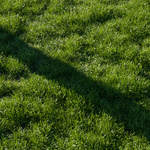
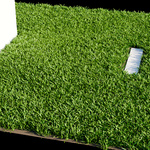
Ezgrass is a plugin/model pack that gives you the ability to easily add grass to your scene. The main goal of this project was to create photorealistic effect with minimal user input. There was also a secondary focus on optimising the product, so it is as lightweight as possible, keeping in mind that practical use of this product will involve hundreds of thousands of instances. The latter was achieved through mindfull mesh optimisation and creating a fast poisson node, that circumvents the slow Poisson Disc distribution in blender.
Installation
Product does not require system installation and is handled through unzipping the contents and adding them to your blender asset library destination. The typical procedure is as follows:
- Download the EZ GRASS.rar file from the product page
- Unpack it to any destination
- Go into blender settings > File Paths > Asset Libraries > Add Asset Library
- Add the destination of unzipped contents to your asset library
- Select import method > Pack (should be selected by default)
- Save preferences
Or
- Download the EZ GRASS.rar file from product the page
- Unpack it to existing Asset Library destination
The EZ Grass library should appear in the asset library browser.
Using EZ Grass
Basic usage
The product was made to be used via blender's native asset library interface, which involves dragging & dropping assets to scene. All of the product's content are geonode setups akin to Particle Systems - they need a base mesh to spawn it's contents on. The typical procedure is as follows:
- Navigate to asset library view in blender
- Find "EZ Grass" folder, or the subfolders: EZ Grass, EZ Flowers
- Pick asset you wish to add to your scene
- Drag & drop it on top of mesh you wish to add the assets to (terrain object).
- Wait until the results are shown. Large meshes may take a while to show the results.
Geometry nodes systems base their measurements on object's scale, which might be changed when transforming the object. All of the objects should have the XYZ scale of 1.000. Apply scale to the mesh you wish to add the assets to (Ctrl+A->S).
Linking via driver
Some of the settings are working best if they are linked via Blender's driver system. For example in Camera Culling > Focal Length: If you animate the camera, or change the focal length there is no way yet to link it through geometry nodes. Blender's driver system adds a few steps to the setup, but overall works well.
- Select the active camera > Data > Focal length
- Right click > Copy as New Driver
- Select grass object > Modifiers > EZ Grass Wild (for example) > Camera Culling > Focal Length
- Right click > Paste Driver
The Focal Lengths of the camera and the modifier are now linked.
Customisation & options
All of the customisation is intended to be achieved using the modifier interface. EZ Grass doesn't rely on any custom properties, scripts or any non-vanilla features of blender. All of the variables are stored as geometry nodes attributes, or shader nodes variables. Shaders can work without the attributes, they won't appear as black when the attributes are missing.
Main goal of customisation is to make EZ Grass assets fit in the scene with other assets. When the scene is relying on assets from different sources it's inevitable that there will be some differences in albedo of the objects, mainly the base value of used colours.
Further customisation
If you wish to further edit the appearance of the EZ Grass Assets, it must be done by either adding geometry nodes on top of the EZ Grass modifiers, appending the source files into the file, or editing the product files directly (The file hierarchy is discussed in "File hierarchy section").
Geometry nodes influence
If you wish, you can add a geometry nodes that will control shader attributes further. As of now there are two available attributes you can tweak using geometry nodes:
- ezgrass_hue
- ezgrass_value
You may influence above attributes with any nodes like Noise, Random, Math. Influenced node should be stored via Store Named Attribute.
Scene setup for best results
It is recommended to use Blender's built-in Sky Texture with the default settings. Change Sun Rotation and Sun Elevation to fit your scene. Adjust Exposure in Render > Scene Color Management. If there are clashes in scene exposure and grass exposure, adjust brightness in the modifier interface.
Modifier Interface
Below is the descriptions for all of the geometry node setups. Not that some of the settings repeat.
EZ Grass Cut
Basic Settings
Basic settings for controlling the look of grass
- Simplify Viewport - Reduces the number of instances in viewport - on by default.
- Seed - Seed for points distribution
Collisions
Select objects or collections that delete the grass in proximity
- Collisions - Select objects or collections that delete the grass in proximity
- Boundary collision - Choose whether the boundary edges of the base mesh should be added to collisions.
- Collision Collection - Collision objects collection, can be left empty
- Collision Object - Collision object, can be left empty
Camera culling
Don't spawn grass that is not seen by camera. Usefull for bigger scenes
- Camera culling - Limits instancing only to the points seen by camera. Usefull in bigger scenes.
- Focal length - Focal length of camera. Can be linked to a camera via driver. Right click on camera focal length -> Copy as New Driver, right click on modifier Focal length -> paste driver.
- Sensor size - Sensor size of camera, can be linked via driver. Usually left as a default 36
- Resolution X - Width of the rendered image in pixels. Can be linked via driver or animated.
- Resolution Y - Height of the rendered image in pixels. Can be linked via driver or animated.
- Offset - Additional distance on sides of a camera triangle.
- Clipping Distance - Distance from the camera that the culling starts, should be a small number.
- Camera source - Automatically choose the active camera or select camera manually
- Camera - Choose the camera manually
Color
Color adjustment in case of clashing. Not needed to be changed.
- Tint - Yellow/green tint of the grass. 0.5 is default.
- Brightness - Brightness of the grass. 0.5 is default
Avanced Settings
Advanced settings. They don't need to be changed
- Distance Min - Minimal distance between instances
- Detail Distance Min - Minimal distance between instances for detail instances - smaller versions of the asset.
- Treshold Distance - Distance from the collision object filled with detail instances
- Detail distance - The absolute distance from the collision objects that no instances are produced
- Big source - Name of the asset
- Detail Source - Name of the instance asset
EZ Grass Flower White
Basic settings
Basic settings for controlling the look of grass
- Simplify Viewport - Simplify number of instances in viewport only. Simplified density can be adjusted in advanced settings
- Seed - Seed for points distribution
- W - The W position of noise
Collisions
Select objects or collections that delete the grass in proximity
- Collisions - Select objects or collections that delete the grass in proximity
- Mesh edge collisions - Choose whether the boundary edges of the base mesh should be added to collisions.
- Object - Collision objects collection, can be left empty
- Collection - Collision objects collection, can be left empty
- Distance - How far the collision object should influence grass
Camera Culling
Don't spawn grass that is not seen by camera. Usefull for bigger scenes
- Camera Culling - Limits instancing only to the points seen by camera. Usefull in bigger scenes.
- Focal Length - Focal length of camera. Can be linked to a camera via driver. Right click on camera focal length -> Copy as New Driver, right click on modifier Focal length -> paste driver.
- Sensor Size - Sensor size of camera, can be linked via driver. Usually left as a default 36
- Offset - Additional distance on sides of a camera triangle.
- Resolution X - Width of the rendered image in pixels. Can be linked via driver or animated.
- Resolution Y - Height of the rendered image in pixels. Can be linked via driver or animated.
- Clipping Distance - Distance from the camera that the culling starts, should be a small number.
- Camera source - Automatically choose the active camera or select camera manually
- Select a camera - Choose the camera manually
Advanced options
Advanced settings. They don't need to be changed
- Asset - Source collection name
- Distance Min - Minimum distance allowed between points
- Scale Noise variance - Variance in scale driven by a noise texture
- Size - Maximum size of the asset
- Scale randomness - Random scale variance
- Density Max - Maximum density of point distribution
- Noise scale - Scale of noise texture
EZ Grass Green
Basic Settings
Basic settings for controlling the look of grass
- Simplify Viewport - Reduces the number of instances in viewport - on by default.
- Seed - Seed for points distribution
Collisions
Select objects or collections that delete the grass in proximity
- Collisions - Select objects or collections that delete the grass in proximity
- Collision type - Choose between smooth and crisp collisions
- Absolute distance - Minimal distance from collision meshes that an instance can be spawned
- Boundary collision - Choose whether the boundary edges of the base mesh should be added to collisions.
- Collision Collection - Collision objects collection, can be left empty
- Treshold Distance - Distance from the collision object filled with detail instances
- Collision Object - Collision object, can be left empty
Camera Culling
Don't spawn grass that is not seen by camera. Usefull for bigger scenes
- Camera Culling - Limits instancing only to the points seen by camera. Usefull in bigger scenes.
- Focal Length - Focal length of camera. Can be linked to a camera via driver. Right click on camera focal length -> Copy as New Driver, right click on modifier Focal length -> paste driver.
- Sensor Size - Sensor size of camera, can be linked via driver. Usually left as a default 36
- Offset - Width of the rendered image in pixels. Can be linked via driver or animated.
- Resolution X - Height of the rendered image in pixels. Can be linked via driver or animated.
- Resolution Y - Additional distance on sides of a camera triangle.
- Clipping Distance - Distance from the camera that the culling starts, should be a small number.
- Camera source - Automatically choose the active camera or select camera manually
- Select a camera - Choose the camera manually
Color
Color adjustment in case of clashing. Not needed to be changed.
- Tint - Yellow/green tint of the grass. 0.5 is default.
- Brightness - Brightness of the grass. 0.5 is default
Advanced settings
Advanced settings. They don't need to be changed
- Detail Distance Min - Minimal distance between instances
- Distance Min - Minimal distance between instances for detail instances - smaller versions of the asset.
- Big source - Name of the asset
- Detail Source - Name of the instance asset
- Density Max - Maximum density of point distribution
EZ Grass Wild
Basic Settings
Basic settings for controlling the look of grass
- Simplify viewport - Simplify number of instances in viewport only. Simplified density can be adjusted in advanced settings
- Lushness - Bias between sparser and denser grass
- Seed - Seed for points distribution
- Noise W - The W position of noise
Collisions
Select objects or collections that delete the grass in proximity
- Collisions - Select objects or collections that delete the grass in proximity
- Boundary collision - Choose whether the boundary edges of the base mesh should be added to collisions.
- Collision Colection - Collision objects collection, can be left empty
- Collision Object - Collision object, can be left empty
- Distance - How far the collision object should influence grass
Camera Culling
Don't spawn grass that is not seen by camera. Usefull for bigger scenes
- Camera Culling - Limits instancing only to the points seen by camera. Usefull in bigger scenes.
- Focal length - Focal length of camera. Can be linked to a camera via driver. Right click on camera focal length -> Copy as New Driver, right click on modifier Focal length -> paste driver.
- Sensor size - Sensor size of camera, can be linked via driver. Usually left as a default 36
- Offset - Additional distance on sides of a camera triangle.
- Resolution X - Width of the rendered image in pixels. Can be linked via driver or animated.
- Resolution Y - Height of the rendered image in pixels. Can be linked via driver or animated.
- Clipping Distance - Distance from the camera that the culling starts, should be a small number.
- Camera - Choose the camera manually
Color
Color adjustment in case of clashing. Not needed to be changed.
- Tint - Yellow/green tint of the grass. 0.5 is default.
- Brightness - Brightness of the grass. 0.5 is default
Advanced Settings
Advanced settings. They don't need to be changed
- Asset collection name - Name of the asset
- Distance Min - Minimal distance between instances
Further support
Questions, bugs or requests: [[email protected] / https://discord.gg/aBzgRt9JuH]
Have questions about this product?
Login to message
| Published | 3 months ago |
| Blender Version | 5.1 - 5.2 |
| Render Engine Used | Cycles |
| Misc Data | Uvs-Unwrapped, Normal-Mapped, Textured |
| License | Royalty Free |