FaceKeys: Automatic ARKit Face Shape Keys
 Meshwright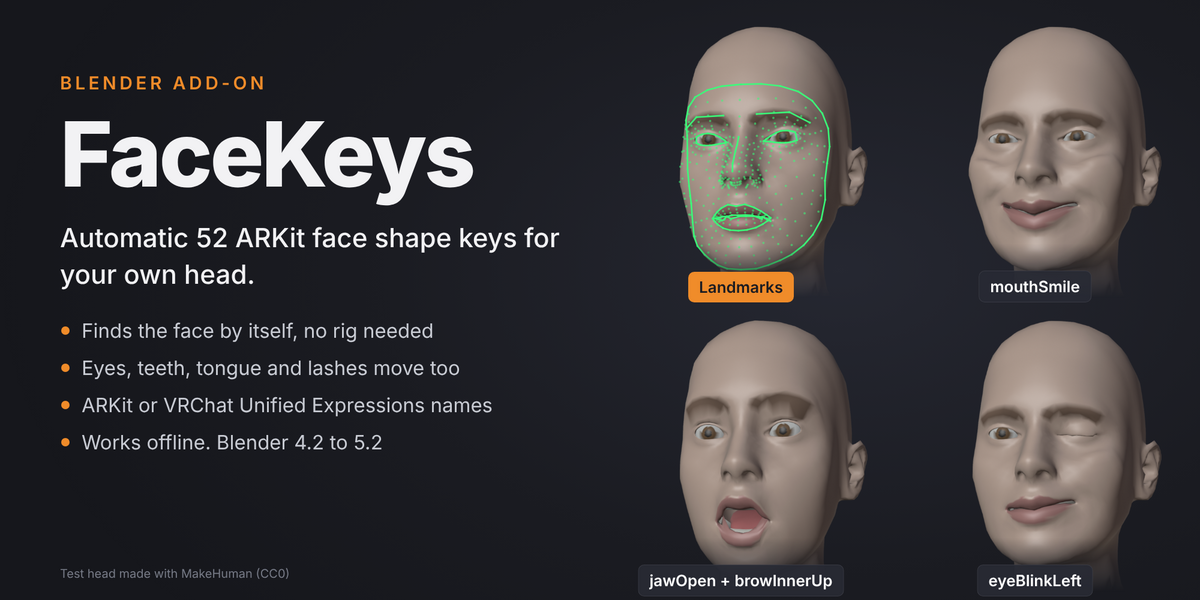
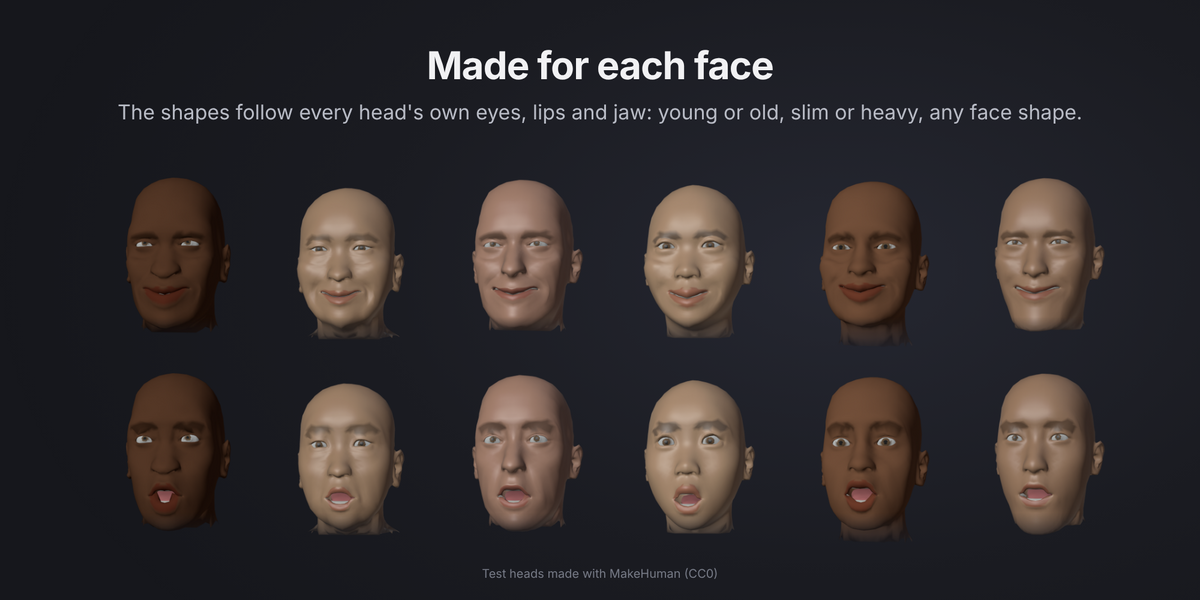
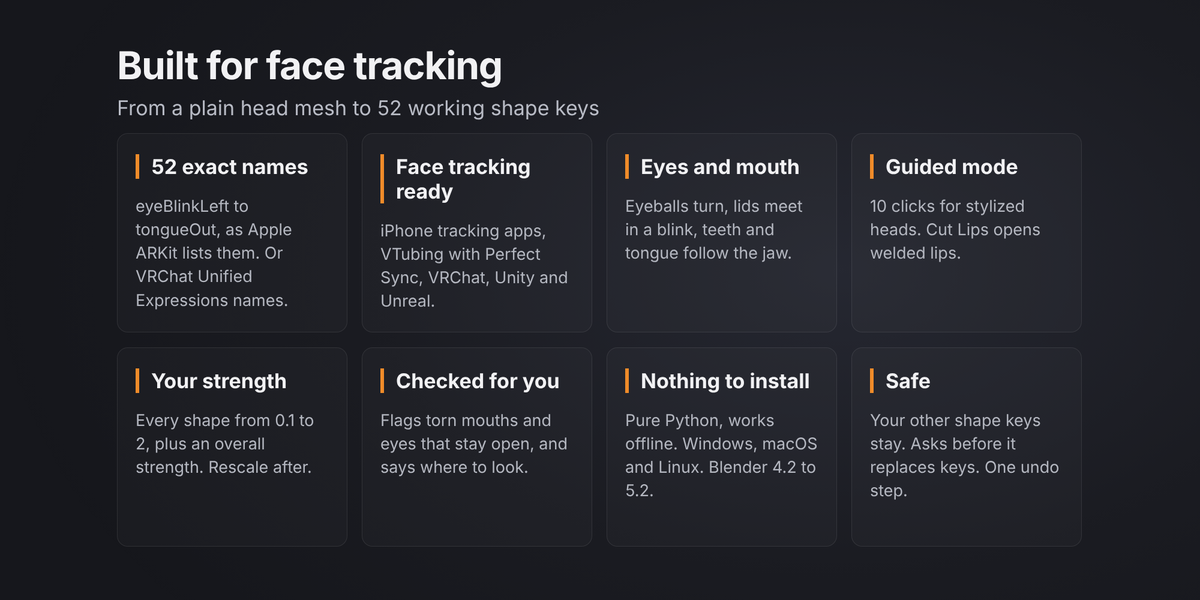
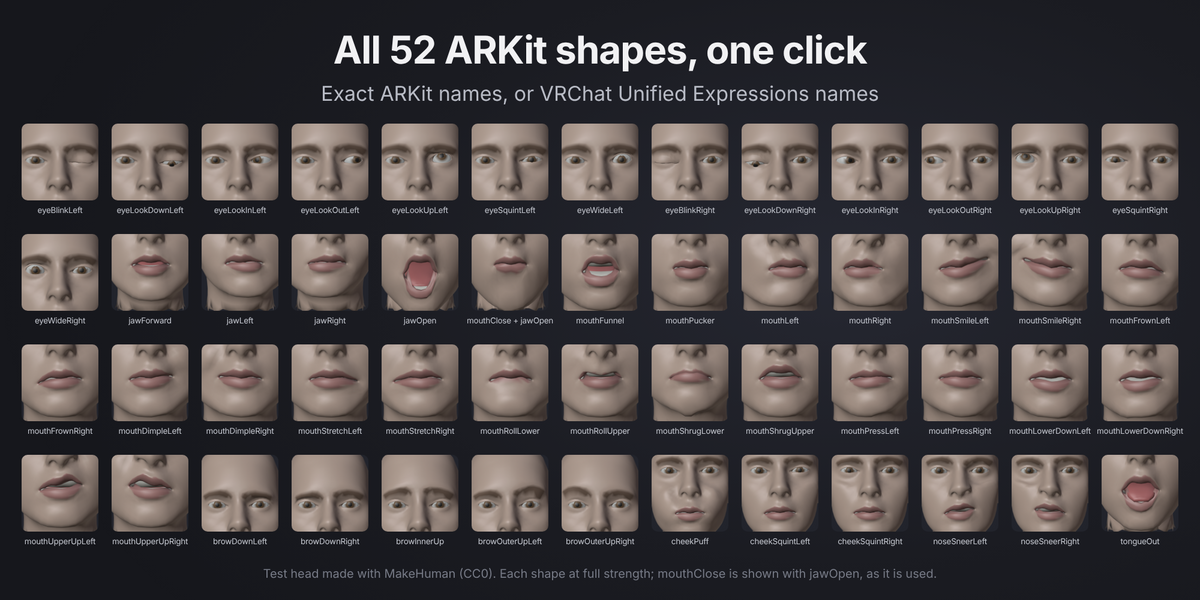
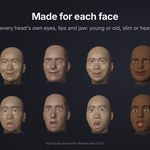
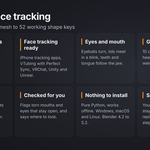
FaceKeys makes the 52 ARKit face shape keys for a head in Blender. You pick the head, check the face points, and press one button. The shape keys work with iPhone face tracking apps, VTubing apps with Perfect Sync, VRChat face tracking, Unity and Unreal.
What you need
- Blender 4.2 or newer. Tested on 4.2 LTS and 5.2 LTS.
- A head mesh with open eyes and a closed or slightly open mouth. A whole body is fine.
- Best results: separate eyeball meshes and teeth. A tongue is optional. Eyes and teeth inside the head mesh as loose parts also work.
Nothing is downloaded and nothing goes online. The face models ship inside the add-on.
Install
- In Blender, open Edit > Preferences > Get Extensions.
- Open the menu in the top right corner and choose Install from Disk.
- Pick the file
facekeys-1.0.0.zip. - Open the sidebar in the 3D Viewport (press N). You will see the FaceKeys tab.
Quick start
- Head. Pick your head mesh in the Head field, or select it. Select the eyes, teeth and tongue too if they are separate objects. FaceKeys also finds them by itself when they sit inside the head.
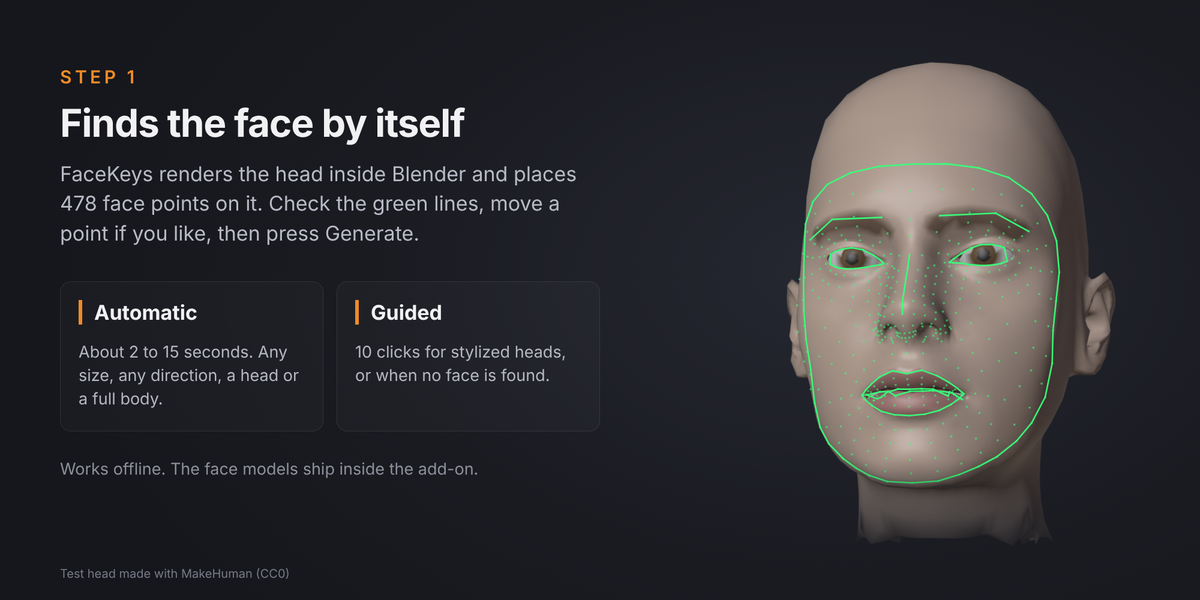
- Landmarks. Leave the mode on Automatic and press Find Landmarks. This takes about 2 to 15 seconds. Green lines appear on the face.
- Check. Look at the green lines around the eyes, lips and brows. If a point is off, select the preview object, go to Edit Mode and move the point. Go back to Object Mode when done.
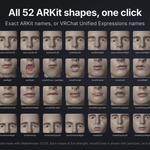
- Generate. Press Generate Shape Keys. This takes about 10 to 40 seconds. You get 52 shape keys with the exact ARKit names.
- Look. Press Play All Shapes to see every shape on the timeline, one after another. Press Stop Preview when you are done: your own animation, shape key values and frame range come back.
Guided mode
Use Guided mode for stylized and anime heads, or when Automatic says it found no face.
- Switch the mode to Guided and press Click Points.
- Click 10 points on the face in the viewport. The header tells you which point is next:
- right eye, outer corner
- right eye, inner corner
- left eye, inner corner
- left eye, outer corner
- right eye, upper lid middle
- right eye, lower lid middle
- right mouth corner
- left mouth corner
- mouth middle, where the lips meet
- chin, lowest point
- "Right" means the character's own right side. In a front view it is on the left of your screen. Right click or Backspace undoes the last point. Esc cancels. You can still orbit and zoom while you click.
- FaceKeys fits all face points from your clicks. Check the green lines and press Generate Shape Keys.
Joined lips
Some meshes have the upper and lower lip joined. Then no shape can open the mouth. FaceKeys tells you when this is the case.
Press Cut Lips. It splits the mesh along the line where the lips meet. It keeps UVs and weights. Then press Generate Shape Keys again. If the cut cannot separate the lips, the mesh stays as it was and you get a message. Then select the edges between the lips by hand and use Edge Split.
Names
- ARKit: eyeBlinkLeft, jawOpen, mouthSmileLeft and so on. Use these for iPhone tracking apps, VTubing apps with Perfect Sync, Unity and Unreal.
- Unified Expressions: the names VRChat face tracking (VRCFaceTracking) uses, like EyeClosedLeft and JawOpen.
You can switch the names and press Generate Shape Keys again. FaceKeys renames its own keys, so you always have one set of 52.
Strength
Open the Strength panel.
- Overall Strength scales every shape.
- Per Shape lists all 52 shapes by group. Set a value from 0.1 to 2.
- Press Apply Strength to rescale the shape keys you already made. Reset sets every value back to 1.
The strengths are also used the next time you press Generate Shape Keys.
Options
- Use Selected Objects as Parts: selected meshes get the shapes too.
- Find Eyes and Teeth: also looks for eye, teeth and tongue meshes near the face.
- All 52 Keys on Every Part: every part gets all 52 keys, also the ones that do not move it. Game engines usually want this.
- Keep Landmarks: keeps the green preview object after you generate.
- Quality: High gives finer weights for dense meshes. It is slower.
- Remove Shape Keys: removes the 52 keys FaceKeys made, from the head and its parts. Your other shape keys stay.
Parts near the face
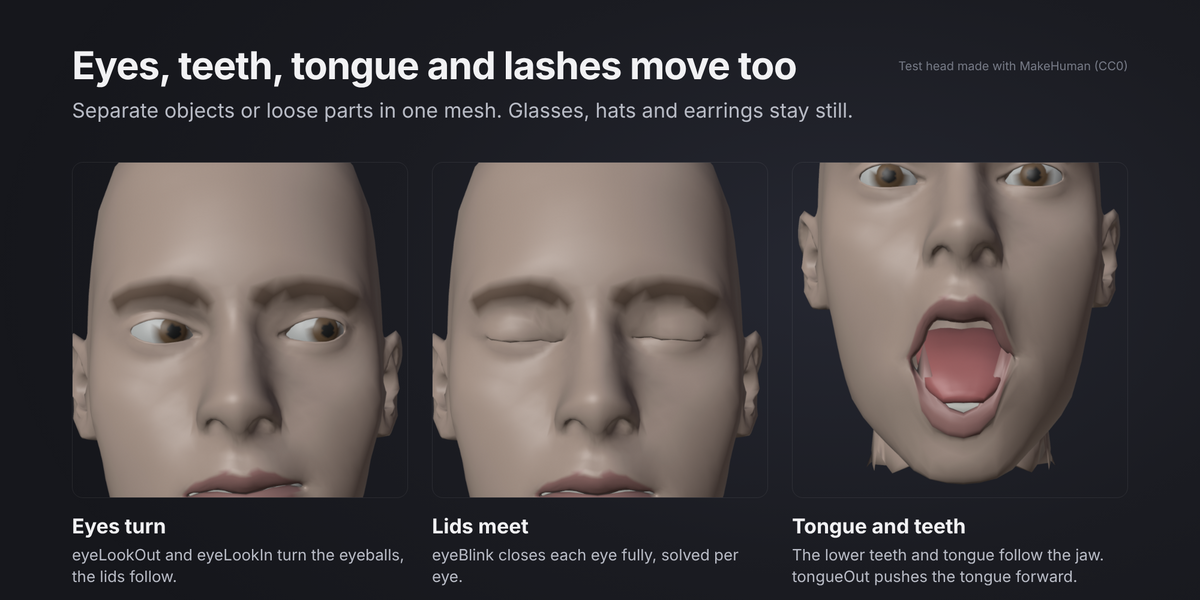
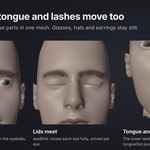
- Eyes, teeth and tongue get their own motion: the eyes turn, the lower teeth and tongue follow the jaw.
- Lashes, brows, beards and tear lines follow the skin under them.
- Glasses, hats, helmets, earrings and hair stay still in every shape. FaceKeys tells you which parts it kept still. A part with "brow", "lash" or "beard" in its name always follows the skin.
- Linked duplicates (for example a right eye that is a mirrored copy of the left eye) get their own mesh copy, so each eye can hold its own shapes. FaceKeys tells you when it did this.
What each shape does
FaceKeys follows Apple's ARKit list of 52 face shapes. A few notes:
- mouthClose is made for use together with jawOpen, as in ARKit. jawOpen plus mouthClose gives an open jaw with closed lips. mouthClose alone pushes the lips into each other. That is expected.
- eyeLook shapes turn the eyeballs and move the lids with them. If your app turns the eyes with bones, set the eyeLook strengths low.
- tongueOut needs a tongue mesh. Without one it stays empty.
- Eye shapes need separate eyeballs or eyeballs as loose parts. Without them the eyeLook shapes are empty and blinks only move the lids.
Tips
- Start from a neutral face: eyes open, lips closed or slightly apart, no smile.
- You do not need to apply scale or rotation. Any size and any direction works, also a mirrored object.
- A head with an Armature modifier is fine. The shapes are made on the rest shape. If the rig is posed, the green lines show where the face is in the rest pose: switch the armature to Rest Position (Armature properties > Pose Position) while you check them.
- Apply a Mirror modifier before you start. FaceKeys needs the whole face in the mesh and tells you if it is only half.
- Keep the head mesh in one piece where the skin is one piece.
- Run it again any time. Generate Shape Keys replaces the keys it made before. If the head already has shape keys with the same names that FaceKeys did not make, it asks before it replaces them.
- The shape keys export with FBX and glTF like any other shape keys.
Troubleshooting
- No face found. Use Guided mode. Automatic mode is made for realistic faces. It may not work on anime faces with very large eyes. Hide sunglasses, masks and hair that cover the eyes first.
- Anime or VRoid eyes do not blink. Their eyes are flat textures, not eyeballs. Mouth and brow shapes still work. Use the model's own per eye blink shapes in place of eyeBlinkLeft and eyeBlinkRight. VRoid models have them.
- The mouth is painted on. A mouth that is only a texture cannot open. Cut Lips tells you when there is no edge to cut.
- The mouth looks open in the rest pose. Close it first. Shapes are made relative to the rest pose.
- A shape moves the wrong area. Check the green lines near that area, move the points and generate again.
- FaceKeys lists shapes to check after Generate. It found something odd in those shapes, for example a torn mouth or an eye that does not close. It keeps the green preview so you can fix the points near that area and generate again.
- A shape is too strong or too weak. Use the Strength panel.
- The lips do not open. The lips are joined. Use Cut Lips.
- Glasses or a hat moved with the face. Put "glasses" or "hat" in the object name and generate again.
License
The add-on code is GPL 3.0 or later. The face landmark models are by Google, under the Apache License 2.0. See the licenses folder inside the add-on.
Have questions about this product?
Login to message
| Blender Extension Compatible | Yes |
| Published | 4 days ago |
| Blender Version | 4.2 - 5.2 |
| Extension Type | Add-on |
| Render Engine Used | Cycles |
| License | GPL |

Discover more products like this
vrchat VTuber perfect sync Facial Animation vrm shape keys lip sync unified expressions face rig face-tracking blendshapes ARKit