Fetch – Add-on Updater for Blender
 Mulk
Mulk





Install
- In Blender 5.0 or newer, open Edit › Preferences › Get Extensions.
- Click the arrow menu (top right) › Install from Disk… and pick the Fetch .zip.
- Fetch appears in the 3D View sidebar (N) as the Fetch tab. With Tabby installed, it sits at the top of Tabby.
Use it
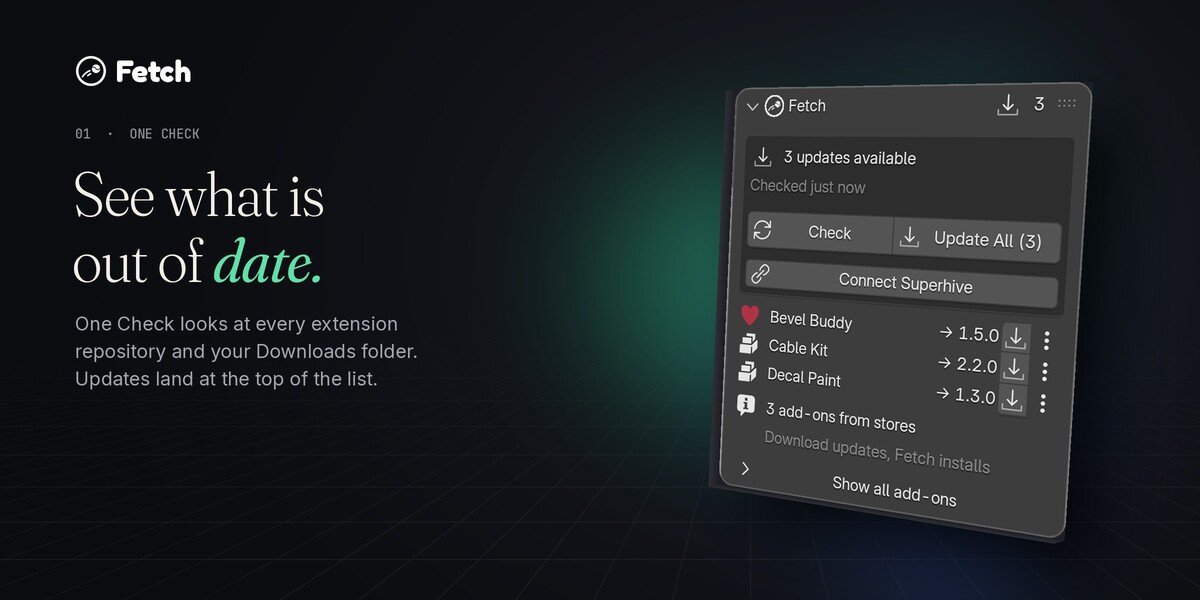
- Press Check. Fetch asks every extension repository for new versions and looks in your Downloads folder for newer zips of add-ons you already have.
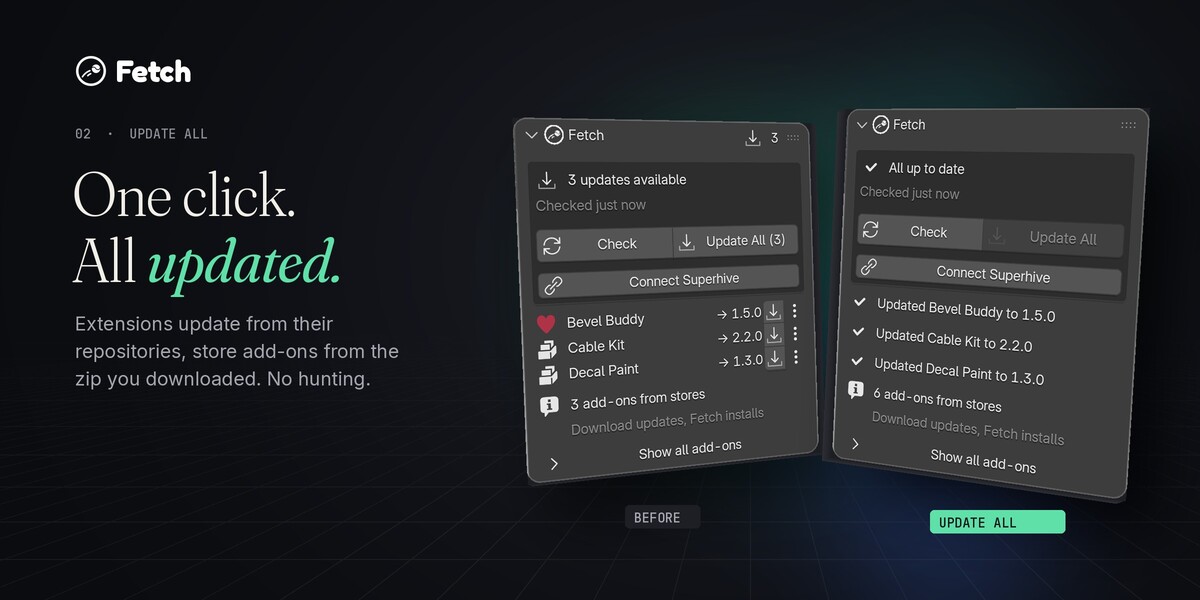
- Updates show at the top of the list. Press Update All, or the install button on a single add-on.
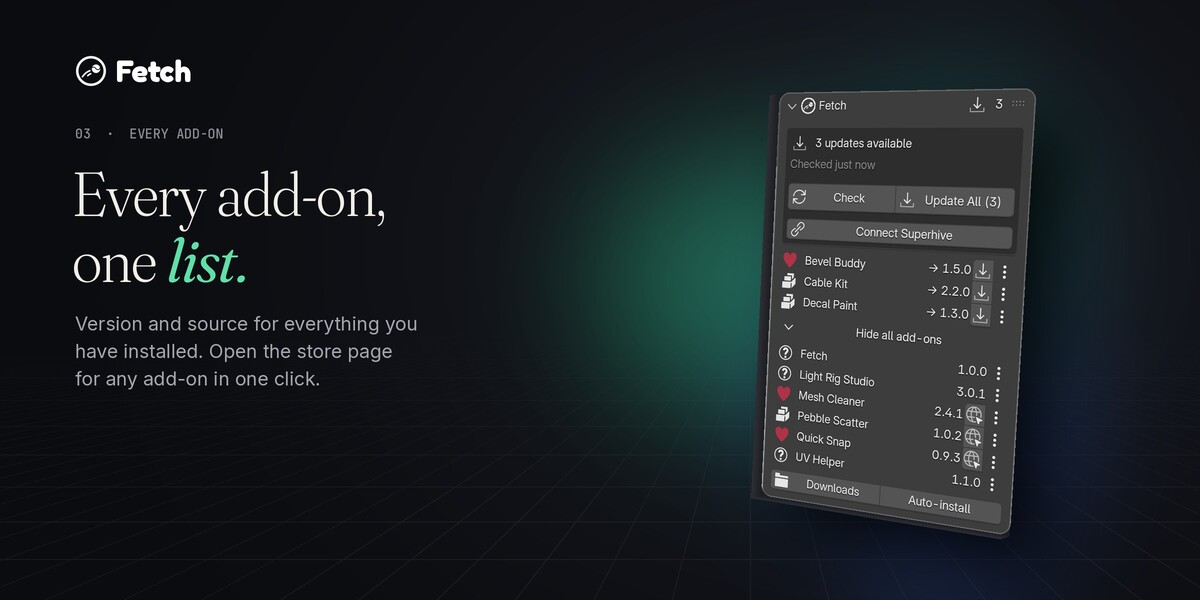
- For store add-ons (Gumroad, Superhive downloads and others): click the ⋮ menu on an add-on and set where it came from. The globe button then opens that store page. Download the new zip and Fetch installs it.
Connect Superhive
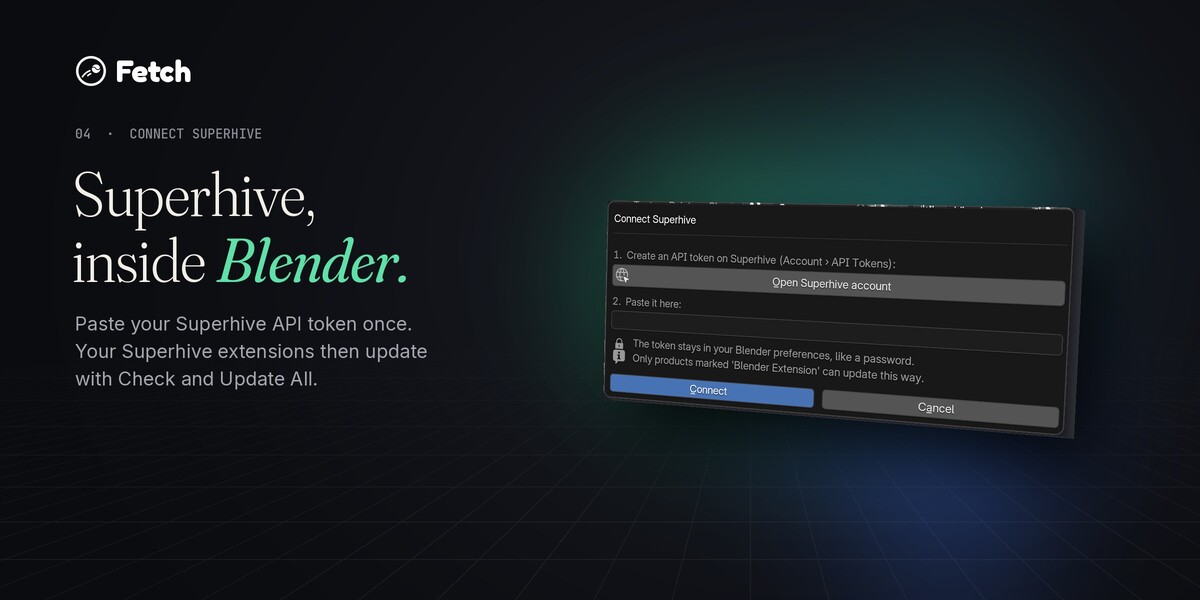
Click Connect Superhive, create an API token on Superhive (Account › API Tokens) and paste it. Superhive products marked as Blender Extensions then update with Check and Update All. The token is stored in your Blender preferences. If auto-save of preferences is off, save your preferences to keep the connection.
Preferences
- Downloads folder: where your browser saves files (empty = your user Downloads folder).
- Look for updates on startup (off by default): lists updates from your Downloads folder and the repository data Blender already has. Fetch doesn't go online at startup, each repository's own setting in Blender decides that.
- Look at zips from the last N days.
Fetch only goes online when Blender's online access is allowed (Preferences › System › Network).
Support
Questions or ideas: [email protected]
Have questions about this product?
Login to message
| Blender Extension Compatible | Yes |
| Published | 1 day ago |
| Blender Version | 5.0 - 5.2 |
| Extension Type | Add-on |
| Render Engine Used | Cycles |
| License | GPL |
Discover more products like this
gumroad superhive Addon manager extensions productivity update updater extension manager addon updater install version auto update