 one99addons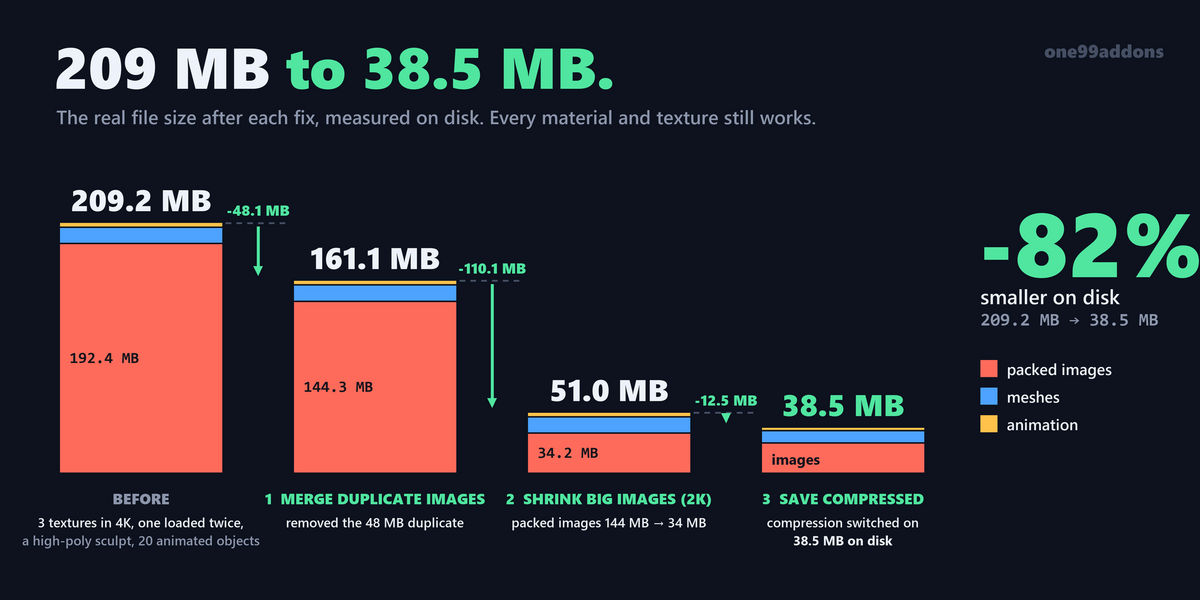

🔍 File Size Inspector
Find out why your .blend is so big, and shrink it in a few clicks.
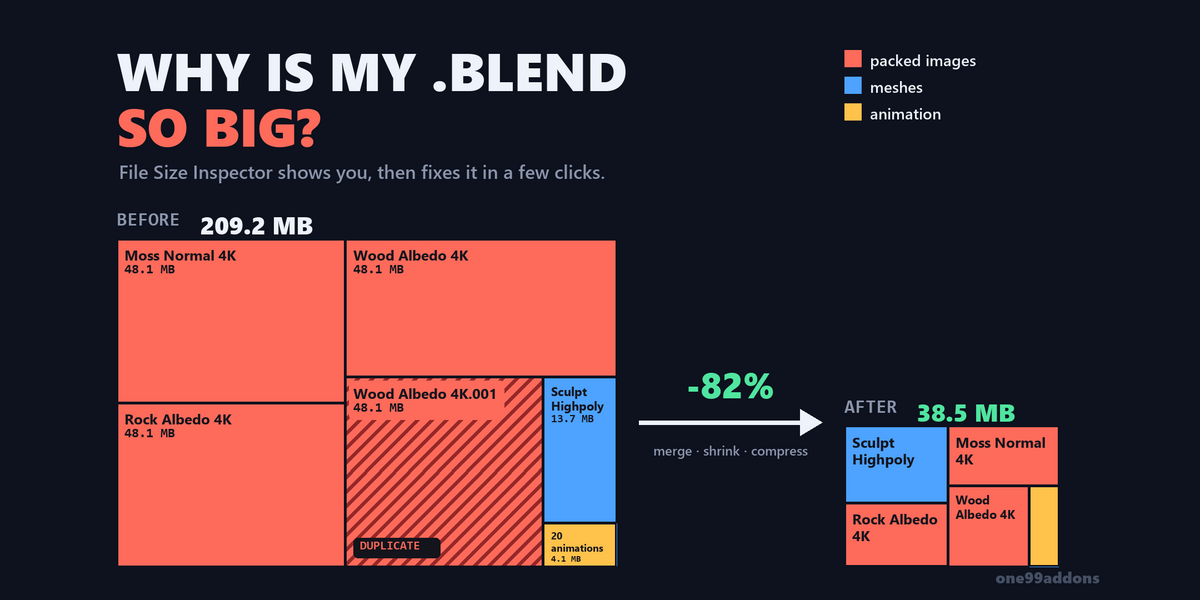
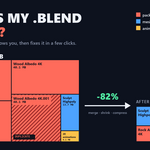
Press Scan File and see where the megabytes go: packed images, meshes, animation and other packed files, with a ranked list of the biggest items. Then fix it with one-click tools. In our test a 209.2 MB file went down to 38.5 MB, 82% smaller.
The problem
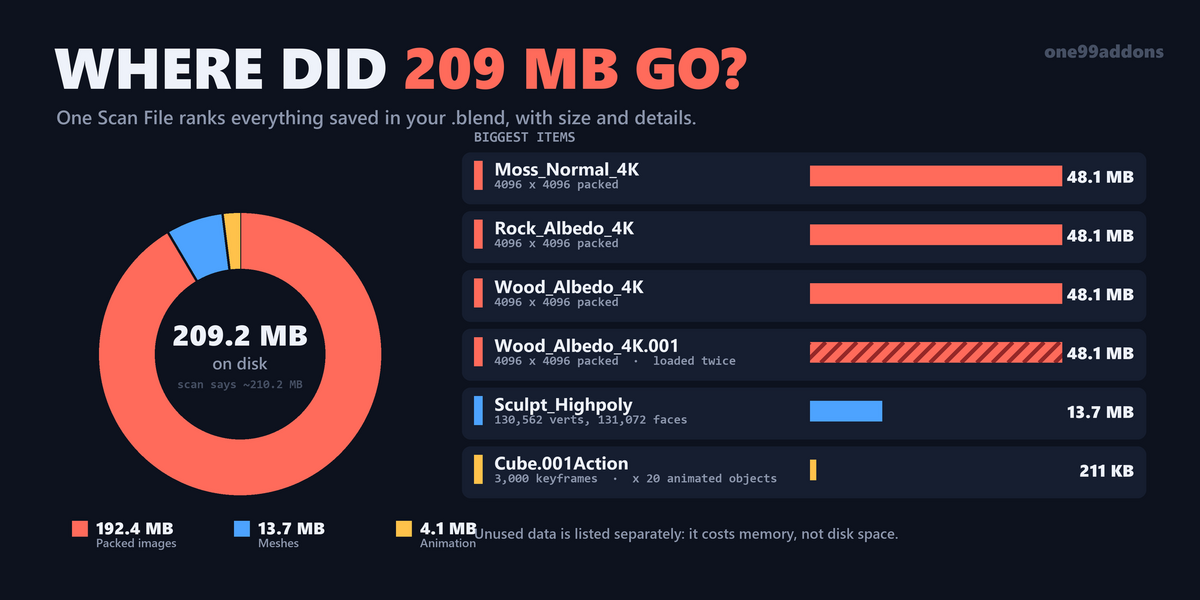
Blend files grow quietly. A few 4K textures packed in, one image loaded twice by accident, a sculpt left at full resolution, and the file is hundreds of megabytes. It is slow to save, painful to back up and too big to send. Blender tells you the file is big, but not why.
What it does
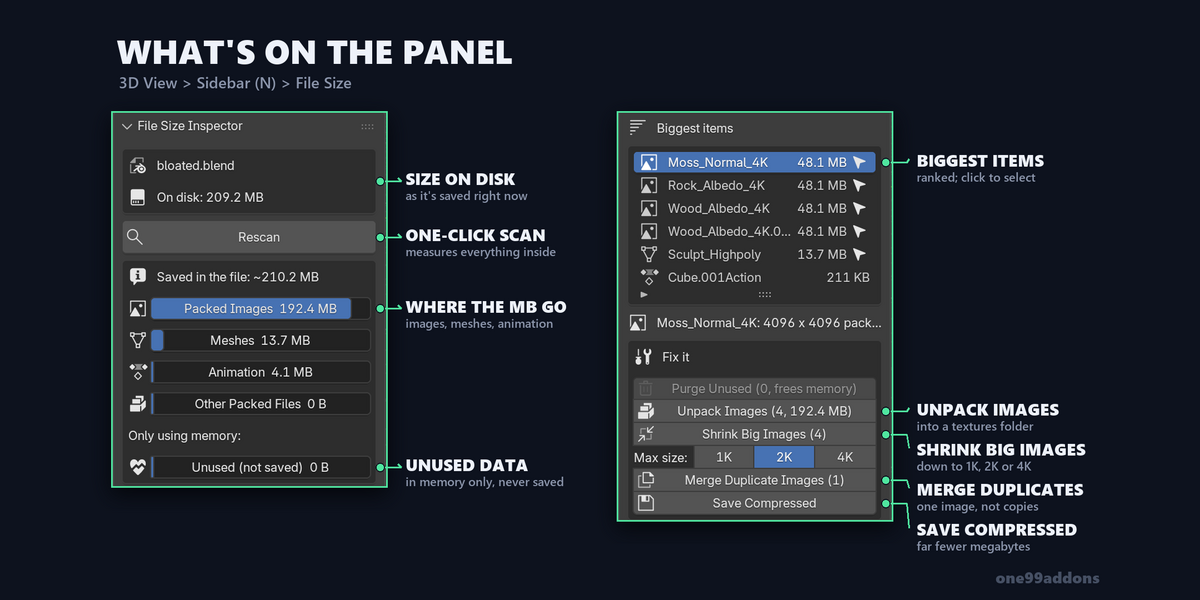
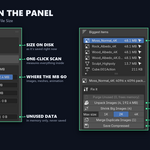
- Real size on disk. The panel shows the current file's size right in the sidebar.
- Breakdown with bars. Packed Images, Meshes (also Curves, Grease Pencil and point clouds), Animation and Other Packed Files (sounds, fonts, volumes), so the biggest problem jumps out.
- Biggest items. A ranked list with sizes and details: resolution for images, vertex and face counts for meshes, keyframe counts for animation. Click the arrow next to a mesh to select the objects using it, or next to an image to show it in an open Image Editor.
- Unused data, shown honestly. Data nothing uses is listed separately: Blender never saves it, so it only costs memory, not disk space.
-
Five one-click fixes. Each button shows how many items it will touch before you click:
- Merge Duplicate Images: images that load the same file or pack the same data (like "Wood" and "Wood.001") become one, and every material switches to it.
- Shrink Big Images: scales packed and generated images down to 1K, 2K or 4K max, keeping their proportions.
- Unpack Images: moves packed images into a textures folder next to the .blend.
- Save Compressed: saves the file with Blender's compression on.
- Purge Unused: removes data nothing uses, to free memory and tidy up.
- Re-scans by itself. After every fix the panel updates and tells you what changed, for example "packed data 144.3 MB → 34.2 MB".
Settings
Everything is in 3D Viewport > Sidebar (N) > File Size tab.
- Max size: 1K, 2K (default) or 4K, for Shrink Big Images.
- Show: how many of the biggest items to list, 3 to 50 (default 8).
A real example
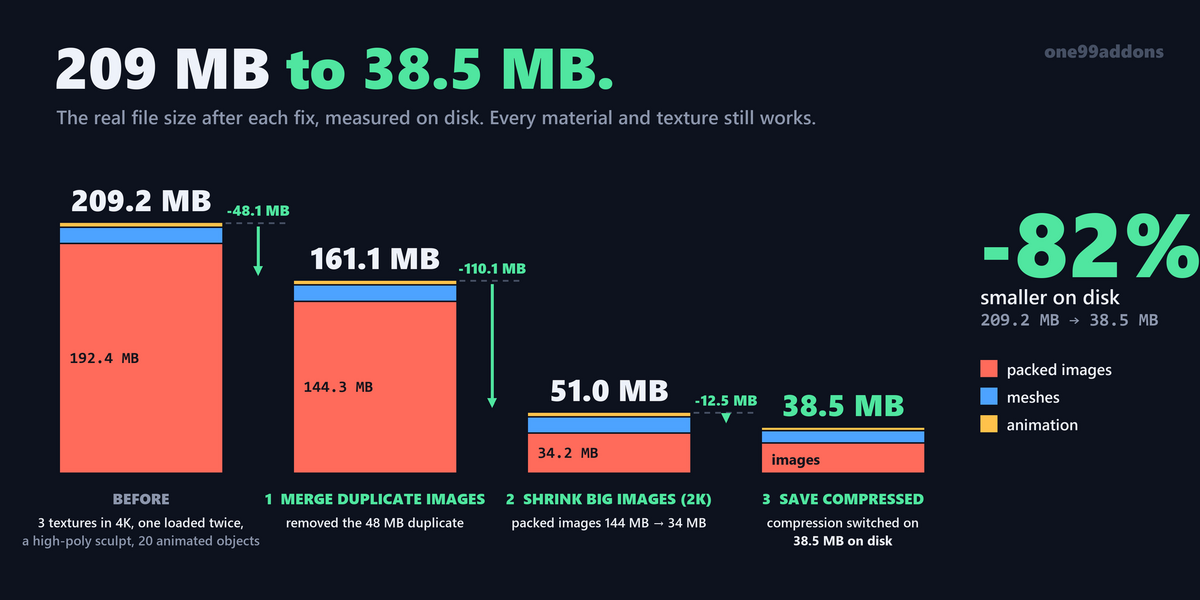
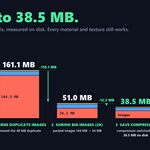
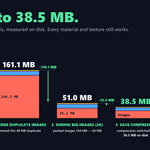
- Test file with three 4K textures packed in (one loaded twice), a 131,072-face sculpt and 20 animated objects: 209.2 MB on disk.
- Merge Duplicate Images: 161.1 MB.
- Shrink Big Images (2K): packed images 144.3 MB → 34.2 MB, file 51.0 MB.
- Save Compressed: 38.5 MB. 82% smaller, every material still working.
- The scan's estimate was within 1% of the real file size.
Tips
- Save your file first: Unpack Images and Save Compressed need a saved .blend.
- 2K is a good default for Shrink Big Images. Use 4K for close-up hero assets, 1K for background props.
- Unpacked textures go into a textures folder next to the .blend. Keep them together when you move or share the project.
Requirements and install
Blender 5.2 or newer (tested on 5.2, Windows). No internet, no external libraries.
- Download file_size_inspector_v1.0.0.zip (do not unzip it).
- In Blender: Edit > Preferences > Add-ons, open the drop-down arrow at the top right, choose Install from Disk... and pick the zip.
- Tick File Size Inspector. Then press N in the 3D Viewport, open the File Size tab and click Scan File.
Limits
Packed file sizes are exact; mesh and animation sizes are close estimates. Small data like materials, node groups and objects is not measured, it is rarely what makes a file big. Shrinking replaces the packed image with the smaller one: keep a copy of the original texture if you may need full resolution later. Images linked from files on your disk are never shrunk or overwritten.
Made by one99addons.