Finish Stack
 Studio Sphaerus


What Finish Stack is
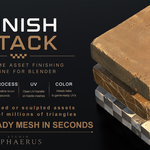
If you've spent a career turning scans and sculpts into game-ready assets, you already know the part of the job nobody talks about at conferences: the finishing. The retopo, the UV work, the bake prep, the export cleanup - the long middle stretch between "the art is done" and "the asset is actually usable." Finish Stack is built to take that stretch off your plate.
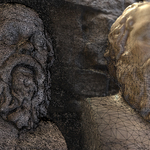
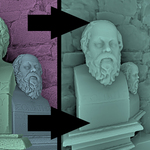
Feed it a messy high-res source - a photogrammetry scan, a sculpt, a Nanite-density import - and it hands back a clean, UV'd, bake-ready, engine-ready low, all from one panel in Blender.
What actually makes it different isn't any single step. It's that every low it produces remembers exactly how it was made. Edit the high-res source, hit Reprocess, and the whole chain - remesh, conform, adaptive density, planar cleanup, UV, color bake - replays in place. Materials stay put. Scene placement stays put. It's not a one-shot operation you redo by hand every time something changes; it's a recipe that reruns itself. That same re-runnability now covers kitbashed, multi-piece assets too - see Merge & Bake below, the newest and most differentiated thing in the tool.
What it actually saves you
Every environment artist has lived this moment: the art director looks at a finished, baked, exported prop and says "love it - can we make the base twice as wide and push the whole silhouette taller?" Without Finish Stack, that sentence means a day and a half of your life. Re-retopo. Re-unwrap. Re-explode for baking. Re-bake. Re-export. All to accommodate a change that took the art director ten seconds to describe.
With Finish Stack, that sentence means: adjust the sculpt, select the low, hit Reprocess. Fifteen seconds later you have a new game-ready asset. The difference isn't a nice-to-have - it's the difference between "sure, let's iterate" and quietly dreading feedback because you know what it costs you.
That's the real point of everything in this tool. Not speed for its own sake - time handed back to the part of the job you actually signed up for: sculpting, art-directing, iterating, making the thing better instead of just making the thing exist in the engine.
A few of the specific hours it gives back:
- The recipe / Reprocess model removes the biggest hidden cost in the whole pipeline: redoing retopo, UV, and bake by hand every time the high-res source changes. Change the source, hit one button, walk away.
- Merge & Bake removes the single most tedious kitbashing workflow there is - manually booleaning pieces together, retopologizing the result, and re-baking every texture by hand. The kind of task that eats an entire frustrating afternoon in ZBrush, and used to mean starting over every time you nudged a piece. Now it's one click, and it stays re-runnable.
- SDF Smooth breaks through a ceiling that vertex-domain smoothing tools structurally can't touch - genuinely tangled or spiked topology, the kind you get from overlapping remesh seams or kitbash intersections. It rebuilds the surface from a merged volumetric field instead of nudging existing vertices around, so it can actually fix what the others can't.
- Adaptive remesh replaces hand-placing density where you need it and decimating where you don't.
- UV transfer replaces the impossible ask of hand-unwrapping a million-triangle mesh.
- Bake Prep replaces dragging every LP/HP pair apart before a bake and back afterward.
- Batch export with Target Engine replaces renaming, re-origining, unparenting, and axis-fixing every file one at a time - and replaces having to remember which axis convention Unity wants versus Unreal.
Requirements & installation
Finish Stack needs Blender 4.2 or newer - it's built on the Extensions platform. That's the floor for everything except one method: SDF Smooth needs Blender 5.1+, since it's built on native OpenVDB grid nodes that simply don't exist before that. Nothing else is affected if you're on an earlier 4.2+ build; SDF Smooth just won't show up in the method list yet.
To install, go to Edit → Preferences → Get Extensions → Install from Disk (or drag the zip straight in) and select finish_stack-x.y.z.zip. After installing or updating, fully quit and relaunch Blender - this matters more than it sounds like it should. Blender caches add-on code, and a partial reload is by far the most common reason an update "looks like nothing changed." Confirm the version shown in the add-on list matches what you just installed before you assume something's broken.
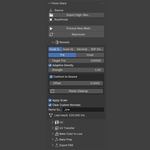
Once it's in, the panel lives in the 3D Viewport's N-panel, under a Finish Stack tab. Select a mesh object and it populates.
Core concept: the recipe and Reprocess
Run Process New Mesh on a high-res source, and Finish Stack builds a low-poly result while quietly stamping a recipe onto it - every setting you used, plus a link back to the source. That recipe is what makes everything re-runnable.
Change a remesh, UV, or bake setting and hit Reprocess, and the low rebuilds in place with the new settings. Go back and add more detail to the high-res source, hit Reprocess, and it re-reads the source and regenerates against it. Reprocess stays greyed out until the object actually carries a live recipe, so there's no risk of firing it accidentally on something that was never processed to begin with.
A low built by Merge & Bake carries a recipe too - it just points at several original pieces instead of one. Reprocess re-merges their current live positions, so moving a piece and hitting Reprocess rebuilds the merged asset and its atlas from wherever things ended up. The result readout at the bottom of the Remesh panel shows your last tri or face count, and flags "Target changed - reprocess to update" the moment your current settings drift from what's actually on the object.
Quick start
- Select your high-res mesh, or use Import High-Res… to bring one in from disk.
- Click Process New Mesh. You get a clean, conformed, auto-unwrapped low, and the source auto-hides so you see the result immediately.
- That's the whole essential loop. Everything else - planar cleanup, UV transfer, color bake, merge, export - is optional finishing you fold in only when you actually need it.
Every section below is a collapsible sub-panel. Fold away whatever you're not using and the tab stays short - deep capability, quiet surface.
Panel reference
Source & Actions (always visible)
| Control | What it does |
|---|---|
| Import High-Res… | Bring in an external source file to process. |
| Process New Mesh | Build a fresh low from the active source and stamp its recipe. |
| Reprocess | Replay the recipe (greyed until the object carries one). |
| Batch Process (N) | Shown when 2+ meshes are selected: process each into its OWN separate low. |
| Merge & Bake (N) | Shown when 2+ meshes are selected: fuse ALL of them into ONE atlased low. |
Remesh - four methods
| Method | What it does | Best for |
|---|---|---|
| Voxel | Remesh to an exact tri target. Fast and robust. Solidifies open shells - the panel warns you if it will. | General use, closed/solid shapes, and Merge & Bake fusion. |
| Quad | QuadriFlow field-guided quad retopology toward a target face count, with an automatic voxel-clean fallback for non-manifold or metaball junk. | Hard-surface work where you want mostly-quad output. Keeps open meshes open. |
| Decimate | Collapse-based reduction, no remesh. Keeps open or single-sided meshes intact. | Ground planes, walls, anything already clean. Won't fuse overlapping pieces, so it's not usable for Merge & Bake. |
| SDF Smooth | A true volumetric remesh via native OpenVDB grid nodes. Rebuilds the surface from a merged distance field, so it can clean up tangled or spiked topology no vertex-space method can fix. Requires Blender 5.1+. | Organic cleanup, messy or overlapping scan geometry, and Merge & Bake fusion on organic assets. Not for crisp hard-surface edges - the reconstruction rounds convex corners by nature. |
Common Remesh settings
| Setting | Default | Notes |
|---|---|---|
| Target Tris | 15,000 | Voxel and Decimate tri budget. |
| Voxel Size | auto | Seeded from object size on first run. |
| Target Faces (Quad) | 5,000 | Roughly one quad per two tris. |
| Preserve Sharp / Boundary (Quad) | on | Keeps sharp edges and open boundaries aligned to the flow. |
| Adaptive Density | on | Redistributes the tri budget by curvature, so more goes to detail and less to flats, while still hitting your target. |
| Strength | 1.0 | 0 is uniform, 1 is full curvature-driven redistribution. |
| Conform to Source | on (forced for SDF Smooth) | Shrinkwraps the low onto the high-res surface. |
| Offset | 0.0 | Pushes the conformed surface out (+) or in (−) along the normal. |
| Apply Scale | on | Applies object scale before remeshing. |
| Clear Custom Normals | on | Strips split normals carried in from the scan or sculpt so the low shades cleanly. |
| Name Suffix | _low |
Suffix for the generated low's name. |
SDF Smooth, in more depth
SDF Smooth needs Blender 5.1 or newer. On older Blender it simply doesn't appear in the method list and nothing else changes - this is a requirement of that one method, not the add-on's minimum version.
The everyday controls are Max Resolution, Voxel Size (0 for auto), and a single Smoothing strength slider. An Advanced fold exposes the full nine raw parameters - Mean, Median, Laplacian, and Fillet filter iterations, Adaptivity, Band Width - for anyone who wants finer control.
Conform is forced on for this method specifically. SDF smooths fine surface detail away as part of how it works, and Conform is what recovers it, so it's shown as a locked line rather than a toggle. Max Resolution is capped at 400 as a memory safety limit, since voxel count scales with the cube of resolution and an unbounded value on a large asset can exhaust memory fast. If you need more surface detail than that, use Decimate to Target Tris instead of pushing resolution higher - it runs a curvature-adaptive decimate after the smooth, down to an exact tri count, which is the recommended way to combine SDF Smooth's clean surface with a real budget.
One known, accepted limitation: convex edges round off. That's inherent to how SDF reconstruction works, not a bug. Lower the Smoothing strength for less rounding, or reach for Quad or Decimate on anything that needs crisp hard-surface edges - SDF Smooth is an organic-cleanup tool by design, not a hard-surface one.
Planar Cleanup
Tucked inside Remesh rather than living as its own dropdown, since it's really a post-remesh refinement in the same spirit as Conform. Hidden for Quad and SDF Smooth output, since a flat-face dissolve has nothing useful to do on quad flow or organic SDF geometry. Dissolves coplanar faces after remesh to strip out wasted tessellation on flat regions.
| Setting | Default | Notes |
|---|---|---|
| Planar Angle | 5.0° | Faces whose normals differ by less than this get merged. Lower means only near-flat regions are touched. |
| Edge Reduce | 1.0 | A light collapse pass to remove leftover chamfer micro-edges. |
| Triangulate | off | Turns the resulting ngons into clean tris. |
UV
| Setting | Default | Notes |
|---|---|---|
| Auto-unwrap | on | Master toggle for the UV step. |
| UV Method | Smart | Smart Project is the most reliable all-purpose default. Seam-by-Angle suits hard-surface. Organic is tuned for rocks and natural forms. |
| Angle Limit (Smart) | 66° | Higher means fewer, larger islands. |
| Seam Angle (Angle/Organic) | 40° | Edges sharper than this become seams. |
| Relax | off | A minimize-stretch pass to even out distortion. |
| Relax Iterations | 15 | |
| Consistent Scale | on | Averages island scale so texel density stays even across the mesh. |
| Pack Islands | on | Comes with Allow Rotation (on) and Pack Margin (0.001). |
UV Transfer
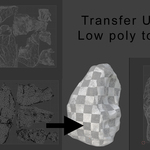
This is the Nanite workflow: hand-unwrap a clean low, then push those UVs onto a dense high-res mesh.
Push UVs to Source works when the active object is a Finish Stack low with a linked source - it pushes that low's UVs onto its source. Transfer UVs (High ← Low) works on any pair: select exactly two meshes, donor low and target high, and run it.
The principle to keep in mind: the low has to hug the high, or the UVs will streak. If that happens, the low is sitting too far from the surface - raise its tri count or turn on Conform and re-run. That's expected behavior, not a bug.
One thing worth knowing before you use this: it replaces ALL of the target's existing UV maps with a single new one. That's deliberate - Finish Stack always wants to output one clean UV channel, which is what Nanite and Unreal actually want - but it means the operation isn't reversible by the tool itself. Don't push onto a mesh whose current UVs need to survive, like hand-authored scan UVs you want to keep.
Auto Re-bake on Push is a toggle in this same panel, on by default as of v1.0.0. When it's on, pushing new UVs onto a target automatically re-bakes that target's own color onto the new UVs right afterward, so it never sits there visually stale. It only fires when the target is itself a Finish Stack recipe object with its own linked source - a chained pipeline where a mid-res object was built from something even higher-res and is now being repurposed as a donor further down the line, or the target is itself a Merge & Bake low. If the target has no such link - a true raw source Finish Stack never touched - nothing gets auto-baked, and you'd bake it by hand instead.
The bake itself runs a fraction of a second after the UV transfer completes, not in the same step. That's deliberate, not lag - it's deferred to the next event cycle so the mesh's new UVs are fully settled before the bake starts. This is worth validating on a handful of your own assets before you lean on it for real production work.
Bake Color to Low
Carries a source's albedo onto a low's UVs, entirely inside Blender, no external baker required. It handles both textured and vertex-colored sources, and it works exactly the same whether the low came from a normal Process New Mesh run or from Merge & Bake - select either kind of low and this panel behaves identically.
| Setting | Default | Notes |
|---|---|---|
| Resolution | 2048 | 1024, 2048, or higher. |
| Ray Distance | Auto | 0 means auto, roughly 1% of object size. Raise it for concave or overhanging surfaces. |
| Auto-bake Color | on | Bakes color as the final step of Process or Reprocess automatically. |
| Bake Color from Source | - | Manual trigger. The result is packed into the .blend. |
Nothing about this is locked in after the first bake. Ray Distance and Resolution can both be adjusted at any time, even on a low that's already been baked - just change the value and click Bake Color from Source again. If a first pass overshoots and picks up the wrong nearby surface, lower the ray distance and re-bake rather than starting over from scratch.
Export Texture writes the packed color map to disk next to the FBX, with a configurable prefix, suffix, duplicate-suffix stripping, and format (PNG by default).
The source object can stay hidden through all of this - you don't need to unhide the high-res mesh to bake or reprocess. Finish Stack handles visibility internally and puts your scene back exactly as it was afterward.
Bake Prep - Explode and Unexplode for baking
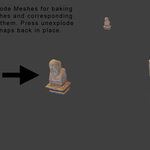
When you bake a normal map from a high-poly onto a low-poly in Substance Painter or Marmoset, the baker shoots rays from a cage around the low into whatever high-poly geometry is nearby. If two different assets sit close together in the scene, one asset's cage can catch its neighbor's geometry, and you end up with smeared, wrong normals. Bake Prep handles the separation for you, and puts everything back exactly where it was afterward.
The pairing works by suffix: a _LP and a _HP on the object name form one bake set, matched on the shared base name. Crate_LP and Crate_HP pair automatically.
Within a single bake set, Explode moves the LP and HP to the same spot so they perfectly overlap - that's exactly what the baker's cage needs. It's between sets that things get separated: each pair lands in its own slot on a grid, far enough apart that no cage reaches a neighbor. Unexplode puts everything back exactly, with positions stashed so they survive a save or even a crash mid-bake.
On a modular kit of even a dozen pieces, hand-separating pairs, baking, and reassembling everything is a genuine time sink, and an easy place to leave something in the wrong spot. Bake Prep turns the whole dance into two clicks.
Merge & Bake - kitbash multiple pieces into one atlased asset
This is the tool's newest and most differentiated capability. Select two or more meshes, click Merge & Bake, and get back one clean, remeshed, UV'd, atlased, game-ready low, with every original piece's own texture baked down onto it.
Think of the classic case: a concrete block interpenetrating the base of a sculpted statue, or any kitbash where pieces overlap or sit close together. Doing this by hand means booleaning the pieces together, retopologizing the result, and then re-baking every texture onto the new UVs - exactly the kind of task that eats a frustrating afternoon in ZBrush, and has to be redone from scratch the moment you want to move a piece. Merge & Bake does the whole thing in one click, and stays re-runnable afterward.
Here's how it actually works. Select two or more meshes, and the panel shows two buttons: Batch Process makes N separate lows, Merge & Bake makes one combined low. Pick Merge & Bake, and the pieces are joined for geometry only, then remeshed as a single surface - this is what actually fuses interpenetrating pieces into something clean. This step requires a merging method, either Voxel or SDF Smooth; Decimate can't fuse overlapping geometry and gets refused with a clear error if you try.
The merged surface is conformed and UV-unwrapped, and then - this is the part that matters - the color bake runs from the original, untouched pieces, never from the merged geometry. Each original keeps its own fully intact material and texture the whole time. Blender's selected-to-active bake rays to whichever original piece is nearest at each point, so the wall's texture lands where the low sits near the wall, and the statue's texture lands where the low sits near the statue, correctly atlased without any manual work. The temporary merged-geometry object gets deleted once baking is done, since it was only ever scaffolding. The original pieces hide, and the finished merged low is what you're left looking at.
It's genuinely re-runnable. The merged low remembers exactly which original pieces it came from. Move one of them - reposition the block, rotate the statue - and hit Reprocess, and it re-merges from their current live positions, re-remeshes, and re-bakes the atlas from scratch. Same one-button re-run the rest of the tool is built around, just extended to multi-piece kitbashes.
If a piece has no color to bake from at all - no material, no vertex colors - Merge & Bake still completes. That piece's portion of the atlas comes out flat gray, and you get a specific warning naming exactly which piece, so it's never a silent surprise. Add a material or vertex colors to that piece and reprocess to fix it.
Export FBX - batch, engine-targeted, hierarchy-aware
Exporting game assets by hand is its own pile of small, easy-to-forget steps: rename each file to the engine's convention, strip Blender's .001 duplicate suffixes, move each piece to the origin so it imports with a sensible pivot while keeping the assembly's internal layout intact, unparent so parent transforms don't bake in, set the exact axis flags your engine wants, export, then undo all of that so your scene isn't left wrecked. Export FBX does the entire sequence for every selected object or collection in one click, and restores your scene to exactly how it was even if something errors out mid-run.
Pick a Target Engine - Unreal, Unity, or Generic - and Finish Stack sets the right axis convention and naming together:
| Target Engine | Axis convention | Naming |
|---|---|---|
| Unreal | -Y forward, Z up, baked |
SM_ prefix |
| Unity | -Z forward, Y up, baked | No prefix |
| Generic | Blender-native, no conversion | No prefix |
The raw axis preset, naming toggles, transform options, and pre-rotate controls are all still available, tucked behind an Advanced fold so the default view stays simple: folder, mode, target engine, go.
There are two export modes. Selected turns each selected mesh into its own FBX, hierarchy included. Collections turns each selected collection into one FBX with world positions preserved, so a modular building or scene keeps its exact arrangement on import.
Under the hood, every object gets snapshotted first so the whole operation is crash-safe, then unparented while keeping world position, then moved to the origin (a multi-object assembly moves as a rigid body so the root lands cleanly while children keep their offsets), optionally pre-rotated, and finally exported before the original snapshot gets restored exactly.
Filenames get cleaned up along the way - Wall.003 becomes SM_Wall - stripping duplicate suffixes, optionally stripping _LP or _HP, and adding the engine prefix where it makes sense (Unreal-reserved prefixes like SM_, SK_, UCX_, UBX_, UCP_, and USP_ are recognized and left alone). A Test Run option writes no files at all and just prints exactly what would export to the console - worth running before committing to a big batch.
Export for Baking (LP + HP)
A smaller, separate button in this same panel, distinct from the batch export above - that one is about getting a finished asset into an engine, this one is about handing a low/high pair straight to an external baker like Substance or Marmoset, using the same _LP / _HP naming convention Bake Prep already relies on.
Select a low, either single-source or Merge & Bake, and click Export LP + HP for Baking. A single-source low writes one _LP.fbx for the low and one _HP.fbx for its linked source, sharing a base name. A Merge & Bake low writes one _LP.fbx for the merged result and one _HP.fbx per original piece it was built from, each keeping its own name - there's no single "the" high once things are merged, so each piece gets its own clearly-named file instead of forcing a pairing that doesn't really exist.
No exploding needed first. That's specifically for separating multiple pairs sharing one scene so their cages don't cross-contaminate; a single low and its own source going out as their own dedicated files don't have that problem, since a low is already sitting exactly where its own source is.
Pro tips and workflow notes
A few field-tested habits, not required reading, but the kind of thing that saves a re-run or a headache once you know it.
For Merge & Bake specifically, prefer Voxel over SDF Smooth unless the pieces are genuinely organic. Voxel is faster and gives you an exact tri target, which matters more once you're fusing multiple pieces into a single budget. Save SDF Smooth for merges where the pieces are naturally organic - sculpts, scans - and a bit of edge-rounding isn't a problem.
Run SDF Smooth at a moderate, safe Max Resolution, then Decimate to Target Tris, rather than chasing density by cranking resolution. That's the entire reason the decimate-to-target option exists: it gives you a clean smooth surface at a safe memory footprint, then hits your exact tri budget afterward, instead of pushing resolution into risky territory to control density directly.
Name your LP and HP pairs before you process, not after. Bake Prep's matching is pure string-matching on the object name, so if you rename mid-workflow, double-check that Explode still pairs things the way you expect before you bake.
On a Merge & Bake asset, check the console or warning after the first run before you walk away. If a source piece had no material or vertex colors, you'll get a named warning and a flat-gray patch in the atlas - much faster to catch at that point than after you've already moved on to baking normals in Substance.
Reprocess is cheap, so use it liberally while tuning, not just when the source itself changes. Since every low carries its full recipe, there's no penalty to nudging a slider and hitting Reprocess repeatedly while you dial in adaptive density strength or UV settings before committing to a bake.
Run Test Run on your first export of any new batch, always. It costs nothing and prints the exact file list, hierarchy, and world positions to the console - the fastest way to catch a wrong Target Engine pick or an unexpected collection membership before you've written forty files to disk.
Conform to Source is doing more work than it looks like at a glance. It's not just a "hug the surface" toggle - it's what Adaptive Density's curvature read depends on being accurate, and it's what recovers detail after SDF Smooth. If a result looks unexpectedly soft or under-detailed, Conform being off is the first thing worth checking.
For a modular kit heading to Unreal, use Collections mode rather than Selected. World positions get preserved automatically, so the kit reassembles correctly on import without you having to re-place every piece by hand in the engine.
A ray-distance problem in a bake isn't a redo-from-scratch problem. Ray Distance and Resolution in Bake Color to Low can both be adjusted on a low that's already been baked - change the value and click Bake Color from Source again. If rays are overshooting onto the wrong nearby surface, lower it; if there are gaps, raise it. This works the same way on a Merge & Bake low as it does on a normal one.
Auto Re-bake on Push is on by default and has held up across a simple scene, a heavy real asset, and a real 5-piece Merge & Bake production case. When it fires, the bake runs a beat after the transfer completes, not instantly. That's deliberate, not lag.
Export for Baking doesn't need Bake Prep's Explode first. That step is specifically for separating multiple pairs sharing one scene so their cages don't cross-contaminate. A single low and its own source going out as their own dedicated files were never at risk of that in the first place.
End-to-end workflows
Scan or sculpt to game-ready low. Select the high-res source, click Process New Mesh, and the low comes back remeshed, conformed, adaptively densified, and unwrapped. Tune settings and hit Reprocess until the tri count and UVs look right, optionally run Bake Color to Low, then Export FBX.
Kitbash to one atlased asset. Select two or more overlapping pieces, click Merge & Bake, and get one clean, remeshed, textured low, atlased from every piece's own material. Move a piece, hit Reprocess, done.
Nanite UV transfer. Process or hand-model a clean low, unwrap it well, then Push UVs to Source to carry those UVs onto the million-tri high. If you see streaking, raise the low's tris or turn on Conform.
Bake round-trip. Explode for Bake, bake normals or PBR in Substance or Marmoset, Unexplode to restore, then Export FBX. Run Bake Color to Low first if you want the albedo handled inside Blender.
Batch a set. Select several sources, run Batch Process to give each its own recipe, then Export FBX in Collections mode to preserve the layout.
Troubleshooting and known behaviors
If your results didn't change after updating, Blender almost certainly ran cached code. Remove the extension, fully quit Blender, relaunch, reinstall, and verify the version before assuming anything's actually broken.
If an open mesh got solidified, that's Voxel remesh closing open shells by design - use Decimate or Quad instead to keep it single-sided.
If QuadriFlow choked or the input looked messy, it auto-cleans non-manifold input via a voxel fallback already; if a result still looks off, try Voxel or Decimate for that particular asset.
If UVs streak after a transfer, the low isn't hugging the high closely enough - raise its tri count or enable Conform, then re-run.
If a scan shades faceted or strange, leave Clear Custom Normals on (it's the default) so authored split normals from the scan get stripped.
If meshes import flat in Unreal, switch the Axis Preset to the "No Bake" variant under Export → Advanced, or use Pre-rotate.
If the readout says "Target changed," your current settings differ from the last run - Reprocess to bring things back in sync.
If SDF Smooth isn't showing up in the method list, it requires Blender 5.1+. Everything else on the tool works fine on 4.2+.
SDF Smooth rounding off sharp edges is expected, not a bug - it's an organic-cleanup method by nature. Lower the Smoothing strength, or reach for Quad or Decimate on hard-surface assets instead.
If Merge & Bake tells you it needs a merging method, switch the active object's remesh method to Voxel or SDF Smooth - Decimate genuinely can't fuse overlapping pieces.
If one piece came out flat gray after Merge & Bake, that piece had no material or vertex colors to bake from. Check the warning message for which piece, add it a material or vertex colors, and reprocess.
If Reprocess on a merged low says the source isn't found, one or more of the original pieces it was built from got deleted, leaving fewer than two. Re-select the remaining pieces and run Merge & Bake again.
 Included
Includes 12 months of
- Support from Studio Sphaerus
- Product updates
Extend this product’s Support Period +12 months: 50% of product price
Have questions before purchasing?
Login to message
| Blender Extension Compatible | Yes |
| Published | 3 months ago |
| Blender Version | 4.1 - 5.1 |
| Extension Type | Add-on |
| Render Engine Used | Cycles, Eevee |
| License | GPL |

Discover more products like this
Merge kitbash optimization bake-prep pipeline nanite retopology color bake remesh Atlas uv-transfer game ready