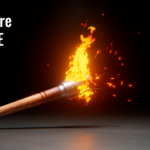
Fire Gen — Dynamic Fire in One Click
 AA - Artem Academy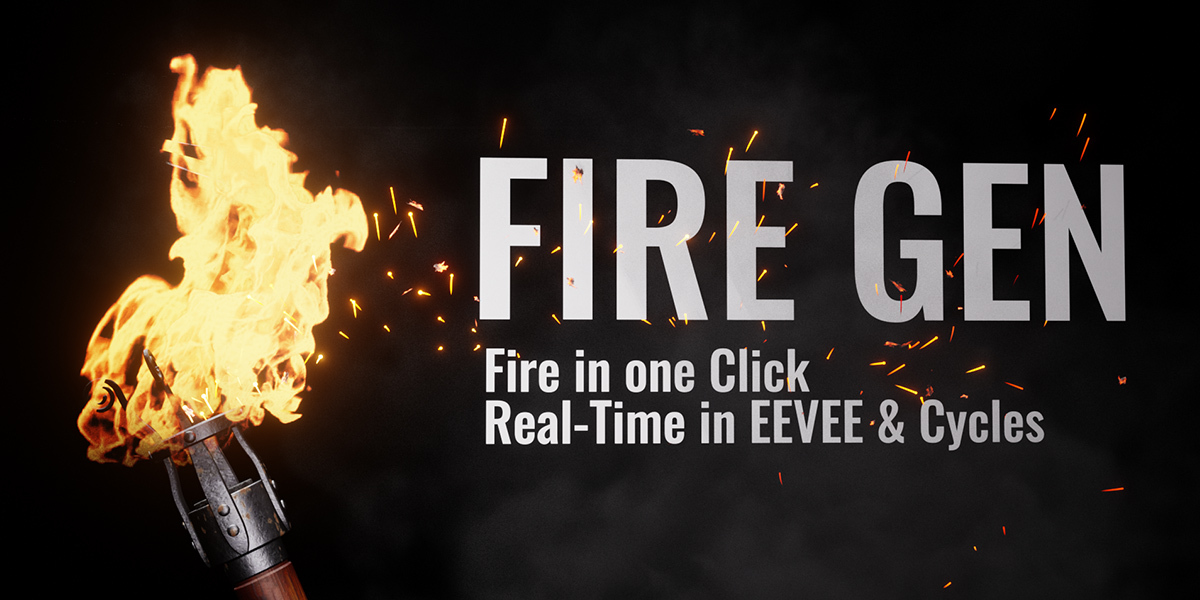

FIRE GEN — QUICK START
Blender 5.2 or newer
1. INSTALL
Open Edit > Preferences > Get Extensions > menu > Install from Disk.
Select the Fire Gen Extension ZIP without extracting it, then enable it.
Disable any older legacy Fire Gen copy first. The Fire Gen Asset Library
registers automatically.
2. CREATE YOUR FIRST FIRE
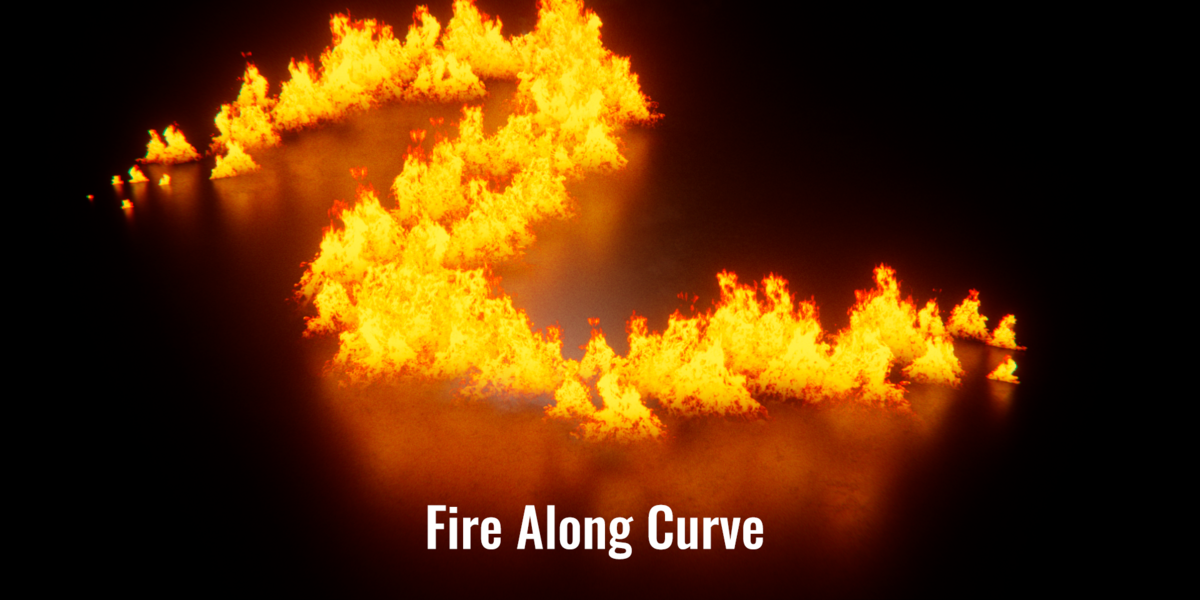
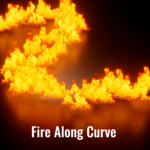
Select a mesh or curve in Object Mode. Choose Object > Fire Gen >
Add Fire Gen to Selected. The selected object becomes the emitter.
Adjust the effect in its Geometry Nodes modifier; no N-panel is needed.
For a ready-made look, apply a preset from Asset Browser > Fire Gen.
Use Master Clean as the starting point for your own effects.
3. SHAPE THE EFFECT
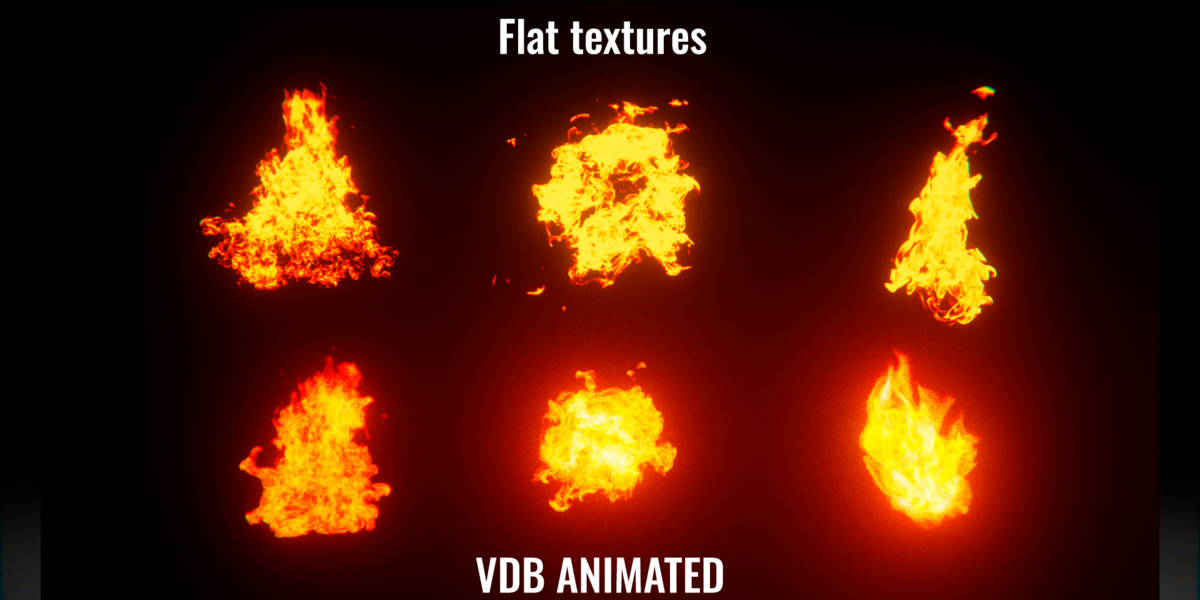
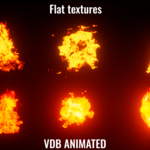
Choose Flat, Ribbon or VDB in the modifier's setup controls.
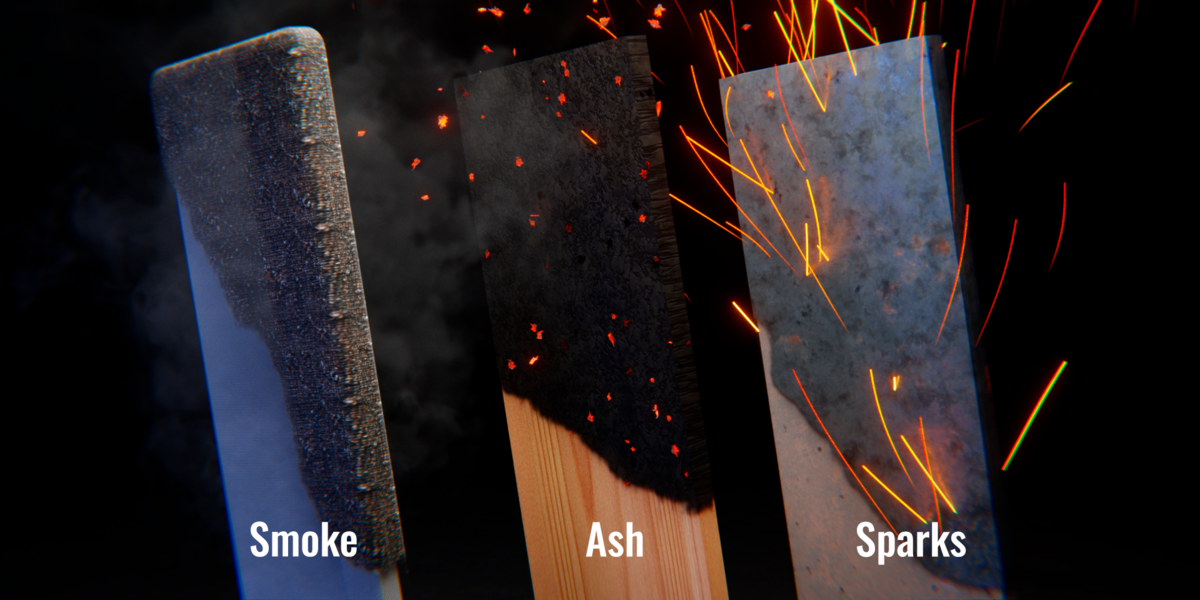
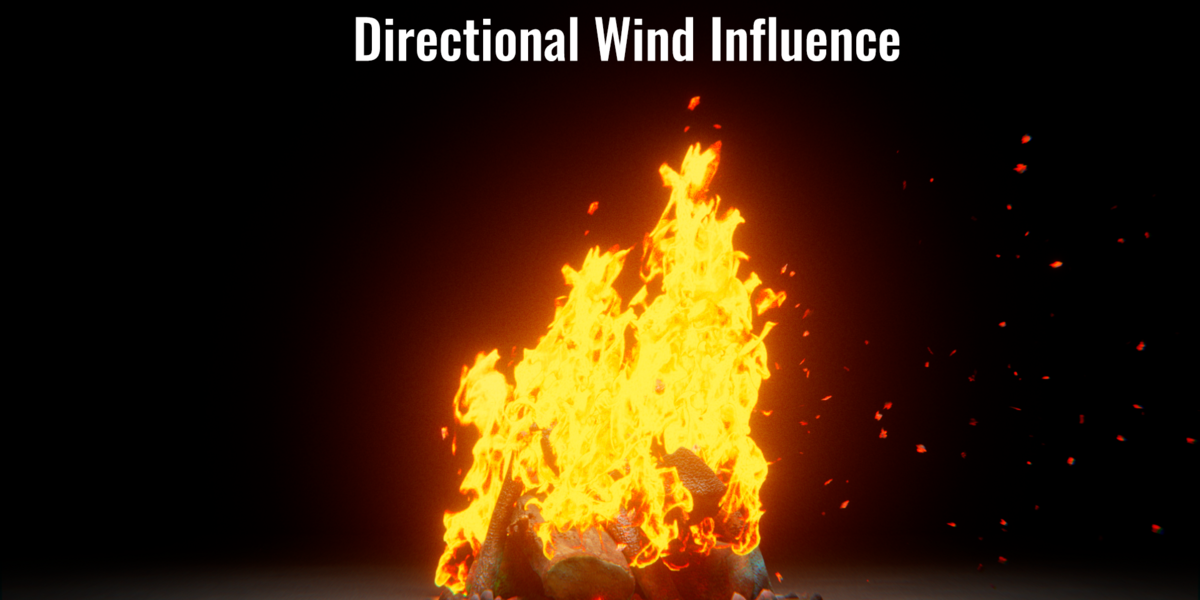
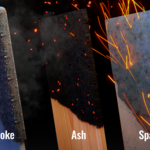
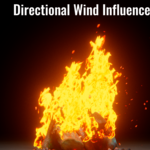
Adjust flame size, amount, color and animation. Enable Smoke, Sparks,
Wind or Heat Haze as needed. Some controls apply only to certain modes.
VDB includes Small, Medium and Large fire sequences.
Sparks > Temperature (K) controls both Round and Trail spark colors.
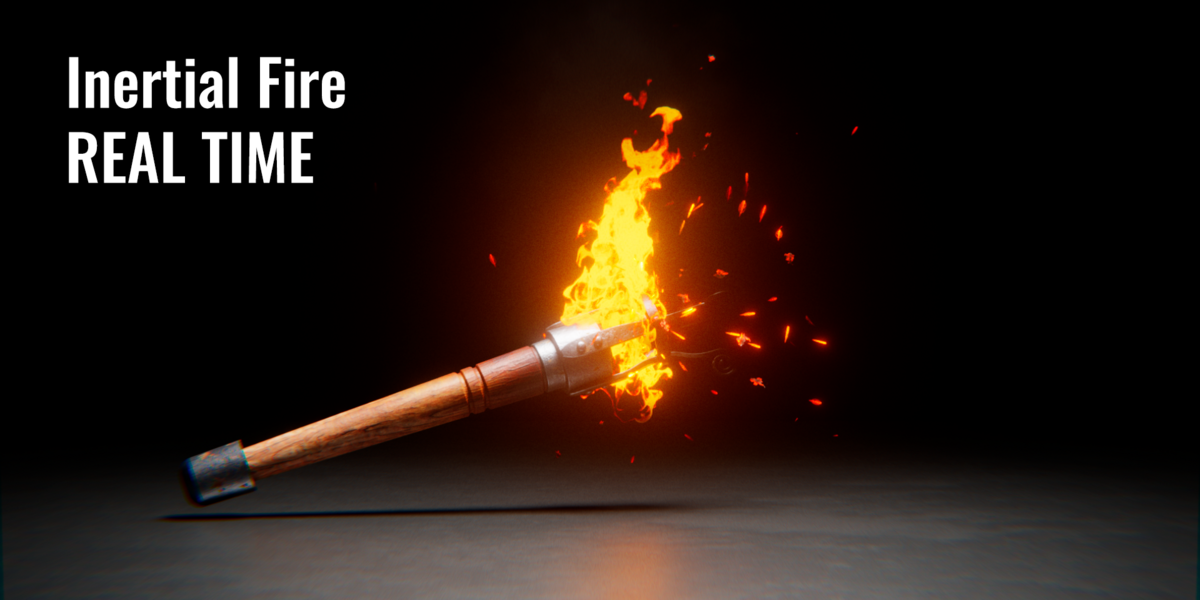
Use Rendered viewport shading to preview the materials and emission.
4. CONTROL WHERE FIRE SPREADS
Use Growth to control the starting point and spread speed. Enable the
weight mask to restrict the effect to a painted vertex group; the default
group name is Group. Object Mask is inside Growth; use its object field
and Invert option to control where fire is allowed.
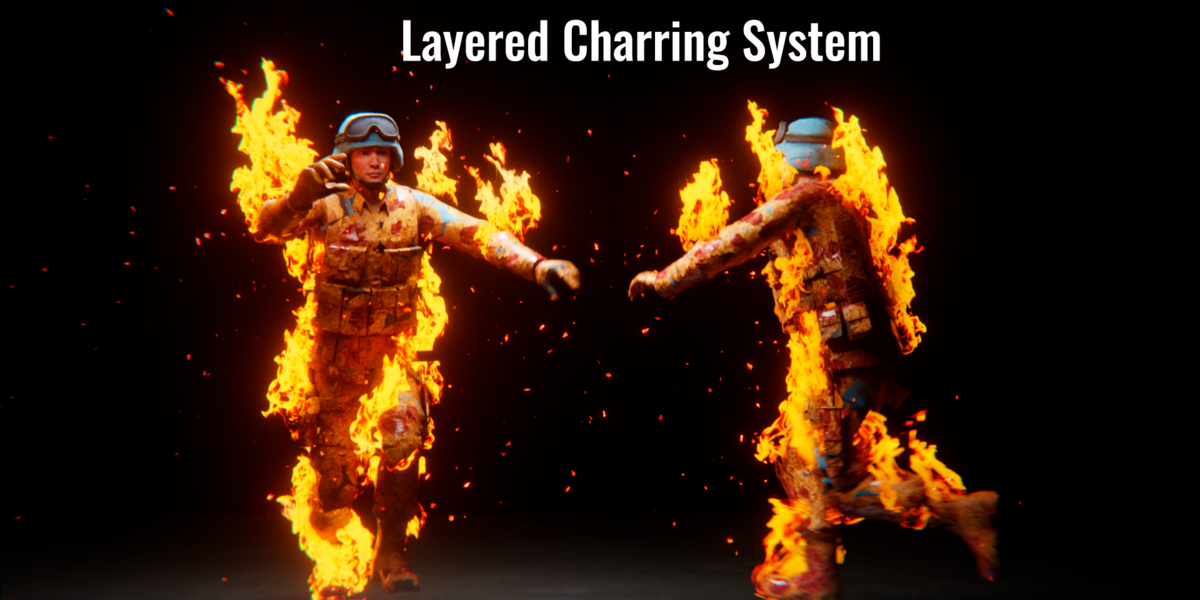
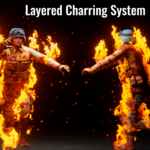
5. ADD CHARRING
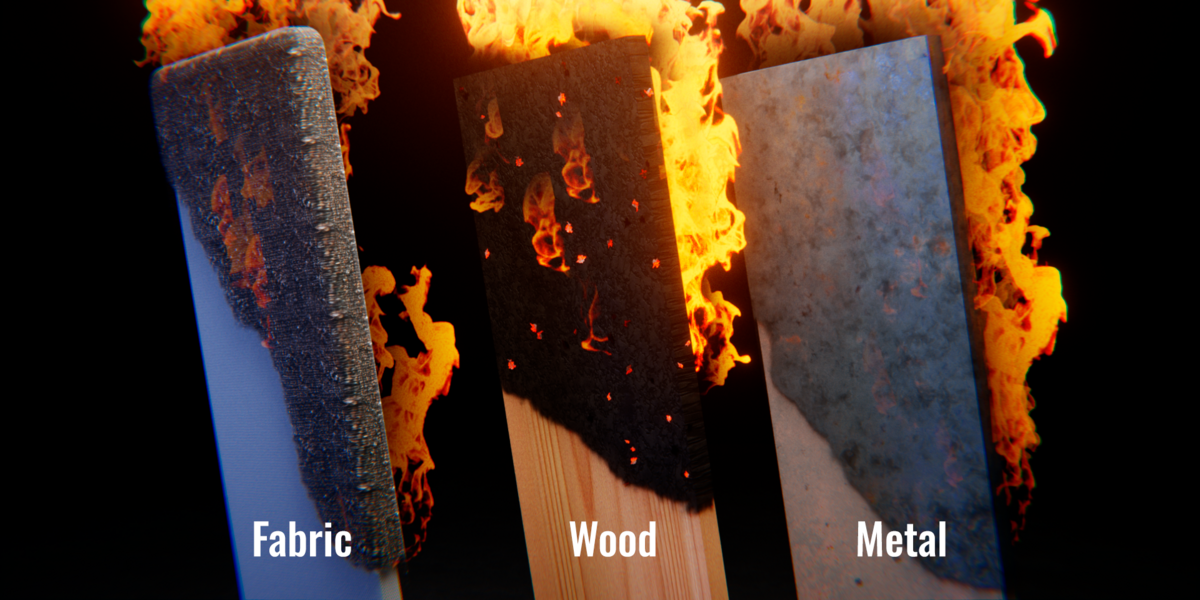
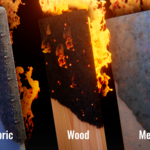
Enable Charring and choose Wood, Iron, Fabric or Organic. Your original
material remains visible outside the burnt area. Use mask/growth sync
to follow the fire, Delay to postpone charring and Memory to retain it.
Organic has three layer controls; Burn Through controls progression time.
6. ANIMATE AND RENDER
For animated characters, place Fire Gen after Armature/deformation
modifiers and keep mesh topology stable. Play from the scene start when
changing simulations. Bake simulation data before rendering arbitrary
frames. EEVEE supports interactive previews; Cycles supports rendering.
Performance depends on the scene, settings and hardware.
7. SAVE AND EXPLORE
Object > Fire Gen > Save Fire Gen Preset saves reusable modifier settings,
not the source object or simulation cache. Open My Presets Folder locates
your saved files. Open Examples Folder locates Examples.blend with complete
editable objects; open that file separately to explore the examples.
REMOVAL
Preferences > Add-ons > Fire Gen > Uninstall Fire Gen removes the extension.
Your scenes, external VDB library and personal presets are kept. The Asset
Library entry is also retained so existing assets remain accessible.
Have questions about this product?
Login to message
| Blender Extension Compatible | Yes |
| Published | about 4 hours ago |
| Blender Version | 4.5 - 5.2 |
| Extension Type | Add-on |
| Render Engine Used | Cycles, Eevee |
| License | GPL |
Discover more products like this
visual effects VFX animation smoke Charring real-time procedural flames simulation fire geometry nodes sparks