Flat Cut & Lay Flat
 Sonneblom Digitaal
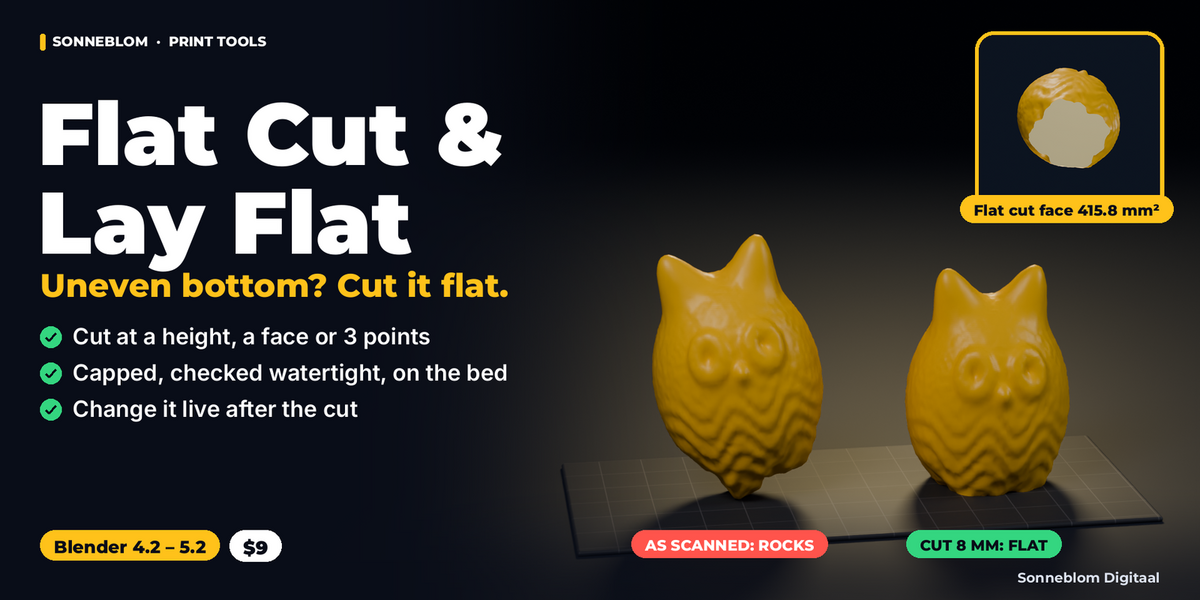
Flat Cut & Lay Flat 1.0.1 - documentation
Install
- Extension zip (flat_cut_lay_flat-1.0.1.zip, Blender 4.2 and newer): Edit > Preferences > Get Extensions > the arrow menu (top right) > Install from Disk, pick the zip. Or drag the zip into Blender.
- Legacy zip (flat_cut_lay_flat-1.0.1-legacy.zip): Edit > Preferences > Add-ons > the arrow menu > Install from Disk, pick the zip and tick the add-on.
Where the panel is
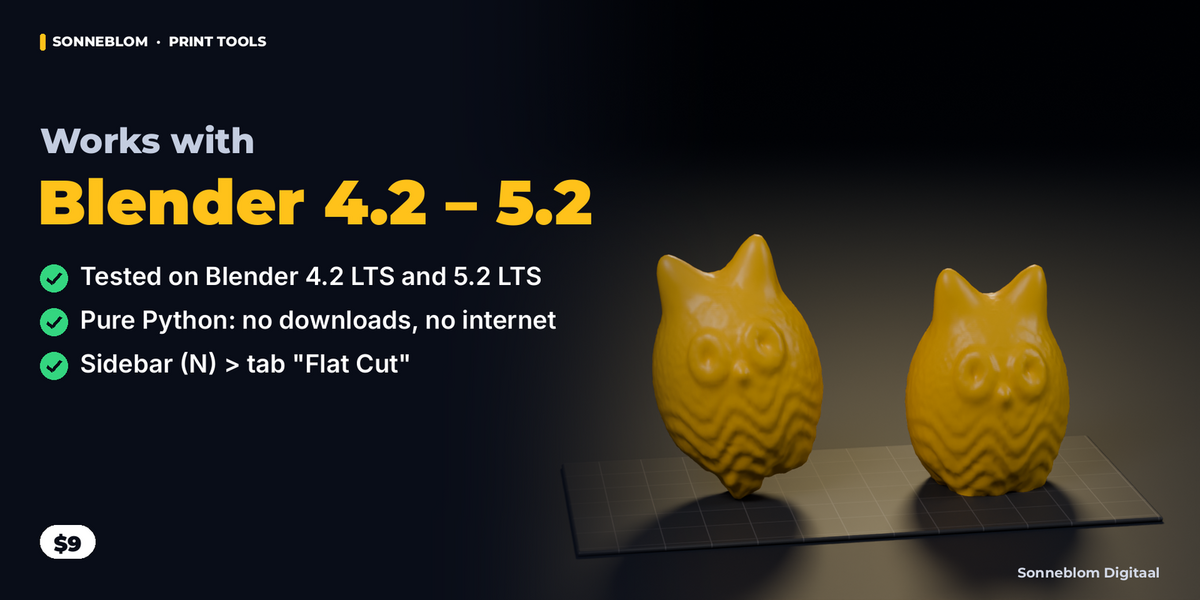
3D Viewport > Sidebar (press N) > tab Flat Cut. The panel "Flat Cut & Lay Flat" has the cut settings at the top, a result box for the selected object after a cut, and the sub-panel "Lay Flat & Align".
Cut the bottom flat (step by step)
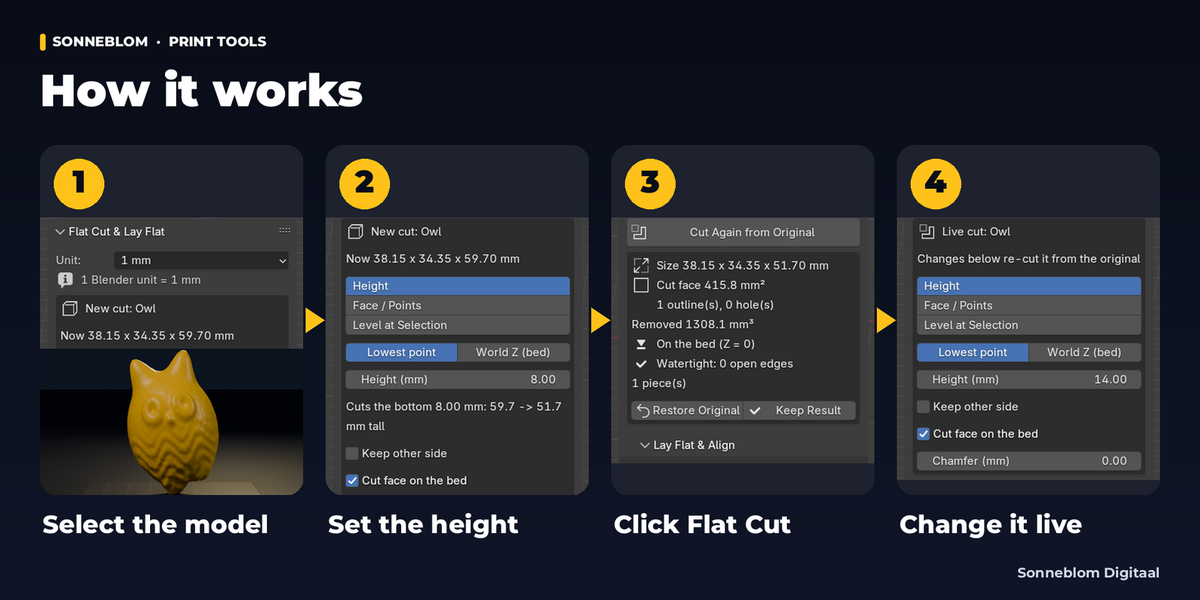
- Check Unit at the top of the panel: 1 mm for STL / 3MF / OBJ files from printing sites (the default). The line under it says "1 Blender unit = 1 mm".
- Select the model in Object Mode. The panel shows "New cut: name" and its size in mm.
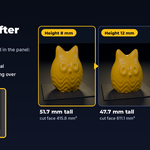
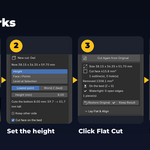
- Cut plane Height: Measure from Lowest point (cut this many mm off the bottom) or World Z (bed) (cut at this Z; 0 removes everything below the grid floor). The panel shows the height before and after.
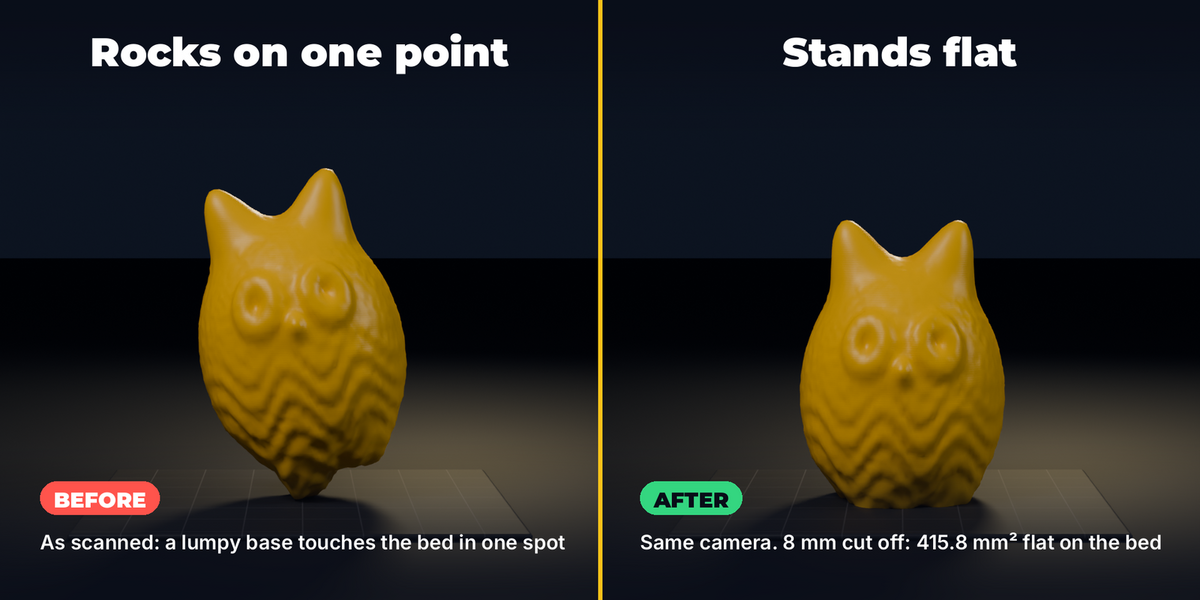
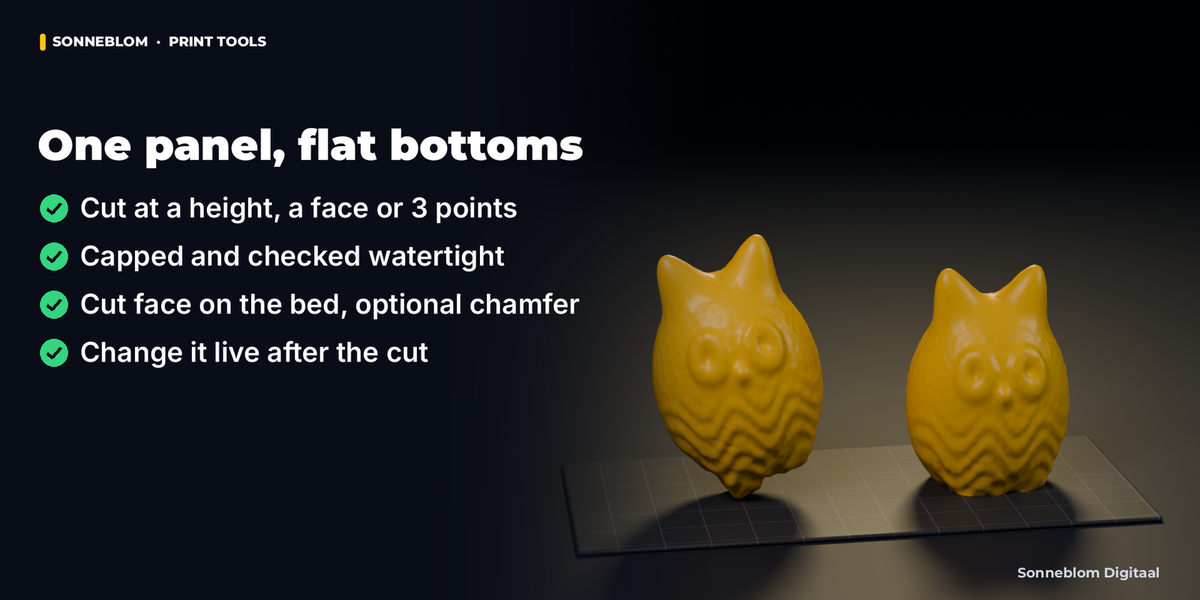
- Click Flat Cut. The cut is filled, the part is turned so the cut face points down and is lowered onto Z = 0 (Cut face on the bed). The new cut face is selected, so Tab shows it.
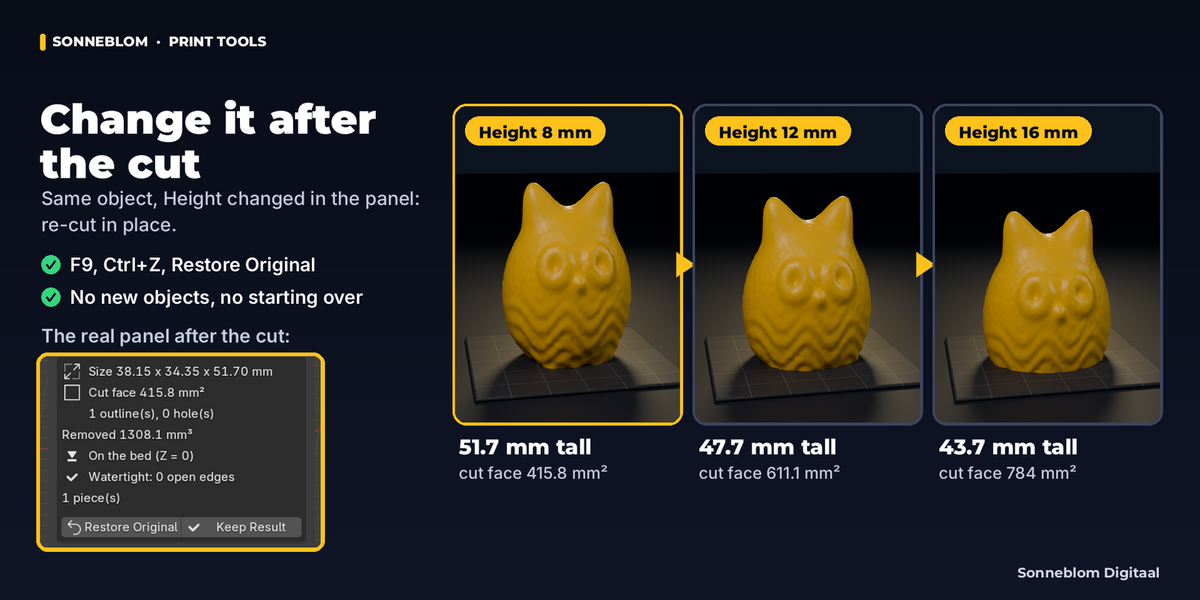
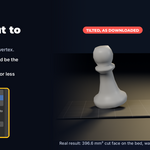
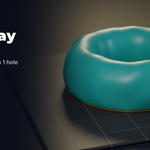
- Read the result box: size in mm, cut face area with the number of outlines and holes, volume removed, on the bed, watertight (0 open edges) or not, number of pieces.
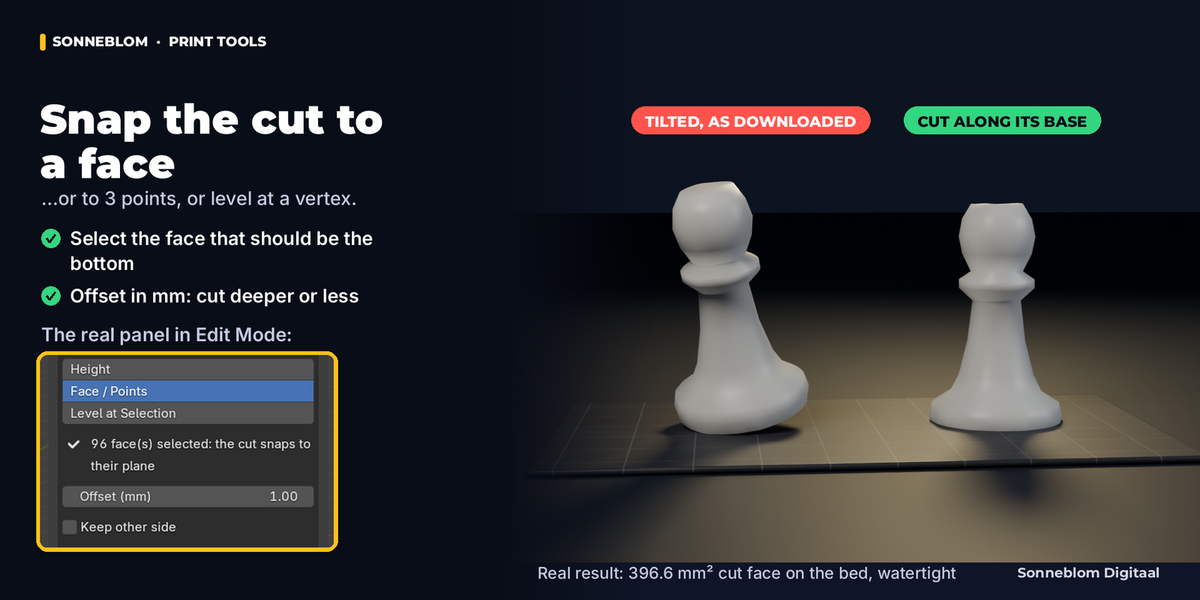
Snap the cut to a face, 3 points or a level
- Select the model, press Tab (Edit Mode).
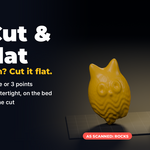
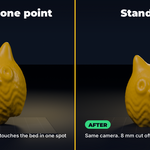
- Face / Points: select one or more faces (the cut runs along their plane and removes what they face), or 3 or more vertices (the cut runs through them; more than 3 = best-fit plane). Level at Selection: select one or more vertices; the cut is level at their average height.
- The panel says what it will do ("1 face(s) selected: the cut snaps to their plane"). Set an Offset to cut deeper (positive) or less deep (negative).
- Click Flat Cut. The plane is stored with the object, so the offset can be changed afterwards in Object Mode.
Change it afterwards (live)
While the object is selected, the panel shows "Live cut: name" and its own values. Change the height, offset, Keep other side, Cut face on the bed or chamfer and the object is re-cut from its kept original, in place. F9 (Adjust Last Operation) works right after a click, Ctrl+Z undoes every change. A value that cannot work (for example a height above the model) is refused, the last good value comes back and the panel says why. Moves and turns you made after the cut are kept when you change a value.
- Restore Original: the mesh and placement from before the first cut come back exactly; the kept copy is deleted.
- Keep Result: makes the cut permanent and deletes the kept copy (smaller file). A new cut then starts from this result.
- If you edit the mesh after a cut, a live change is refused so your edits are not thrown away: click Keep Result first, then cut again.
- Cut Again from Original (the main button on a cut object) re-reads your Edit Mode selection, for a new snapped plane.
Lay Flat & Align
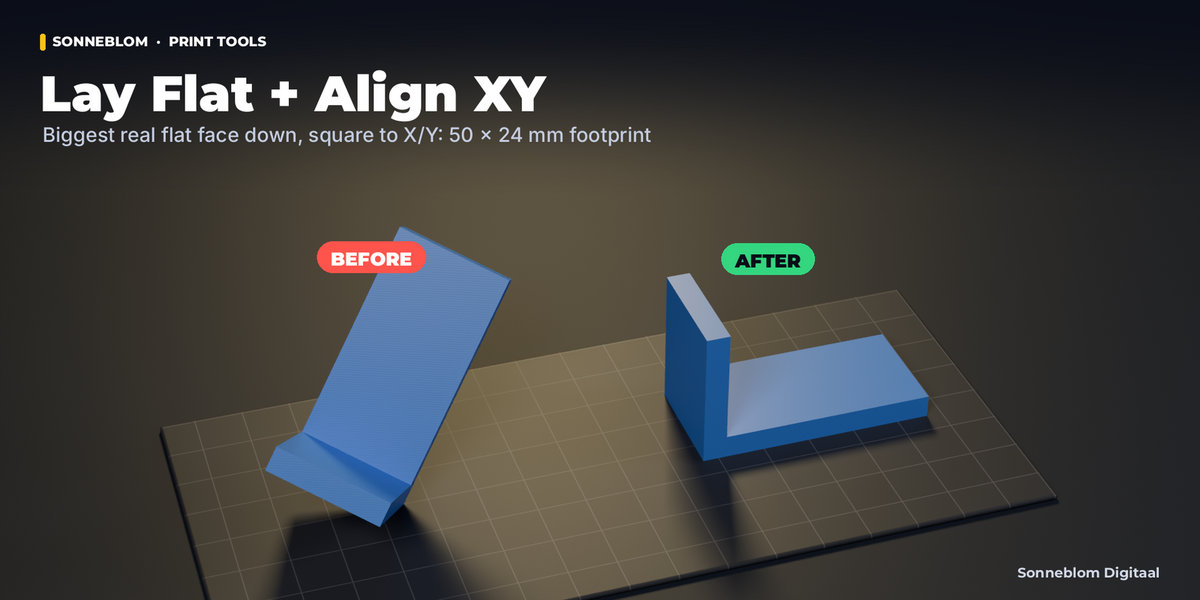
- Lay Flat: Biggest Side: turns each selected mesh so its biggest real flat face lies on the bed (an L bracket goes on its long flat face, not on the slanted hull side it would balance on). Parts without a large flat face are laid in their lowest, most stable pose, and the report says so.
- Lay Flat: Selected Face: in Edit Mode, select the face(s) that should touch the bed and click.
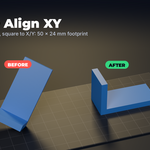
- Align XY: turns the part around Z so its footprint is the smallest rectangle, square to X and Y, long side along X (or Y with the Y button). Round parts are not turned.
Settings
| Setting | Default | What it does |
|---|---|---|
| Unit (1 Blender unit =) | 1 mm | Unit of the model: 1 mm, 1 cm, 1 m, 1 inch or Auto (Scene > Units). All values below are in mm. |
| Cut plane | Height | Height, Face / Points (snap to the Edit Mode selection) or Level at Selection. |
| Measure from | Lowest point | Lowest point (cut this much off the bottom) or World Z (bed). |
| Height (mm) | 1.00 | How much to cut off the bottom, or the world Z of the cut. |
| Offset (mm) | 0.00 | Moves a snapped or level cut; positive cuts deeper into the model. |
| Keep other side | Off | Keep the part on the other side of the cut (for a level cut: the bottom slice). |
| Cut face on the bed | On | Turn the part so the cut face points down and lower it to Z = 0. |
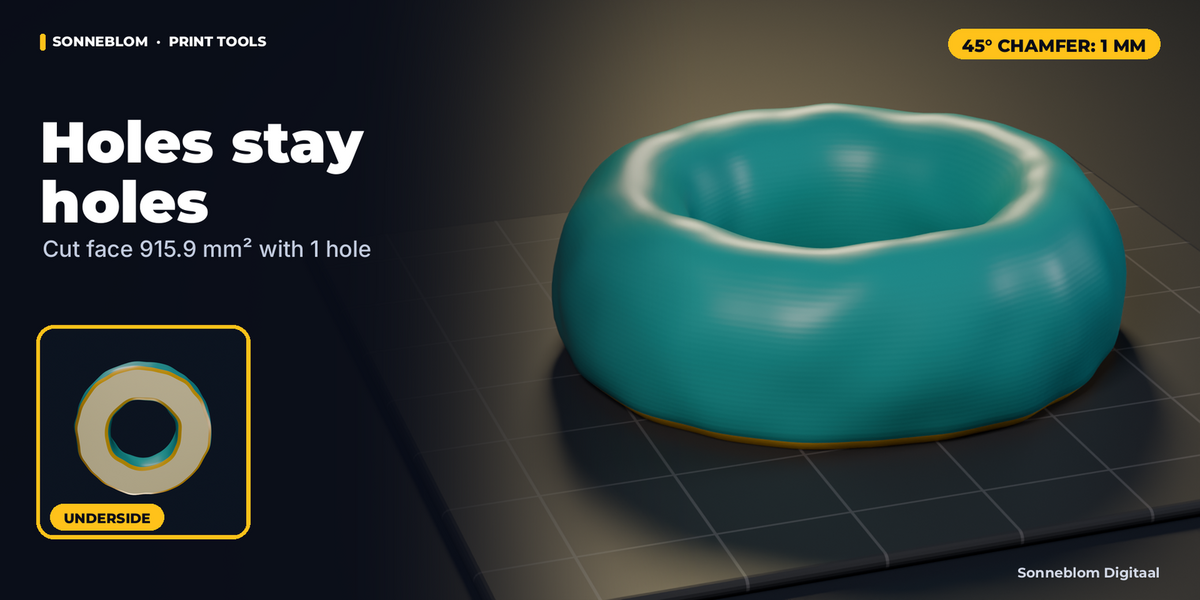
| Chamfer (mm) | 0.00 (off) | 45° chamfer on the new bottom edge, outside and around holes. |
| Lay Flat: Drop to bed | On | Lower the part to Z = 0 after turning it. |
| Align XY: Long side along | X | Which axis the long side of the footprint follows. |
Tips
- Scans off a turntable are often open at the bottom: cut just above the opening and the part is closed again.
- Model sunk into the floor? Measure from World Z (bed), Height 0.
- Want both halves? Shift+D, then cut the copy with Keep other side.
- Elephant foot: a 0.3 to 0.5 mm chamfer on FDM printers.
- Print with the cut face down: it is the largest flat area and needs no supports under it.
Limits
- Works on the mesh, not on modifier results; apply modifiers first.
- Holes in the model that reach the cut stay open above it ("Not watertight" is shown). Close them first for a watertight part.
- The chamfer is refused (the cut is still made) when a wall or gap is thinner than about twice the chamfer.
- On very rough raw scans a small chamfer can be refused too (noise along the cut outline about as big as the chamfer); cut a little higher or use a larger chamfer.
- The new cut face does not keep UVs or colours.
- The kept original adds the mesh once more to the .blend file until you click Keep Result or Restore Original.
Troubleshooting
- "nothing would be removed": the plane is beside or below the model; raise the height or use a positive offset.
- "nothing would be left": the plane is above the model; lower the height or tick Keep other side.
- The size looks 1000 times too big or small: set Unit to the unit of your file (a red hint appears when the size suggests it).
Uninstall
Edit > Preferences > Add-ons (or Get Extensions), find Flat Cut & Lay Flat, click Remove. Objects that were cut keep their mesh.
Licence
GPL-3.0-or-later. Made by Sonneblom Digitaal.
Have questions about this product?
Login to message
| Blender Extension Compatible | Yes |
| Published | about 20 hours ago |
| Blender Version | 4.2 - 5.2 |
| Extension Type | Add-on |
| License | GPL |