Flatflow - Knolling Layouts & Parts Lists
 sharoleslam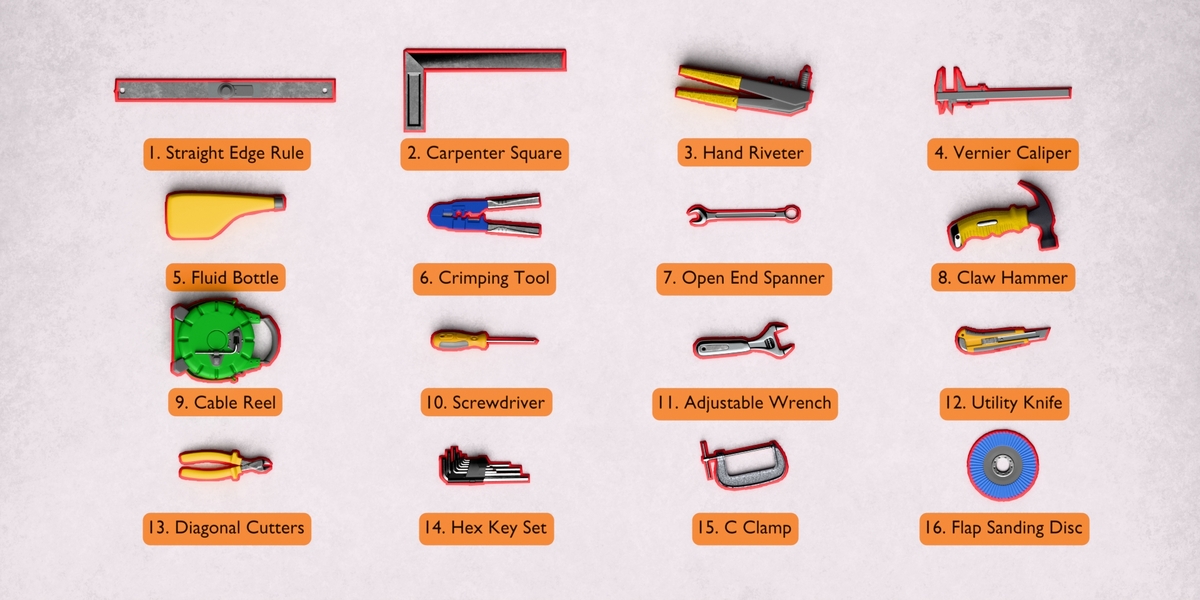
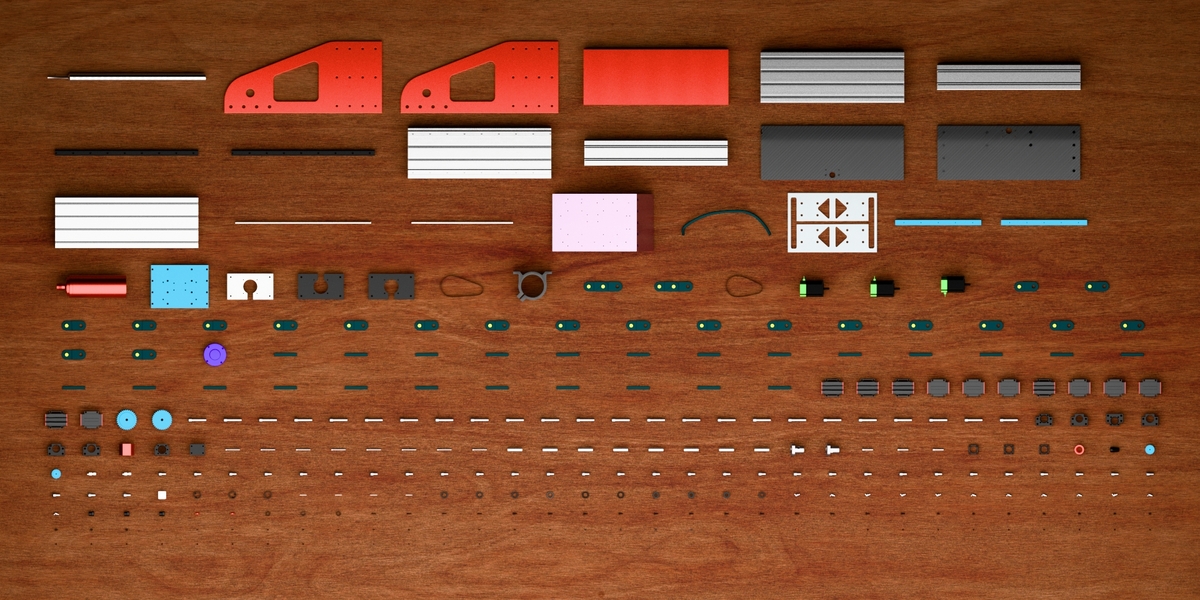
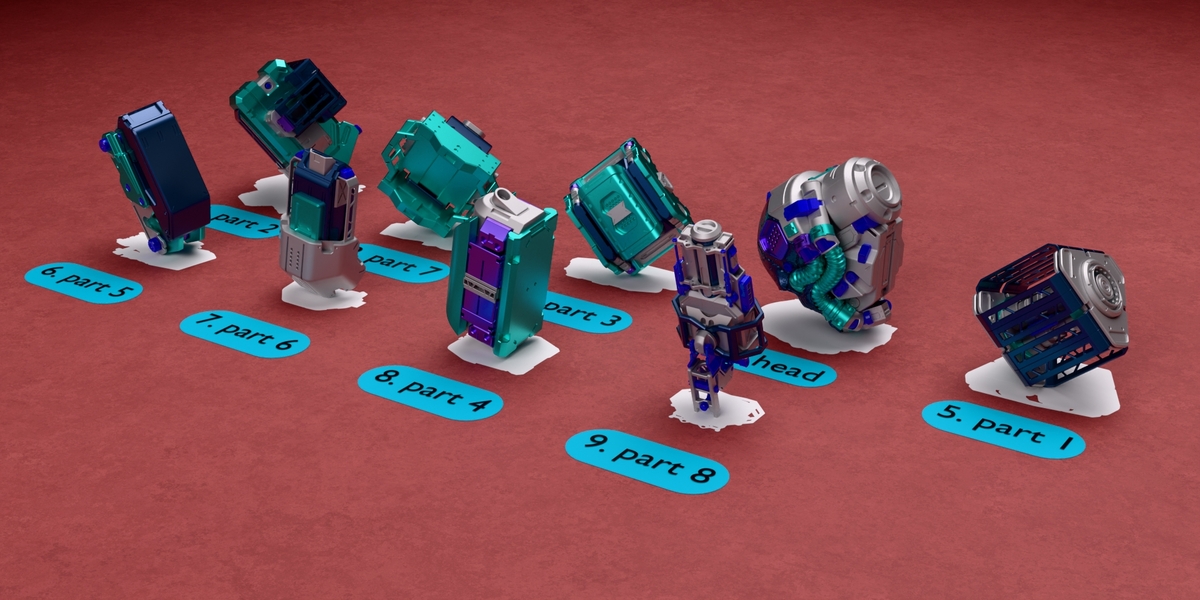
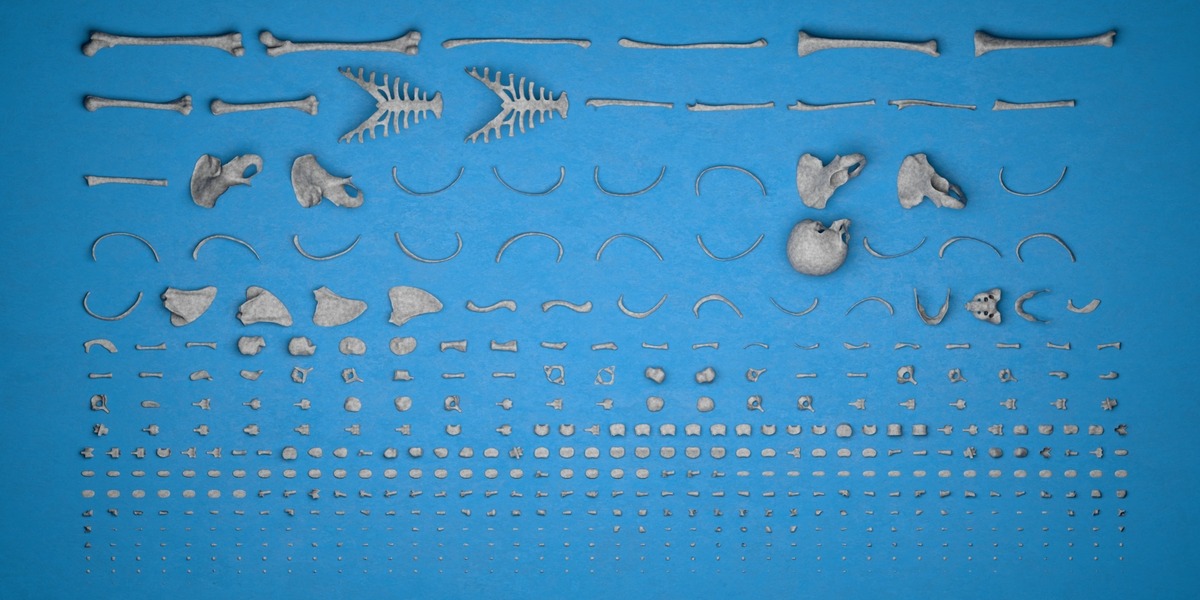
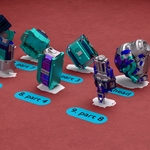
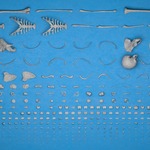
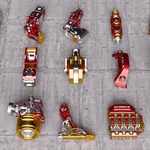
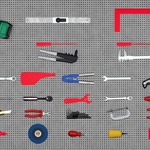
Installing
Drag flatflow-1.0.0.zip onto Blender, or use Edit › Preferences › Add-ons › Install from Disk. The panel appears in the 3D viewport sidebar (press N) under the FlatFlow tab.
Quick start
- Click the collection you want to lay out in the outliner, then press + in the FlatFlow panel. It joins the list.
- Choose Flat or Upright above the Arrange button.
- Press Arrange.
That is the whole workflow. Reset puts everything back exactly as it was.
The panel
Rows
The list at the top takes as many collections as you like. + adds the collection highlighted in the outliner, − drops the highlighted row. A listed collection brings the collections nested inside it too, and an object two rows both reach is arranged once, by the upper row. With no rows at all, your current selection is arranged instead.
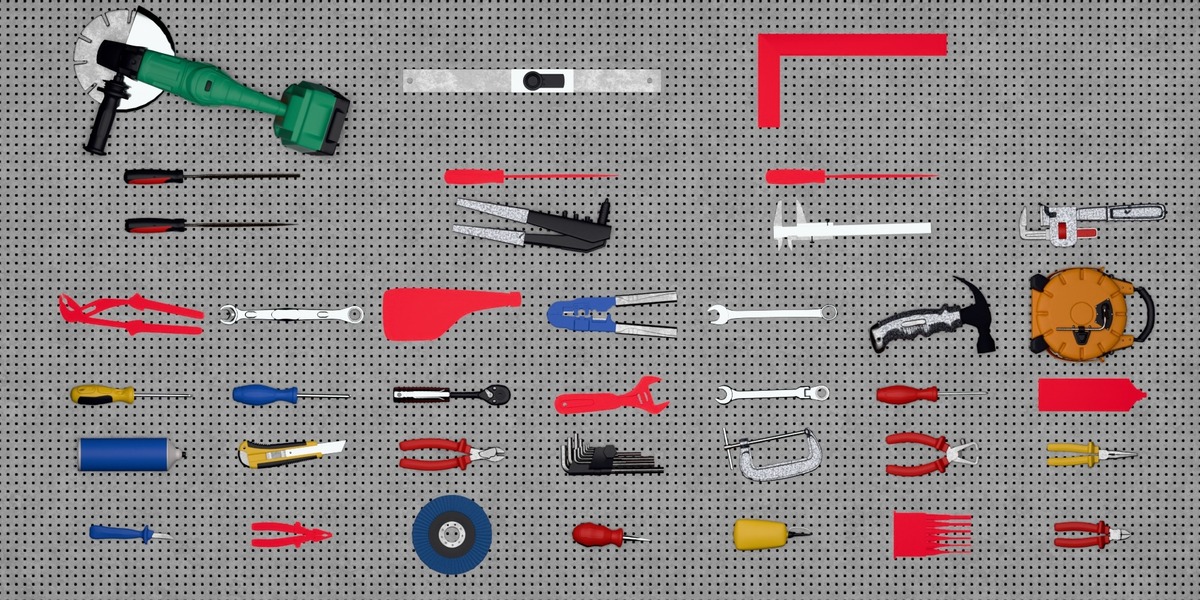
Every row carries its own copy of the whole panel. One collection can lie on one surface with red outlines while another sits on a different surface, filled in blue, with its own table width, grouping and tags. Reset, Export and the type and part count at the foot of the panel all belong to the row highlighted in the list.
Flat / Upright
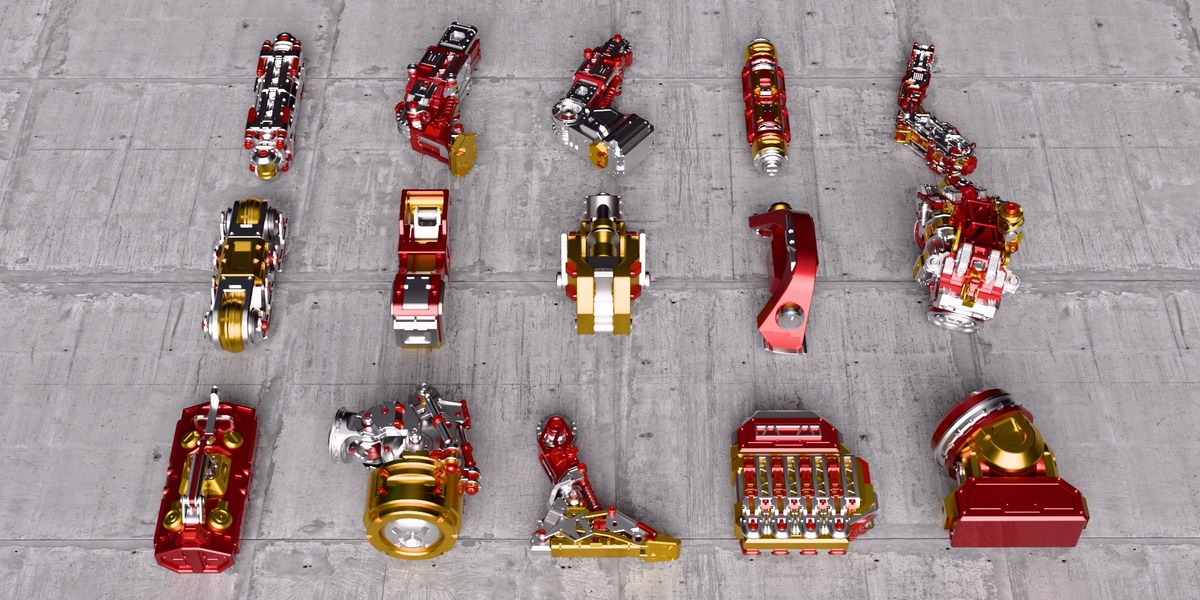
Flat rests each part on its biggest face, thinnest side up — the knolling look. Upright rests it on its smallest face, longest side up. Either way the part is squared up to the table from its own geometry, so two copies modelled in different local frames still come out facing the same way.
Layout
-
Table Width is where a row wraps, Padding the gap between parts. Both re-pack live as you drag them.
-
Rotation turns a part on the table on top of the resting face, and the whole selection turns with it. The angle lives on the object and survives Arrange and Reset.
-
Surface drops the parts onto the top of the object you pick. Tilt that object and the whole flat lay tilts with it. Leave it empty for the world floor.
Grouping
- Objects sharing mesh data always count as one part type: one tag, one line on the list, every copy still laid out.
-
Match Identical Shapes extends that to objects whose data is not shared but whose meshes have the same vertex and face counts at the same size, which is how a CAD or STEP import arrives.
-
Match Identical Materials groups by what a part is made of instead, whatever shape it is.
-
Keep Sub-Collections Whole lays out each nested collection as one assembled part, with one cell, one tag and one line on the list. Keep Parented Parts Whole does the same for a parent and its children.
-
Show One Of Each lays out one copy per type and hides the rest. The tag still counts them all.
Shadows
-
Fill is a solid silhouette of each part cut into the table, holes and all.
-
Outline is the contour round it, with holes, pockets, seams and steps all dropped — the line round the outside only.
-
Line Width re-dials the thickness without re-packing the layout.
-
Hide Parts takes every tool off the board and leaves the marks.
The marks are their own geometry, so they stay put when a part is hidden, moved or deleted.
Tags
A small rounded plate carrying the number, the part name, or both as 3 Bracket ×2, with the ×N count where a type has several copies. Size, plate padding, corner radius and both colours are yours.
Arrange, Reset, Export
Arrange lays out every row. Reset restores the highlighted row from transforms cached before anything was moved. Export writes that row's parts list as CSV, with a lined-up plain-text copy next to it.
Tips
- Rename your parts before you arrange. The tags and the CSV use object names, and Model.214 reads as nothing on a render.
- Press Arrange again after editing geometry. Sliders re-pack from cached measurements; Arrange re-reads every mesh.
- If a part comes out facing a way you dislike, select it and dial Rotation.
- Turn Match Identical Shapes off for a model with mirrored parts — a left and a right bracket have the same counts at the same size, so they group as one type.
Known limits
- Flat and Upright pick the thinnest or longest of the part's three local axes. That is right for plates, shafts and boxes; an organic shape lands on the closest face, not the true one. Dial Rotation by hand when it matters.
- A row of one tall part leaves whitespace beside it — shelf packing gives a row the depth of its deepest part.
- The outline grid is a couple of hundred squares across the part, so a slot narrower than one square is sealed over. About one outline in fifty keeps a single hair-thin break rather than ruling a line across the part.
Support
Questions and bug reports: [email protected] or the Superhive product page.
Have questions about this product?
Login to message
| Blender Extension Compatible | Yes |
| Dev Fund Contributor | |
| Published | 1 day ago |
| Blender Version | 4.2 - 5.2 |
| Extension Type | Add-on |
| Render Engine Used | Cycles, Eevee |
| License | GPL |

Discover more products like this
product render cad flat lay tool board bom parts-list layout assembly kitbash exploded view knolling shadow board