Flex
 Egret Studios LLC



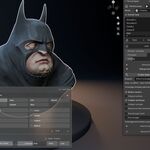
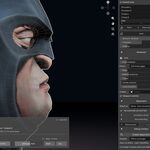
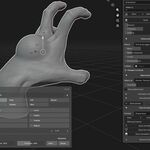
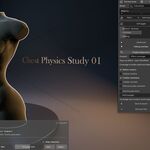
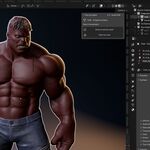
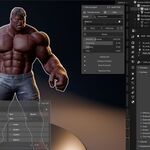
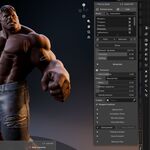
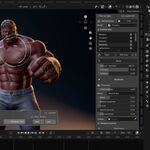
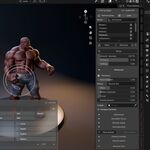
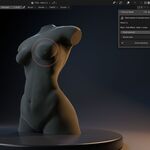
Flex User Documentation
Flex is a procedural secondary motion and surface deformation system for Blender.It adds controllable soft movement to an entire mesh or to specific areas you paint.Use it for soft tissue, stylised character motion, flexible props, muscle deformation,and other reactive surface effects.
Flex is designed around a direct viewport workflow.Start with a preset, move or animate your object, and adjust the response while you work.The affected surface can lag, bounce,settle, sag, contract,and react to collision without rewriting the original mesh coordinates.
Flex works with Blender 4.2 LTS or newer and has been tested withBlender 4.2 LTS and Blender 5.2 on Windows.No account, internet connection, or external Python package installation is required.
Installation
- Open Blender and go to Edit → Preferences → Add-ons.
- Open the Add-ons menu and choose Install from Disk.
- Select the Flex ZIP file. Do not extract the archive.
- Enable Flex.
- Select an editable mesh, press N in the 3D Viewport, and open the Flex tab.
The same controls are also available under Properties → Physics.
Flex uses Blender's bundled components.File access is used for user presets, simulation caches, and exports.
Your First Flex Effect
- Select a mesh.
- Choose Deform whole mesh.
- Interactive preview starts automatically.
- Move the mesh using G or the transform gizmo.
- Release the mesh and watch the surface lag, bounce, and settle.
- Click the current preset name to open the preset library.
- Adjust Amount, Firmness, and Settling.
Changes update automatically while you work.
New Flex effects use Attachment: None by default.A whole-mesh effect has no automatically pinned half or equator.
If you only want a specific region of the mesh to move,use Paint an area instead.
Whole Mesh and Painted Areas
- Choose Paint an area.
- Paint the region you want Flex to affect.
- Click Done painting.
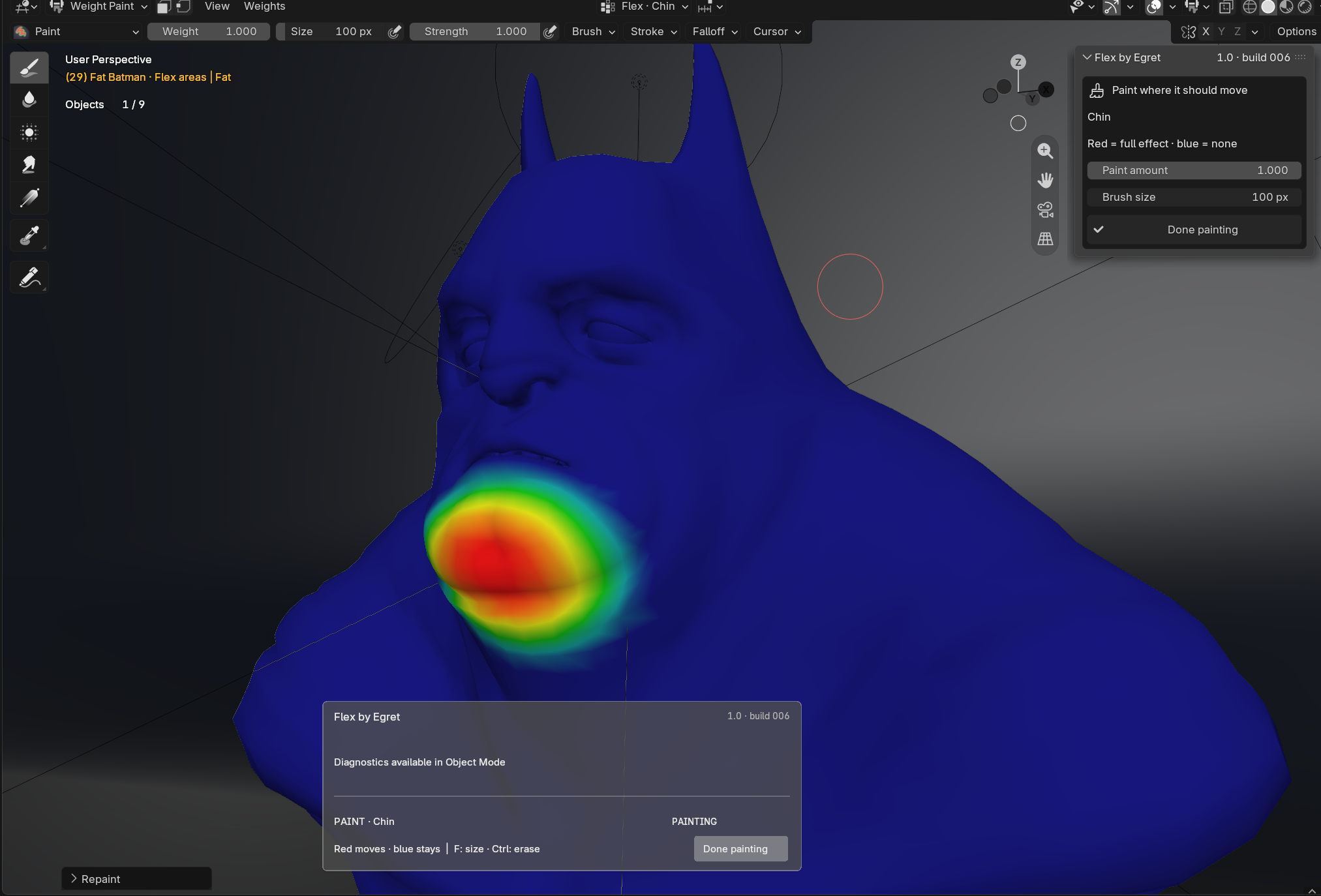
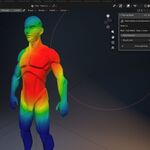
Red represents full Flex influence while Blue represents no influence. Use a gradual border between affected and unaffected areas to avoid an abrupt deformation transition.
Paint amount controls the weight applied by the brush. Brush size controls the brush footprint. Blender's standard Weight Paint tools remain available, including F for brush size and Ctrl to reverse the brush action.
- Paint edits the currently selected area's deformation mask.
- Paint an area instead converts a whole-mesh setup into a painted workflow while retaining the existing material settings.
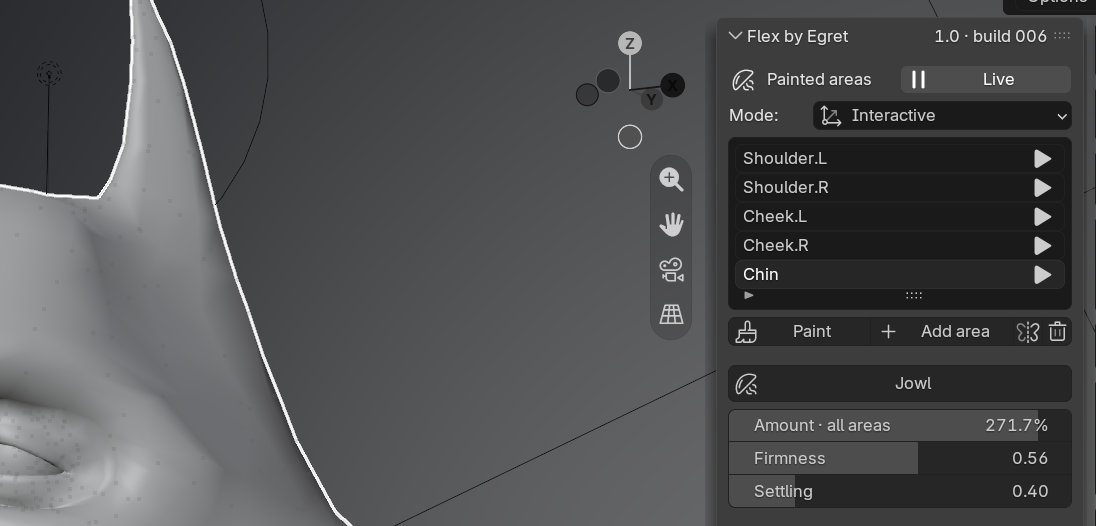
The mirror control reflects a painted area across the mesh’s local X axis. When working with rigs, it also recognises matching .L and .R bone names for left and right sides.
Before transferring weights, Flex checks the mesh for symmetry to help avoid incorrect mirroring. Any vertex groups you created yourself are preserved when Flex is removed.
Interactive and Timeline Modes
Flex provides two main simulation modes: Interactive and Timeline.
Interactive is the default mode. Use it to test material response directly in the viewport while the timeline remains paused. Move, rotate, or scale the object and the affected surface responds immediately, letting you see it lag, bounce, and settle as you work.
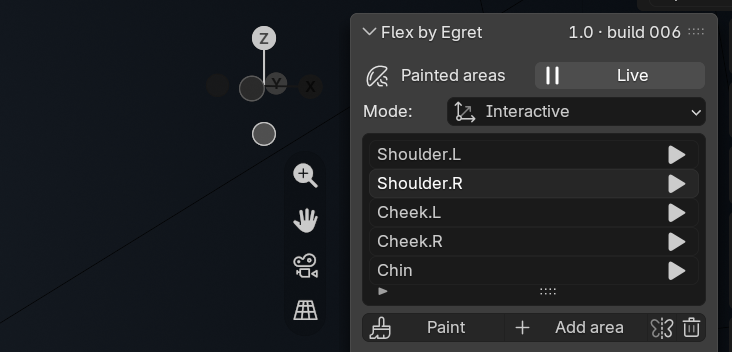
Interactive movement is for preview only. It does not record animation, and temporary Interactive state is cleared before saving or rendering.
Use Timeline mode for animated objects, deforming rigs, repeat previews, simulation caches, and export. Timeline mode follows Blender’s scene frames and uses the Geometry Nodes simulation system to evaluate Flex over time.
If your Flex deformation is driven by an animated mesh or rig, Timeline mode is the correct mode to use.
Live/Pause starts or stops the Flex preview at any time. When you enter painting mode, Flex temporarily pauses the simulation so you can edit the region safely.
Once you click Done painting, Flex returns the object to Object Mode and resumes the preview when appropriate.
Smooth Loop
Smooth Loop is available in Timeline mode and is enabled by default. It blends Flex spring displacement toward rest near the beginning and end of the playback range, helping reduce the abrupt reset that can occur when Blender’s timeline wraps back to the start.
The middle of the playback range keeps the normal spring response, so the effect still behaves naturally through most of the animation.
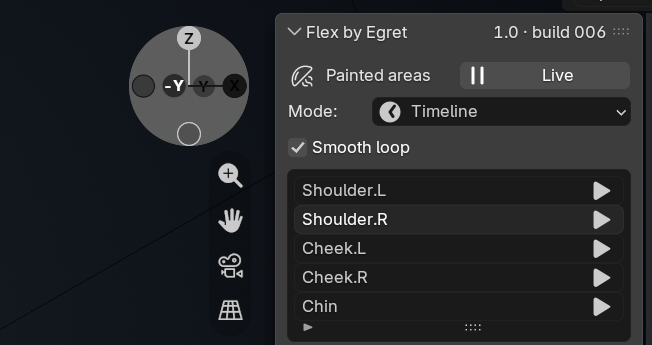
Smooth Loop does not create or rewrite your source animation. Your object or rig still needs to return to a compatible pose and speed for the overall animation to loop seamlessly. Flex only blends the spring displacement around the playback boundaries.
Open Advanced → Loop Transition to control how much of the beginning and end of the playback range is used for blending.
- The default transition uses 25% of the playback range at each end.
- Increase the value for a gentler, smoother transition.
- Reduce it to preserve more of the original spring motion.
- Disable Smooth Loop for continuous one-shot simulations, longer shots, or unrestricted settling.
Smooth Loop only affects Flex spring displacement. Muscle target shapes, animation keys, and collision correction remain unchanged.
Very short playback ranges do not give Flex enough time to produce meaningful secondary motion. For testing bounce and loop behaviour, a range of around 30 to 60 frames usually gives the effect enough time to respond and settle naturally.
The live preview is temporary and is not stored as a simulation. For reliable backward scrubbing, consistent playback after reopening the scene, and repeatable results, save a simulation cache.
Preset Library
Click the current preset name to open the Flex Preset Library directly inside the viewport overlay. From there, you can search, filter presets by category, and apply any preset with a single click.
Flex includes 35 built-in presets covering soft body motion, muscle deformation, body regions, flexible objects, and stylised effects.
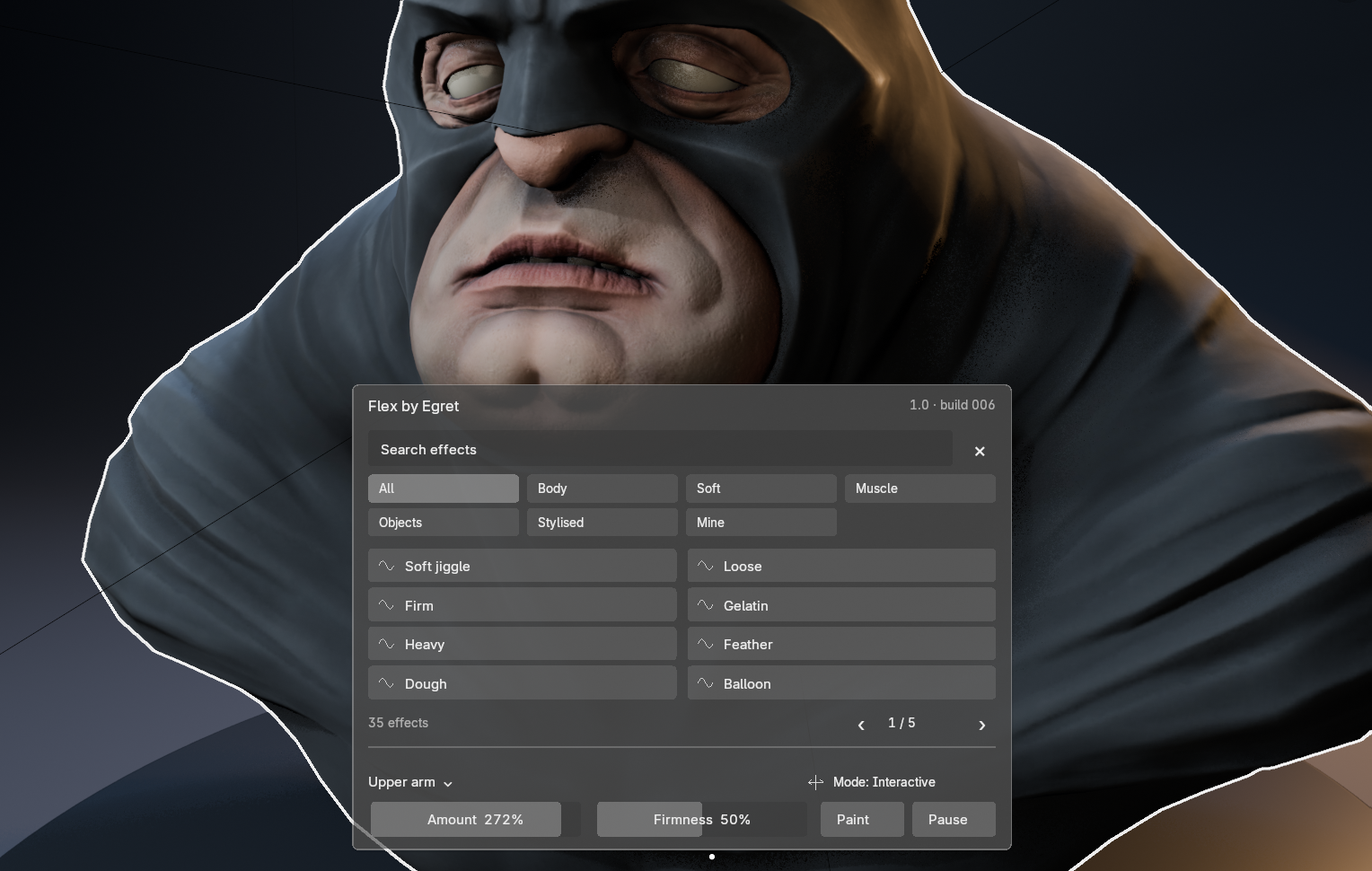
| Category | Presets |
|---|---|
| Soft Body | Soft jiggle, Loose, Firm, Gelatin, Heavy, Feather, Dough, Balloon, Water balloon, Fat, Jowl |
| Muscle | Bicep, Pectoral, Calf, Deltoid, Forearm, Abdominal, Lean, Bodybuilder |
| Body | Breasts, Butt, Chest, Glute, Belly, Thigh, Upper arm |
| Objects | Rubber, Jelly, Pudding, Slime, Beanbag |
| Stylised | Cartoon bounce, Squash and stretch, Extreme, Subtle |
Presets are starting points. They do not automatically detect anatomy or object type. Paint the appropriate region on your model, then adjust the controls until the motion matches the result you want.
Saving Your Own Presets
Open Advanced → Save Preset to save your current Flex settings as a reusable preset.
User presets are stored in Blender’s user scripts folder under presets/flex/.
Main Controls
Flex exposes a focused set of controls for shaping how the surface lags, bounces, settles, sags, and responds to movement.
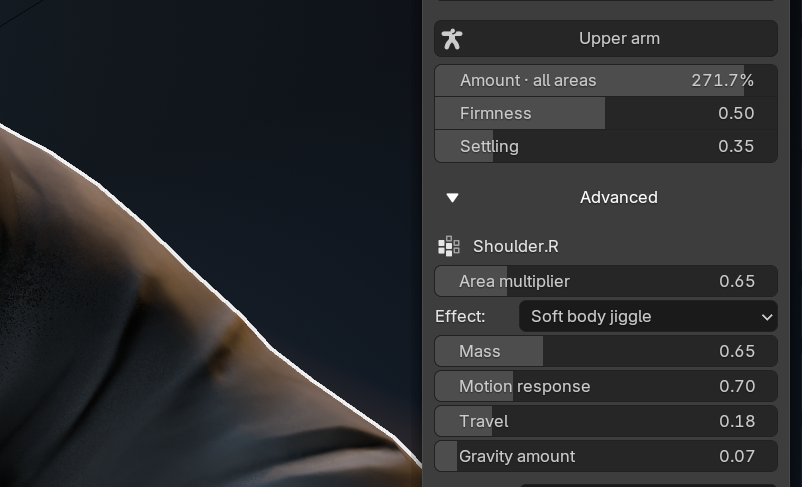
1. Amount
Amount controls the overall strength of Flex deformation across every active area on the object. Think of it as the master intensity control for the entire Flex setup.
A value of 100% represents the normal baseline strength of the effect. Lower values reduce the deformation for subtler motion, while higher values amplify the result for more exaggerated movement.
The viewport overlay supports values up to 300%, while the sidebar allows numeric values up to 1000%. Setting Amount to 0 disables Flex deformation without removing the setup.
Amount is also animatable, which means you can fade the effect in or out over time. Changing Amount does not invalidate a saved simulation cache.
2. Firmness
Firmness controls how strongly the affected surface resists deformation.
Higher Firmness values make the region feel tighter, stiffer, and more resistant to movement. Lower values allow the surface to deform more freely and feel softer or looser.
Use Firmness to define the basic character of the material. A soft belly, loose skin, rubber object, and firm muscle should not all react with the same stiffness.
Firmness works together with Mass, Settling, and Motion Response, so the final result depends on the combination of those controls rather than Firmness alone.
3. Settling
Settling controls damping, or how quickly secondary motion loses energy after the object moves.
Lower Settling values allow the surface to bounce and oscillate for longer before coming to rest. Higher values absorb the motion more quickly, causing the deformation to settle sooner.
Use low Settling for loose, elastic, or exaggerated motion. Use higher Settling for firmer materials or subtle secondary movement that should stop quickly.
Increasing Settling does not make the bounce stronger. It does the opposite by removing motion more quickly.
4. Mass
Mass controls the inertia of the affected region.
Higher values make the surface feel heavier, meaning it tends to resist changes in motion and can continue moving after the source object changes direction. Lower values create a lighter, more responsive feel.
Mass is especially useful for separating different types of soft motion. A heavy belly, dense muscle, loose cheek, and lightweight flexible prop should respond differently even if their other settings are similar.
Mass works closely with Firmness and Motion Response to determine how quickly the surface reacts and how much momentum it appears to carry.
5. Motion Response
Motion Response controls how sensitive Flex is to movement from the object or its driving animation.
Higher values make the affected surface react more strongly to translation, rotation, or animated motion. Lower values reduce the amount of secondary response generated by the same movement.
If your setup feels correct but the deformation is too subtle when the character or object moves, increasing Motion Response is often a better first adjustment than dramatically increasing Amount.
Very high values can produce exaggerated motion, especially when combined with high Amount and low Settling.
6. Travel
Travel controls how far the Flex deformation is allowed to lag behind its target before reaching its movement limit.
This prevents the simulated surface from travelling indefinitely during fast or exaggerated motion. The limit is calculated relative to the size of the affected region, so it remains useful across differently sized meshes and painted areas.
A value of 1 represents half of the affected area's bounding diagonal before Amount amplification.
If the surface appears to hit an invisible limit during strong movement, increase Travel. If you want tighter, more restrained motion, reduce it.
7. Gravity Amount
Gravity Amount controls how much the affected region can sag along the configured gravity direction.
Increasing the value adds more downward pull to the deformation, while lower values reduce the influence of gravity.
This is useful for soft tissue, hanging forms, loose materials, or any setup where the surface should have visible weight even when the object is not moving quickly.
Gravity works alongside the spring response rather than replacing it, so the surface can still bounce and settle while also being pulled downward.
8. Flex
Flex is the manual contraction control used by muscle setups.
Increasing the value causes the configured muscle region to contract along its fiber direction. Depending on the muscle settings, this contraction can also produce visible bulging across the muscle's cross-section.
Flex can be adjusted manually or driven through a bone angle for animated muscle behaviour.
The final result depends on the configured Contraction, Bulge, Volume Preservation, and Fiber Direction settings.
9. Area Multiplier
Area Multiplier controls the strength of only the currently selected Flex area without changing the object's overall Amount.
This is useful when one object contains several painted regions that need different levels of deformation. For example, you can keep the global Amount unchanged while making one region react more strongly and another remain subtle.
A value of 1 represents the normal baseline multiplier. Values up to 10 are supported.
Area Multiplier is combined with the overall Amount, so both controls contribute to the final deformation strength.
For stronger motion
If the effect feels too subtle, start by increasing Motion Response or Amount. Reduce Settling if you want the motion to bounce for longer, and increase Travel if the deformation appears to be reaching its movement limit.
For exaggerated results, the Cartoon Bounce and Extreme presets are useful starting points.
Note: High Settling reduces bounce rather than increasing it. Very high Amount, Motion Response, Travel, or Area Multiplier values can produce extreme deformation and may significantly stretch the surface.
Attachments
Attachments control which parts of an affected area remain anchoredwhile the rest of the surface is allowed to deform.
| Attachment | What It Does |
|---|---|
| None | Leaves the affected area completely free. |
| Gravity-Facing | Attaches the area according to the configured gravity-facing side. |
| Origin | Attaches the region near the object's origin. |
| Painted | Uses a separately painted attachment mask to control which parts stay anchored. |
| Bone-Based | Attaches the affected area near a selected bone. |
Animation and Muscle Controls
Flex jiggle can respond to either object movement or the movement of a selected bone. Muscle deformation can be controlled manually or driven automatically from a bone angle, making it suitable for rigged characters and animated muscle response.
1. Find Bones
Find Bones analyses the currently painted region and suggests bones that are likely to influence that area.
Use the suggested bone as a starting point, then configure the rest angle and full-flex angle so Flex knows when the muscle should be relaxed and when it should be fully contracted.
The suggested result should always be checked against your rig, especially on complex characters where several bones influence the same region.
2. Contraction
Contraction controls how strongly the muscle shortens along its configured fiber direction.
Higher values create a stronger visible shortening of the painted region, while lower values produce a subtler contraction.
This setting defines the core muscle movement and works together with Bulge, Volume Preservation, and Fiber Direction to shape the final deformation.
3. Bulge
Bulge controls how much the muscle expands across its cross-section as it contracts.
Increasing Bulge creates a fuller, more pronounced muscle shape, while lower values keep the contraction flatter and more restrained.
Use Bulge to balance the shortening created by Contraction and to control how strongly the muscle appears to swell during flexing.
4. Volume Preservation
Volume Preservation adds compensating expansion to help the muscle maintain a fuller form while it contracts.
Higher values can reduce the appearance of the region simply collapsing or becoming too thin during contraction.
This is an approximate deformation control rather than a true volumetric simulation, so it does not guarantee mathematically constant volume after painted masks, attachments, collisions, and other deformation controls are applied.
5. Fiber Direction
Fiber Direction determines the direction in which the muscle contracts.
Flex can automatically analyse the painted region and estimate a suitable direction. This works well for many simple muscle shapes, but round, curved, bent, or unusually shaped regions may require manual adjustment.
For direct control, you can define the direction manually or select two vertices in Edit Mode and choose Use two selected vertices. Flex uses the direction between those vertices as the muscle fiber reference.
For rigged characters, keep Flex after the Armature modifier so the muscle deformation is evaluated on top of the character's animated deformation.
Area Blending
Neighbouring Flex areas can transfer outward displacementwithin a chosen reach.Areas evaluate in list order.Border softness controls the transition through the painted mask.
Collision
Flex provides approximate surface contact against a selected mesh collider.Choose a collider under Advanced → Collide with.
Simple collider geometry with consistently oriented normalsis recommended where practical.
Debug Overlays
Open Debug Overlays → Enable Diagnostics to inspect what Flex is actually evaluating on the mesh directly in the viewport. These overlays are intended for troubleshooting and understanding the simulation, and enabling them does not rebuild the Flex node graph or invalidate a saved simulation cache.
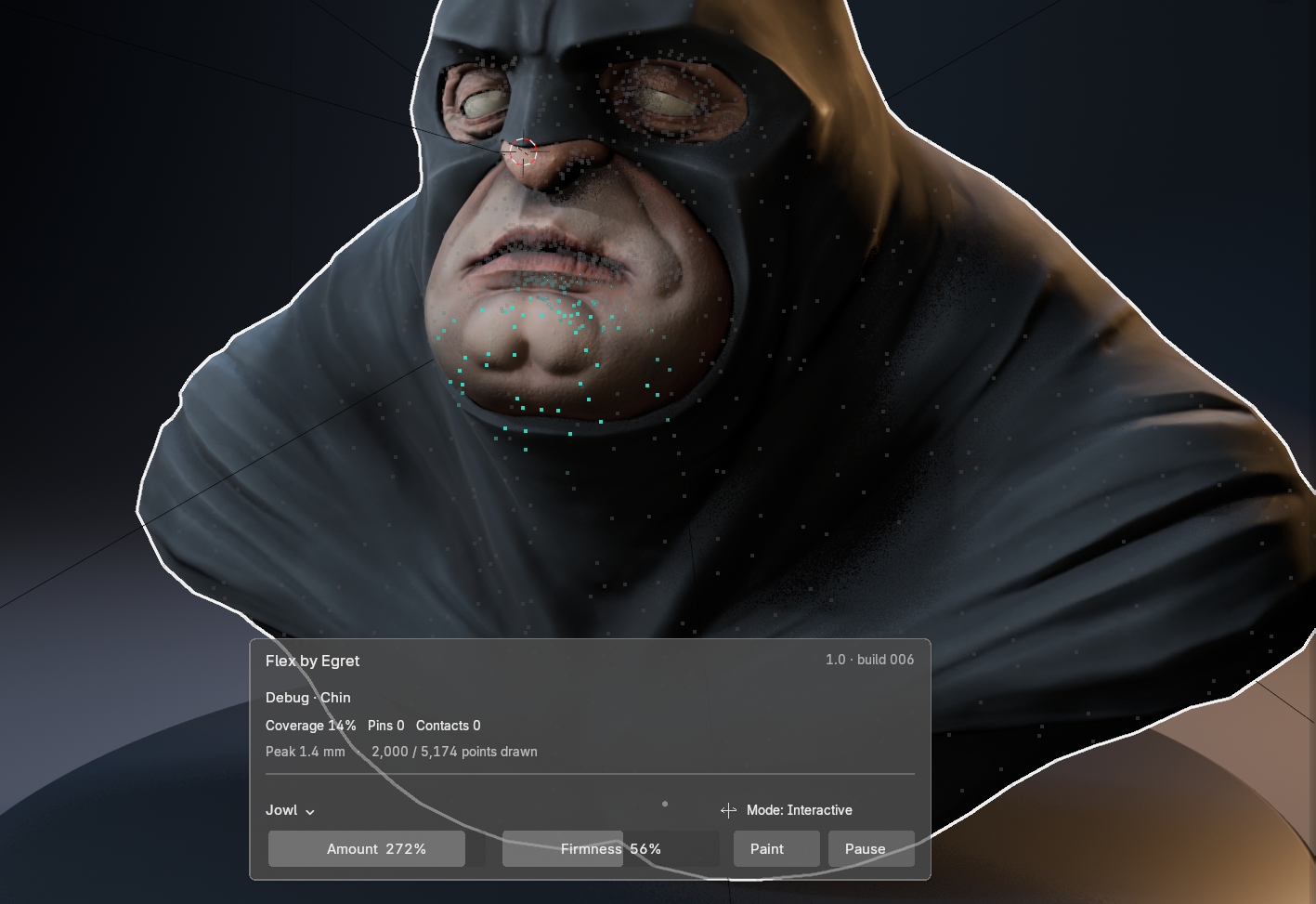
1. Effect Coverage
Effect Coverage shows where Flex is active on the evaluated surface.
Gray areas are not being affected by Flex, while Cyan represents full evaluated influence. This makes it easier to confirm that a painted region, attachment mask, visibility setting, and overall Amount are producing the coverage you expect.
Use this view first when a region is not moving or appears weaker than expected.
2. Attachment
The Attachment overlay shows which evaluated vertices are free to move and which are being held in place.
Gray represents free vertices, while Orange represents attached vertices.
This is useful when part of a Flex region appears unexpectedly locked, especially when using painted, gravity-facing, origin, or bone-based attachments.
3. Displacement
Displacement shows how far the Flex surface has moved from its original position.
You can also enable direction and distance vectors to inspect not only how much the surface is moving, but also the direction of that movement.
This is useful for identifying excessive deformation, restricted travel, or unexpected motion direction.
4. Collision Contacts
Collision Contacts shows which vertices are currently receiving collision correction.
Active contact points are displayed in Pink, making it easier to see exactly where the Flex surface is interacting with the selected collider.
Use this when collision appears to be missing, happening on the wrong side, or affecting a different area than expected.
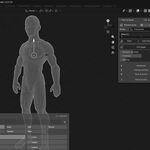
5. Original Surface
Original Surface displays the undeformed mesh as a reference wireframe.
This gives you a direct comparison between the original surface and the current Flex deformation, making it easier to judge how far the mesh has moved and where the deformation is concentrated.
6. Collider Wireframe and Normals
The Collider Wireframe displays the selected collision surface directly in the viewport.
Collider normals show the direction the surface is using for collision correction. This is especially important for open surfaces, where the face-normal direction determines which side blocks the Flex mesh.
If collision appears to happen from the wrong side, this is one of the first diagnostics to check.
7. Reference Fiber Direction
Reference Fiber Direction displays the direction Flex is using for muscle contraction.
This is useful for verifying automatically detected fiber directions or checking manually defined directions before tuning Contraction and Bulge. If a muscle contracts in an unexpected direction, inspect this overlay first.
8. See Through Mesh
See Through Mesh enables X-ray-style inspection of the diagnostic overlays. This is useful when attachment points, vectors, contact markers, or other diagnostic information are hidden behind the visible mesh surface.
9. Diagnostic HUD
The Diagnostic HUD provides a compact summary of the current Flex evaluation.
It can report:
- Coverage
- Pinned vertex count
- Collision contact count
- Peak displacement
- Drawn point count
These values are calculated from the evaluated mesh. Diagnostic points and vectors may be sampled according to the configured Point Budget to keep the viewport responsive.
Diagnostics refresh up to 10 times per second, giving you a live view of the current setup without continuously rebuilding the simulation.
Blender's global Show Overlays switch also hides Flex diagnostics. If you only want to hide the Flex control interface while keeping Blender overlays enabled, use Advanced → Viewport Controls instead..
Save and Export
Open Save & Export after preparing your animation. Set the Start frame, End frame, and optional Warmup frames.
Warmup evaluates frames before the export range so the Flex simulation has time to settle into motion before the final output begins. These warmup frames are evaluated for simulation purposes but are not included in the exported result.
1. Save This Shape
Save This Shape creates an independent static copy of the evaluated Flex surface at the current frame.
Use it when you want to preserve a single deformed result as a new mesh without changing or removing the original Flex setup.
This is useful for capturing a final pose, creating a modelling reference, or keeping a specific deformation as a standalone mesh.
2. Save Animation to Shape Keys
Save animation → Shape keys creates an independent mesh with one shape key for every exported frame.
The generated shape keys use linear crossfades between frames, allowing the baked deformation to reproduce the Flex animation without requiring the live Flex simulation.
The evaluated surface and object movement are stored in world space, and the output object uses an identity transform.
When exporting the result through FBX or glTF, make sure the appropriate morph-target and animation options are enabled in Blender's exporter.
3. Save Animation to Alembic
Save animation → Alembic exports the evaluated Flex animation to an .abc file.
Alembic is useful when you want to preserve the final evaluated deformation for another Blender scene or for another application that supports Alembic caches.
Frame preparation can be cancelled with Escape. Once Blender begins the final synchronous Alembic archive write, Flex cannot interrupt that final write stage.
4. Save Simulation Cache
Save simulation cache stores Blender's native simulation data beside the saved .blend file.
The cache is stored under:
flex_cache//
After creating the cache, save the Blender file again so the project references the saved simulation state correctly.
Keep the cache folder together with the .blend file when moving, transferring, or backing up the project.
A saved simulation cache provides more reliable backward scrubbing, repeatable playback, and consistent results after reopening the scene.
5. Cache Invalidation
Some changes affect the underlying simulation and require a fresh cache.
Changing spring material settings or structural simulation settings invalidates the current simulation state. After making those changes, create a new simulation cache.
Changes to the overall Amount or debug display settings do not invalidate the saved cache.
Exported meshes remain independent from the original Flex object.
The mesh topology must remain stable during simulation. Changing the vertex count or vertex order is not supported and can invalidate the result.
Troubleshooting
1. Nothing Moves
First, make sure Live is enabled and that Flex is running in Interactive mode when you are testing movement directly in the viewport.
Move the object and check the following:
- The painted region has visible Flex coverage.
- Amount is above 0.
- The Flex area is visible and enabled.
- The attachment settings are not holding the region in place.
- The affected area is actually free to deform.
If you are using Timeline mode, make sure the object or rig has animation that is driving the Flex response.
2. The Bounce Is Too Subtle
Increase Amount or Motion Response to make the surface react more strongly to movement.
Reduce Settling if you want the motion to bounce for longer before coming to rest.
Also check Travel. If the spring is reaching its movement limit, increasing Travel allows the deformation to move farther before it is restricted.
If the motion still feels too restrained, try a stronger preset such as Cartoon Bounce or Extreme as a starting point.
3. Part of the Mesh Stays Still
Check the Attachment setting first.
If you want completely free whole-mesh motion, set Attachment to None.
For painted regions, inspect both the deformation weights and the attachment weights. A region can have full Flex influence while still being partially or completely held in place by an attachment mask.
Use the Attachment debug overlay if you need to see exactly which vertices are free and which are pinned.
4. The Loop Still Jumps
Check the source animation at the beginning and end of the playback range. For a seamless loop, the object or rig should return to a closely matching pose and motion state.
Also check:
- Collider animation
- Playback range
- Smooth Loop
- Loop Transition
- The source object's start and end poses
- The rig's start and end poses
Flex can smooth the spring displacement around the playback boundaries, but it cannot make mismatched source animation loop automatically.
If the source animation itself does not loop cleanly, the Flex deformation will still inherit that mismatch.
Performance
Flex performance depends on several parts of the setup,including mesh density,the number of active Flex regions,collider complexity,and the overall scene complexity.
Higher-density meshes and multiple active regions require more evaluation,while complex collision geometry can increase the cost of contact calculations.
Realtime viewport preview is not guaranteed to maintain a fixed frame rate.For better performance, use reasonable mesh densityand simpler collider geometry where practical.
Compatibility
Flex requires Blender 4.2 LTS or newer.
Flex has been tested with Blender 4.2 LTSand Blender 5.2 on Windows.
Other operating systems have not been validated.
No account, internet connection,or external Python package installation is required.
Technical Scope and Limitations
Flex is a procedural surface deformation system.
It is not a volumetric anatomical simulator and is not intended to replace every use of Blender's full soft-body physics system.
Current limitations include:
- Collision is approximate.
- There is no continuous collision detection.
- There is no friction simulation.
- There is no self-collision.
- Mesh topology must remain stable during simulation.
- Changing vertex count or vertex order during simulation is unsupported.
Use local editable meshes or suitable library overrides when working with Flex.
Removing Flex removes the modifier, groups, and helper data owned by Flex while retaining artist-created data and independent baked outputs.
License
Flex extension code is distributed under the GPL-3.0-or-later license.
Support
For Flex support, contact me via inbox on superhive or write me [email protected] dont spam :)
Copyright 2026 Egret Studios, LLC
 Included
Includes 12 months of
- Support from Egret Studios LLC
- Product updates
Extend this product’s Support Period +12 months: 50% of product price
Have questions before purchasing?
Login to message

Discover more products like this
deformation #3DPhysics procedural geonode soft-body deformation Muscle System soft body