Fog Pro: Volumetric Fog, Mist, Haze & God Rays
 Darksteady. Studio
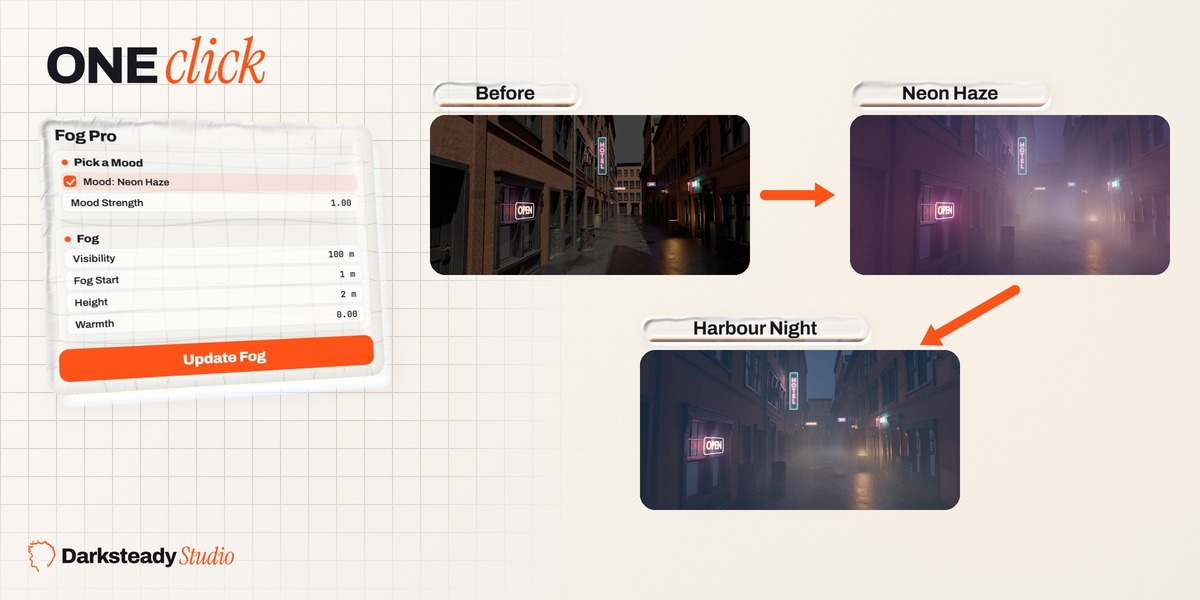
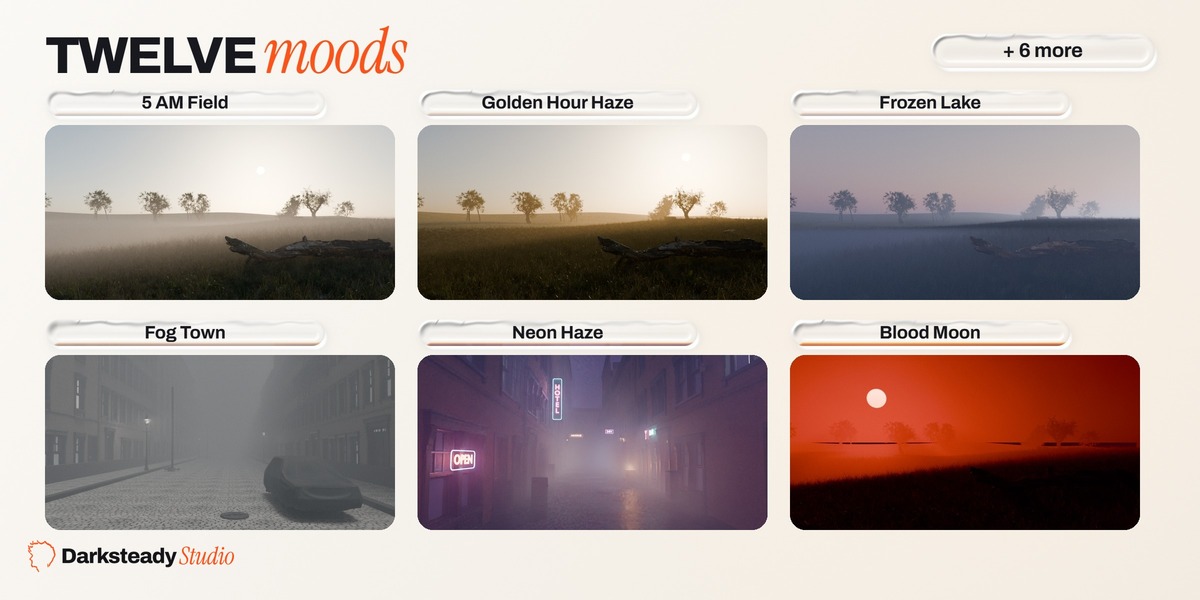
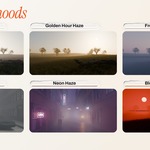
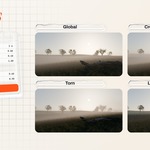
Yes, both, from the first click. Fog Pro sets the volume options of both engines for you, so you can switch engines without touching anything. With the default settings the fog looks alike in both engines. Lit by the sun or by lamps, its brightness differs by about 1 percent between EEVEE and Cycles in our test scenes. EEVEE does not light fog with the sky, so Fog Pro adds the sky's light to the fog itself: across the moods on our test field the EEVEE image stays within about 20 percent of the Cycles one.
Fog Pro has the full fog engine: one click fog fitted to your scene, 12 moods (fog, sun, sky and grade together), 16 looks, three layers, drift, light shafts, LumiRig rigs, quality presets and Fog Doctor. Fog Pro Studio adds 28 more moods and 24 more looks (Horror, Sci-fi, Fantasy, Noir, Archviz), My Moods, Mood Morph, camera moods you can bake to camera markers, light patterns (blinds, windows, leaves, stained glass, your own image), masks and a clarity window, two more fog types (Smoke Room with rolling puffs, Drifting Banks) and unlimited local fog patches.
Yes. Install the Studio zip over Fog Pro. Your scenes keep working, and a scene made with Studio still opens and renders with Fog Pro (the Studio parts are kept as they are).
- Reflections and glass. EEVEE shows fog only to rays coming straight from the camera. Fog seen in a mirror, on a glossy floor or through glass is approximate in EEVEE. Cycles renders it exactly.
- Very thin shafts. In EEVEE the sharpness of fog and light shafts follows the volume resolution. Quality Best (2 pixel volume tiles) is the sharpest. In our bar test (bars under a spot light) the stripes in the shaft keep 80 percent of the contrast Cycles shows (stripe contrast 0.169 in EEVEE Best, 0.210 in Cycles).
- Coloured shafts through stained glass. EEVEE shadows are not coloured, so light through coloured glass makes white shafts in EEVEE. Cycles colours them.
- Sky light in the fog. EEVEE does not light fog with the sky. Fog Pro adds it as the fog's own glow, scaled by how much sky the fog can see (less in a street, almost none in a closed hall). A close match to Cycles, not an exact one.
- One bounce of light in the fog. EEVEE lights the fog directly. In Cycles, Quality Best adds one extra bounce, which makes thick fog a little softer and brighter.
- More samples for clean beams in Cycles. Light shafts in Cycles show grain at low sample counts. In our window test, going from 128 to 512 samples halved the grain, and after denoising the remaining error dropped from 5.0 to 3.2 percent. EEVEE beams are smooth at 128 samples.
- Fine stripes at low samples. EEVEE fog can show fine stripes below 128 render samples. 128 or more renders it smooth; Fog Doctor tells you and can set it.
- Neon and lit windows in the fog. EEVEE does not let emissive objects light the fog. Emissive Glow gives them lights that light only the fog, so the glow shows in EEVEE. EEVEE lights fog from the centre of each light, so the glow right at a small, very bright bulb is softer than in Cycles and around a big flat sign a little stronger (0.55 to 1.9 times Cycles on our test signs, from the same lights).
- Blender 4.2. Blender 4.2.0 has an EEVEE bug that can make fog render far too dark or not at all in some sessions. On Blender 4.2 we recommend Cycles, which is not affected; for EEVEE use Blender 4.5 or newer.
EEVEE does not let emissive surfaces light fog; only lamps do. Turn on Emissive Glow (its own panel under Fog Type, or the Fix button in Fog Doctor): every sign, lit window and screen gets lights that light only the fog, so the glow shows in EEVEE. Cycles uses the same lights, so both engines match. The night moods turn it on for you.
Its lights light only the fog and cast no shadows, so a sign's glow passes walls (a sign behind a wall can light the fog on its other side). While it is on, your emissive objects stop lighting the fog themselves (Fog Pro's lights do it instead; otherwise Cycles would light the fog twice), and an object that is all light casts no shadow onto its own glow. Turning Emissive Glow off, or Remove Fog, puts both back exactly. The lights are Fog Pro's own and are deleted with the fog.
In Fog Pro Studio, yes: the Emitters list under Emissive Glow sets Strength and an own colour for each object, or excludes it. In Fog Pro, Strength sets the glow of all of them.
In both EEVEE and Cycles, glass blocks the light that would light up the air behind it, so a glass window leaves the room without shafts. In our test the beam behind a glass pane was completely black in both engines. Open Fog Doctor and click Fix next to "Glass blocks the shafts": light then passes through that glass and the beam comes back fully (in our test it was even a little brighter than with no glass at all). The glass looks the same as before. Remove Fog puts the material back exactly as it was.
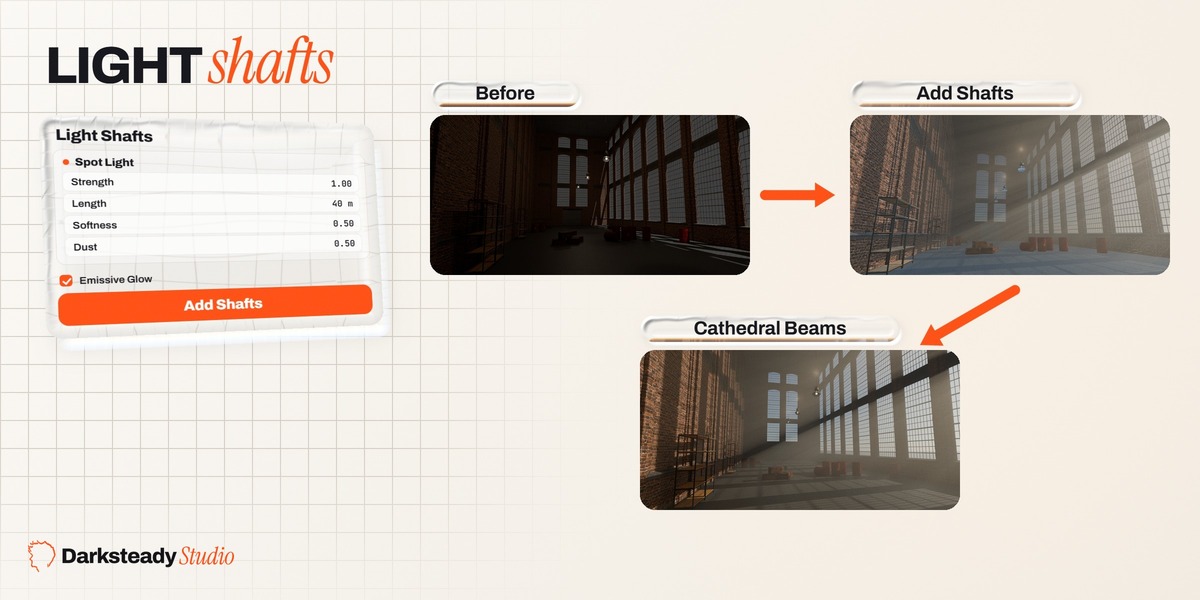
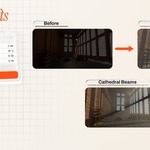
Yes. In Fog Pro they are called light shafts: select a spot, area, point or sun light and click Add Shafts, and the beam shows in the fog with the shadows of everything in its way (window bars, columns, leaves), in EEVEE and Cycles. Cathedral Beams is a mood built around them: sunlight streaming through the windows into dusty air.
Spot, area, point and sun lights. Select one or more and click Add Shafts. A spot gives a cone of light, an area light a column, a point light a soft glow around the lamp, and a sun lights up the air in the whole scene. The shafts follow the light when you move it or change its size or angle.
No. Add Shafts never changes the power, colour, size, angle or shadows of your lights. Shafts are an extra volume in the light's path. Your scene lighting stays exactly as you set it.
Yes. Select any light or the target of a LumiRig rig and click Shafts for This Rig. The key and rim lights get subtle, soft shafts that frame your subject, and the air right around the subject stays clear, so the subject keeps its colour and contrast. Fill lights are skipped, because a fill should not draw a visible beam; tick Include Fill Lights if you want them too.
Yes. Every shaft has Keep Clear: pick an object and the shaft air thins out around it, so the beam frames the object instead of fogging it. Shafts for This Rig sets it for you.
The fog, the sun, the sky and the colour grade, together. The sun is placed relative to your camera, so it sits in your frame the same way in every scene. Mood Strength blends from your own scene to the full mood, and Remove Mood puts your sun, sky and colour settings back while the fog stays.
Not unless you ask it to. When your scene already has an HDRI or another sky, or a sun driven by something else (for example the Sun Position add-on), the mood keeps your sky and your colour settings and changes the fog only; the Mood panel says why. Turn on Change sky and sun or Change grade to use the mood's own.
Yes, with My Moods (Studio): save the current fog, sun, sky and grade under a name, and it shows in the mood tiles. Export Moods puts your moods in a text block you can bring into another file.
Yes, with Mood Morph (Studio): pick the mood to end in and a frame range, for example fog burning off at sunrise. It is plain keyframes, so it renders without Fog Pro installed.
Yes. Everything the render needs is saved in your .blend file as normal Blender data. We test that a scene renders the same with and without Fog Pro installed.
Click Remove Fog. Fog Pro deletes everything it made and puts back every setting it changed, also after you saved and reopened the file. If you changed one of those settings yourself after adding fog, your own value is kept. Your saved moods and camera moods (Studio) stay in the panel as settings, ready for the next time.
A pattern needs a sharp light, like a real gobo. Add Pattern sets a spot light's Radius to 2 mm for you, and Remove Pattern puts your radius back. If you made the radius larger again, the pattern blurs. Area lights are large by nature, so their patterns are always soft.
The pattern works in both engines, but the colour only in Cycles: EEVEE shadows are not coloured, so in EEVEE the light through stained glass stays white.
Yes, with masks (Studio). Select the objects and click Mask: Clear Inside for no fog in a box around them, or Mask: Fog Only Inside for fog only there. Up to four masks per scene.
Use the clarity window (Studio): select the hero and click Clarity Window on Active. The fog thins in a soft window around the hero that reaches toward the camera, and the window follows the hero and the camera. Without Studio, lower Visibility less or raise Fog Start.
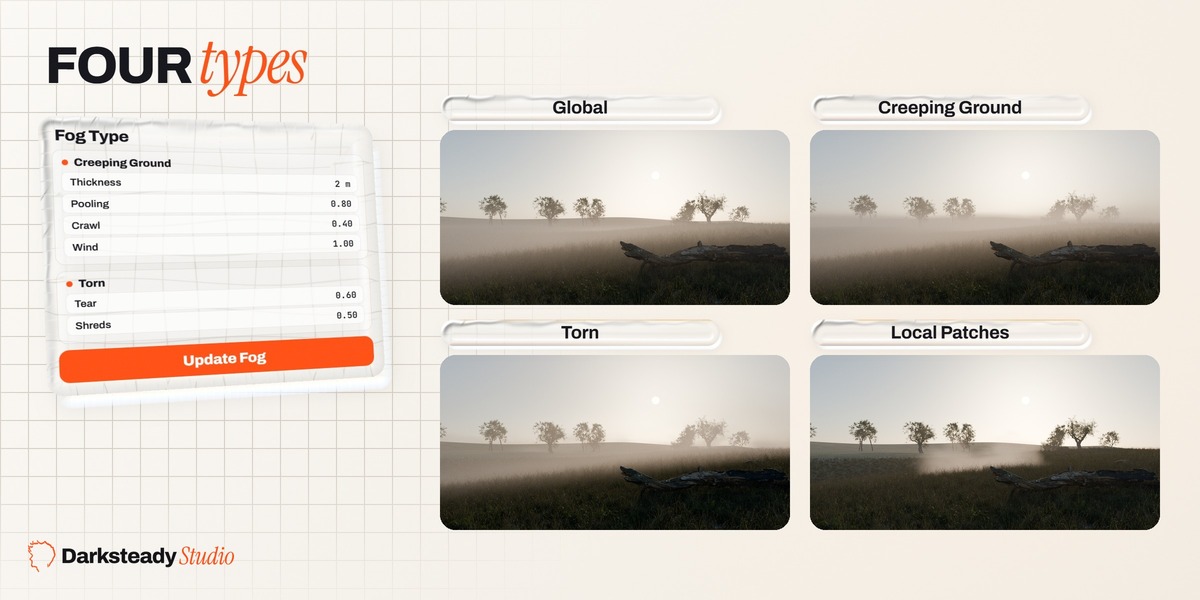
Yes, with the Creeping Ground fog type (both editions). The fog lies on the real ground, follows the slopes and fills the hollows, and its ragged top crawls. Global fog stays level.
Yes, with Local Patches (both editions). Pick Local Patches under Fog Type, put the 3D cursor where you want the mist (or select an object there) and click Add Fog Patch: a pocket of mist lies in the grass there, uneven and wispy at its edges, with no box edge. Size, Strength and Softness set it. Fog Pro keeps up to 3 patches, Fog Pro Studio any number. Patches also add to the other fog types, for one denser spot.
Yes, with camera moods (Studio). Give each camera a mood, bind your cameras to timeline markers and click Bake to Markers. Each shot then renders with its own fog, sun, sky and grade, also on a render farm without the add-on.
Fog costs render time in Cycles. We tested splitting the fog and the rest of the scene into separate renders and separate denoising: it brought no less noise at the same render time, so we do not offer it. What helps: Quality Preview while you work, enough render samples for the final image, and EEVEE when it suits the shot.
 Included
Includes 12 months of
- Support from Darksteady. Studio
- Product updates
Extend this product’s Support Period +12 months: 25% of product price
Have questions before purchasing?
Login to message
| Blender Extension Compatible | Yes |
| Published | 6 days ago |
| Blender Version | 4.2 - 5.1 |
| Extension Type | Add-on |
| Render Engine Used | Cycles, Eevee |
| License | GPL |
Discover more products like this
haze light shafts Lighting fog eevee atmosphere volumetric fog fog mist god rays cinematic ground fog volumetric lighting