FoliageLab - Atlas
 Michael G. Art


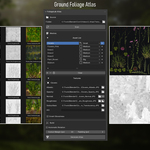
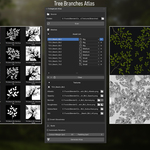
FoliageLab Atlas
FoliageLab Atlas is a Blender add-on that automates the creation of PBR texture atlases from foliage assets. It scans a folder for texture files, places assets in a 3D viewport, lets you fine-tune the layout manually, then bakes and exports all PBR channels into ready-to-use atlas textures.
Installation
FoliageLab Atlas is distributed as a .zip archive. Do not extract the archive before installing -- Blender requires the .zip file itself to be installed directly.
- Open Blender and go to Edit > Preferences > Add-ons
- Click Install...
- Navigate to the downloaded FoliageLab_Atlas.zip, select it and click Install Add-on
- Tick the checkbox next to FoliageLab Atlas to enable it
- The panel will appear in the FoliageLab tab of the N-Panel (press N in the 3D Viewport)
Important: Do not unzip the archive. Installing a folder instead of a .zip will cause Blender to fail to recognise the add-on.
Overview and Workflow
FoliageLab Atlas follows a linear five-step workflow. Each step is represented by a section in the N-Panel.
- Scan Folder - Point the tool to your texture folder and click Scan to detect all PBR assets automatically.
- Configure Meshes - Review the asset list, assign texture channels, set per-asset size, and adjust channel options.
- Generate Atlas - Set packing options and click Generate Atlas to place all assets in the 3D viewport.
- Manual Adjustments - Use Blender's G / R / S transforms to fine-tune placement. Save and redistribute as needed.
- Export - Choose resolution, format, and output folder, then click Export Atlas to bake all PBR channels.
Source - Scanning Assets
The Source section is where you tell FoliageLab Atlas where your textures are located.
- Folder - Path to the directory containing your PBR texture files. Click the folder icon to browse, or type the path directly.
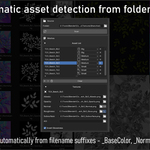
- Scan - Scans the selected folder and detects all PBR assets automatically. Assets are grouped by base name and channels are assigned from filename suffixes. Previously assigned channels are preserved.
Supported suffixes for auto-detection: _BaseColor / _Albedo, _Normal, _Roughness / _Glossiness, _AO, _Opacity / _Mask, _Subsurface.
Meshes - Asset List
The Meshes section lists all detected assets and lets you configure their texture channels and relative size in the atlas.
- + (Add) - Add an empty asset manually. Assign its texture channels in the detail panel below.
- - (Remove) - Remove the selected asset from the list. Does not delete files on disk.
- Clear - Remove all assets from the list at once. Does not delete files on disk.
- Size dropdown - Set the relative size of the asset in the atlas: Big (large branch / trunk), Medium (standard leaf), or Small (fine detail).
Select an asset in the list to expand its texture channel panel. Each field accepts a file path to the corresponding texture map.
- Albedo - Path to the base color / albedo texture.
- Opacity - Path to the opacity / mask texture.
- Normal - Path to the normal map texture. The toggle next to it inverts the green channel for this asset, to switch between OpenGL and DirectX convention per asset.
- Roughness - Path to the roughness texture. The toggle next to it inverts this asset's roughness channel, converting a Glossiness map to Roughness.
- Subsurface - Path to the subsurface scattering texture.
- AO - Path to the ambient occlusion texture.
- Invert Glossiness - Global toggle that inverts the roughness channel for all assets at once. Use when all source textures are Glossiness maps.
Build - Generating the Atlas
The Build section controls how assets are packed and placed in the 3D viewport before export.
- Display - Sets the viewport preview material mode: PBR, Albedo, Opacity, Normal, Roughness, or AO. Affects the viewport display only, does not change the export output.
- Opacity toggle - Applies or removes the opacity mask in the viewport. Disable to see the full rectangular mesh without transparency.
- Automatic Rotation - When enabled, each asset is rotated to its optimal packing angle to maximize atlas space. When disabled, all assets are placed upright.
- Cutout Margin (px) - Expands each convex hull outward by this many pixels in texture space. Prevents texture clipping at hull edges. Set to 0 for the tightest possible cutout.
- Padding (px) - Space in pixels between assets in the atlas. Increase to avoid texture bleeding between assets at lower mip levels.
- Generate Atlas - Places all assets in the 3D viewport using a size-aware packing layout. Size categories determine space allocation: Big assets receive ~20% of the atlas, Medium ~10%, Small ~5%.
Manual Adjustments
This section appears after Generate Atlas is run and at least one actor is present in the scene. Select one or more atlas actors in the 3D viewport and use Blender's native transform tools.
- G - Grab: move the selected actor(s) freely in the viewport.
- R - Rotate: rotate the selected actor(s).
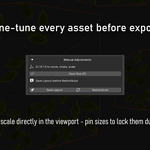
- S - Scale: scale the selected actor(s). Affects their allocated space in the atlas.
- P - Toggle Pin Size: save or clear the current scale of selected actors. Pinned sizes are preserved during Redistribute.
- Save Layout - Commits the current 3D positions, rotations, and scales to the tool's internal data. Always run this after any manual adjustment before exporting.
- Redistribute - Repacks all actors using the packing algorithm while respecting any pinned scales.
Important: Always click Save Layout after making manual adjustments and before clicking Export Atlas. If you skip this step, the export will use the last saved layout, not the current viewport positions.
Export
The Export section controls the output resolution, file format, naming, destination, and which channels are exported.
- Resolution - Output atlas resolution: 2K (2048x2048), 4K (4096x4096, recommended), 8K (8192x8192), 16K (16384x16384). All PBR channels are exported at the same resolution.
- Format - Output file format: PNG (lossless, recommended), TGA (legacy), TIFF (lossless), EXR (16-bit HDR).
- File Name - Base name for all exported atlas files. Each channel is appended automatically, e.g. MyAtlas_BaseColor.png, MyAtlas_Normal.png.
- Folder - Destination folder for all exported atlas files. Created automatically if it does not exist.
- DirectX (Invert Green) - Inverts the green channel of the Normal atlas at export. Enable for DirectX-convention engines such as Unreal Engine 5.
- Bake Opacity into Alpha - Embeds the opacity mask into the alpha channel of the BaseColor atlas.
- Export Atlas - Bakes all PBR channels into atlas textures using the saved 3D layout. This button is shown only when an output folder is set and the atlas has been generated.
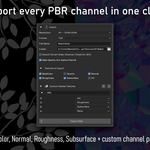
Use the Textures to Export grid to choose exactly which PBR channels are exported: BaseColor, Opacity, Normal, Roughness, Subsurface, AO.
Custom Packed Textures
Custom packed textures let you combine multiple PBR channels into a single texture's RGBA channels, useful for engine-specific packing conventions such as ORM (Occlusion, Roughness, Metallic).
- + (Add Preset) - Add a new custom packed texture configuration.
- Preset Name - Name of the packed texture output file (e.g. ORM). This name is appended to the File Name at export.
- R / G / B / A - Assign a PBR source channel to each output channel. Available sources: None, Roughness, AO, Subsurface, Translucency, Opacity.
Keyboard Shortcuts
- N - Open / close the N-Panel in the 3D Viewport.
- G - Grab: move selected atlas actor(s).
- R - Rotate: rotate selected atlas actor(s).
- S - Scale: resize selected atlas actor(s).
- P - Toggle Pin Size: pin or unpin the current scale of selected actors.
All standard Blender axis constraints work with the above transforms, e.g. G X to move along the X axis, R Z to rotate around Z.
Reset Settings
Reset Settings resets all FoliageLab Atlas settings to their default values and clears the entire asset list. This action cannot be undone -- use with caution.
Have questions about this product?
Login to message
| Published | 6 months ago |
| Blender Version | 4.2 - 4.5 |
| Extension Type | Add-on |
| License | GPL |
Discover more products like this
foliage game-art technical-art environment art pipeline vegetation real-time PBR game ready texture atlas game assets