Font Fixer
 Yesway


Font Fixer Documentation
Font Fixer helps repair fonts that display incorrectly inside Blender. It creates a safe fixed copy of the font file and applies it back to your text objects.
What it fixes
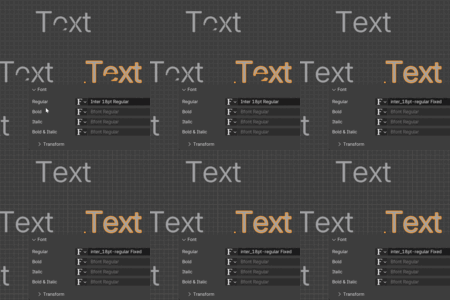
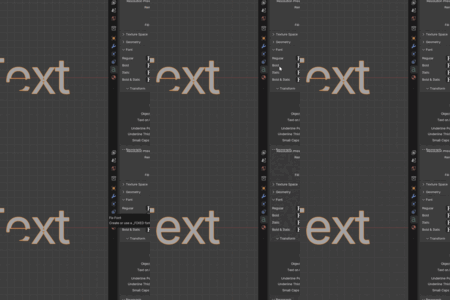
Some fonts have overlapping glyph shapes or broken outlines. In Blender, this can make letters fill incorrectly, remove holes, or turn clean typography into a glitchy mess.
How it works
Font Fixer repairs the font file itself and creates a safe fixed copy next to the original font file.
Your original font file is not overwritten.
Installation
- Install FontForge from fontforge.org
- Install Font Fixer in Blender: Edit → Preferences → Add-ons → Install
- Enable the add-on.
- Restart Blender.
- Select a text object.
- Go to Object Data Properties → Font.
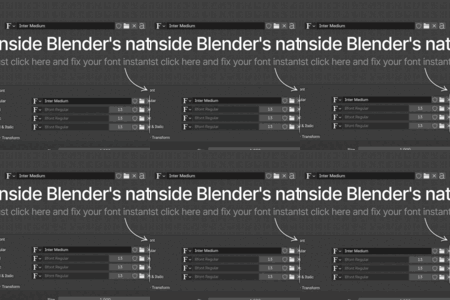
- Click the small Fix Font button next to the font slot.
FontForge path
Font Fixer tries to detect FontForge automatically. If it cannot find it, open the add-on preferences and paste the FontForge executable path manually.
On Windows, this is usually a path to fontforge.exe. On Mac or Linux, use the FontForge executable path for your system.
How to use
- Select a Blender text object using a broken font.
- Open the Font panel.
- Click the Fix Font button.
- The add-on creates a fixed font copy.
- The repaired font is applied back to matching text objects automatically.
Supported formats
- .ttf
- .otf
Notes
- Font Fixer keeps your text editable.
- It does not convert text to mesh.
- It works best with local font files.
- If a font has no file path, it cannot be processed.
- FontForge is required because it handles the font cleanup process.
Have questions about this product?
Login to message
| Blender Extension Compatible | Yes |
| Published | 3 months ago |
| Blender Version | 4.0 - 5.1 |
| Extension Type | Add-on |
| Render Engine Used | Cycles |
| License | Mit |
Discover more products like this
addon utility text objects text cleanup font otf font fixer fontforge Motion design typography ttf