 Mrs Eliza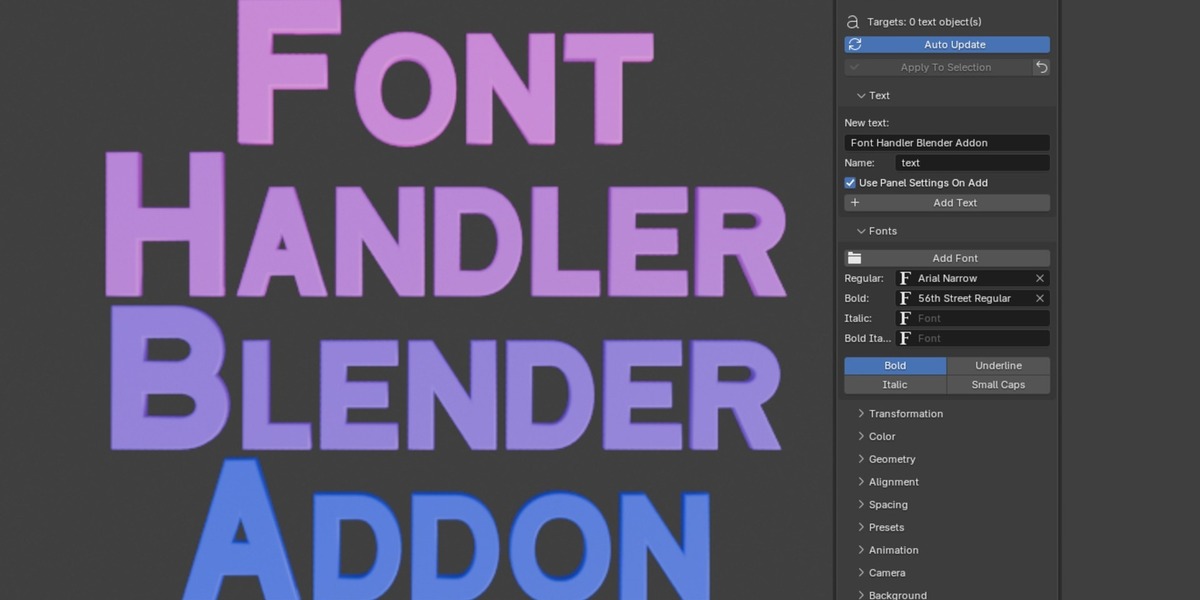
Step-by-Step Tutorials
Tutorial A: A 3D logo title
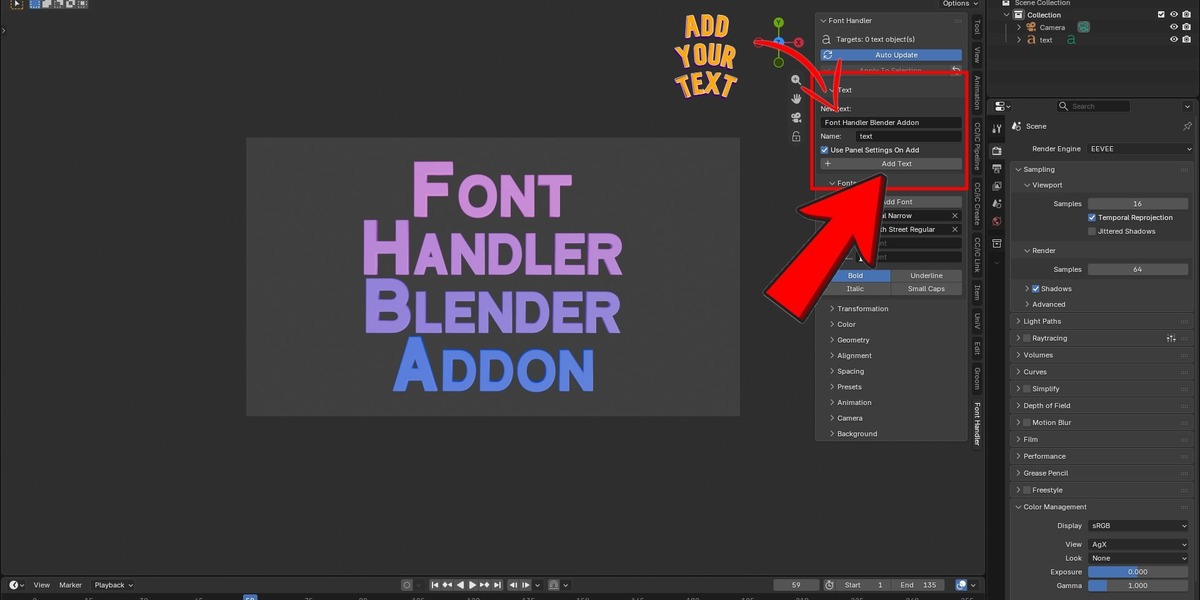
- Text → type your title → Add Text.
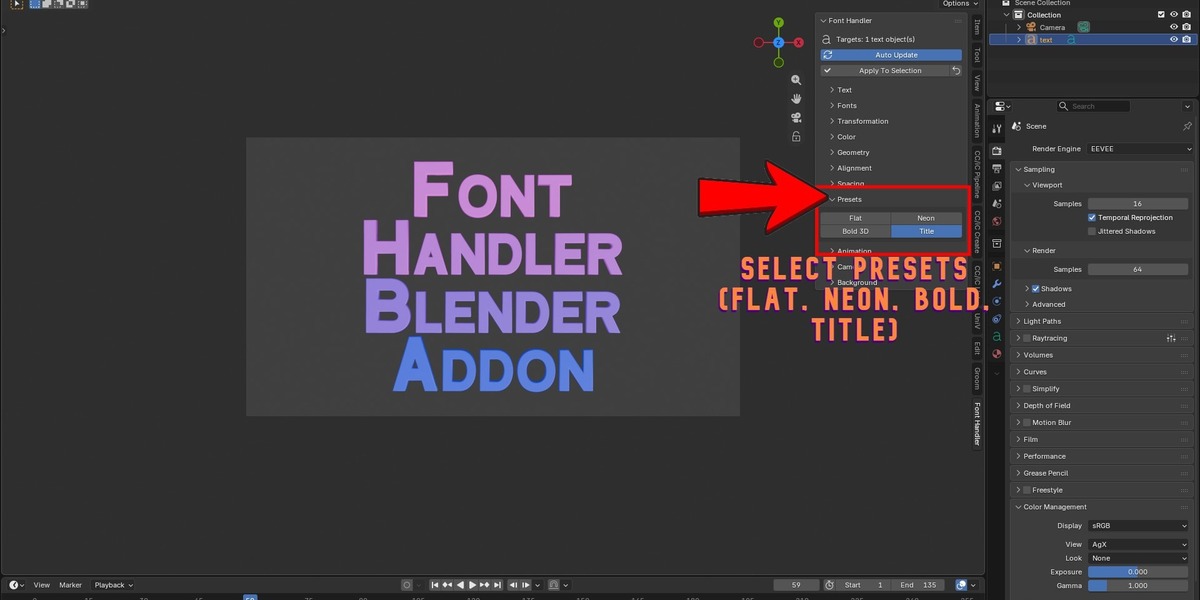
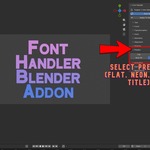
- Presets → Title (centers it and adds depth).
-
Fonts → Add Font → choose your
.ttf→ it is applied automatically. -
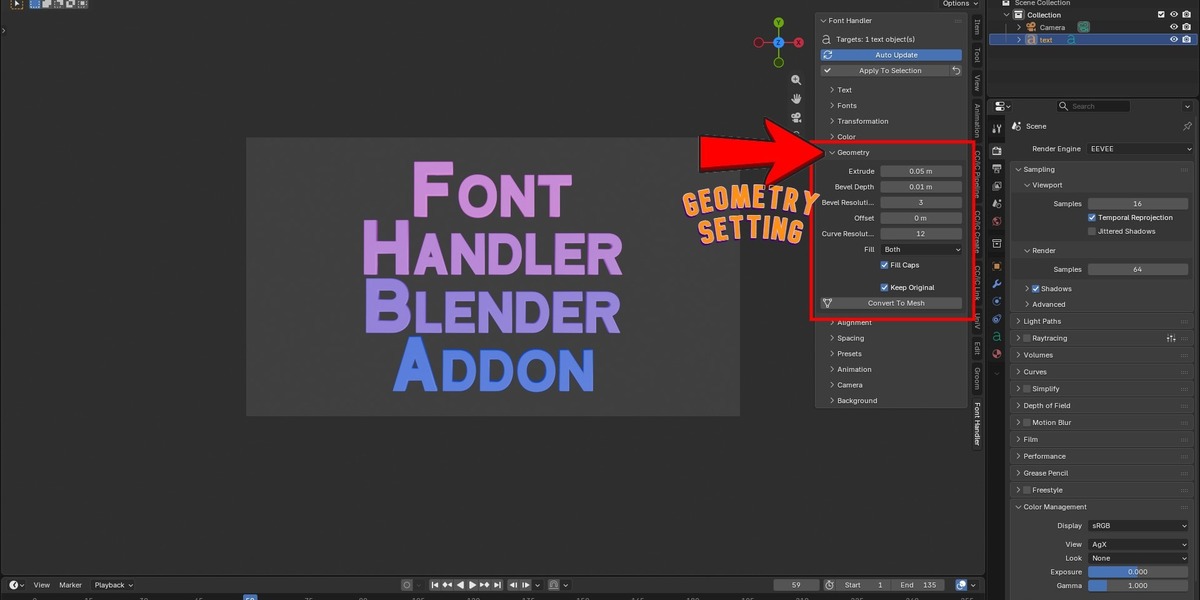
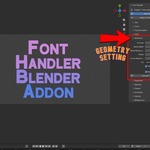
Geometry → raise Extrude to
0.2and Bevel Resolution to4. -
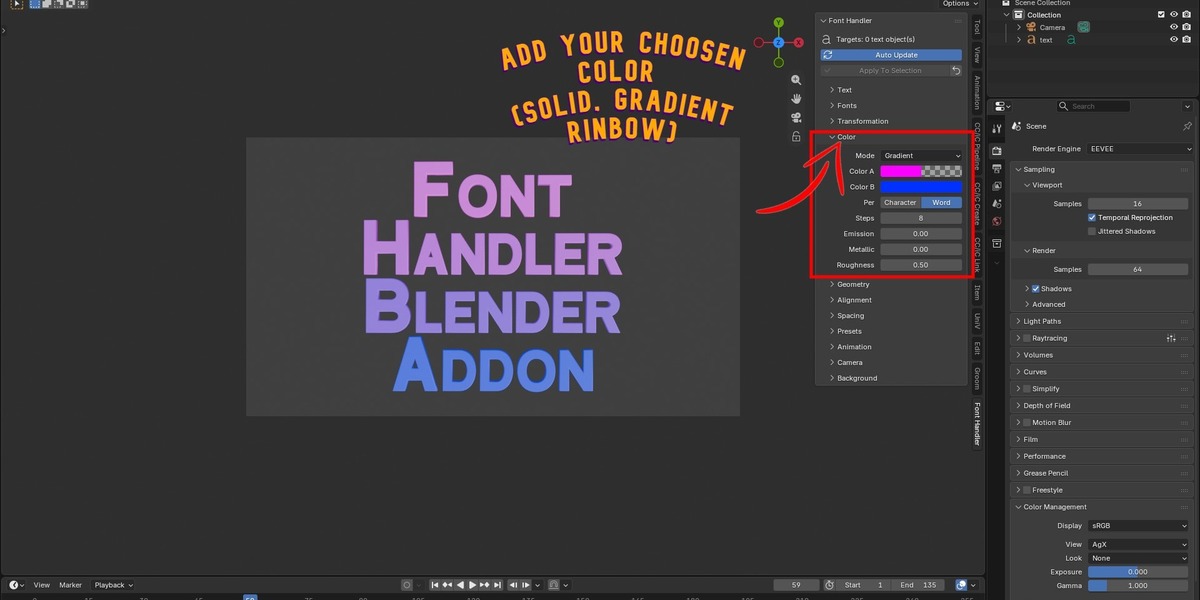
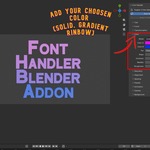
Color → Mode Gradient, choose Color A and Color B, set Metallic
0.6, Roughness0.25. - Animation → Pop In → press ▶.
Tutorial B: A neon sign
- Add your text, then click the Neon preset.
- In Color change Color A and Color B to your neon colors.
- Switch the viewport to Rendered (or Material Preview).
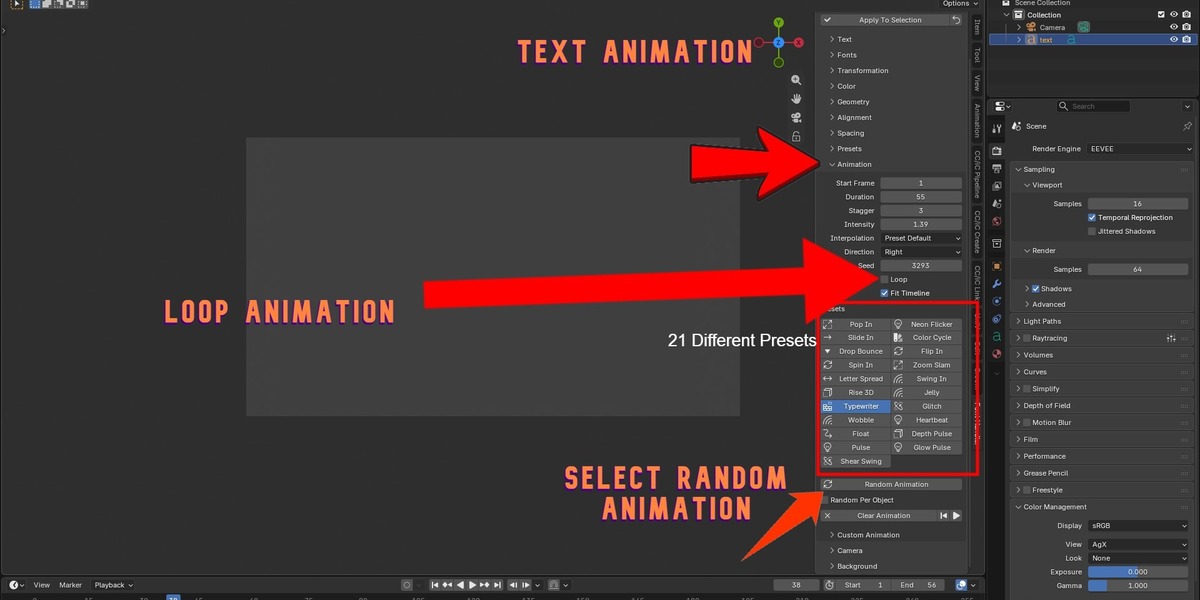
- Animation → Neon Flicker. Change Seed until the flicker looks right.
- In the render settings, turn on bloom (Blender 3.x EEVEE) or add a Glare node in the compositor, for the glow.
Tutorial C: Several lines flying in one after another
- Add three text objects (or duplicate one and edit the text).
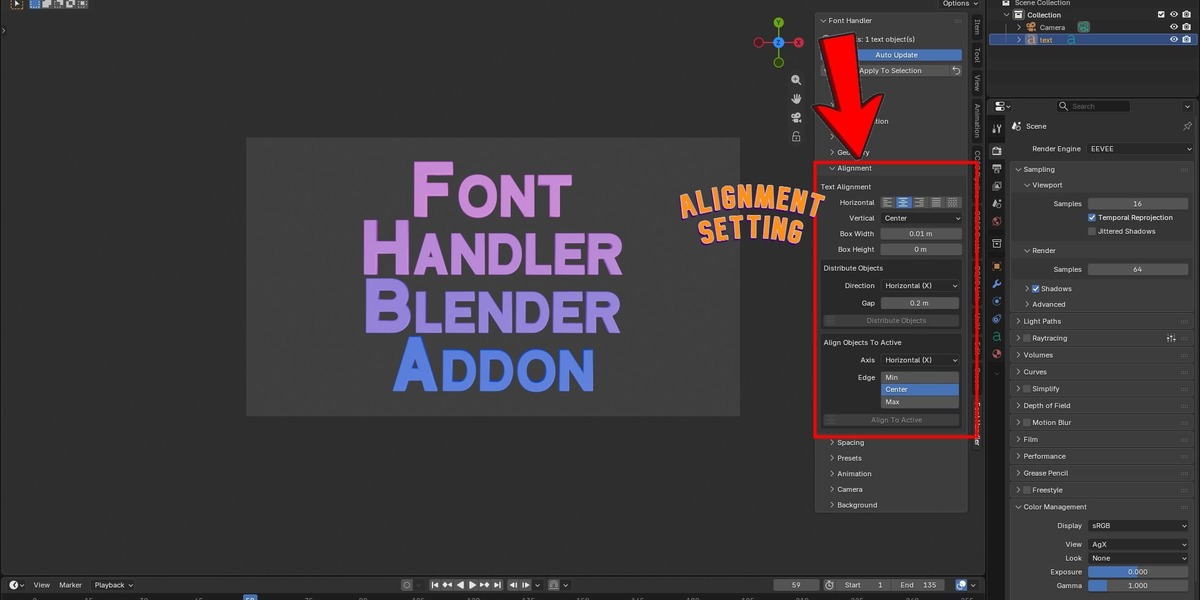
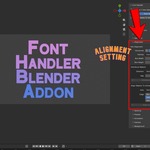
- Select all three. In Alignment, set Direction: Vertical (Z), Gap
0.3, and click Distribute Objects. - In Animation set Stagger to
8. - Click Slide In and choose Direction: Left.
- Press ▶. Each line enters 8 frames after the previous one.
Tutorial D: A typewriter with colorful letters
- Add your text.
- Color → Mode Rainbow, Per: Character.
- Animation → Typewriter. Set Duration to roughly 2 frames per letter (a 20-letter text → about 40 frames).
- Press ▶. The letters appear one by one and keep their rainbow colors.
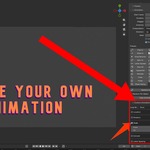
Tutorial E: Your own animation, from scratch
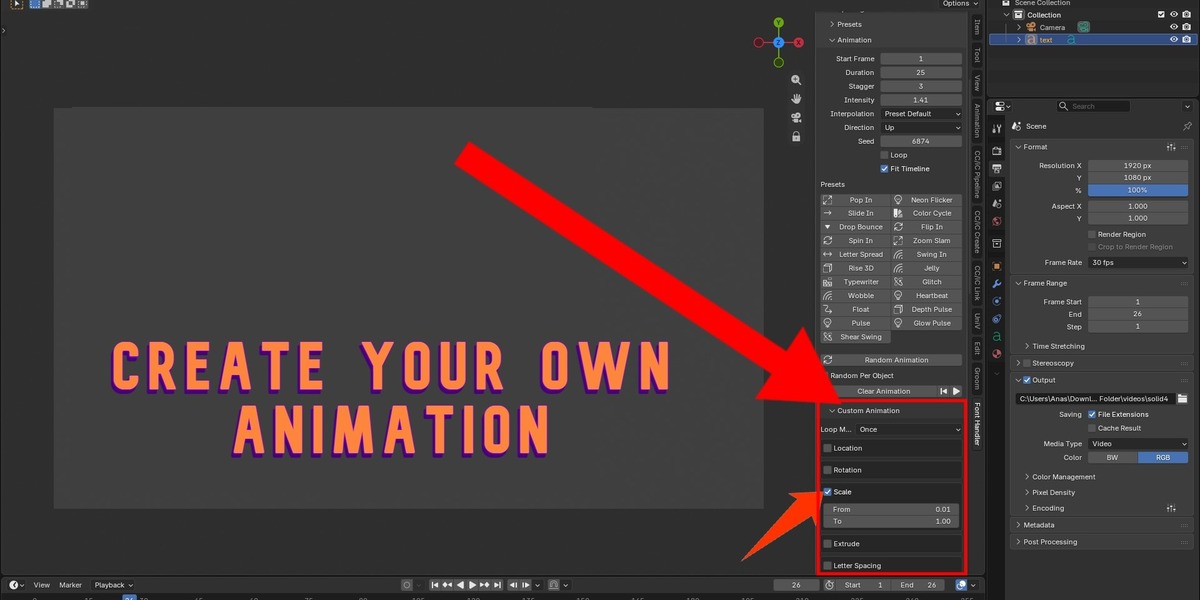
- Select your text → open Animation → Custom Animation.
- Tick Rotation. Set From
0, 0, 0and To0, 0, 360°. - Tick Scale. Set From
1.0, To1.3. - Loop Mode Ping-Pong. Click Create Custom Animation.
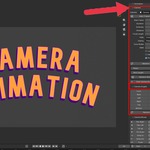
Tutorial F: A cinematic title reveal
- Add your text and give it a 3D look (Presets → Bold 3D).
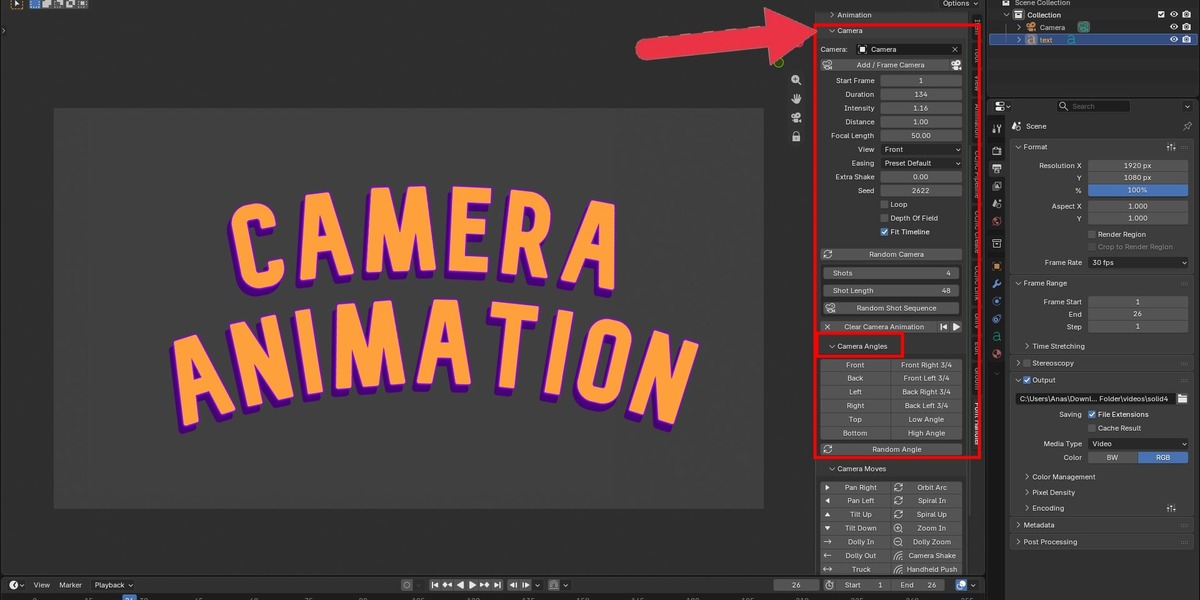
- Open Camera → Camera Angles → Front Left 3/4.
- In Camera, set Duration
120and turn on Depth Of Field. - Open Camera Moves and click Crane Down.
- Press the play button. The camera swoops down onto your title.
Tutorial G: A random multi-shot promo
- Select your text and give it any look you like.
- In Camera, set Shots
5and Shot Length40. - Click Random Shot Sequence. Press play to watch. Click it again for a new edit.
- Happy with it? Use Look Through Camera and render the animation.
Tutorial H: An endless turntable
- Select your text → Camera Angles → Front.
- Set Duration
180, turn on Loop. - Camera Moves → Orbit 360.
- Render the animation. It loops seamlessly.
Tutorial I: A neon title on a glowing background
- Add your text and click the Neon preset.
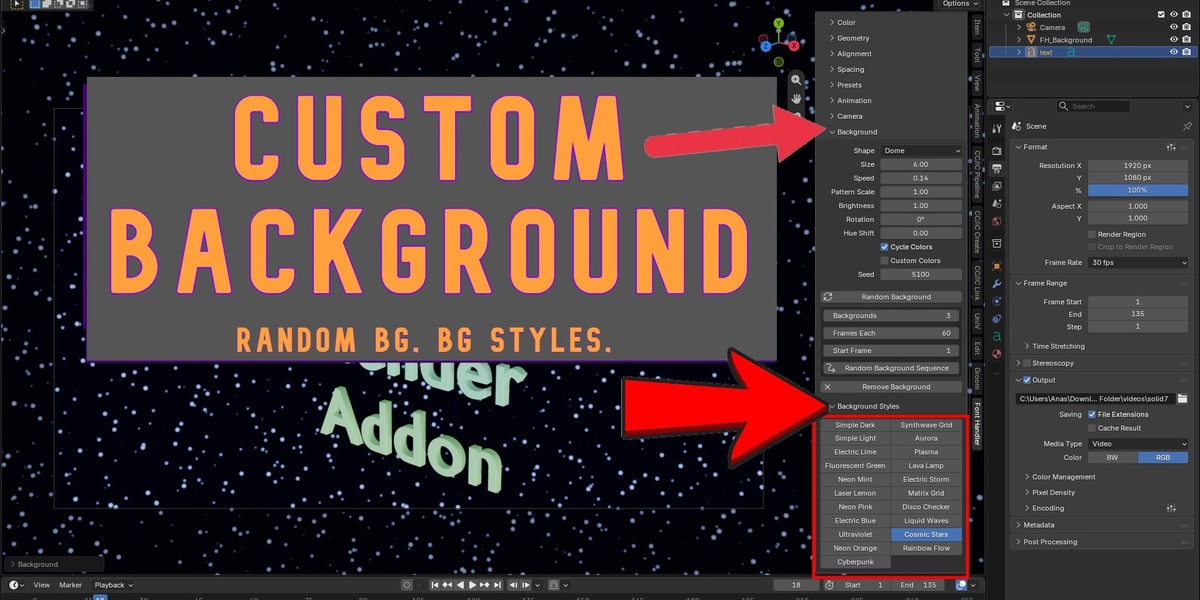
- Background → Background Styles → Neon Mint (or any style you like).
- Raise Hue Shift until the colors match your brand, or turn on Custom Colors.
- Animation → Neon Flicker for the text and Camera → Dolly In for the shot.
- Press play.
Tutorial J: A video with changing backgrounds
- Select your text and give it any look.
-
Camera → Orbit 360, set Duration
240. - In Background, switch Shape to Dome (so the orbit never reveals an edge).
- Set Backgrounds
4and Frames Each60, then click Random Background Sequence. - Press play. The camera circles the text while the background changes every 60 frames.
6. Tips and Best Practices
- Edit first, animate last. You can change geometry, color and spacing after animating, but transform changes are locked while an object is animated.
- Use Seeds to try variations of Random transform, Random color and Neon Flicker without changing anything else.
- Lower Steps (Color panel) for a stylized, banded gradient; raise it for smooth blends.
- Keep Curve Resolution moderate (6–12) for long text or many objects. High values slow the viewport.
- Justify needs a box. Set a Box Width, then try Justify or Flush for paragraph-style layouts.
- Convert last. Convert To Mesh is a one-way step for sculpting or boolean work. Use Keep Original if you may want to go back.
- Typewriter: set Duration to about 2 frames per character for a natural speed.
- Several objects: use Stagger for an easy cascading effect.
- Save your settings by saving the .blend file. Panel values are stored per scene.
- Pick the angle first, then the move. The View sets where a move starts, so the same move looks different from every angle.
- Add Extra Shake to any camera move for a more natural, handheld feel. Small values (0.2 to 0.5) are enough.
- Use Random Camera when you are out of ideas. If you like one, note the Seed and keep it.
- For Depth Of Field, the effect shows in Rendered view (EEVEE or Cycles), not in Solid view.
- Use Hue Shift to get many looks from one background style. Every style works in any color.
- Keep text readable. Pair bright neon backgrounds with dark or white text, or lower the background Brightness.
- Choose Dome for moving cameras. Use Plane for simple front shots.
- Stack effects. A text animation, a camera move and a background all play together on the same timeline.
7. Troubleshooting and FAQ
The panel doesn't show up. Enable the add-on in Preferences → Add-ons, hover over the 3D Viewport and press N, then look for the Font Handler tab.
Nothing changes when I move a slider. Make sure a text object is selected and Auto Update is on. The panel shows Targets: 0 if nothing is selected.
I selected a different text and it didn't pick up the panel's values. Click Apply To Selection once. The panel does not read values back from objects.
Colors don't show. Switch the viewport shading to Material Preview or Rendered.
Bold or Italic does nothing. Assign a font to the Bold or Italic slot in the Fonts panel. Blender needs a real bold or italic font file.
Justify / Flush doesn't do anything. Set a Box Width greater than 0 in the Alignment panel.
The Transformation panel does nothing on my animated text. Animated text is controlled by its keyframes. Click Clear Animation, adjust the transform, then animate again.
My text jumped when I changed a transform value. That means the text was moved by hand earlier and Font Handler adopted its position as the base. Use Reset to return to the base, or Keep As Base to accept where it is now.
The Typewriter text isn't updating when I edit it. While a Typewriter animation is active the text is controlled by the animation. Clear Animation first, edit the text, then re-apply Typewriter.
The camera doesn't frame my text. Make sure the text is selected when you click Add / Frame Camera or a camera move. The camera frames the selected text using your render resolution and focal length. If you change the render size or move the text, click an angle or move again.
I see the text from above, not from the front. Blender text lies flat on the ground by default, so its "front" faces up. Rotate the text object 90° on X to stand it up, or use the Front angle as is to look straight at the face.
The camera animation looks different after I changed settings. Camera settings re-build the animation when Auto Update is on. If you edited the camera keyframes by hand, switch Auto Update off first.
The Random Shot Sequence changed when I changed a value. The sequence is built from the Seed. Changing the Seed or the number of shots creates a different set of shots.
I can't see the background. Switch the viewport to Material Preview or Rendered. In Solid view the color is only a flat preview. Also check that the background is not hidden in the Outliner.
The background has an edge or is missing from some angles. Increase Size, or switch Shape to Dome. A flat plane can't surround the scene.
The background hides my text. If you view from the Back angle, a Plane sits between the camera and the text. Switch to Dome, or turn the camera to a front angle.
My background keeps changing when I adjust settings. That is Auto Update re-building it. Turn Auto Update off to change several values first.
Neon Flicker or Color Cycle shows no change. Use Material Preview or Rendered view. The animation works on the materials, so Solid view will not show it.
I see lots of FH_... materials.
They are created by the Color panel, one per color step per object. Font Handler reuses and removes unused ones automatically. You can purge leftovers with File → Clean Up → Purge Unused Data.
The animation range changed in my scene. Fit Timeline (Animation panel) sets the scene start and end frame. Turn it off to keep your own range.
8. Limitations
- Works on text (font) objects only, not on converted meshes.
- Style toggles (Bold, Italic, Underline, Small Caps) apply to the whole text, not to selected letters.
- Typewriter and Case changes work on the object's text content. Avoid special characters that change the letter count when changing case (for example
ß). - Font Handler animations replace each other: one Font Handler animation per object at a time.
- Backgrounds are procedural patterns made from Blender shader nodes, so they look best in Material Preview, EEVEE or Cycles. Very fine patterns can shimmer in low-quality viewport modes.
- The camera animates one camera at a time and films text objects only. It does not follow text that you move or animate afterwards. Click an angle or move to re-frame.
- Neon Flicker, Color Cycle and the Emission track need a material with a Principled BSDF. Font Handler creates one automatically through the Color panel.
9. Uninstalling
- Edit → Preferences → Add-ons.
- Search for Font Handler.
- Untick it to disable, or click Remove to delete the file.
Your text objects, materials and animation keyframes stay in your .blend file.
10. Changelog
1.4.0
- Added 8 new text animations (Flip In, Zoom Slam, Swing In, Jelly, Glitch, Heartbeat, Depth Pulse, Glow Pulse), for 21 in total.
- Added the Background panel with 21 animated procedural backgrounds, Random Background, Random Background Sequence, Plane and Dome shapes, Hue Shift, Cycle Colors and Custom Colors.
- Backgrounds update live while Auto Update is on.
1.3.0
- Added the Camera panel: 22 camera moves (Pan, Tilt, Dolly, Truck, Pedestal, Crane, Orbit, Spiral, Zoom, Dolly Zoom, Shake, Handheld, Dutch Tilt, Whip Pan, Fly-By, Rack Focus and more).
- Added 12 camera angles and a Random Angle option.
- Added Random Camera and Random Shot Sequence (multi-shot, random angles and moves).
- Added Extra Shake, Depth Of Field, Loop and Fit Timeline for the camera.
- Camera settings update live while Auto Update is on.
1.2.0
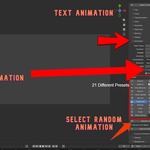
- Added the Animation panel with 13 presets, Random Animation and Custom Animation.
- Added Stagger, Loop, Interpolation override and Fit Timeline.
- Animation settings update live while Auto Update is on.
1.1.0
- All settings now update automatically.
- Transformation uses a stored base so values no longer stack up.
- Color reuses materials instead of creating new ones.
- The active text can be edited live from the panel.
1.0.0
- First release: Transformation, Color, Geometry, Alignment, Spacing and Fonts.
Need help? Contact the author through the Superhive Market product page.
Have questions about this product?
Login to message
| Sales | 10+ |
| Published | over 2 years ago |
| Blender Version | 3.0 - 5.0 |
| Extension Type | N/A |
| Render Engine Used | Cycles, Eevee |
| Misc Data | Uvs-Unwrapped, Rigged, Animated, Low-High-Resolution, Normal-Mapped, Textured |
| License | GPL |
Discover more products like this
glitch text typography text generator motion graphics eevee camera shake title animation video title 3D text Random-animation crane shot animated-text color gradient text logo animation Text animation typewriter effect custom fonts text spacing Blender Add-on animated background Cycles neon sign dolly-zoom procedural background pan tilt 3D lettering font handler text alignment bevel text blender addon procedural shader text effects orbit camera neon background blender text cinematic camera Neon Text kinetic typography font manager intro maker camera animation extrude text live update One Click Animation