Fourdesinno Asset Browser & Fast Asset Creator Pro

FOURDESINNO in Import & Export


DOCUMENTATION

FOURDESINNO Asset Browser

User documentation for browsing FOURDESINNO assets, creating Local Assets and Local Materials, organizing your libraries, and managing the add-on inside Blender.

Version 1.3.5
Blender 5.0+
01

Requirements

Blender
Blender 5.0 or newer.
Internet connection
Required for online browsing, downloading assets, and checking for updates.
File access
The add-on stores downloaded assets, previews, settings, Local Assets, and Local Materials on your computer.
02

Installation

Install the downloaded FOURDESINNO ZIP directly. Do not extract the ZIP before installation.

1
Download the FOURDESINNO Asset Browser ZIP.
2
Open Blender.
3
Install the ZIP.
Drag the ZIP into Blender and confirm installation, or use Blender Preferences and choose Install from Disk.
4
Enable FOURDESINNO Asset Browser if Blender does not enable it automatically.
If the interface does not appear immediately after installation, restart Blender once.
03

Asset Browser Interface

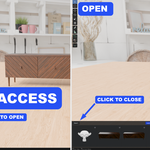
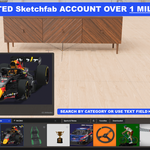
The FOURDESINNO browser is displayed directly inside the Blender 3D Viewport.

Asset Type
Switch between the available online and local libraries.
Categories
Filter the current library by category and subcategory.
Search
Search within the currently active library.
Favorites
Show assets you have marked as favorites.
Downloaded
Filter online content to assets already stored locally.
Settings
Control browser appearance, preview sizes, storage, and Local Asset behavior.
Available libraries
3D Models Materials Lights HDRI Local Materials Local Assets
04

Browsing Online Assets

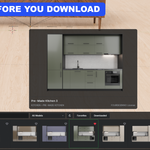
Browse FOURDESINNO content without leaving the 3D Viewport.

1. Select an asset type
Choose 3D Models, Materials, Lights, or HDRI from the asset type control.
2. Browse or filter
Use categories, subcategories, Search, Favorites, or Downloaded to narrow the visible results.
3. Preview the asset
Hover over an asset card to display a larger preview when Hover Preview is enabled.
4. Drag into the scene
Drag the asset from the browser into the 3D Viewport. If the asset has not been downloaded yet, the add-on downloads the required content first.
Downloaded assets remain stored locally and can be accessed through the Downloaded filter.
05

Creating Local Assets

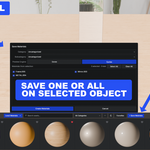
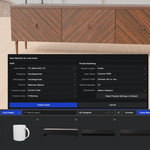
Local Assets let you turn content from the current Blender scene into reusable assets stored in your personal FOURDESINNO library.

Basic workflow
1. Select the object or objects you want to save.
2. Click + Save Selected.
3. Enter an Asset Name.
4. Choose a Category and Subcategory.
5. Choose the Source.
6. Configure the preview.
7. Click Create Asset.

Source

Active Object
Saves the active object and its children.
Selected Objects
Saves the selected objects and their children as one reusable asset.
Active Collection
Saves supported objects from the active collection.

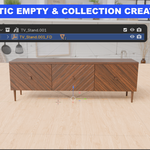
Create Empty

The Local Asset Creator can create a helper root Empty when the saved hierarchy does not already contain a suitable one.

If Missing
Creates a helper root Empty only when one is needed.
Disabled
Does not automatically create a new Empty.
When creating a Local Asset, the saved asset is centered on X/Y and placed on Z = 0. The original scene, lights, HDRI, camera, and original object transforms are not changed.
06

Local Asset Preview Modes

Choose how the Local Asset Creator determines the camera angle used for the asset preview.

AUTO VIEW
Automatic framing
Automatically chooses a useful three-quarter angle and fits the visible asset inside the preview.
CURRENT VIEW
Use your viewport angle
Uses the current 3D View direction. Orbit the viewport to the angle you want before creating the asset.
PREVIEW FRAME
Frame the preview manually
Displays the final preview frame so you can position the asset before the image is created.
Using Preview Frame
After selecting Preview Frame and starting asset creation, position the view inside the displayed frame.
Press Enter to create the asset or Esc to cancel.
07

Preview Rendering

Local Asset previews can be rendered with Eevee or Cycles.

Eevee
Designed for fast preview creation.
Default samples: 16
Cycles
Available when you want a Cycles-rendered preview.
Default samples: 64

Cycles options

Render Device GPU or CPU. GPU falls back to CPU when a compatible GPU is unavailable.
Denoise Optional Cycles denoising for Local Asset previews.

Subdivision

Match Viewport
Uses viewport subdivision levels while rendering the Local Asset preview.
Use Render Levels
Uses the modifier render levels while creating the preview.

Preview lighting

Studio
Uses the FOURDESINNO studio lighting setup.
Blender HDRI
Uses one of the compatible built-in HDRIs available in the Blender installation.
08

Local Materials

Local Materials let you save materials from selected scene objects into a reusable visual material library.

Save Materials workflow
1. Select one or more objects containing the materials you want to save.
2. Click + Save Materials.
3. Select the materials you want to publish.
4. Use Select All or Clear All when working with multiple materials.
5. Choose the Category and Subcategory.
6. Choose Eevee or Cycles for the material preview.
7. Create the Local Materials.

Reusing a Local Material

Open Local Materials in the browser, find the material you need, then drag it onto a visible mesh in the 3D Viewport.

Each Local Material is stored with its own preview and library data so it can be reused in future Blender projects.
09

Categories & Editing

Local Assets and Local Materials each maintain their own category and subcategory structure.

Category Manager

Create Category
Add a new category to the current local library.
Create Subcategory
Add a subcategory under the selected category.
Rename
Rename an existing category or subcategory.
Delete
Remove an existing category or subcategory.

Editing a saved item

Right-click a Local Asset or Local Material card and choose Edit.

Name
Rename the saved item.
Category
Move the item to another category.
Subcategory
Change its subcategory.
Items without a custom category are stored under Uncategorized.
10

Settings

Common interface settings are available directly from the FOURDESINNO browser. Additional controls are available in Blender Add-on Preferences.

Preview Card Size
Controls the size of asset preview cards in the browser.
Hover Preview
Enables or disables the large image displayed when hovering an asset card.
Hover Preview Size
Controls the size of the large hover preview.
Show Hover Details
Shows the asset name, category, and subcategory inside the hover preview.
UI Scale
Scales the FOURDESINNO browser controls and toolbar.
Accent Color
Changes the color used for active and selected FOURDESINNO interface controls.
Button Style
Changes the FOURDESINNO button displayed when the browser is collapsed.
Header Skin
Switches between the available browser header styles.
Place Local Assets on Surface
Uses the imported Local Asset geometry bounds so its lowest point rests on the clicked surface.
11

Storage & Offline Use

FOURDESINNO keeps persistent user data outside the installed extension package so your libraries are not tied to a single add-on installation.

Downloaded Assets
Stores FOURDESINNO assets downloaded through the browser.
Local Assets
Stores assets you create with the Local Asset Creator.
Local Materials
Stores materials created through Save Materials.
Previews
Contains managed preview cache data.
User Data
Contains FOURDESINNO settings and supporting local library data.

Opening storage folders

Use the Settings panel or Add-on Preferences to open the FOURDESINNO Assets, Local Assets, Local Materials, Previews, User Data, or main managed data folder.

Offline use

Downloaded content and your locally created libraries can continue to be reused from local storage.

Online browsing, downloading new assets, and checking for updates require an internet connection.

Uninstalling the add-on does not intentionally remove downloaded assets from the persistent FOURDESINNO data folder.
12

Updates & Rollback

Add-on updates are managed from Version & Updates in Blender Add-on Preferences.

Check Again
Checks FOURDESINNO for available add-on versions.
Install Latest
Downloads and installs the newest compatible published version.
Install Selected
Allows another available version to be selected for update or rollback.
Restore Previous Installation
Restores the package backup created before the previous update or rollback.
Restart Blender after an add-on update, rollback, or restore so the selected version is loaded correctly.
13

Troubleshooting

Common checks for installation, asset loading, and Local Asset creation.

The add-on is installed but I cannot see it
Confirm that FOURDESINNO Asset Browser is enabled in Blender Preferences. If it was installed by dragging the ZIP into Blender, restart Blender once.
Online assets are not visible
Check your internet connection, clear Search and category filters, and click Refresh.
Local Asset creation does not start
Make sure a supported object, multiple objects, or an active collection containing renderable content is available.
Preview Frame is active
Position the asset inside the displayed preview frame and press Enter. Press Esc to cancel.
Cycles GPU preview does not work
The add-on attempts to use a compatible GPU and can fall back to CPU when GPU preview rendering is unavailable.
An update has been installed but the version has not changed
Restart Blender after the update completes.
QUICK REFERENCE

Local Asset defaults

Source Active Object
Preview Angle Auto View
Render Engine Eevee
Eevee Samples 16
Cycles Samples 64
Cycles Device GPU
Cycles Denoise Enabled
Subdivision Match Viewport
Light Setup Studio
Create Empty If Missing
Place on Surface Enabled
SUPPORT

Need help?

Use the built-in FOURDESINNO support links or visit the website for product information, downloads, and support.

FOURDESINNO Asset Browser ยท Documentation for version 1.3.5
  • Fourdesinno Asset Browser & Fast Asset Creator Pro

    $19.99
$19.99

Have questions about this product?
Login to message

Details
Blender Extension Compatible Yes
Dev Fund Contributor
Published about 2 months ago
Blender Version 5.0 - 5.2
Extension Type Add-on
Render Engine Used Cycles, Eevee
License GPL