 JB FX
JB FX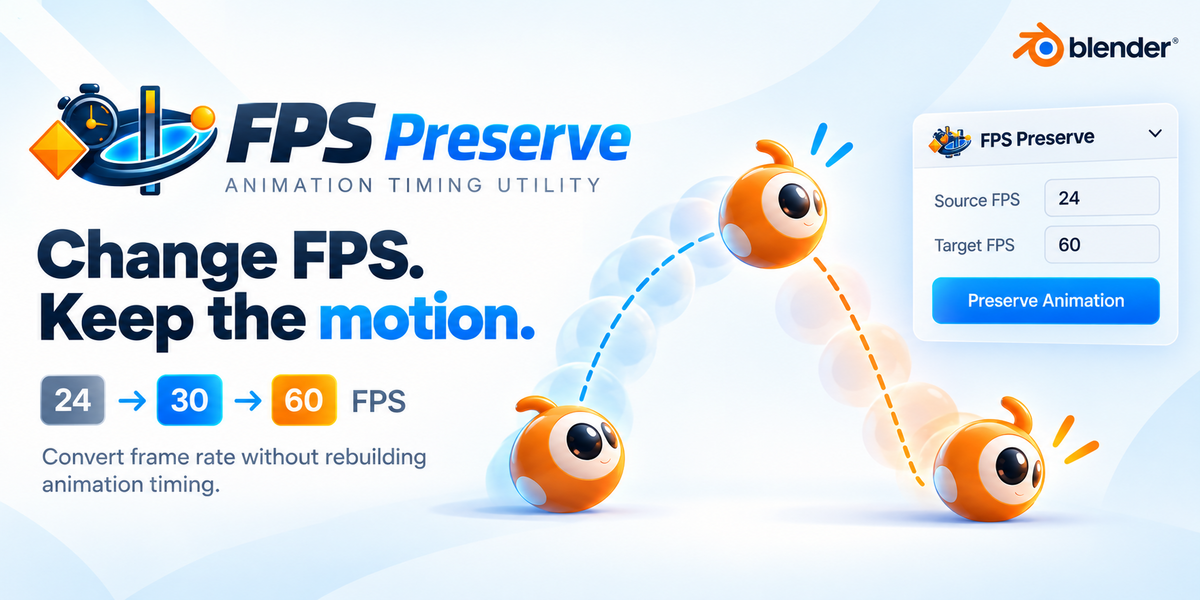


FPS preserve
FPS Preserve – Change Blender FPS Without Breaking Animation Timing
Short description
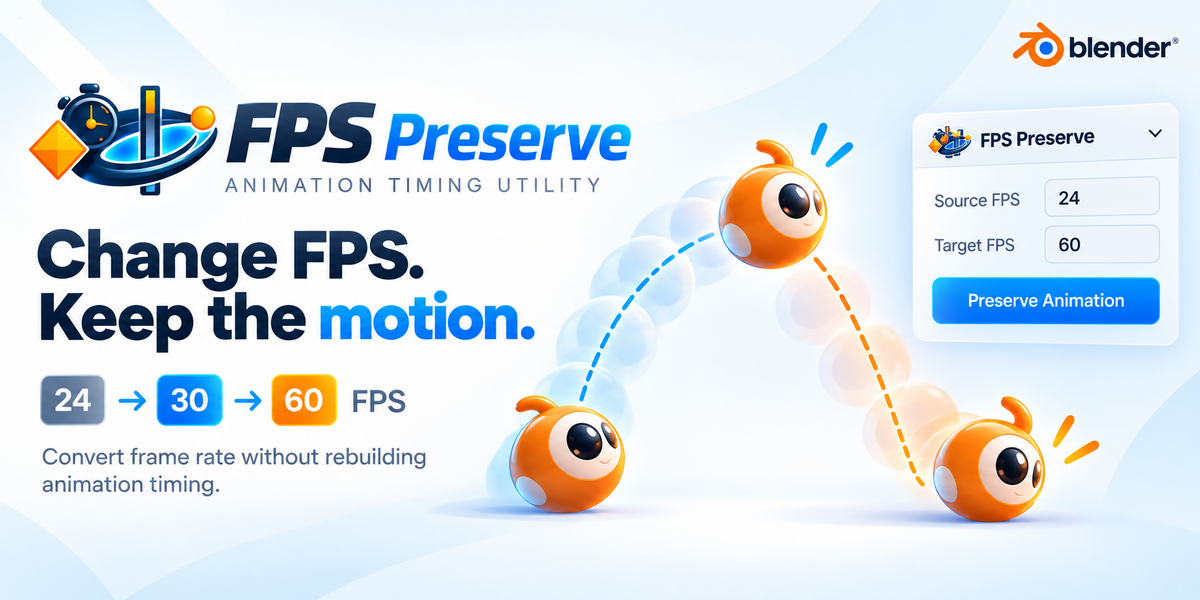
FPS Preserve lets you change a Blender project’s frame rate while automatically
repositioning supported animation data to preserve its original timing and duration.
Convert an animation from 24, 25 or 30 FPS to 60, 120 or fractional frame rates such as
29.97 FPS—without manually scaling hundreds of keyframes.
The problem it solves
Blender stores animation timing primarily in frames.
If an animation created at 30 FPS has a keyframe on frame 30, that key occurs after one
second. Changing the project to 60 FPS leaves the keyframe on frame 30, making it occur
after only half a second.
This causes:
● The entire animation to play at the wrong speed.
● Character performances to lose their original timing.
● Cameras, objects and effects to become unsynchronized.
● Markers and scene ranges to stop matching the animation.
● NLA strips to require additional manual correction.
● Complex rigs to become tedious and risky to repair.
● Animators to manually select and scale keys across multiple editors.
Blender’s native Time Stretching can remap playback, but it does not physically reposition
the underlying keyframes into the new frame-rate timeline.
The solution
FPS Preserve calculates the exact ratio between the original and destination frame rates,
then repositions the supported animation data while preserving its duration in seconds.
For example:
30 FPS → 60 FPS
Keyframe spacing: 8 frames → 16 frames
8 ÷ 30 = 0.2667 seconds16 ÷ 60 = 0.2667 seconds
The frame numbers change, but the animation timing remains the same.
Main features
Accurate FPS conversion
Convert between standard, high and fractional frame rates, including:
● 24 → 30 FPS
● 24 → 60 FPS
● 25 → 50 FPS
● 30 → 60 FPS
● 30 → 120 FPS
● 29.97 FPS conversions
● Custom FPS values
Production animation support
FPS Preserve handles:
● Blender 5.2 layered and slotted Actions
● Object animation
● Character and humanoid rigs
● Bone animation
● Camera animation
● Shape-key animation
● Material and world animation
● Standard F-Curve keyframes
● Custom Bézier handles
● NLA strips
● Action Constraints
● Shared Actions
● Scene and preview ranges
● Current timeline position
● Timeline and Action markers
Multiple conversion scopes
Choose exactly what should be processed:
● Current Scene – converts animation used by the active scene.
● Selected Objects – converts animation associated with selected objects.
● Entire File – converts used animation and timing across all compatible scenes.
The Entire File option verifies that every scene starts with the same FPS before proceeding.Flexible anchor controls
Choose the frame that remains fixed while the animation expands or contracts:
● Scene Start
● Frame 0
● Current Frame
● Custom Frame
Preserve fractional keyframes
For mathematically accurate conversions, keyframes can remain on subframes.
You can also place keys on the nearest whole frame when required.
Collision protection
When reducing FPS and rounding to whole frames, multiple keyframes may land on the
same frame.
FPS Preserve detects these collisions before conversion and stops the operation unless the
user explicitly chooses to continue.
Conversion preview
Preview the conversion before making changes.
The report displays information such as:
12 Actions
846 Keyframes
6 Markers
4 NLA Strips
2 frame-dependent drivers
It also reports unsupported or potentially problematic content.
Shared-Action protection
Actions used by several objects are detected and converted only once, preventing accidental
repeated scaling.
Time Stretching protection
If Blender’s native Time Stretching is active, FPS Preserve warns the user about possible
double retiming and can restore Time Stretching to its neutral setting before conversion.
Native Blender UndoThe conversion is registered as one Blender Undo operation, allowing the FPS and
supported timing data to be restored together.
Simple workflow
1. Open Output Properties → FPS Preserve.
2. Enable Preserve Animation Timing.
3. Enter the destination FPS.
4. Choose the conversion scope and anchor.
5. Preview the conversion.
6. Press Convert Frame Rate.
Who it is for
FPS Preserve is designed for:
● Character animators
● Motion designers
● VFX artists
● Independent filmmakers
● Game animators
● Animation studios
● Blender generalists
● Artists delivering one animation at multiple frame rates
● Anyone who discovers late in production that the project FPS must change
Common use cases
● Converting a 24 FPS animation to 60 FPS.
● Preparing a 30 FPS character animation for 120 FPS output.
● Matching Blender animation to footage with a different frame rate.
● Delivering the same animation for different platforms.
● Correcting a project that was animated at the wrong FPS.
● Moving animation between projects with different FPS settings.
● Increasing render sampling without shortening the performance.
● Preserving timing across complex character rigs and NLA setups.
What FPS Preserve does not do
FPS Preserve does not generate new animation poses or AI-created in-between drawings.
Blender evaluates the existing animation curves at the new frame rate, producing more or
fewer temporal samples while preserving the authored motion.
Version 1.0 intentionally does not retime:● Grease Pencil drawing frames
● Physics and simulation caches
● Video Sequencer strips
● Frame-dependent driver expressions
● Procedural timing inside nodes or modifiers
● Image sequences
The add-on detects several of these situations and warns the user when manual adjustment
or rebaking may be necessary.
Compatibility
● Blender: 5.2 LTS
● Extension type: Blender Add-on
● Installation: Blender Extensions or Install from Disk
● Marketplace integration: Superhive extension-ready
● Operating systems: Windows, macOS and Linux
● External dependencies: None
● Network access: None
● License: GPL-3.0-or-later
Key selling statement
Change your Blender frame rate—not your animation.
FPS Preserve turns a potentially destructive and time-consuming project change into a
controlled, previewable conversion that takes only a few clicks.
-
$14.99
A single creator license. Free updates and support.
-
$150
Free updates and support for 2-12 seats
-
$450
Free updates and support for 13 -30 seats
Have questions about this product?
Login to message
| Blender Extension Compatible | Yes |
| Dev Fund Contributor | |
| Published | 2 months ago |
| Blender Version | 5.2 |
| Extension Type | Add-on |
| Render Engine Used | Cycles, Eevee |
| License | GPL |

Discover more products like this
60fps custom fps animation fps AnimationRetimer framerate keyframes framerange