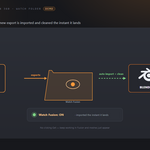
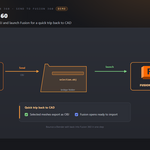
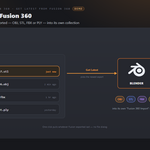
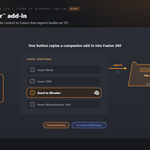
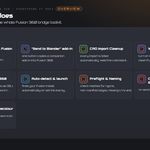
A bridge that brings Fusion 360 bodies into Blender — welded, shade-smoothed and organised — without importing files by hand. A companion "Send to Blender" add-in pushes the selected bodies across as a mesh, a watch folder imports them the moment they land, and every import gets the clean CAD look applied automatically. You can also send Blender meshes back out to Fusion for a quick round-trip.
The bridge is file-based (no live protocol), so it is robust and does not depend on a specific Fusion 360 build.
Requirements - please read before buying
-
Windows only. The add-on detects and launches Fusion through Windows paths and processes. macOS and Linux are not supported.
-
Blender 3.3 - 5.2 - Extension on 4.2+, classic add-on on 3.3-4.1.
-
Autodesk Fusion (Fusion 360) is required and licensed separately by Autodesk, and is not included. Free and paid tiers are offered by Autodesk - which one you need is between you and them. No Autodesk Fusion (Fusion 360) licence is included with this product, which is the Blender-side bridge only and is not affiliated with or endorsed by Autodesk.
-
(one button here copies it in).
-
Network: no internet connection is used. The bridge may open an optional live link to Fusion over your own machine's loopback address (127.0.0.1); nothing is sent off your machine.
Installation
Blender 4.2+ (Extension): Edit ▸ Preferences ▸ Add-ons ▸ drop-down ▸ *Install from Disk…* → pick universal_bridge_fusion360-x.x.x-blender4.2-5.2.zip, then enable it. Blender 3.3–4.1: Edit ▸ Preferences ▸ Add-ons ▸ *Install…* → pick universal_bridge_fusion360-x.x.x-blender3.3-4.1.zip.
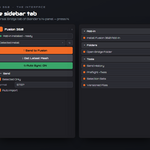
The panel is in the 3D Viewport sidebar (press N) under the Universal Bridge tab. Open the add-on preferences and check that Fusion 360 was detected — if not, set the executable by hand.
Installing the Fusion 360 add-in (for the return trip)
- In the panel's Get / Watch section, click Install Fusion 360 Add-in.
This copies BlenderBridge into %APPDATA%\Autodesk\Autodesk Fusion 360\API\AddIns\BlenderBridge.
- In Fusion 360: *Utilities ▸ Add-Ins ▸ BlenderBridge ▸ Run* (tick **Run on
Startup** so it is always there).
- A Send to Blender button appears on Fusion's Insert panel.
Getting started
- In Fusion 360, select one or more bodies (or just have visible bodies).
- Click Send to Blender on Fusion's Insert panel — it exports a high-refinement
STL into the bridge folder.
- In Blender, click Get Latest from Fusion 360 — or turn on Watch Fusion
and skip this step. The mesh imports, cleaned up, into its own collection.
Get / Watch
-
Get Latest from Fusion 360 — imports the newest mesh file in the bridge
folder. OBJ, STL, FBX and PLY are all accepted.
-
Watch Fusion (auto-import) — while on, any new mesh Fusion exports into the
bridge folder is imported and cleaned automatically.
-
Open Bridge Folder — opens the exchange folder in Explorer (export CAD
meshes here to import them).
-
Open App — launches Fusion 360.
CAD Import Cleanup
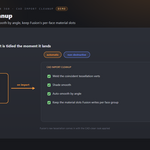
Applied to every imported mesh:
-
Weld Doubles — merge the coincident vertices left by Fusion's tessellation.
-
Shade Smooth (Auto by Angle) — shade smooth and auto-smooth so faces read as
curved surfaces, with a Sharp Angle (default 30°) above which edges stay hard.
-
Import Into Own Collection — put imported meshes in a "Fusion 360 Import"
collection instead of the active one.
Material slots that Fusion writes per face group are kept on import.
Send to Fusion 360
Send to Fusion 360 exports the selected meshes as OBJ into the bridge folder and launches Fusion, so you can carry Blender geometry back to CAD. Each send is logged to the Send History.
Detection & preferences
-
The add-on auto-detects Fusion 360 under
%LOCALAPPDATA%\Autodesk\webdeploy\production. Detect App re-scans, and you can set the Fusion 360 Executable path by hand in preferences.
-
Show Fusion 360 Panel toggles the panel in the Universal Bridge sidebar tab.
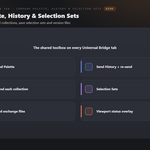
Shared Universal Bridge tools
Registered once and shared with every other bridge you own, on the same tab:
-
Command Palette — a menu of every bridge action.
-
Send History — re-send with one click; optionally versioned exchange files.
-
Preflight — flags ngons, non-manifold edges, missing UVs, missing materials
and unapplied scale/rotation; Apply Transforms and Add UVs fix the safe ones.
-
Naming — stamp low / high / LOD / UCX (collision) / socket names.
-
Selection Sets — save and restore named selections.
-
Send Each Collection — batch-send every collection that has meshes.
-
Viewport status overlay — shows live watchers and the last send/get result.
Troubleshooting
-
Nothing imports on Get → export a mesh from Fusion into the bridge folder
first (Open Bridge Folder shows where); the Send to Blender add-in does this for you once it is enabled.
-
No Send to Blender button in Fusion → run the add-in: Utilities ▸ Add-Ins ▸
BlenderBridge ▸ Run, and tick Run on Startup.
-
Fusion 360 not found → set or detect the executable in the add-on
preferences.
-
Watch Fusion isn't picking up files → confirm the exchange folder matches on
both sides (Open Bridge Folder), and that Fusion is exporting into it.
Button icons
The buttons in the bridge panels use a drawn icon set rather than Blender glyphs borrowed from elsewhere. Preferences ▸ Button Icons controls it:
-
Brand Colours (default) — each bridge in its own colour.
-
Mono — every icon in one accent colour you pick.
-
Blender Built-ins — no custom icons at all, exactly as before.
Colour-code Status keeps the link and modifier icons green / amber / red, where the colour is the message; turn it off and they take your accent too. Blender's own glyphs are kept wherever they are already the familiar thing — the trash can, the folder, the warning triangle — so the panels still look like Blender.
Support
Join the Discord: https://discord.gg/SuSqbZMDk5 — include your Blender and Fusion 360 versions.
Part of the Universal Bridge line. Works on its own, and the free Universal Bridge Manager hub add-on is included with your purchase.
 Tachyon Studio