Gachoki Explode View
 Gachoki Studios

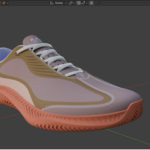
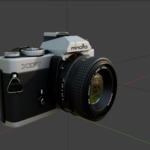
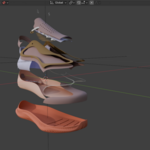
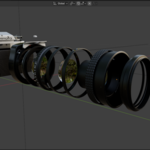
1. What this addon does
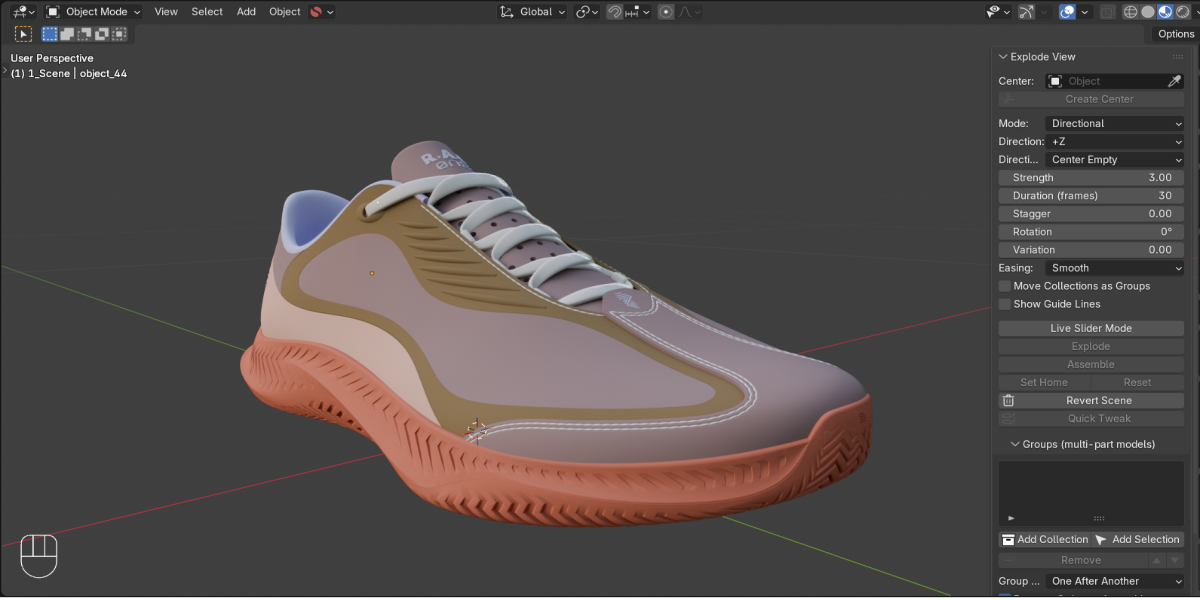
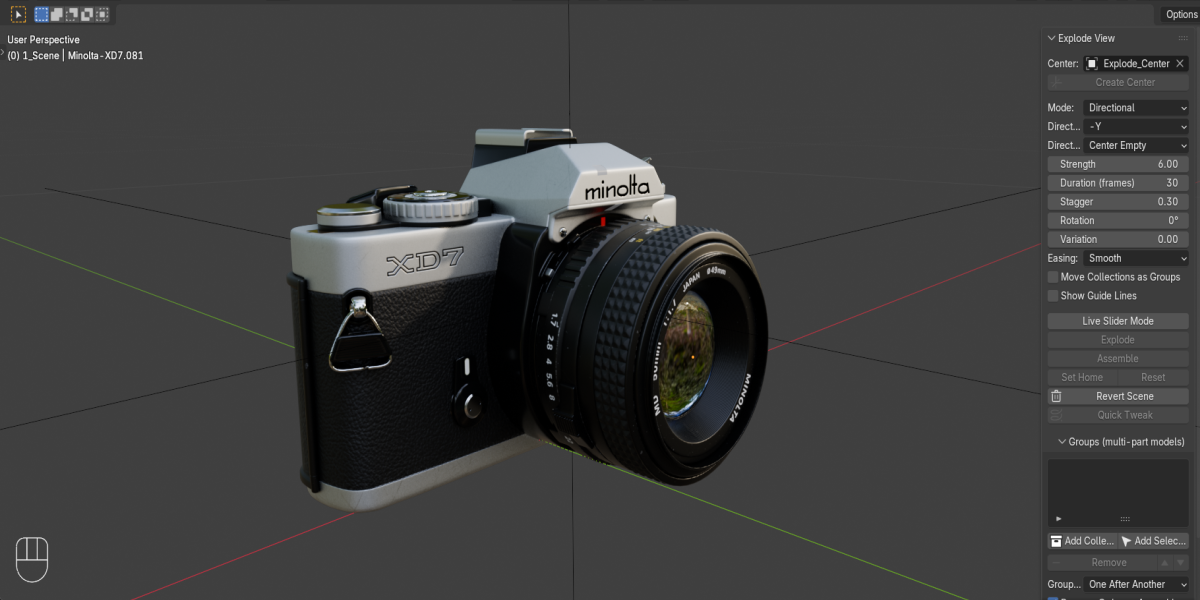
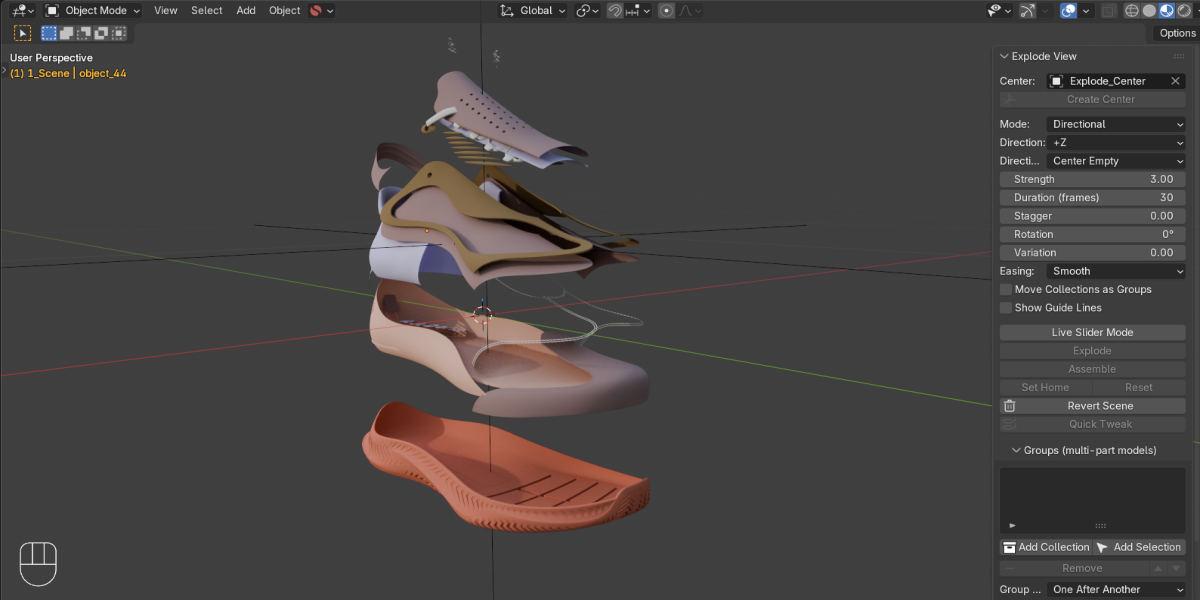
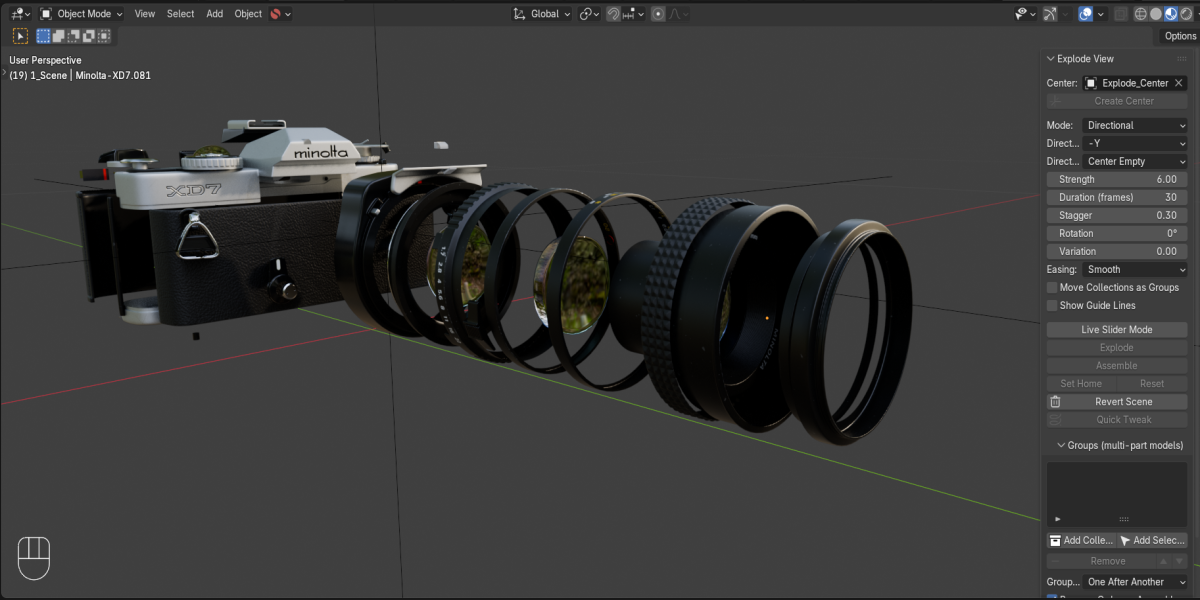
Gachoki Explode View creates exploded-view animations (like the ones used in product videos) in a few clicks. You pick an empty object as the center, and the addon moves your parts away from it. Parts close to the empty move a little, and parts far from it move a lot, so the overall shape of the model is kept as it opens up.
What you can do with it:
• Explode and assemble a model with baked keyframes.
• Control the explosion with a live slider you can switch on and off.
• Split a big model into groups (for example lens, body, electronics), each with its own center, and choose the order they explode in.
• Explode in one direction (for example straight up) instead of outward from the center.
• Add stagger, a small outward tilt, random variation, easing and guide lines.
5. The panel, setting by setting
|
Setting |
What it does |
|
Center |
The empty the parts explode away from. Hidden once you have groups, because each group has its own center. |
|
Create Center |
Adds an empty at the middle of the selected parts and uses it as the Center. |
|
Mode |
Radial moves parts away from the empty in every direction. Directional moves them along one axis of the empty (section 7). |
|
Direction |
Directional mode only. Which axis of the empty parts move along: +X, -X, +Y, -Y, +Z or -Z. |
|
Strength |
How far parts travel. At 1.0 in Radial mode, each part ends up twice as far from the empty as it started. |
|
Duration (frames) |
The length of the animation. With groups and Fit to Duration on, it is the total length. |
|
Stagger |
Delay between outer and inner parts. 0 moves everything together. Around 0.3 to 0.6 keeps parts from touching. Maximum 0.9. |
|
Rotation |
Outward tilt of the outermost part. Closer parts tilt less. In Directional mode it becomes a twist around the direction. 5° to 10° looks subtle. Set 0 for no rotation. |
|
Variation |
Adds a random extra or reduced distance per part, so it looks less mechanical. The same part always gets the same value. |
|
Axes (X Y Z) |
Radial mode only. Turn an axis off and parts will not move along it. For example, leave only Z on to explode straight up and down. |
|
Easing |
Smooth eases in and out. Linear moves at constant speed. |
|
Move Collections as Groups |
Parts in the same collection move together as one unit instead of each moving by its own distance. |
|
Show Guide Lines |
Draws a thin line from each moved part back to its home position (section 10). |
|
Live Slider Mode |
Switches from baked keyframes to a slider (section 6). |
|
Explode / Assemble |
Bake the animation out or back in. |
|
Set Home |
Saves the current pose of the selected parts as their assembled pose. |
|
Reset |
Removes the movement keyframes and puts parts back (see the warning in section 12). |
6. How it works, and Live Slider Mode
Home pose
The first time you click Explode (or switch on Live Slider Mode), the addon stores each part's position and rotation as its home. Assemble always returns parts exactly to home, so you no longer need to remember your settings. If you move a part by hand afterwards, select it and click Set Home while it is in its assembled place.
Order of movement
- When exploding, the outer parts start first and the inner parts follow, so inner parts do not collide with outer ones.
- When assembling, it is the exact reverse: inner parts move first and outer parts follow.
- All parts finish on the same frame. A higher Stagger means a bigger gap between the first and last part to start.
Live Slider Mode
Use this when you want to scrub through the explosion and decide the timing yourself.
- Select your parts while they are assembled.
- Click Live Slider Mode to switch it on. The parts are registered and the Explode Amount slider appears. The Explode and Assemble buttons are hidden while it is on.
- Drag the slider. 0 is assembled and 1 is fully exploded. Changing Strength, Stagger, Rotation and the other settings updates the model live.
- To animate it, hover over the slider and press I to insert a keyframe. Move to another frame, change the value, and press I again. You can then edit the timing in the Graph Editor.
- Click Live Slider Mode again to switch it off. The parts stay where they are, and the Explode and Assemble buttons return.
Important: do not mix baked keyframes and Live Slider Mode on the same parts. The slider overrides baked motion. Click Reset first if you want to switch from one to the other.
7. Directional mode
Use this when parts should slide along one direction, such as layers of a phone lifting up in a stack.
- Place the empty at the base of your model, for example under the bottom layer.
- Set Mode to Directional.
- Choose a Direction. +Z points straight up.
- To aim the empty at an angle, rotate the empty. The direction follows the empty's own axes, not the world's.
- Click Explode.
How it behaves:
- Parts farther along the direction move more, and parts close to the empty move less, so the layers keep their relative spacing.
- Parts behind the empty move the opposite way. Put the empty at one end of the model if you want everything to move the same way.
- Stagger still sends the farthest parts first.
- Rotation becomes a twist around the direction. Set it to 0 for a clean slide.
- A part exactly level with the empty (zero distance along the direction) will not move.
Tip: in the empty's Object Data properties, set Display As to Single Arrow. It points along the empty's +Z axis, so you can see where parts will go.
8. Groups for multi-part models
Big models, like a camera, often need several explosions: the lens assembly moves one way, the body another, and the electronics somewhere else. Groups let each set of parts have its own center and its own place in the order.
Find the Groups (multi-part models) panel below the main Explode View panel.
Creating groups
From collections (recommended):
- Put each sub-assembly in its own collection in the Outliner.
- Click a collection in the Outliner.
- Click Add Collection. The group takes the collection's name, and an empty called _Center is created at the middle of its parts.
- Repeat for each collection.
From a selection:
- Select the objects for the group (empties are ignored).
- Click Add Selection. The group is called Group 1, Group 2 and so on, and gets its own center empty. You can rename it in the group settings.
A group with no center is shown in red in the list.
Ordering
The group at the top of the list explodes first. Select a group and use the up and down arrows to move it. (Blender lists cannot be dragged, so the arrows are used instead.)
 Included
Includes 12 months of
- Support from Gachoki Studios
- Product updates
Extend this product’s Support Period +12 months: 50% of product price
Have questions before purchasing?
Login to message
| Blender Extension Compatible | Yes |
| Dev Fund Contributor | |
| Published | about 4 hours ago |
| Blender Version | 4.5 - 5.2 |
| Extension Type | Add-on |
| Render Engine Used | Cycles, Eevee |
| License | GPL |

Discover more products like this
exploded view product-visualization technical animation disassemble explode product animation assembly animation motion graphics