GIS2BLEND
 jangstudio




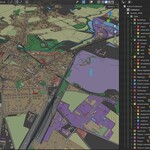
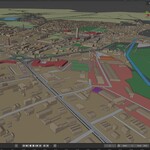
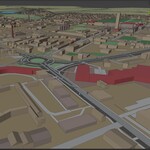
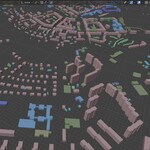
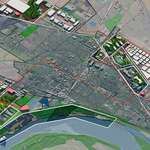
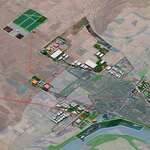
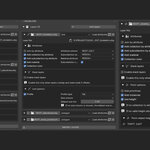
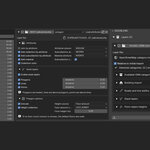
GIS2BLEND Documentation
Advanced GIS-to-3D Automation for Blender
Updated for GIS2BLEND v0.9.26 - July 2026
|
Purpose GIS2BLEND converts GIS and OpenStreetMap data into organized, production-ready Blender scenes. It is designed for geospatial visualization, urban planning, architecture, infrastructure, renewable energy, environmental analysis, digital twins and technical 3D mapping workflows. |
Contents
1. Installation and requirements
2. Main workflow overview
3. Online OpenStreetMap workflow
4. Terrain, map overlay and project coordinates
5. Importing downloaded / loaded OSM layers
6. Local GIS layer workflow: SHP, GPKG and CRS
7. Section 8: Collection Terrain Controls
8. Section 9: Material & Colour Schemes
9. Section 10: Spatial Analysis - Experimental
10. Performance, safety and troubleshooting notes
11. Visual reference gallery
1. Installation and requirements
Install GIS2BLEND as a Blender add-on or Blender Extension package, depending on the version you distribute. The current workflow is designed for Blender 5.x and a modern GIS-to-Blender pipeline.
Download the GIS2BLEND ZIP package.
Open Blender and go to Edit > Preferences > Add-ons or Extensions.
Install the ZIP package from disk and enable GIS2BLEND.
Open the 3D Viewport sidebar and locate the GIS2BLEND tab.
Open Add-on Preferences if you need to add a Mapbox token or check optional GIS dependencies.
|
Requirement |
Notes |
|
Blender |
Designed for Blender 5.0 and newer 5.x builds. |
|
Mapbox token |
Required for Mapbox Satellite overlay and Mapbox Terrain-RGB based terrain creation. |
|
Pillow / PIL |
Required for map overlay and terrain image processing. The addon can show an install helper when it is missing. |
|
Fiona / GDAL / pyproj / PROJ |
Required or strongly recommended for local GIS file workflows, CRS detection and reprojection of SHP, GPKG, GeoJSON and similar geospatial formats. |
|
OSM XML |
OpenStreetMap XML workflows can often be used without the full local GIS stack, but CRS-aware local GIS import requires the GIS dependencies. |
2. Main workflow overview
GIS2BLEND uses a guided, collapsible section layout. The first active step is expanded, while the remaining sections stay collapsed to keep the interface clean. The red Continue / Next buttons guide the user through the correct order of operations.
Choose the main workflow: OpenStreetMap, local GIS layers, or another supported data source workflow.
For OSM, select online download or local OSM file import.
Choose full database download or selected OSM categories only.
Define the import extent using the map selector, a pasted bbox, or coordinates.
Create the terrain and/or satellite overlay if required.
Download or load the OSM database, scan detected categories and import selected layers.
Use Sections 8, 9 and 10 after import to refine terrain projection, collection parameters, material schemes and spatial analysis values.
3. Online OpenStreetMap workflow
The online OSM workflow is designed for automatic download, category selection, category scanning and scene generation. It is best to start with Selected Categories Only when testing a new project area, especially for dense cities or large regions.
|
Feature |
What it does |
|
Full OSM Database |
Downloads all available OSM nodes, ways and relations inside the selected bounding box. It can produce very large files and should be used carefully. |
|
Selected Categories Only |
Downloads only the selected feature groups. This is recommended for large extents, early tests and lower-memory systems. |
|
Category presets |
Quickly enable common OSM category combinations and then manually adjust the list. |
|
Detected categories |
After download or loading, GIS2BLEND detects categories, geometry type and object counts. |
|
Per-category options |
Each OSM category can be enabled/disabled, split by attribute, joined by attribute, imported as one object or imported as curves for line categories. |
4. Terrain, map overlay and project coordinates
GIS2BLEND keeps the Blender scene in local metric project coordinates instead of raw longitude/latitude or Web Mercator coordinates. This makes imported geometry easier to work with in Blender and keeps scale meaningful in metres.
The selected OSM extent defines the project area and the local metric coordinate origin.
Map overlays can be created from Mapbox Satellite or other supported providers.
Terrain can be generated from Mapbox Terrain-RGB where a valid Mapbox access token is available.
The tile limit controls image resolution and download size; higher values create larger overlays and use more memory.
The projection offset places imported objects slightly above terrain to reduce z-fighting and terrain intersection.
Low-memory OSM import and detailed import logging are recommended when testing large areas.
|
Feature |
What it does |
|
Create image overlay |
Creates a textured map plane for the selected extent. |
|
Set default material |
Assigns a usable material to the overlay after creation. |
|
Save overlay to file |
Writes the generated overlay texture to disk. |
|
Pack overlay into current .blend |
Packs the texture into the Blender file for portability. |
|
Create terrain |
Generates terrain for the selected extent when the terrain source is available. |
|
Terrain resolution |
Controls terrain subdivision/detail. Higher values increase mesh density. |
|
Project imported objects to terrain |
Projects imported objects to the terrain at import time where appropriate. |
|
Low-memory OSM import |
Reduces peak memory pressure during large imports. |
|
Write detailed import log |
Writes diagnostic information useful for support and debugging. |
4.1 Advanced import-time grid/projection safety
The advanced safety panel is intentionally collapsed by default. Use it when a large import, terrain projection or geometry refinement becomes too heavy for the current project or hardware.
|
Feature |
What it does |
|
Safe OSM import mode |
Limits heavy automatic operations that can cause Blender to become unstable on very large datasets. |
|
Max imported objects |
Caps the total number of imported objects during safe-mode tests. |
|
Max features/category |
Limits each category independently so one dense category cannot dominate the import. |
|
Auto projection object limit |
Prevents automatic projection from being applied to too many objects at once. |
|
Polygon grid cell limit |
Limits destructive grid subdivision of polygon surfaces. |
|
Line resample point limit |
Limits how many resampled points are created for line projection. |
|
Auto 10 m grid polygon surfaces |
Adds a destructive grid to polygon surfaces before terrain projection for better terrain conformity. |
|
Auto resample lines |
Resamples lines at a controlled spacing for safer projection and cleaner terrain alignment. |
5. Importing downloaded / loaded OSM layers
After the OSM database is downloaded or loaded, GIS2BLEND shows the detected OSM layer and category list. Object counts help you decide which categories should be imported. Dense categories such as roads, buildings, land use and vegetation can be reduced before import if needed.
Use Load OSM categories to scan or refresh detected OSM categories.
Disable categories you do not need before importing.
Expand a category to control splitting, joining and curve import options.
Use the Building import, Roads and line widths, Stack layers and Point object heights subpanels to adjust category-specific procedural behavior.
Click IMPORT OSM LAYERS after categories and import settings are ready.
6. Local GIS layer workflow: SHP, GPKG and CRS
Local GIS layers can be added through the GIS Layers workflow. GIS2BLEND supports point, line and polygon geometry and can organize objects by attributes, generate materials, split subcollections and build procedural geometry.
|
Feature |
What it does |
|
SHP / GPKG / GeoJSON |
Supported local GIS workflows when a GIS backend such as Fiona/GDAL is available. |
|
Geometry type recognition |
The layer can be assigned or detected as point, line or polygon. |
|
Attributes |
Attributes can be loaded and used for collections, subcollections, material names and colors. |
|
CRS detection |
GIS2BLEND attempts to read CRS metadata from the file. If it cannot detect the CRS, select Manual EPSG / CRS and enter the correct EPSG code. |
|
Manual EPSG examples |
Common examples include EPSG:2180, 27700, 32633, 26917 and 5070. |
|
Reproject to project coordinates |
When enabled, local GIS layers are transformed into the same local metric scene coordinates used by OSM, terrain and overlay. |
|
Raw mode |
Imports stored XY coordinates without transformation. Use only when the layer is already in local/project coordinates. |
7. Section 8: Collection Terrain Controls
Section 8 is a lightweight post-import control system. It does not scan or convert all collections automatically. Instead, add only the collections you want to adjust, such as Buildings, Roads and paths, Forests or Waterways.
|
Feature |
What it does |
|
Terrain object |
The terrain mesh used as a reference for collection controls. |
|
Auto update controls live |
Applies changes automatically. Disable it for heavier scenes and use Update this collection manually. |
|
Live terrain projection |
Optional collection-level projection mode. Buildings use Z-only base placement to preserve massing. |
|
Apply to child collections |
Applies the control settings to nested subcollections. |
|
Z offset |
Moves collections up or down to remove overlaps or z-fighting. |
|
Extrude up/down |
Adds adjustable vertical massing to selected collections. |
|
Square grid remesh |
Optional grid refinement for polygon projection when needed. |
|
Building Geometry Nodes conversion |
Converts building collections to a controllable Geometry Nodes system with global or per-subcollection height multipliers. |
|
Use subcollections |
Enables independent parameters for individual child collections such as building types or road classes. |
8. Section 9: Material & Colour Schemes
Section 9 is designed for controlled, collection-based material styling. Add material controls only for the collections you want to color. The live preview system updates gradients and color changes without shifting the panel layout.
|
Feature |
What it does |
|
Section 9 live preview |
Updates material changes live. Disable it if a very large scene becomes slow. |
|
Add collection material control |
Adds a specific collection to the material-control list. |
|
Scheme |
Defines how materials are created, for example by distance gradient, collection/subcollection names or analysis values. |
|
Source |
Controls the source values used by the material scheme. |
|
Distance source |
Uses the distance to a target collection or object as the input value. |
|
Editable ColorRamp / range |
Provides a custom gradient editor for the selected material control. |
|
Distances in metres |
Allows exact real-world thresholds such as 50 m, 100 m, 300 m and 400 m. |
|
Hard distance bands |
Creates discrete classes rather than continuous gradients. |
|
Reverse |
Reverses the gradient/class order. |
|
Auto value range |
Automatically calculates min/max values when appropriate. |
|
Use Geometry Nodes material modifier |
Optional procedural material modifier support. |
|
Tint collection folders |
Applies visual color coding to collection folders. |
|
Apply to child collections |
Applies the material scheme to nested subcollections. |
9. Section 10: Spatial Analysis - Experimental
Section 10 is reserved for spatial analysis workflows. The current concept is to calculate spatial values, write them as attributes, and then use Section 9 to color the resulting values. Depending on the build, analysis types may include distance-to-source, proximity calculations and other spatial metrics.
Choose the analysis type.
Select target and source collections or objects.
Set radius or other input parameters where applicable.
Write the output to an attribute and optionally a normalized _norm attribute.
Use Section 9 with analysis values to visualize the output.
10. Performance, safety and troubleshooting notes
|
Recommended first test When importing a new area, start with a smaller bounding box and Selected Categories Only. Import only a few categories such as Buildings, Roads and paths, Forests or Water objects. After confirming stability and scale, increase the extent or enable more categories. |
|
Problem |
Recommended action |
|
Blender fully crashes |
Try OpenGL instead of Vulkan, reduce the OSM extent, enable low-memory mode, import only selected categories and check the import log. |
|
Blender appears frozen |
Large OSM imports can take time. Watch RAM/CPU usage and avoid clicking repeatedly while import is running. |
|
Out-of-memory behavior |
Reduce the bbox, lower tile limits, disable unnecessary categories, reduce terrain resolution, use safe import limits and test one category at a time. |
|
CRS cannot be detected |
Set Source CRS to Manual EPSG / CRS and enter the correct code. Use Check layer CRS before import. |
|
Layer appears in the wrong place |
Check whether the correct source CRS is selected and whether reprojection to project coordinates is enabled. |
|
Mapbox overlay/terrain does not work |
Verify that the Mapbox access token is set in Add-on Preferences and that Pillow is installed. |
|
Fiona/GDAL errors |
Install or repair the GIS backend. Also check for conflicting PROJ paths from QGIS, PostgreSQL/PostGIS or other GIS installations. |
|
Z-fighting or coplanar overlaps |
Use Stack Layers, Projection Offset, Z Offset or collection-specific terrain controls. |
|
Viewport clipping issues |
Use the viewport after-import options to frame imported content and set appropriate clip start/end values. |
GIS2BLEND Python source code is licensed under GNU GPL v3.0 or later. Non-code materials, including documentation, screenshots, branding, logo, product name, tutorial files and marketing materials, remain protected by copyright and may not be copied or redistributed without permission unless explicitly stated otherwise.
Have questions about this product?
Login to message
| Blender Extension Compatible | Yes |
| Sales | 10+ |
| Rating | 1 ratings |
| Dev Fund Contributor | |
| Published | 5 months ago |
| Blender Version | 5.0 |
| Extension Type | Add-on |
| Render Engine Used | Arnold, Blender-Internal, Blender-Game-Engine, Cycles, Eevee, Freestyle, Luxrender, Mental-Ray, Octane, Vray, Yafaray |
| License | GPL |
Discover more products like this
Geospatial blender GIS Automation Urban Planning GIS procedural modeling 3d-city osm digital twin OpenStreetMap SHP GeoPackage