 Domenas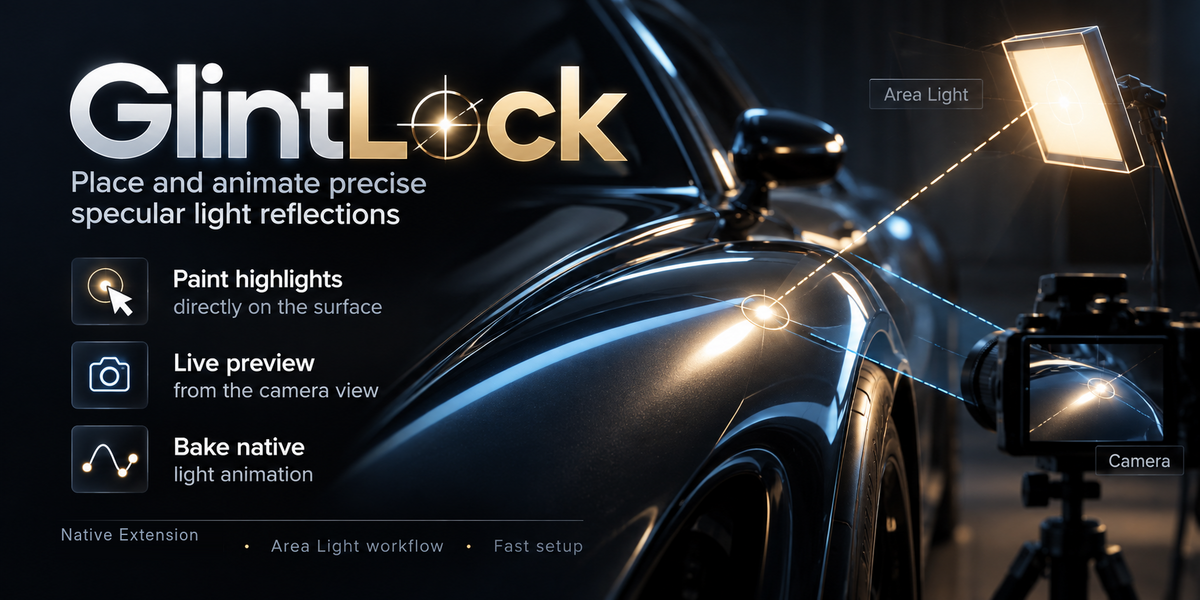


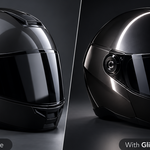
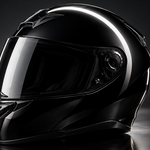


GlintLock 1.2.0 — Quick Start & Documentation
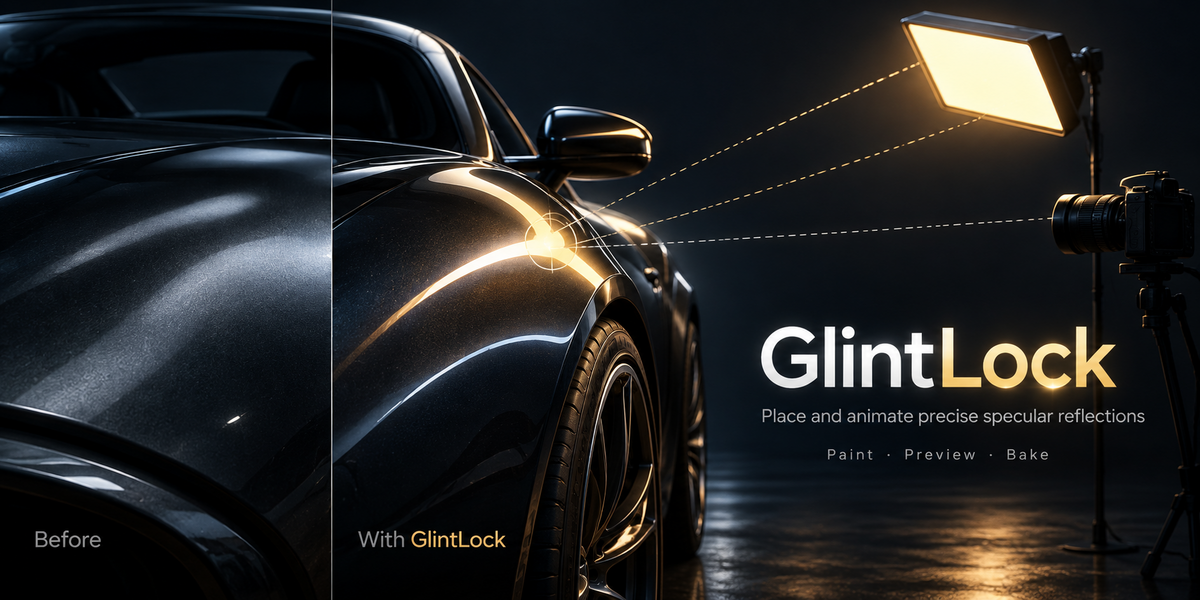
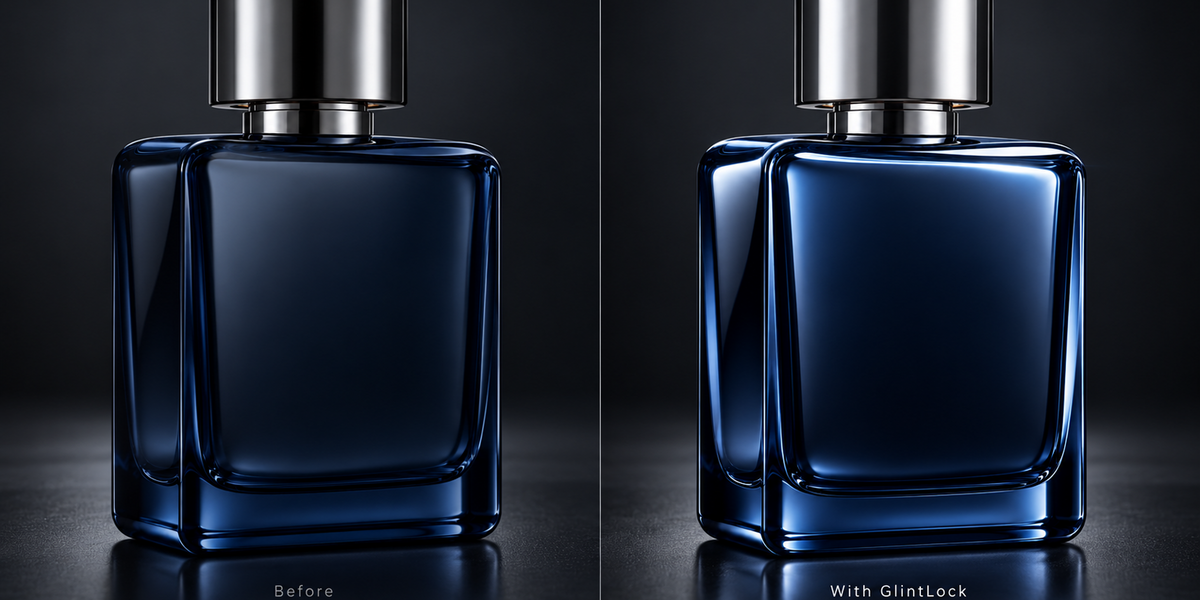
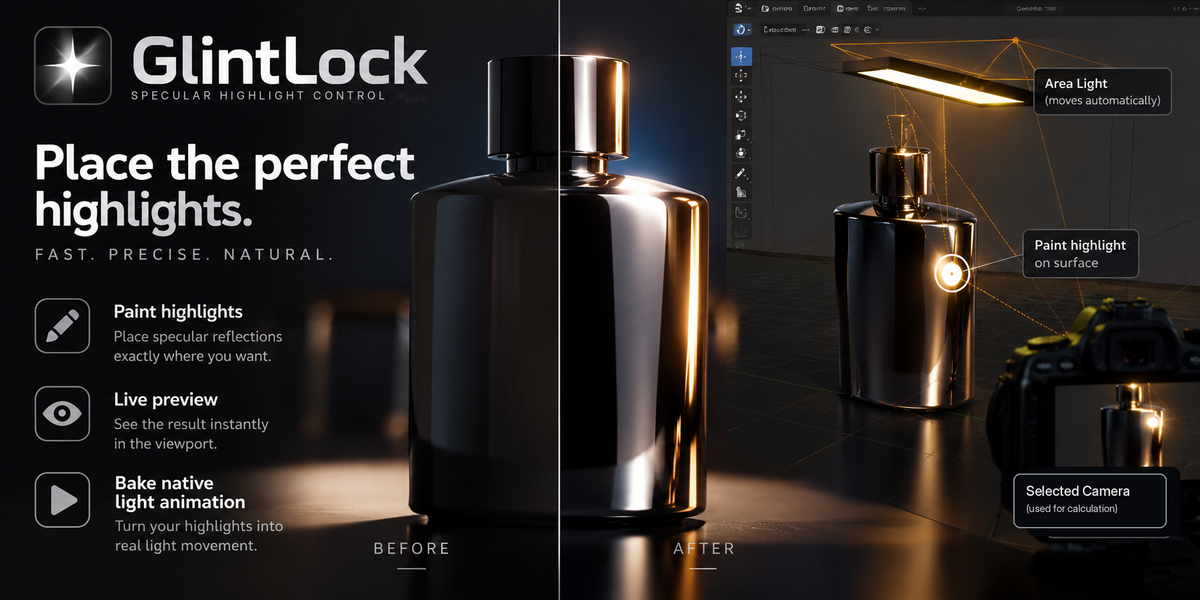
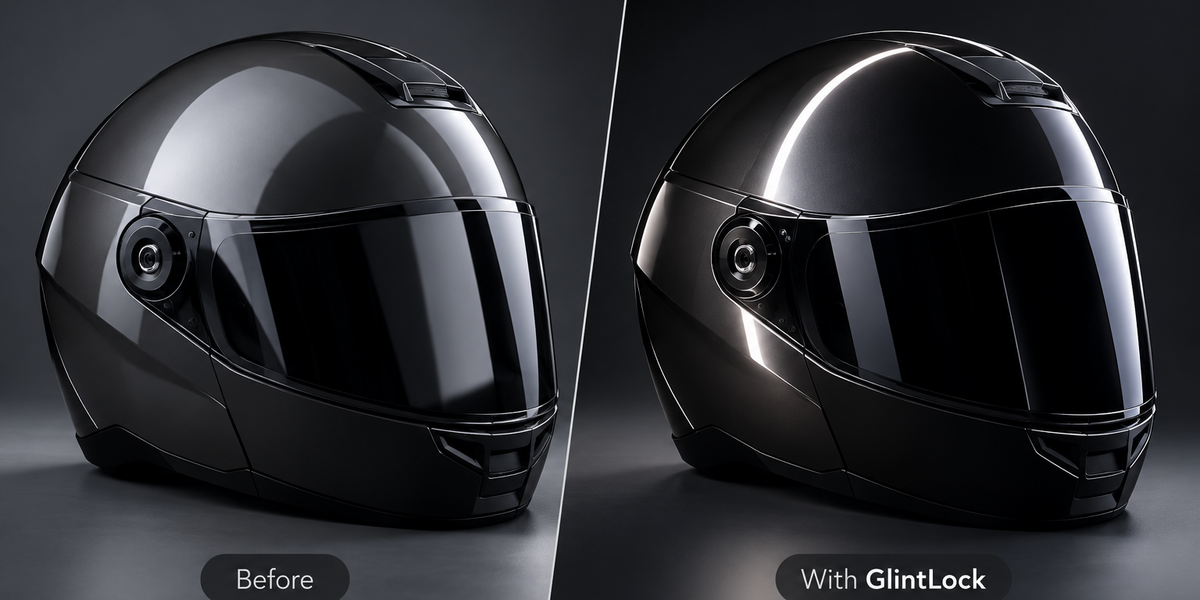
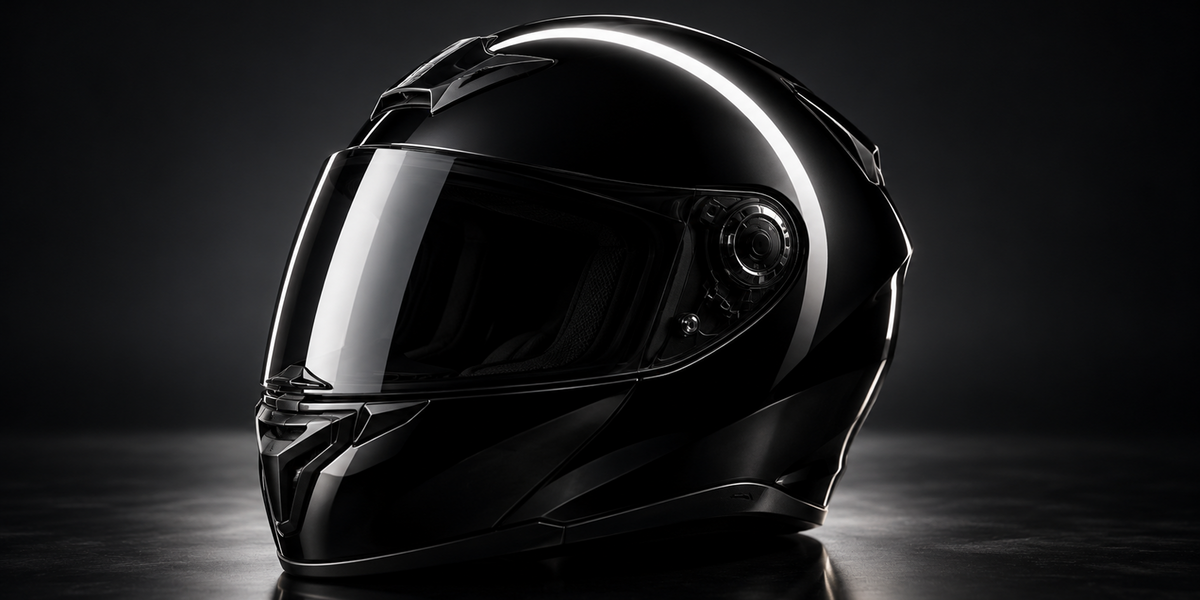
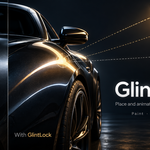
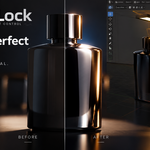
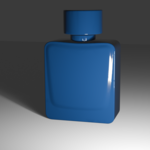
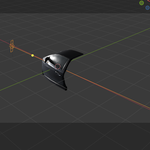
GlintLock is a Blender Extension for placing and animating native Area Lights based on the central specular reflection direction between a selected surface point and a chosen camera.
Instead of manually searching for the correct light position, select where you want the center of the reflection to appear and let GlintLock calculate the Area Light position and orientation.
Installation
GlintLock requires Blender 4.3 or newer.
Install the supplied ZIP directly:
Edit → Preferences → Get Extensions → Install from Disk
Select the GlintLock ZIP file and enable the extension if required.
The GlintLock panel is available in:
3D Viewport → Sidebar (N) → GlintLock
Do not unpack or re-compress the supplied extension ZIP before installation.
Creating a Highlight
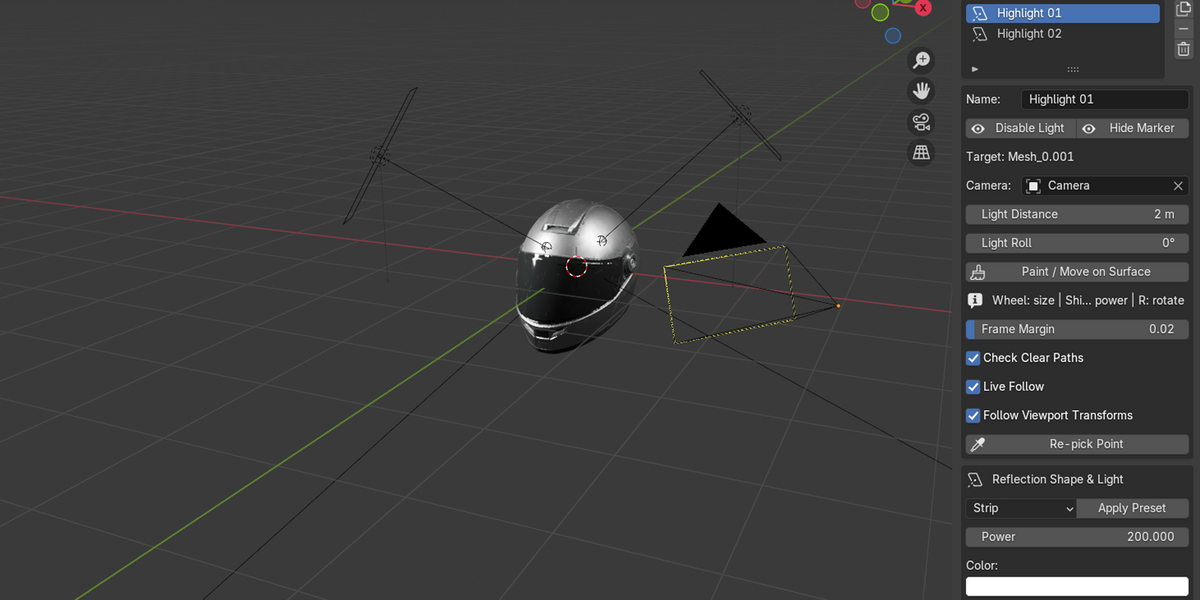
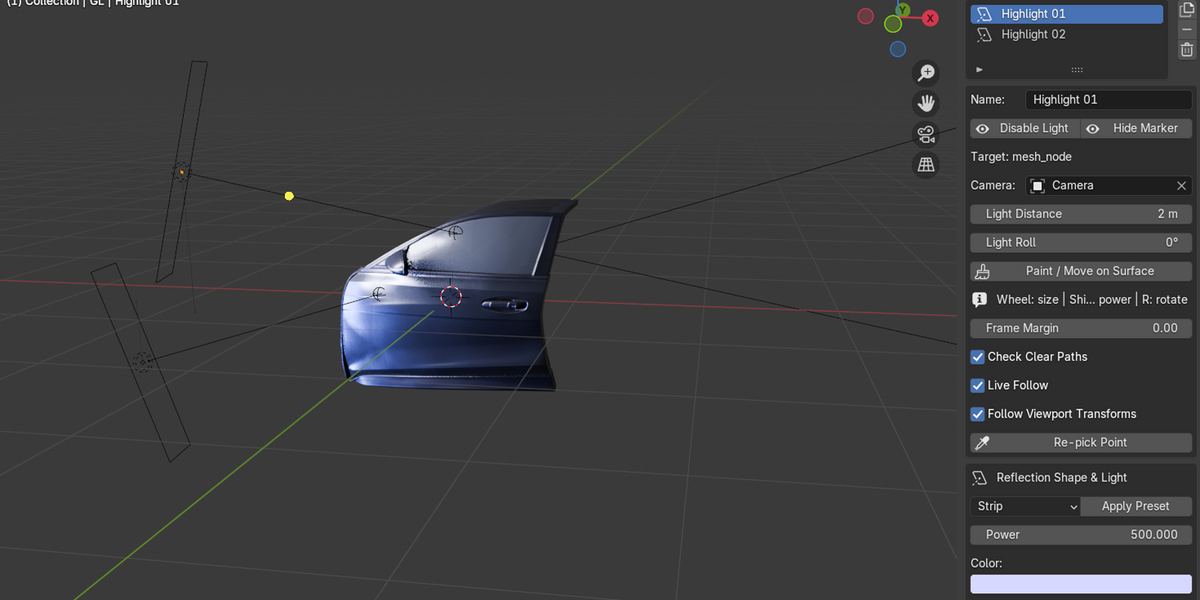
Select a rigid mesh as the Target and choose the Camera that should see the reflection.
If no camera is selected, GlintLock uses the active scene camera.
Click:
Paint New Highlight
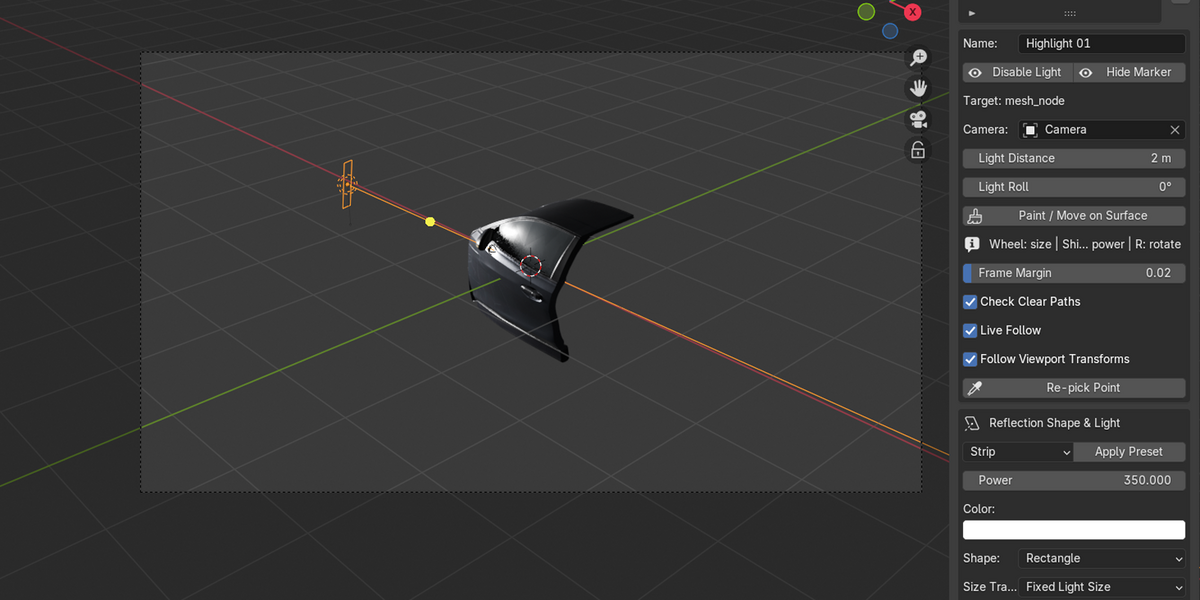
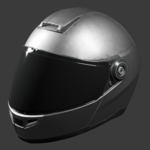
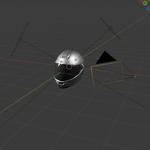
Move the cursor over the target surface. GlintLock creates and positions a managed Area Light according to the central specular reflection direction.
During painting:
- Mouse Wheel — change both emitter dimensions
- Shift + Mouse Wheel — change light power
- R / Shift + R — rotate the emitter in 5° steps
- Left Click — confirm the highlight
- Esc / Right Click — cancel
A camera-visible and valid surface point is required before the highlight can be confirmed.
Moving an Existing Highlight
Select a highlight from the Highlights list and choose:
Paint / Move on Surface
Move the cursor to the new position and confirm it with the left mouse button.
For baked highlights, use Resume Live (Clear Keys) before changing the surface point.
Reflection Shape & Light Controls
GlintLock uses native Blender Area Lights.
The following starting presets are available:
Strip · Softbox · Round · Ellipse · Pinpoint
After applying a preset, you can continue editing the native light settings including:
Width / Diameter, Height, Power, Color, Beam Spread, Light Roll and Light Distance.
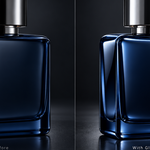
The preset defines a starting configuration only. The final rendered reflection still depends on the material and surface.
Live Follow
Enable Live Follow to recalculate managed light positions when animation frames change.
Enable Follow Viewport Transforms to update the setup when the target object or selected camera is transformed within the current frame.
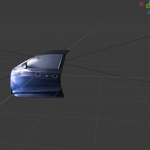
This allows the calculated central reflection direction to follow moving cameras and rigid objects.
Size Tracking
Two size-tracking modes are available.
Fixed Light Size keeps the Area Light dimensions unchanged.
Camera Distance Compensation scales the reference emitter dimensions according to the current perspective camera-to-highlight distance.
This is a geometric approximation intended to help maintain a more consistent apparent emitter size during camera movement.
Use Capture Current Appearance to store the current light dimensions and reference camera distance.
Animation
Before baking, use Scan Range to check the selected frame range for invalid frames.
Then choose:
Bake Animation
GlintLock creates native Blender keyframes for the managed Area Light location and rotation.
When Camera Distance Compensation is enabled, the managed light width and height can also be baked.
Use Refresh Animation if the source setup changes after baking.
Use Resume Live (Clear Keys) to return the rig to live operation and remove GlintLock-managed bake keys.
The maximum bake range is 5,000 frames per highlight rig.
Multiple Highlights
Each GlintLock highlight has its own managed Area Light and non-rendering marker.
Highlights can be renamed, duplicated, enabled or disabled, moved, previewed, scanned, baked, refreshed and removed independently.
Clear Path Checking
When Check Clear Paths is enabled, GlintLock checks the center rays between the camera, selected point and light for blocking geometry.
This check can be disabled when transparent or glass geometry makes the ray test too restrictive.
Rendering
GlintLock uses native Blender Area Lights and works with Cycles and EEVEE.
After animation has been baked, the managed light objects and keyframes remain native Blender data.
Important Limitations
GlintLock calculates the central specular reflection direction.
It does not paint a decal onto the object and does not guarantee a pixel-identical highlight shape.
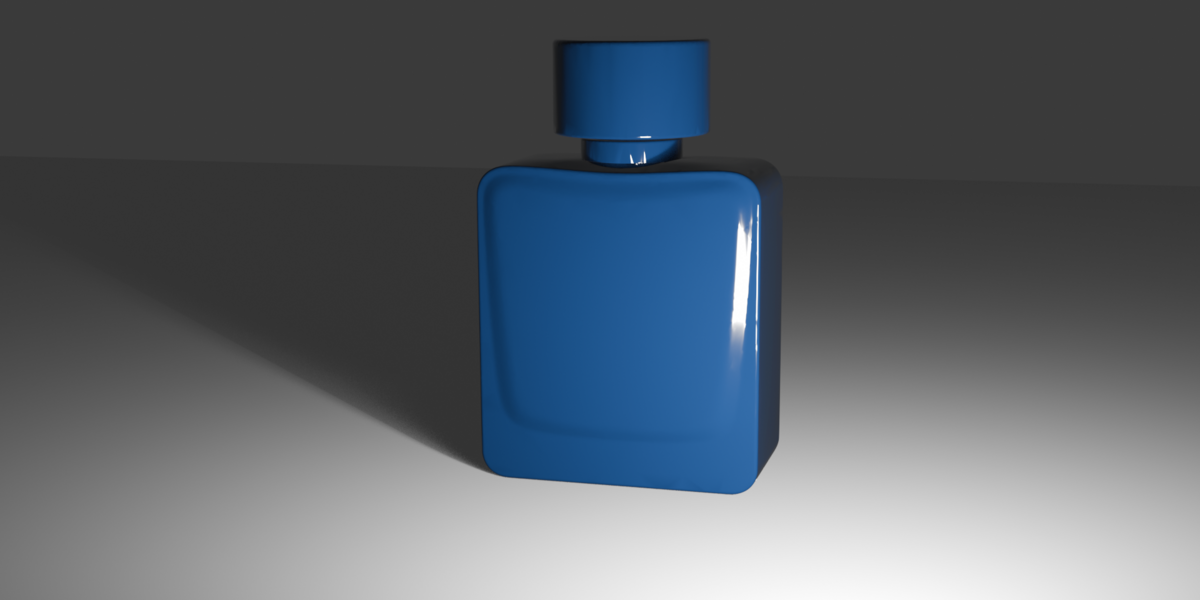
The visible reflection depends on surface curvature, normals, roughness, Area Light size and shape, occlusion, other lighting and the selected render engine.
GlintLock is intended for rigid mesh surfaces. Deforming meshes, shape keys or topology changes are not guaranteed to preserve the selected point correctly and may require re-picking the highlight.
Have questions about this product?
Login to message
| Blender Extension Compatible | Yes |
| Published | 1 day ago |
| Blender Version | 4.3 - 4.5 |
| Extension Type | Add-on |
| Render Engine Used | Cycles, Eevee |
| License | GPL |

Discover more products like this
product-visualization Area Light Studio Lighting animation specular highlights camera reflections Lighting