 Skava
Skava


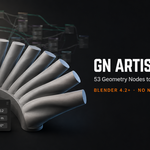
GN Artist Toolkit — documentation
v1.1.2 · Blender 4.2 LTS and later (tested on 4.2.9 and 5.2.0) · Windows / macOS (Intel and Apple Silicon) / Linux
1. Installing
In Blender open Edit, then Preferences, then Add-ons, press the arrow button in the top right corner, choose Install from Disk, and pick the downloaded zip file. Tick the checkbox next to "GN Artist Toolkit" to enable it. Nothing else needs downloading and no internet connection is required.
2. Where it lives
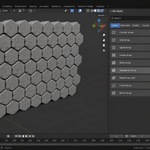
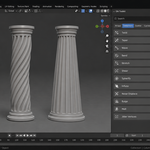
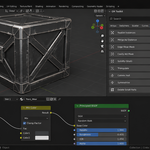
Press N in the 3D viewport to open the sidebar, then choose the "GN Toolkit" tab. You will see a search box, five category tabs, and the list of tools in the open category.
3. Adding your first tool
- Select an object.
- Open the GN Toolkit sidebar tab.
- Click a tool, for example Circular Array.
- Open the Modifier Properties tab (the blue wrench) to adjust its sliders.
That is the whole workflow. What you just added is an ordinary Geometry Nodes modifier, so everything you already know about modifiers applies to it.
4. The sidebar
- Search. Typing filters across every category at once, so you do not have to guess where a tool lives. Clear it with the X to go back to browsing by tab.
- Category tabs. Arrays, Deformers, Scatter, Curves, Utility.
- The star. The small star beside each tool pins it. Pinned tools appear in a Favourites block at the top of the browser and rise to the top of their own category, in every file you open.
- Recent. The last six tools you added, newest first. Clear the block with the X on its header.
- All Selected. With this on, clicking a tool adds it to every selected object instead of only the active one. The objects share one node group but each keeps its own slider values.
- On This Object. A collapsible panel listing the toolkit modifiers already on the active object, with buttons to apply or remove them all.
5. Presets, copying and seeds
These three live in the sidebar, under the tool list.
- Presets. Open the Presets panel with a toolkit modifier on the object. Save Current Settings stores everything the modifier is set to under a name you choose. Click that name later — in this file or any other — to set the modifier back to it. Object, collection and material choices are remembered by name, so a preset that refers to something missing from the current file simply skips it and applies the rest. The X beside a preset deletes it.
- Copy to Selected. Select the objects you want to change, then the object you already like last so it is the active one, and press it. Every other selected object receives the same toolkit modifiers with the same settings. A modifier it already has is updated rather than duplicated, so pressing the button twice does not stack anything up, and modifiers you added yourself are never touched.
- Randomise Seeds. Gives every selected object its own random arrangement, so twenty scattered rocks stop looking like twenty copies of one rock. The button only appears when something on the object actually has a Seed, and it says so rather than doing nothing if there is nothing to reroll.
Favourites, the recent list and presets are stored in a file called gn_artist_toolkit.json in Blender's configuration folder rather than in the blend file, so they follow you from project to project and survive reinstalling the add-on.
6. Sizes follow your model
Most settings that would normally be a distance in metres are a fraction of your object's own size instead. The toolkit measures the object's bounding box and scales from that, which is why the same defaults look correct on a character and on a bolt. If you scale an object and the effect looks identical, that is intended.
Height-based effects run from the bottom of the bounding box, not from the object origin. A twist therefore pivots on the base of the model even if the origin sits somewhere in the middle.
7. Arrays and instances
Array and scatter tools produce instances. Instances are extremely cheap, which is what lets you place thousands of copies without the viewport slowing down, but they are not real geometry yet. That matters in two situations:
- Exporting. Most exporters need real geometry. Add the Realize Instances tool from the Utility category after your array.
- Editing. You cannot enter Edit Mode on instances. Realize first, or apply the modifier.
8. Scatter tools
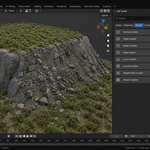
Every scatter tool needs a source: a Collection holding the objects you want to place. Create a collection, put your rock or grass objects in it, and pick that collection in the modifier's Objects field. Until you do, the scatter correctly produces nothing.
Shared settings across the scatter tools:
- Density or Count — how many copies.
- Seed — change it for a different random arrangement.
- Min Scale and Max Scale — the random size range.
- Align to Surface — tilt each copy to follow the surface it sits on.
- Random Rotation — how far each copy is spun at random around its own up axis.
- Show Surface — keep or hide the object you scattered onto.
Weight Paint Scatter reads a named attribute, so paint a vertex group first and type its name into the Attribute field.
9. Curve tools
A curve renders as nothing on its own: it has no surface. The Curves category sweeps a shape along it and hands back real geometry.
- Curve to Tube. Cables, pipes, handrails, wires. Sides controls how round it is, Taper thins it towards the far end, Fill Caps closes the ends.
- Curve to Ribbon. A flat strip for roads, tape, banners and leaves. Twist turns the strip along its length.
- Rope / Cable Bundle. Winds several strands around the curve. One strand gives a coiled wire, three a classic rope, a dozen a cable bundle.
- Grow Along Curve. Shows a tube along part of the curve only. Keyframe End from 0 to 1 and the line draws itself on.
Thickness and width are a fraction of the object's own size rather than a distance in metres, so the same setting suits a two metre handrail and a two centimetre cable.
Used on a mesh instead of a curve, these tools sweep along the mesh's edges — which is a wireframe render in one click.
10. The two mask tools
Edge Wear Mask and Cavity AO Mask do not change your mesh. They write a 0 to 1 value into a named attribute that a material can read. To use one, add the tool, then in your material add an Attribute node, type the same name into it, and plug the output wherever you want the effect, for example into a mix between clean and worn paint.
You can see the values in the Spreadsheet editor to check the mask before wiring the material.
11. Stacking tools
Tools stack in the order they appear in the modifier list, and you can reorder them like any other modifier. One caution: array tools multiply. Stacking several arrays on the same object multiplies the copy counts together, and a handful of arrays can reach millions of copies and stall Blender. This is normal behaviour for array modifiers, not a fault, but it is worth knowing before you stack four of them.
12. Removing and cleaning up
- Remove Toolkit Modifiers strips the toolkit's modifiers from the selected objects. Modifiers you added yourself, including your own Geometry Nodes, are left untouched.
- Apply Toolkit Modifiers applies them all on the active object, turning the result into real editable geometry.
- Purge Unused Node Groups deletes toolkit node groups nothing is using any more, to keep the blend file tidy. Groups still in use are kept.
13. Opening the nodes
Nothing here is locked. Every tool is a standard node group named with a GNAT prefix. Open the Geometry Node Editor with the modifier selected and you can read it, take it apart, or copy a piece of it into your own setup. If you have been meaning to learn Geometry Nodes, 53 working examples is a good place to start.
14. Troubleshooting
I added an array and the object vanished from the exporter. Add Realize Instances after it. Instances are not real geometry until realized.
A scatter tool does nothing. It needs a source Collection in its Objects field.
Weight Paint Scatter places nothing. The attribute name in the modifier must match the vertex group you painted, exactly, including capitals.
A deformer has no visible effect. Check the Angle, Factor or Strength slider is not at zero, and remember the effect grows from the bottom of the object upwards, so the base is meant to stay still.
Blender slowed to a crawl. Check whether you have stacked several array tools. Their copy counts multiply.
A curve tool produced nothing. The object has no curve and no edges to sweep along — a point cloud or a volume, for instance. On a mesh the tool uses the mesh's edges; on a curve object it uses the curve.
Randomise Seeds says there is nothing to randomise. Only tools with a Seed can be rerolled. A Twist has nothing random in it, so there is nothing to change.
Symmetrize opened holes in my model. Symmetrize is for centre-line models. Faces that cross the mirror plane are dropped rather than sliced, because Geometry Nodes has no bisect operation. Increase the Weld Distance slightly if the seam is not closing.
15. Changelog
v1.1.2 — maintenance release. The package ships the full licence text and an updated README (install, first run, uninstall). No changes to the tools.
v1.1.1
- Blender 5.2 moved the inputs of a Geometry Nodes modifier behind a new interface; reading or writing them the old way raises an error there. Presets, Copy settings and Randomise seeds now go through one compatibility layer and work on 4.2 through 5.2 alike.
- Copy settings now carries an input's driving attribute across as well as its value.
v1.1.0 — a new Curves category with four tools (Curve to Tube, Curve to Ribbon, Rope / Cable Bundle, Grow Along Curve), bringing the catalog to 53 across five categories. Favourites pin the tools you use to the top of the browser; the last six you added stay in a Recent block; presets save a tool's settings under a name and apply them in any file; Copy to Selected hands the active object's whole toolkit stack to every other selected object; Randomise Seeds gives each object its own arrangement. 787 automated checks, up from 628.
v1.0.0 — first release. 49 tools across Arrays, Deformers, Scatter and Utility, with search, multi-object add, and clean-up that never touches node groups you made yourself.
Have questions about this product?
Login to message
| Published | 2 months ago |
| Blender Version | 3.4 - 5.2 |
| Extension Type | N/A |
| Render Engine Used | Cycles, Eevee |
| License | GPL |
Discover more products like this
hard surface procedural no-code non-destructive Level Design scatter array deformer geometry nodes environment modifier curve