GN Presets
 Hardlysleep.ing
GN Presets — Documentation
GN Presets is a Geometry Nodes preset manager for Blender.
It lets you save the exposed input values of Geometry Nodes modifiers as reusable presets, organize those presets, and switch between configurations without duplicating node groups or changing their defaults.
Presets are stored directly on the Geometry Nodes node group, allowing them to remain with your .blend files and travel with shared procedural assets.
Features
Unlimited Presets — Create as many presets as your workflow requires.
Save & Recall — Capture modifier input values and restore them instantly.
Rename — Give presets useful names such as
High Detail,Low Poly, orVariation 01.Reorder — Move presets up or down and control the order they appear in.
Delete — Remove presets you no longer need.
Shared Preset Libraries — Modifiers using the same node group share the same preset library.
Independent Selection — Each modifier can keep its own selected preset and live input values.
Portable Presets — Presets are stored directly on the node group and travel with
.blendfiles and assets.Compact or Expanded Interface — Use a dropdown or an expanded preset selector.
Optional Auto-Save — Automatically update the currently selected saved preset as inputs change.
Experimental Animation Presets — Optionally store supported keyframed values per preset.
GN Presets Lite — A free read-only companion that lets other users access presets you create.
Getting Started
1. Select a Geometry Nodes Object
Select an object containing a Geometry Nodes modifier.
GN Presets automatically detects compatible Geometry Nodes modifiers on the selected object.
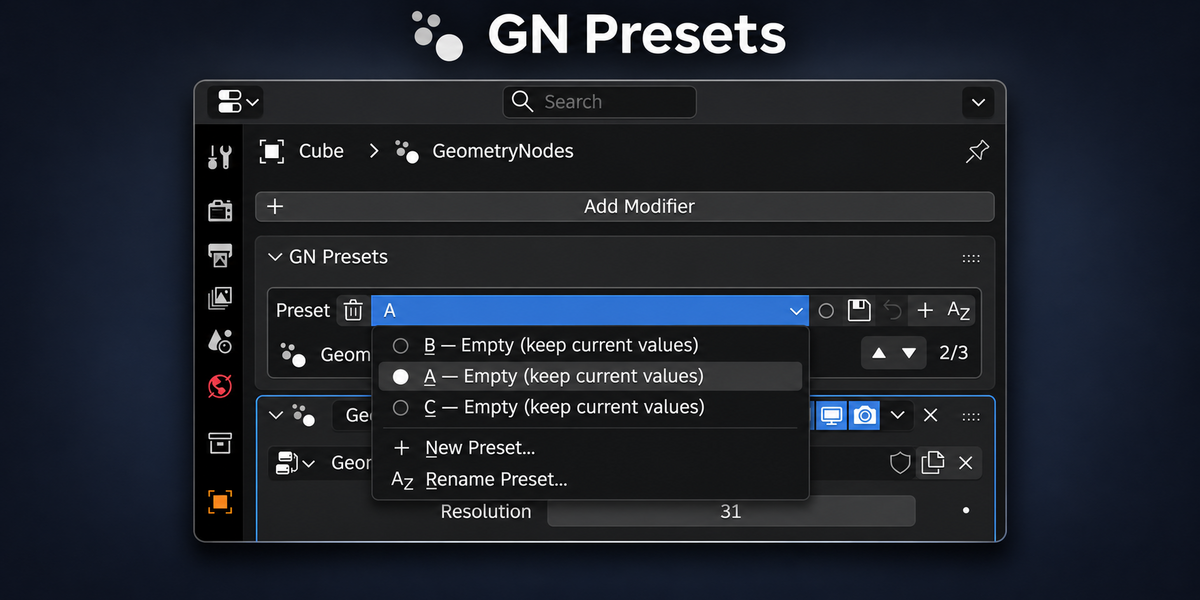
2. Choose a Preset
The default preset library begins with:
A
B
C
These are initially empty placeholder slots.
Additional presets can be created as needed.
3. Adjust Your Geometry Nodes Inputs
Change the exposed values in Blender's normal Geometry Nodes modifier interface.
GN Presets does not replace or modify Blender's native input controls.
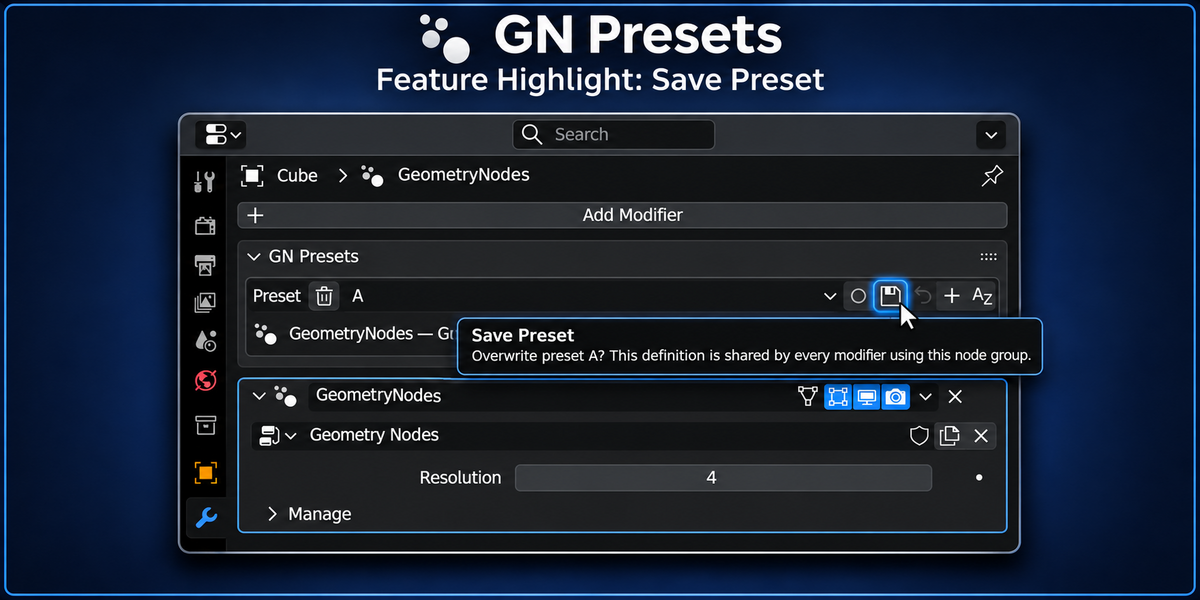
4. Save the Preset
Press Save to store the current supported input values in the selected preset.
Saving over an existing preset asks for confirmation before replacing its stored values.
5. Switch Between Presets
Choose another saved preset to immediately apply its stored configuration.
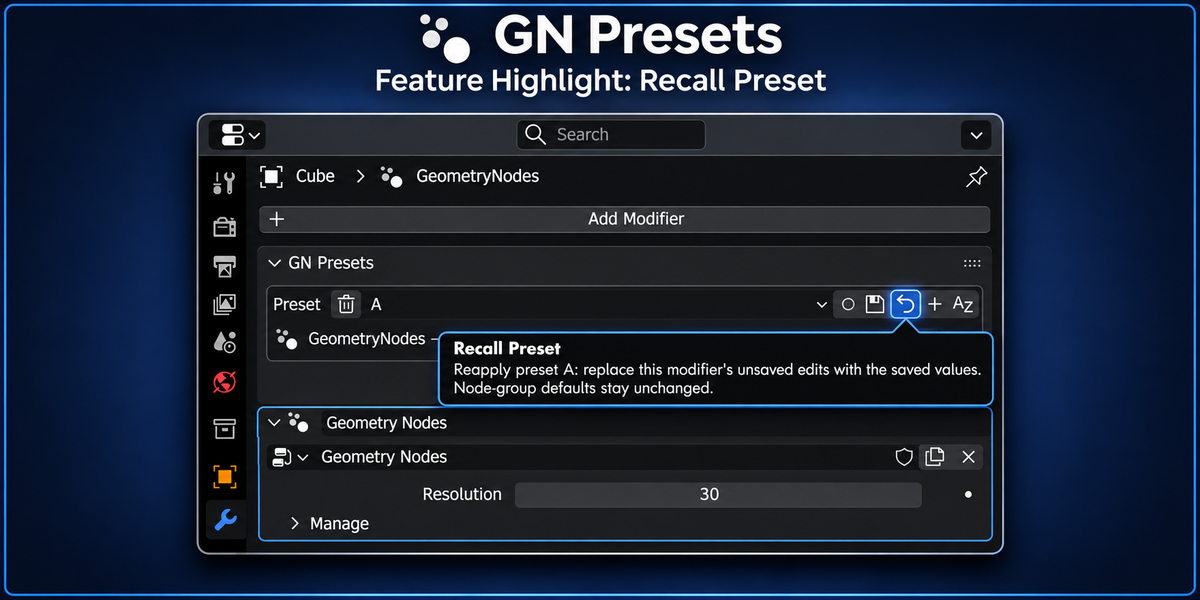
Use Recall to reapply the currently selected preset after making temporary changes.
Interface
GN Presets is available from two locations.
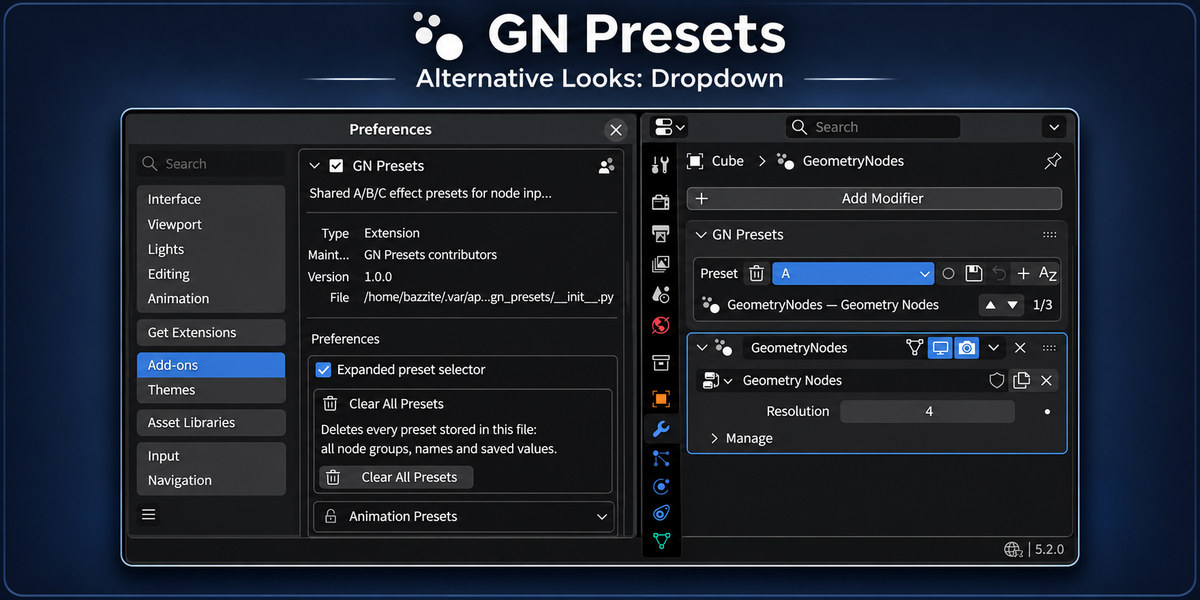
Geometry Nodes Modifier Panel
Preset controls appear directly alongside your Geometry Nodes modifiers in Blender's Properties editor.
This is useful when you are already editing modifier inputs.
3D Viewport Sidebar
A dedicated GN Presets panel is also available in the 3D Viewport sidebar.
Both interfaces access the same preset library.
Preset Controls
Preset Selector
Selects the active preset.
Saved presets apply their stored values when selected.
Empty presets leave the modifier's current values unchanged.
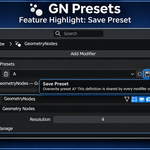
Save
Stores the modifier's current supported input values in the selected preset.
Overwriting an existing saved preset requires confirmation.
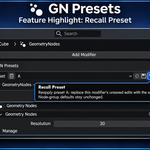
Recall
Reapplies the selected preset.
This is useful after temporarily changing modifier inputs.
Recalling a preset replaces unsaved changes to supported inputs.
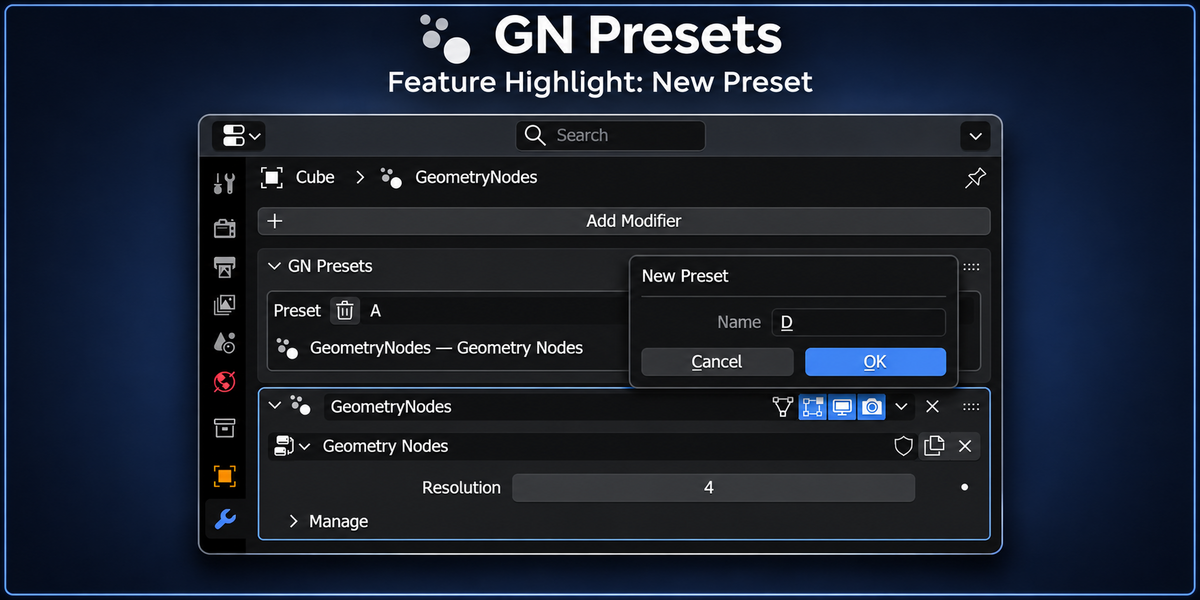
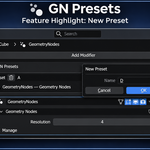
New Preset
Creates another preset and selects it.
GN Presets can create as many presets as needed.
New presets begin empty until they are saved.
Rename
Changes the preset's display name without changing its stored values.
Reorder
Use the up and down controls to move the selected preset within the library.
A position indicator shows its current location, such as:
2 / 5
Preset ordering is stored with the node group.
Delete
Removes the selected preset.
The default A/B/C slots remain available as empty presets when cleared.
User-created presets are removed from the list.
Clear All Presets
Available from the GN Presets add-on preferences.
This removes every preset stored in the current .blend file across all node groups.
A confirmation is required before anything is deleted.
Modifier values currently applied to objects are not changed.
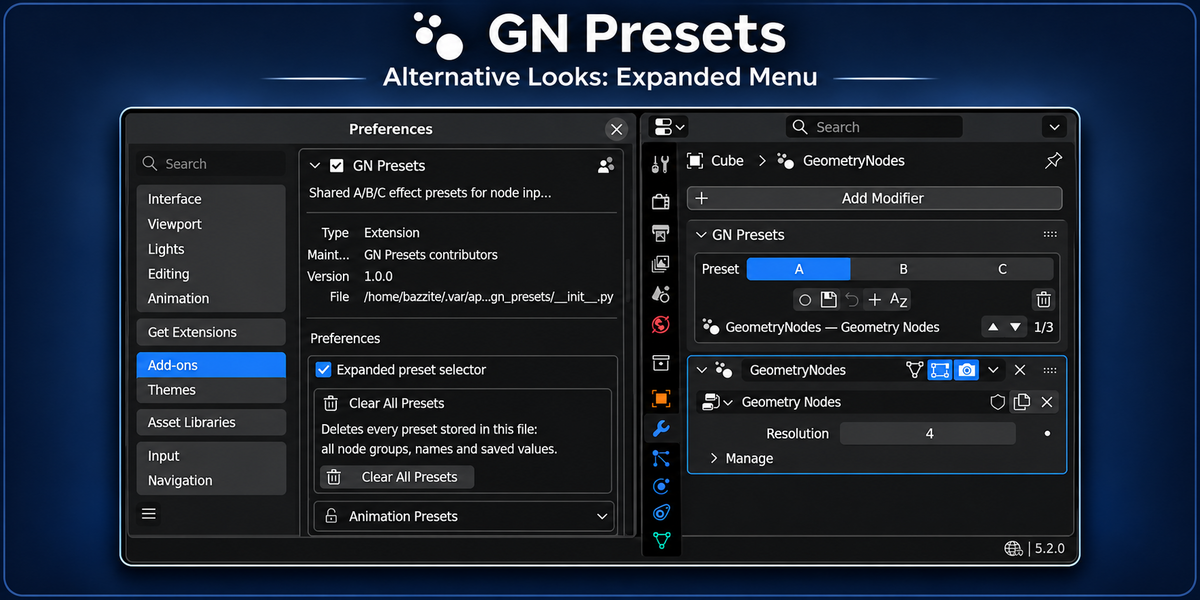
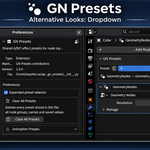
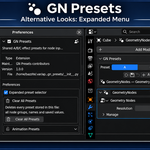
Compact and Expanded Preset Selectors
GN Presets supports two interface styles.
Compact
Presets appear in a standard dropdown.
This keeps the interface small and works well when many presets exist.
Expanded
Enable Expanded Preset Selector in the add-on preferences to display presets as individual buttons.
This makes switching between a smaller set of frequently used configurations faster.
How Presets Are Stored
Presets are stored directly on the Geometry Nodes node group.
They are not stored in a separate external configuration file.
Because of this:
Presets remain available when reopening the
.blend.Objects sharing the same node group share its preset library.
Different node groups maintain independent preset libraries.
Duplicating a node group creates an independent copy of its presets.
Presets can travel with appended Geometry Nodes assets.
Presets can be included in Blender asset libraries.
The modifier's currently selected preset remains independent from other modifiers using the same node group.
Non-Destructive Workflow
GN Presets does not modify the underlying Geometry Nodes network.
It also does not change the default values defined by the node group.
Presets only restore supported values on the Geometry Nodes modifier itself.
This means one node group can safely provide many different configurations without creating duplicate node groups.
Linked Node Groups
Presets stored on linked node groups can still be viewed and recalled.
However, linked node groups are read-only.
Their preset definitions cannot be:
Saved
Renamed
Reordered
Deleted
To modify the preset library, edit the original source file or make the node group local.
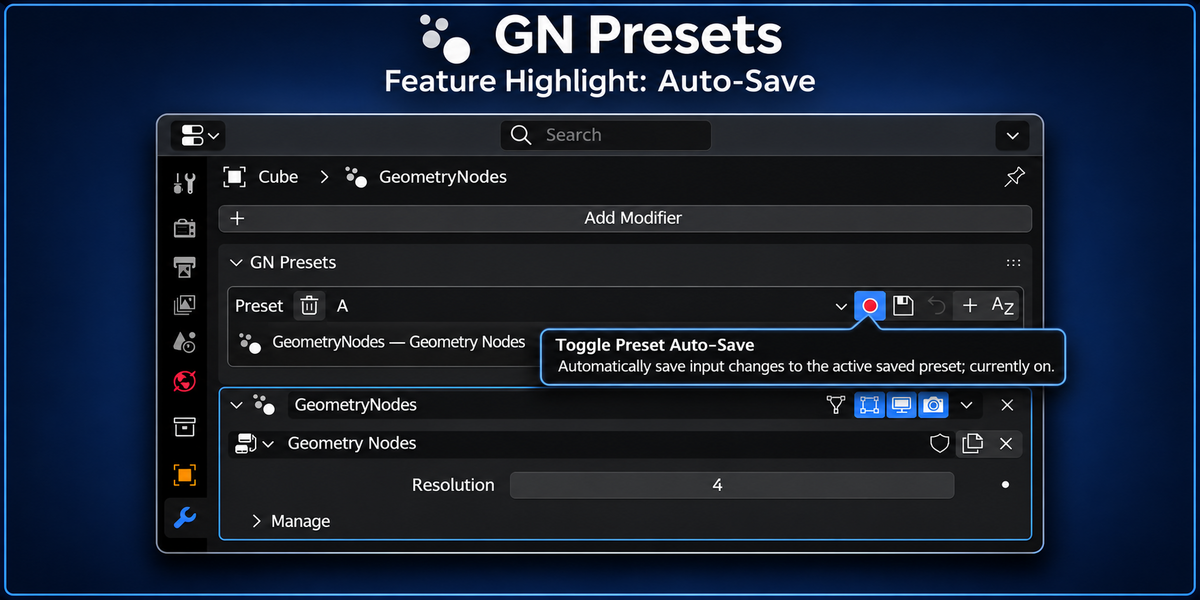
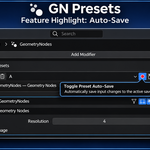
Auto-Save
Auto-save is optional and disabled by default.
When enabled, changes made to the active modifier can automatically update its currently selected saved preset.
Auto-save only updates an already-saved preset.
An empty preset must still be saved manually the first time.
Switching or recalling presets handles pending changes before changing configuration.
For predictable manual control, leave auto-save disabled and use Save when you want to update a preset.
Animation Presets
Animation Presets are an experimental feature.
By default, animated inputs are not stored independently for every preset.
This means an animated input generally keeps the same animation while switching between presets.
When Animation Presets is enabled, supported keyframed float and integer inputs can be stored with individual presets.
This allows separate presets to carry different animations.
Drivers are not stored or replaced.
Unsupported animation data is skipped rather than modified.
Disabling Animation Presets does not delete animation data that was previously stored.
Sharing Presets with GN Presets Lite
GN Presets includes a free companion extension called GN Presets Lite.
GN Presets Lite is designed for people who need to use presets created by someone else but do not need to create or manage the preset library themselves.
This is especially useful when distributing Geometry Nodes assets.
Create and organize your presets with GN Presets, then share the .blend file, appended node group, or linked asset library.
The recipient only needs GN Presets Lite to access the presets included with the asset.
They do not need to purchase GN Presets to use presets you created.
GN Presets Lite is free and open source:
https://github.com/hardlysleeping/GeoNodePresetsLite
What GN Presets Lite Can Access
Lite users can access all presets created with the full GN Presets add-on that are stored on the node group.
This includes:
All saved presets
Custom preset names
Preset ordering
Saved supported input values
Presets contained in
.blendfilesPresets from appended node groups
Presets from linked asset libraries
Lite users can switch between presets and recall their saved configurations normally.
What GN Presets Lite Cannot Do
GN Presets Lite is intentionally read-only.
Lite users cannot:
Create new presets
Save presets
Overwrite existing presets
Rename presets
Reorder presets
Delete presets
Clear the preset library
Auto-save changes into presets
These preset-authoring and management features require the full version of GN Presets.
This allows you to distribute Geometry Nodes assets with multiple ready-to-use configurations without requiring every recipient to purchase the full add-on.
Supported Inputs
GN Presets supports common exposed Geometry Nodes modifier inputs, including:
Float
Integer
Boolean
Vector
Color
String
Menu
Object
Collection
Material
Image
Font
Sound
Supported value/attribute modes and attribute names are also preserved where applicable.
Some socket types cannot currently be stored.
Examples include:
Geometry
Rotation
Matrix
Bundle
Closure
Unsupported or incompatible inputs are reported and skipped rather than preventing the rest of the preset from being saved or recalled.
This also helps presets remain usable if a node group's interface changes after the preset was originally created.
Compatibility
Blender 5.2 or newer.
Installation
Open:
Edit → Preferences → Get Extensions
Open the dropdown and choose:
Install from Disk
Select the GN Presets ZIP and enable the extension.
Updating GN Presets does not remove preset libraries already stored inside your .blend files.
Important Notes
Animation: Animated inputs normally remain consistent across presets. Experimental preset-specific animation support is available from the add-on preferences.
Unsupported Inputs: Unsupported input types are skipped and reported rather than approximated or overwritten.
Linked Assets: Linked node-group presets can be recalled but cannot be modified from the file linking them.
Preset Ordering: The default A/B/C presets begin as placeholders. Save at least one preset before using the reorder controls.
 Included
Includes 12 months of
- Support from Hardlysleep.ing
- Product updates
Extend this product’s Support Period +12 months: 50% of product price
Have questions before purchasing?
Login to message
| Blender Extension Compatible | Yes |
| Published | about 6 hours ago |
| Blender Version | 5.2 - 5.3 |
| Extension Type | Add-on |
| Render Engine Used | Cycles, Eevee |
| License | GPL |
Discover more products like this
presets Workflow modifier-panel modifier gn-presets built-in menu geometry-nodes-presets Blender geometry nodes intuitive geometrynodes ui