Gobo Light Pro — One-Click Gobo Spotlights (65 Built-in Patterns)
 blenderustad


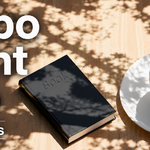
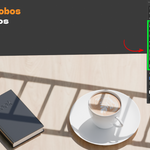
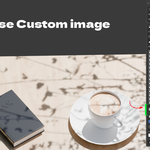
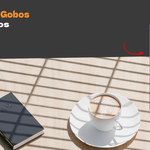
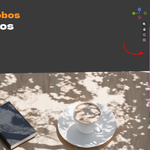
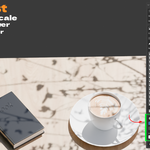
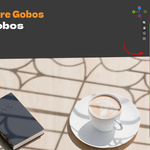
Gobo Light Pro projects an image through a Blender spot light so you get patterned light and shadow, like sunlight through a window or dappled light under a tree. It builds the light and the shader node setup for you and gives you simple sliders to control it.
- Blender 4.2 and newer
- Renders in Cycles
- 65 built-in gobos plus custom image support
Install
- Keep the downloaded ZIP as is. Do not unzip it.
- In Blender, open Edit > Preferences > Add-ons (or Extensions).
- Click Install from Disk and pick the ZIP.
- Enable Gobo Light if Blender does not enable it for you.
- In the 3D Viewport, press N and open the Gobo Light tab.
Quick start
- Open the Gobo Light tab in the N-panel.
- Pick a Category (Nature, Architecture, Industrial, People, Objects).
- Click a gobo. If no spot light is selected, the add-on creates one for you.
- Open More Tools and click Aim to Selected to point the light at your subject.
- In Adjust, set Texture Scale, Light Power, and Light Color.
- To use your own pattern, click Use Custom Image and load a PNG, JPG, or JPEG.
The scene switches to Cycles when you apply a gobo. Your previous render engine is saved so you can switch back.
Panel reference
Current Light card Shows the spot light you are editing and its active gobo. If nothing is selected it tells you a light will be created when you pick a gobo.
Gobo Library
- Category: shows one group at a time so the list stays short.
- Add As New Light: on by default. Each gobo click makes a new Gobo Light. Turn it off to change the pattern on the spot light you already selected.
- Gobo buttons: click to apply. The active gobo stays highlighted.
- Use Custom Image: load your own PNG, JPG, or JPEG.
Adjust (shows when a Gobo Light is selected)
- Texture Scale: resize the projected pattern.
- Light Power: brightness in watts.
- Light Color: color of the light.
More Tools (collapsed by default)
- Aim to Selected: rotates the light to face the active object.
- Reset: returns scale, power, and color to defaults.
- Remove Gobo: clears the gobo nodes and leaves a plain spot light.
- Create Another Gobo Light: adds a fresh empty Gobo Light.
Custom images
- Transparent PNG works best. The add-on reads the image alpha to shape the light.
- High contrast black and white JPG or PNG also works.
- Images are packed into your .blend file, so scenes open correctly on another machine or a render farm.
Tips
- Sharper shadow: move the light farther from the surface, lower the spot blend, and lower the shadow soft size on the light.
- Softer shadow: move the light closer and raise the shadow soft size.
- Pattern too large or small: use Texture Scale instead of editing nodes.
- Multiple patterns in one shot: keep Add As New Light on and click several gobos.
- Match a real room: use a window gobo for the key light and a colored fill for bounce.
Troubleshooting
The render looks flat or the pattern is missing. Make sure you are in Cycles. Gobo Light Pro projects the pattern with light shader nodes that render in Cycles, not Eevee.
Clicking a gobo made a second light. Add As New Light is on. Turn it off to apply the gobo to the selected spot light.
Aim to Selected did nothing. Select the target object so it is the active object, then run the tool with the Gobo Light also in the scene.
The gobo did not apply to my own light. The light must be a Spot light. Point and area lights are not supported.
Have questions about this product?
Login to message
| Blender Extension Compatible | Yes |
| Published | about 2 months ago |
| Blender Version | |
| Extension Type | Add-on |
| Render Engine Used | Cycles, Eevee |
| License | GPL |

Discover more products like this
gobo spotlight for blender blender cinematic lighting addon window blinds shadow projection blender archviz window light project image through light custom image gobo blender dappled tree light shadow blender spot light gobo one click gobo light foliage shadow lighting addon hard shadow lighting addon ready made gobo library