 Voyde Procedural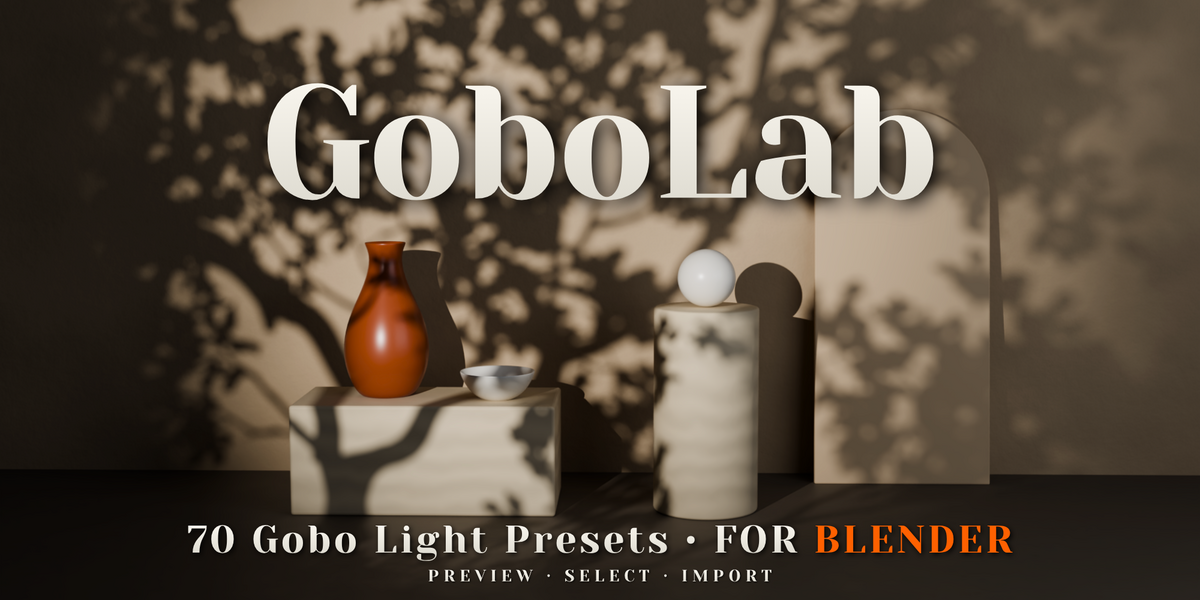
PATTERNED LIGHTING FOR BLENDER
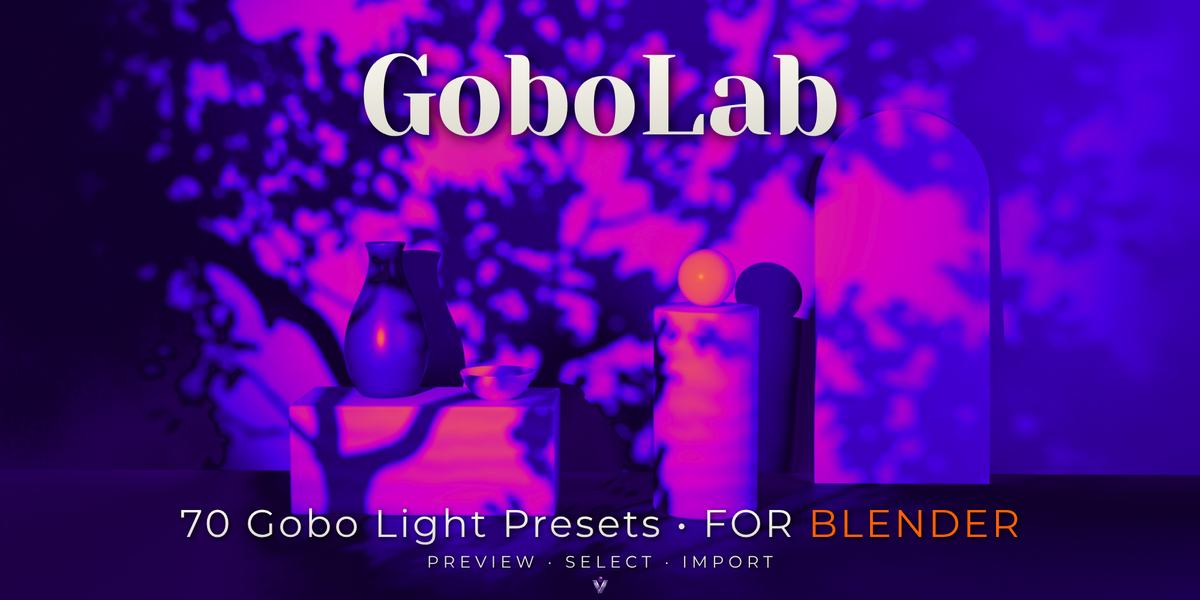
GoboLab
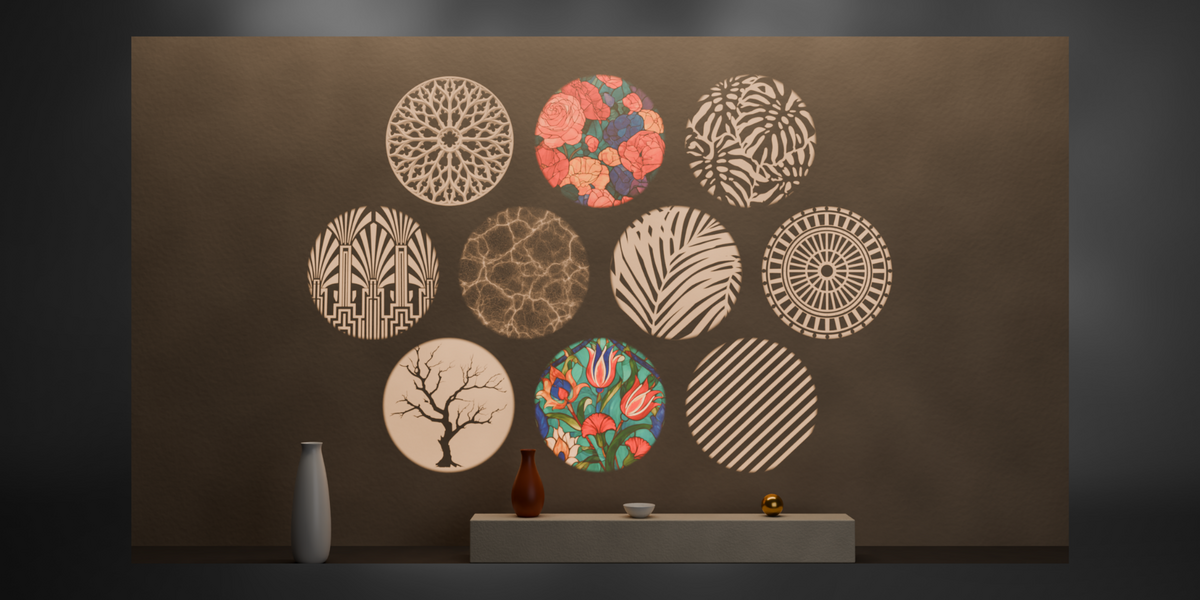
70 Gobo Lights. Countless Lighting Possibilities.
Bring window shadows, sunlit foliage, underwater caustics, and colorful stained glass into your scenes.
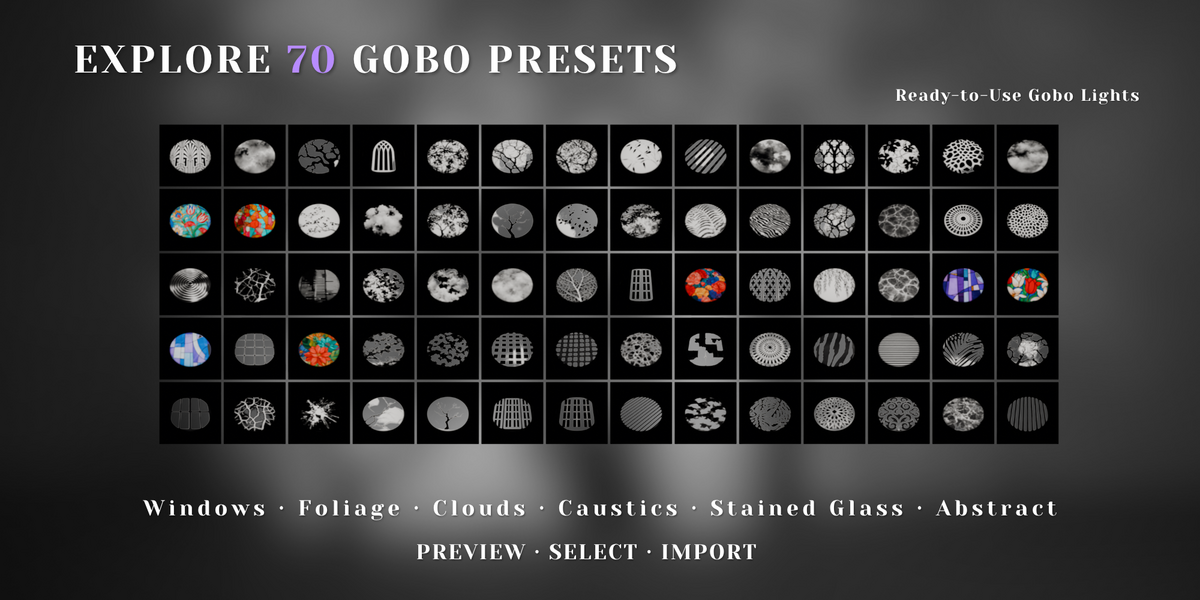
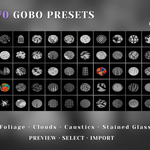
GoboLab includes 70 complete lighting presets, each built from a Spot Light and a dedicated gobo plane. Choose a pattern, import the setup, and aim the light at your subject. Use the Asset Browser or the GoboLab panel to find the look you want and start shaping your scene.
Light That Adds Atmosphere
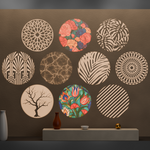
Cast sharp window frames across an interior, soften a backdrop with leaf shadows, or add flowing caustic patterns to a stylized composition.
The projected patterns follow the surfaces in your scene, extending naturally across walls, floors, furniture, and characters. Explore lighting ideas for architectural visualization, product renders, environment art, and cinematic shots.
Everything Included
- 70 complete gobo light setups
Each preset includes a Spot Light and its own gobo plane. - An Asset Browser library
Browse the collection with a rendered preview for every preset. - The GoboLab add-on panel
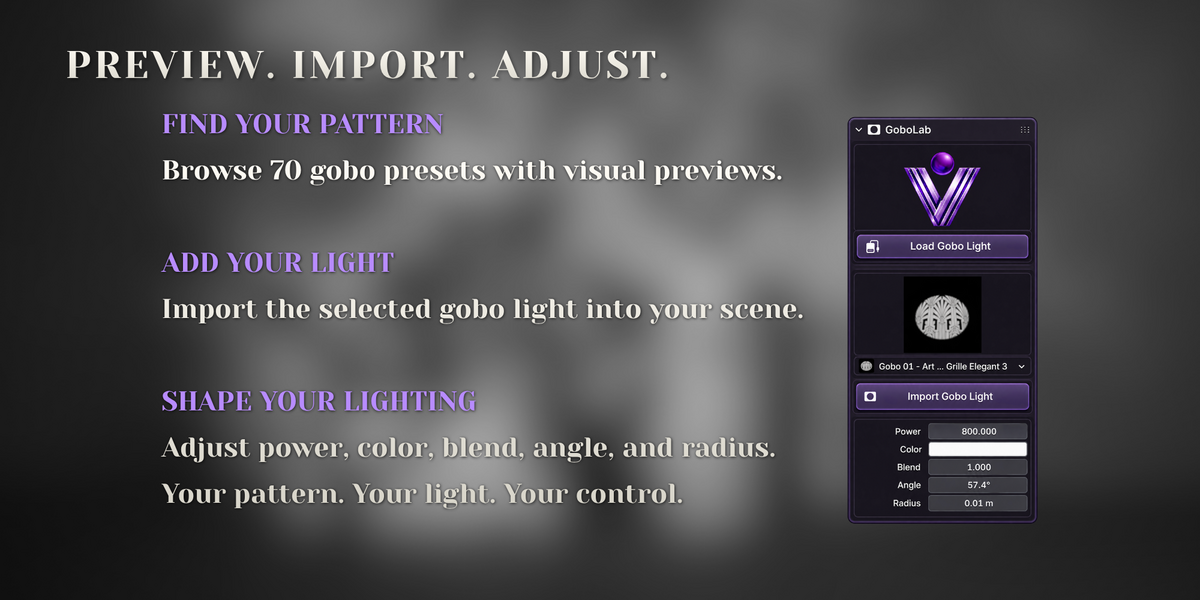
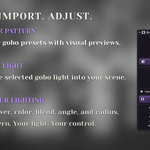
Preview and import presets from the 3D Viewport sidebar, then adjust Power, Color, Blend, Angle, and Radius. - 70 gobo textures
Included as 1024 × 1024 PNG files.
Seven Categories to Explore
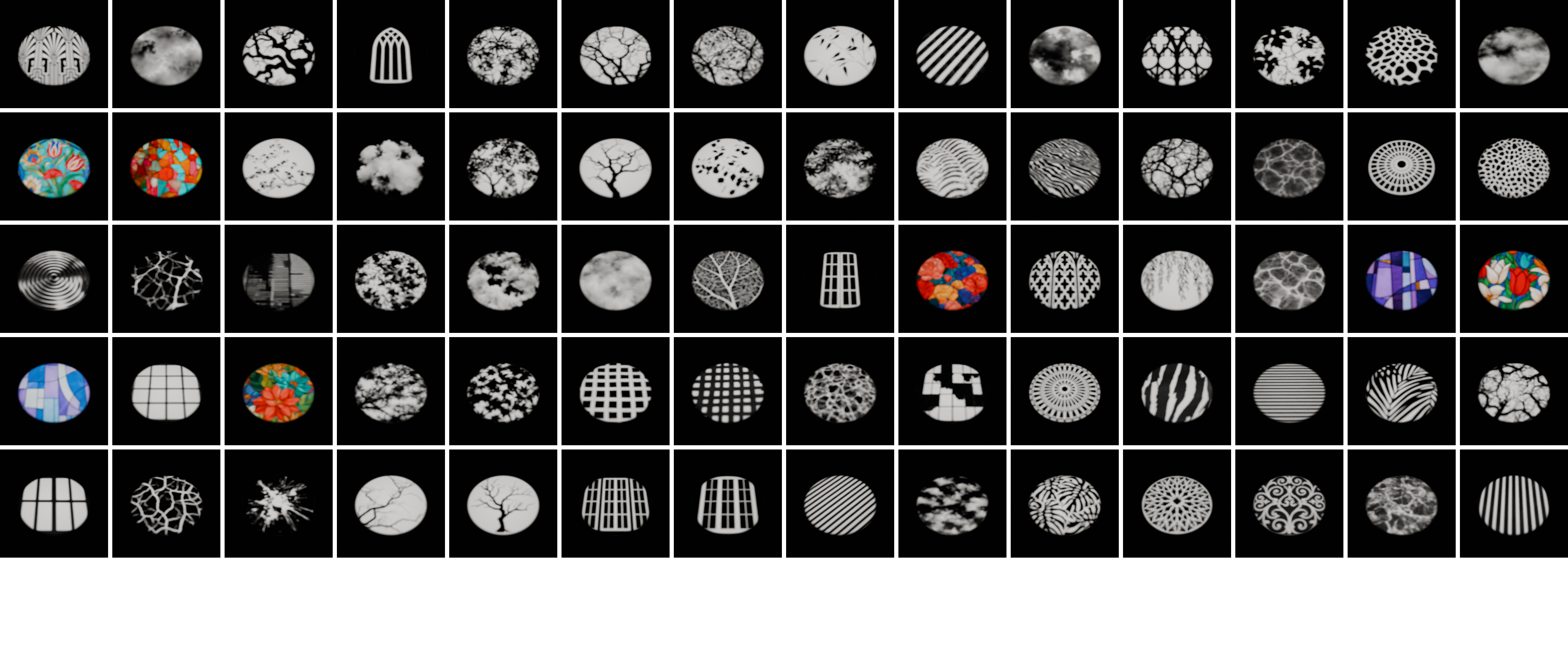
| Foliage & Trees | 22 presets |
| Windows & Architecture | 14 presets |
| Blinds & Slats | 7 presets |
| Water & Caustics | 6 presets |
| Sky & Clouds | 7 presets |
| Organic & Abstract | 7 presets |
| Stained Glass | 7 color presets |
Built to Stay Aligned
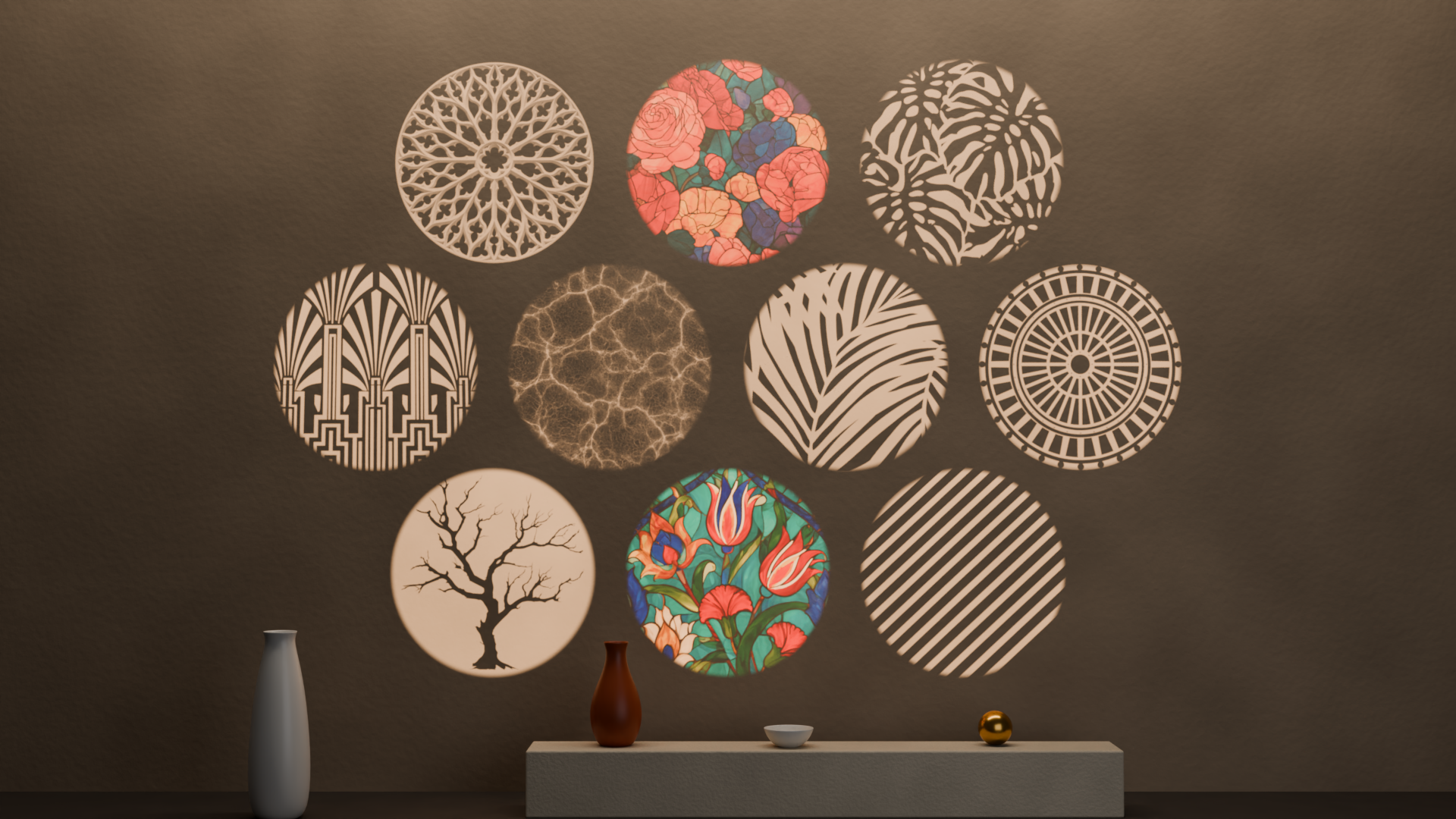
Move the light. Keep the pattern.
The gobo plane is parented to its Spot Light, so moving or rotating the light keeps the projection setup together.
Change the angle without rebuilding the setup.
The gobo plane automatically resizes when you change the spot angle, keeping the light cone covered.
Control the softness.
Use a smaller light radius for crisp shadows or a larger radius for softer transitions.
Keep the projection hardware out of the shot.
The gobo plane is hidden from the camera and reflections, while remaining part of the lighting setup.
Choose Your Workflow
From the GoboLab Panel
- Open the 3D Viewport sidebar with N and locate GoboLab.
- Click Load Gobo Light and choose a preset using the visual preview.
- Click Import Gobo Light to add the selected setup.
- Aim the light and adjust its settings to suit your scene.
From the Asset Browser
- Add the supplied library folder under Preferences > File Paths > Asset Libraries.
- Browse the rendered previews and drag a gobo into your scene.
- To edit the individual objects, disable Instance in the import panel that appears in the bottom-left corner.
- Position the light and adjust Power, Angle, and Radius.
Cycles & EEVEE
Black-and-white gobos
Project light patterns in both Cycles and EEVEE.
Colored stained glass
Full-color stained-glass projections require Cycles. In EEVEE, these presets project their pattern in grayscale.
Soft gradients, including clouds and caustics, may appear grainy in EEVEE at low sample counts. Try increasing Render Samples to 128–256 to improve the result.
A Few Lighting Ideas
- Start with a radius of around 0.01–0.02 m for sharp window shadows, then adjust for your scene scale.
- Try a warm light around 4500 K at a low angle for a sunlight-inspired look.
- Combine different gobo lights to build a more layered composition.
Requirements
Blender 5.0 or newer · Tested in Blender 5.2