Godot Export Preflight
 Alex Kaunitz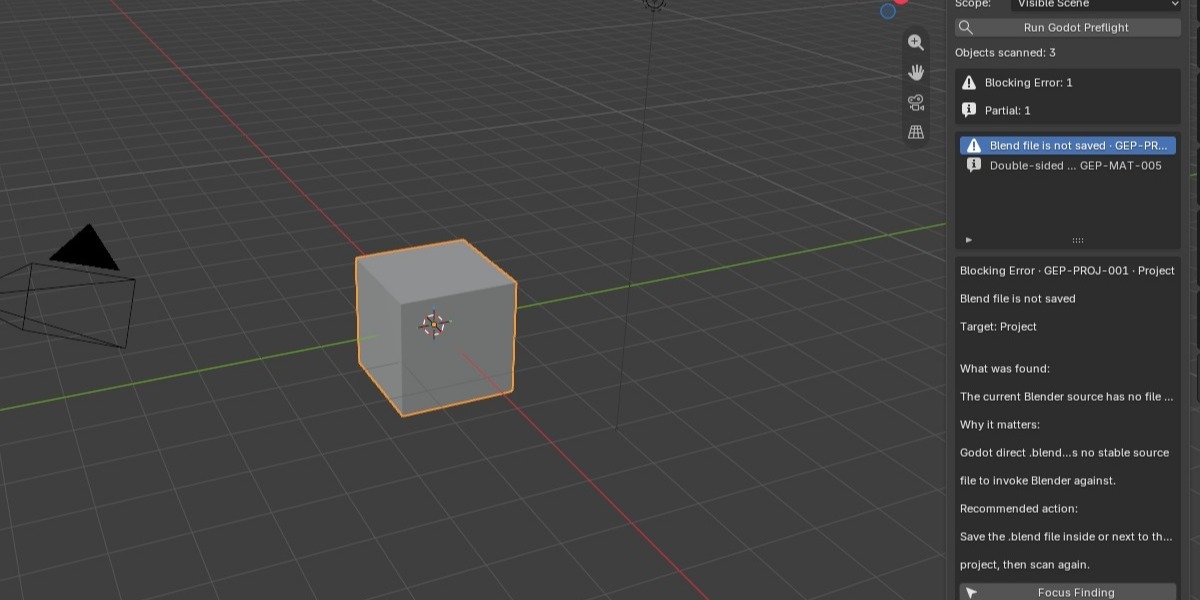
# Godot Export Preflight 1.0 - User Guide
## What it does
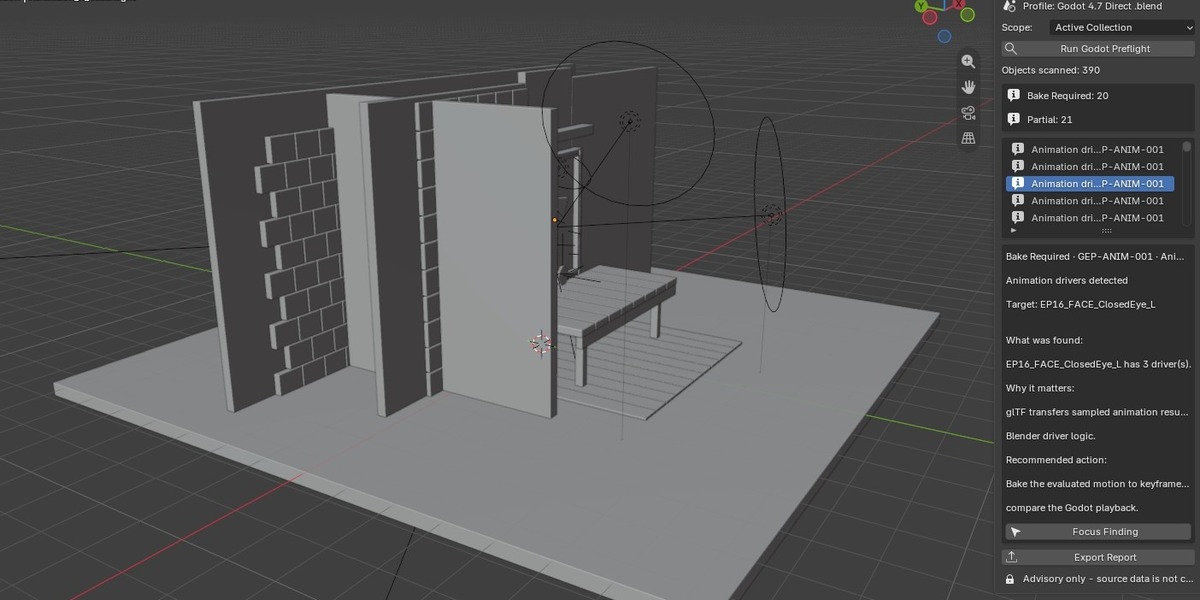
Godot Export Preflight inspects the visible Blender scene for source features that may transfer incompletely when Godot 4.7 imports a `.blend` file through glTF. It explains the risk and points to the affected object or material. Scanning does not change scene data.
## Requirements
- Blender 4.2 through 5.2. Verified: 4.2.23 LTS and 5.2.1 LTS on Windows 64-bit.
- Godot target profile: 4.7.x direct `.blend` import.
- Godot still requires its own valid Blender executable path for direct `.blend` import.
## Install
1. Open Blender.
2. Choose **Edit → Preferences → Get Extensions**.
3. Open the menu in the upper-right and choose **Install from Disk**.
4. Select `godot_export_preflight-1.0.0.zip`.
5. Enable **Godot Export Preflight** if Blender does not enable it automatically.
## Run a scan
1. Open and save the source `.blend` file.
2. In the 3D Viewport, open the right sidebar with **N**.
3. Open the **Godot** tab.
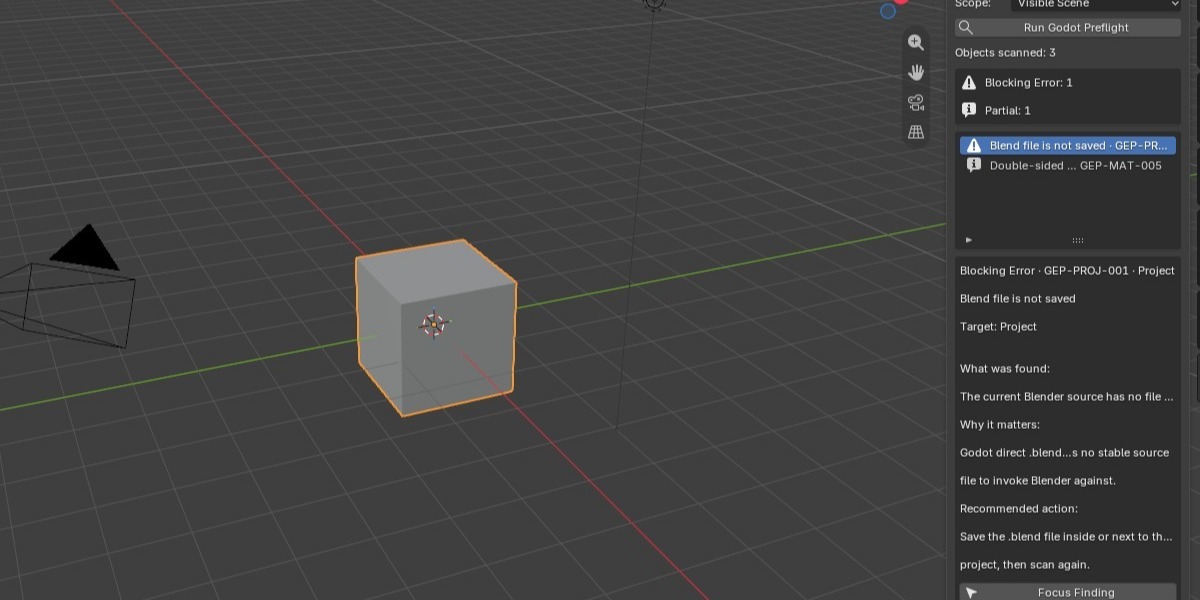
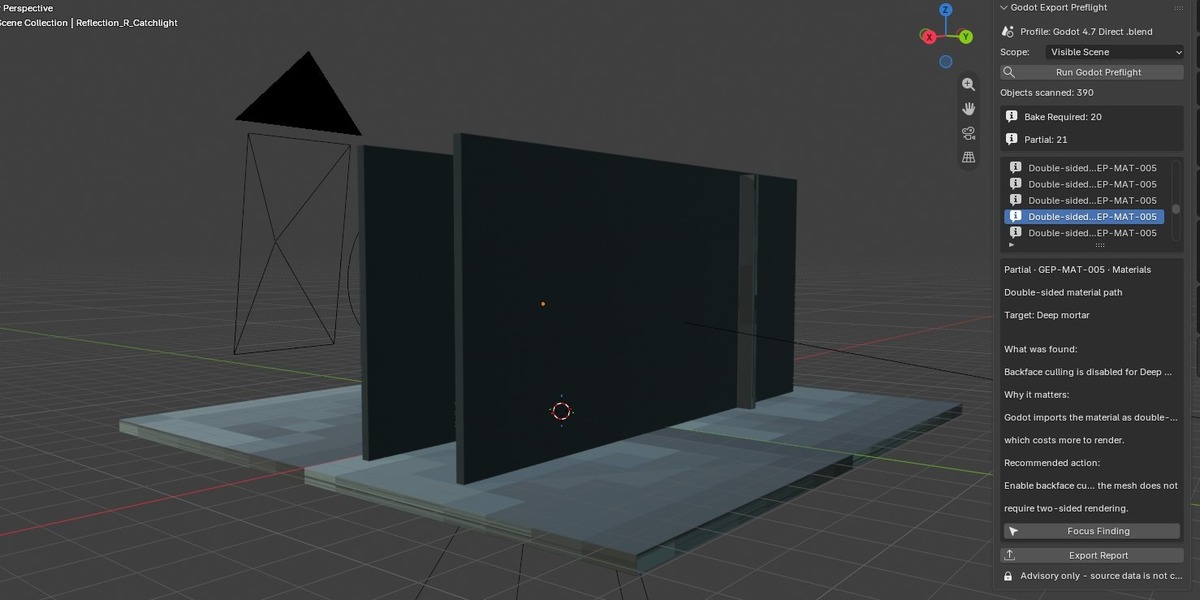
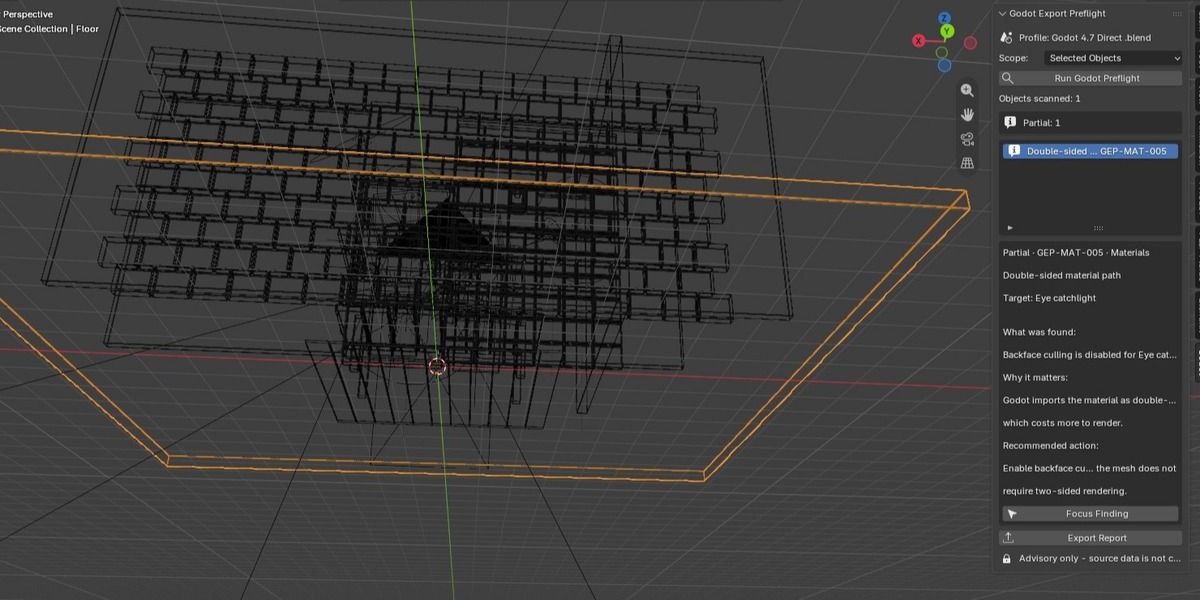
4. Choose **Selected Objects**, **Active Collection**, or **Visible Scene**, then select **Run Godot Preflight**.
5. Select a finding to read its recommended action.
6. Select **Focus Finding** to select the referenced object or an object using the referenced material.
7. Select **Export Report** and save either `.json` or `.md`.
## Statuses
| Status | Meaning |
|---|---|
| Pass | No risks were found by the active rule set. This is not a promise of visual parity. |
| Partial | Data may transfer, but the result depends on profile settings or requires visual verification. |
| Bake Required | Blender-only/evaluated behavior should be converted to portable data before transfer. |
| Unsupported | The target profile cannot represent all detected data. |
| Blocking Error | A required source dependency or representation is absent. |
## Target profile assumptions
Version 1.0 uses one explicit profile: **Godot 4.7 Direct .blend**. It assumes visible-only scene scope, evaluated modifiers, Geometry Nodes instance export disabled, four compatible bone influences and Limit Playback enabled. A finding can recommend a different Godot import setting, but the extension never edits the Godot project.
## Recommended workflow
1. Scan early, before the asset is finalized.
2. Resolve Blocking Error and Unsupported items first.
3. Make deliberate bake/profile decisions for Bake Required and Partial items.
4. Run the scan again.
5. Export a report for review or source control.
6. Import into Godot and compare materials, silhouettes, deformation, animation ranges and performance on the real target.
## Privacy and source safety
- No network requests or telemetry.
- No export operation.
- No automatic fixes, modifier application, baking, deletion, renaming, or source save.
- A report file is written only when the user explicitly chooses a location.
- The focus command changes the current selection/visibility for navigation; it does not alter mesh, material, rig, animation, or file content.
## Troubleshooting
**The panel is missing:** Confirm the extension is enabled, then open a 3D Viewport and press **N**.
**Godot cannot import `.blend`:** In Godot Editor Settings, set `filesystem/import/blender/blender_path` to the Blender executable and ensure Project Settings has Blender import enabled.
**A scan passes but Godot looks different:** Pass means the rule set found no known structural risk. Inspect lighting, color management, unsupported material extensions, import overrides and target renderer behavior manually.
**A referenced object disappeared:** The scene changed after the scan. Run the scan again.
## Support report checklist
Include Blender version, Godot version, operating system, Rule ID, exported JSON/Markdown report, minimal reproduction `.blend` when shareable and the expected versus actual imported result. Do not send confidential production assets unless you are authorized to do so.
$4.99
Have questions about this product?
Login to message
| Blender Extension Compatible | Yes |
| Published | 25 days ago |
| Blender Version | 4.2 - 5.2 |
| Extension Type | Add-on |
| Render Engine Used | Blender-Internal, Cycles, Eevee |
| License | GPL |
