 Mars0hod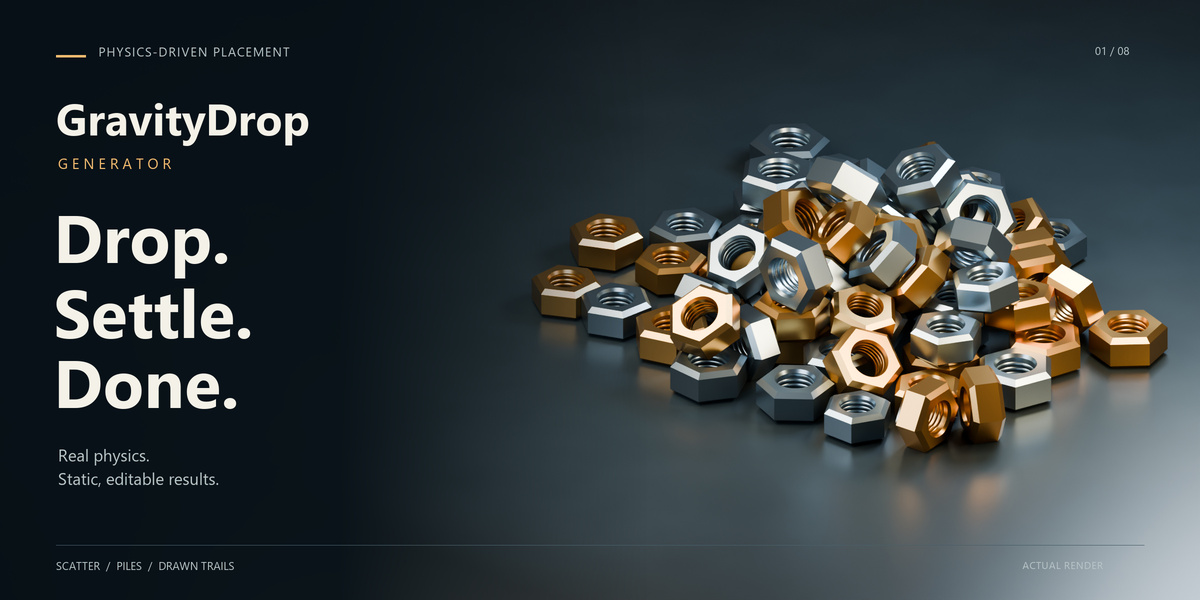








GravityDrop Generator — Quick Start
Installation
If you downloaded the customer bundle, extract it first and open the Installers folder.
In Blender, open Edit → Preferences → Get Extensions.
Open the menu and choose Install from Disk.
Select gravitydrop_generator-2.3.0-extension.zip and enable the extension.
In the 3D Viewport, press N and open the GravityDrop tab.
Save your Blender project before updating the add-on.
Create your first arrangement
Switch to Object Mode.
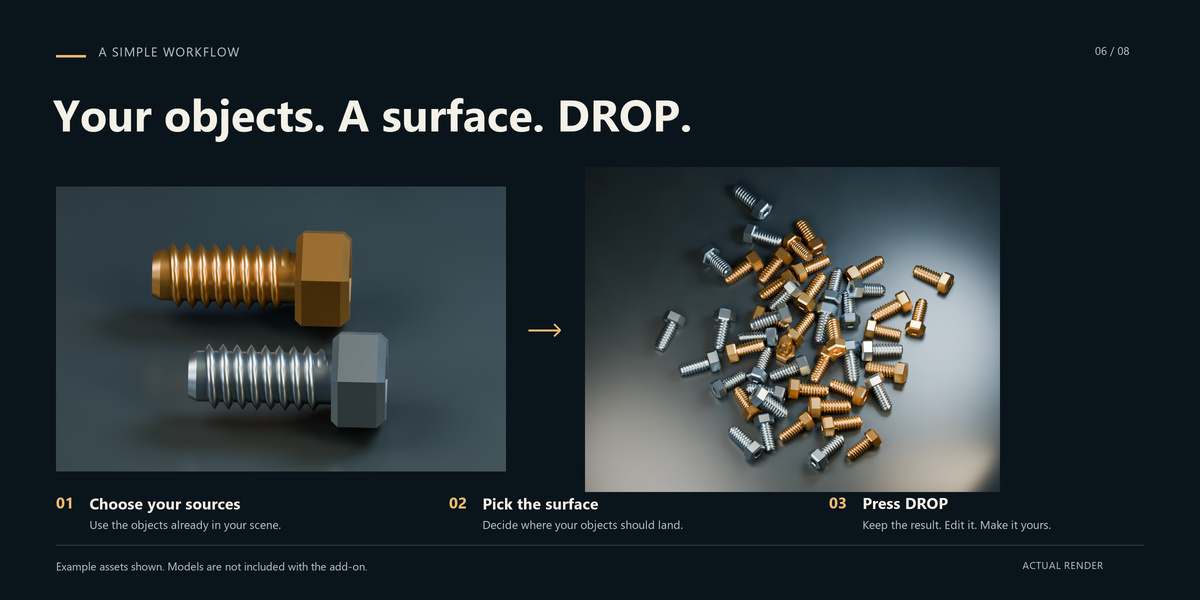
Select the objects you want to use as sources and click Use Selected.
Choose a landing surface with the eyedropper, or select it and click Use Active as Surface.
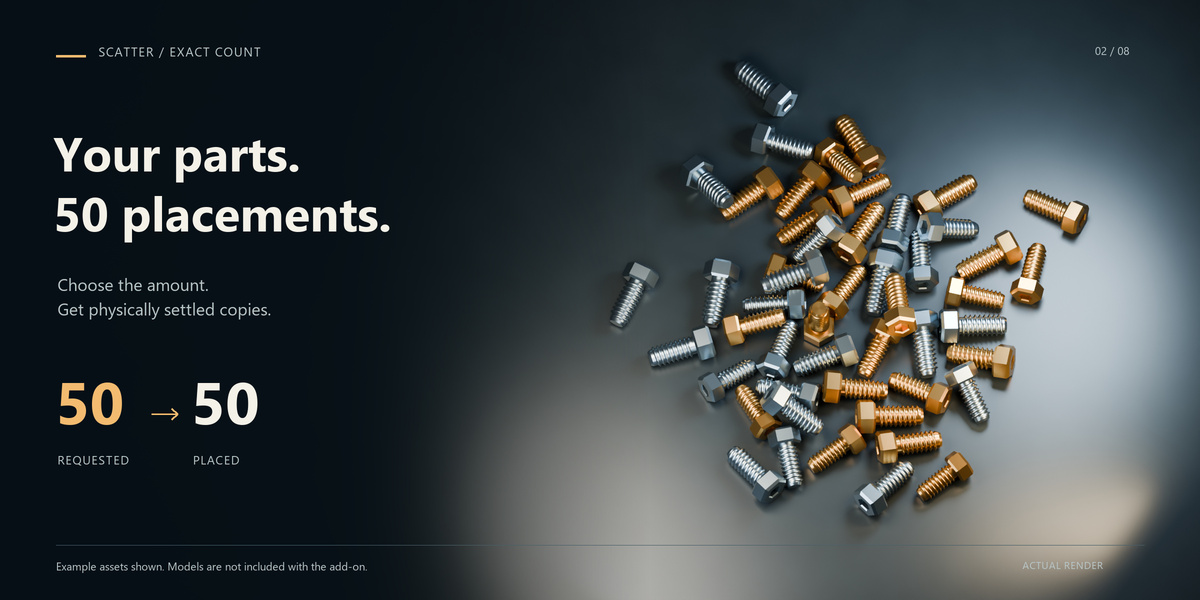
Choose Scatter, Piles or Trail and set Count.
Press DROP and wait for generation to finish.
Your original objects remain unchanged. Keep source samples away from the landing area.
Choose a mode
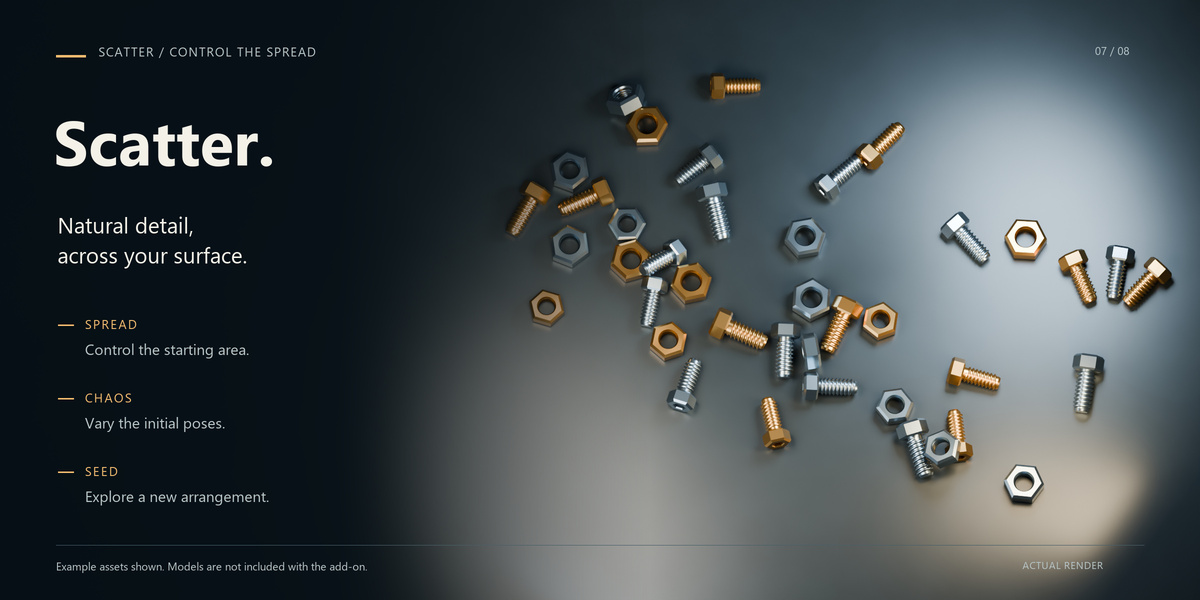
Scatter: distribute objects across the surface. Spread controls the starting area.
Piles: create layered heaps. Adjust the number of piles, Pile height, Spread and Friction to shape the arrangement.
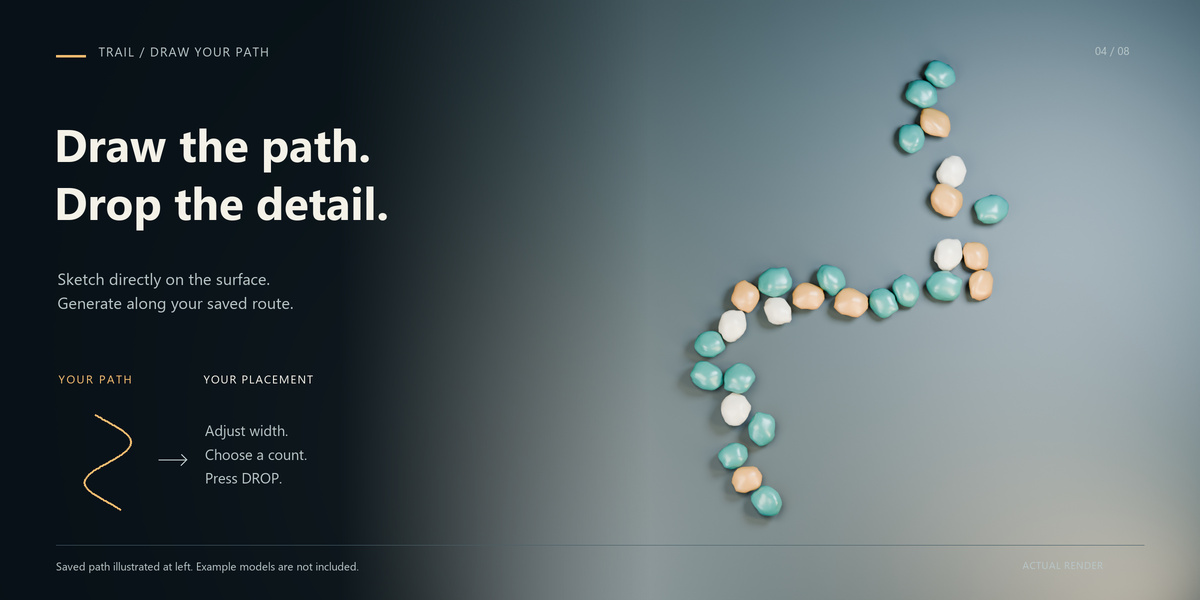
Trail: place objects along a drawn path. Without a saved path, Heading and Trail width define a straight trail.
Draw a Trail path
Choose Trail and click Draw Path. Hold the left mouse button while drawing one continuous stroke over the selected surface. Release to save the path, then press DROP.
Use Path width to adjust the allowed band around the route. Redraw Path replaces the guide; the adjacent × button clears it. Esc or the right mouse button cancels drawing and preserves the previous path.
The guide is visible in the viewport and does not appear in renders.
Adjust the result
Chaos varies starting positions and poses. Seed changes the starting arrangement; the refresh button generates with a new seed.
Open Fine Tuning for simulation quality, settle time, friction, bounce, scale and fall direction.
For taller piles, try one pile, higher Pile height, a smaller Spread, high Friction and low Bounce. Final height depends on object shape and physical stability.
Keep, regenerate or cancel
Completed arrangements contain static, editable meshes. No ongoing simulation is required.
DROP replaces the previous generated arrangement only after successful completion. Keep Result preserves it as a separate arrangement. Undo and Redo are supported.
Press Esc or Cancel during generation to stop. Heavy geometry preparation or a complex physics step may delay cancellation briefly.
Language
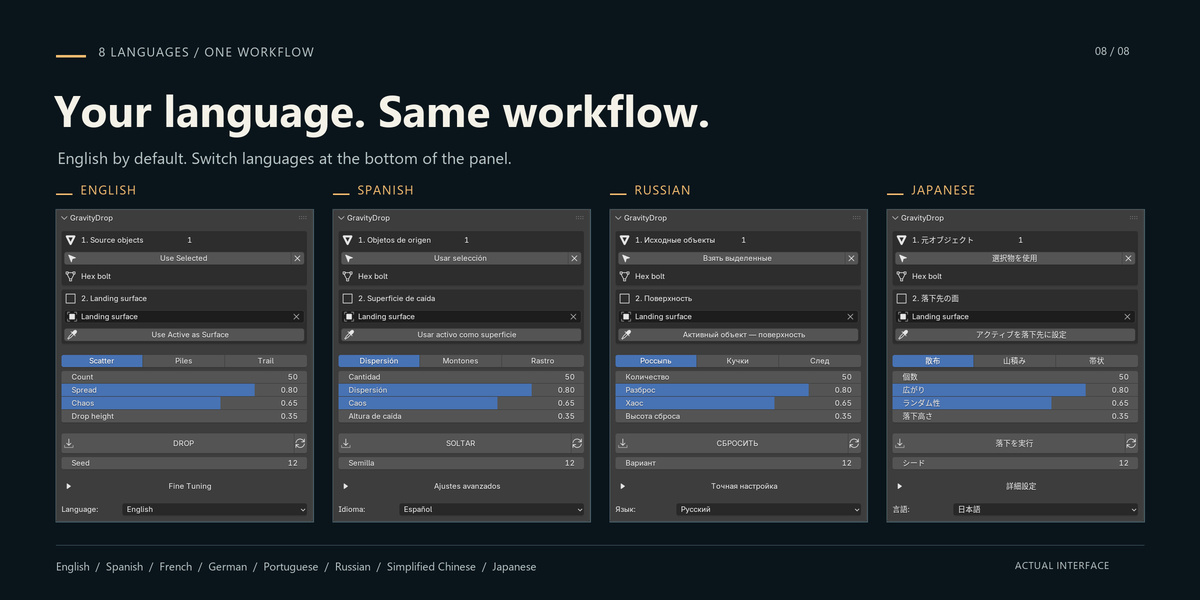
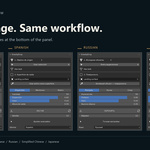
Choose your language at the bottom of the panel. English is the default; eight interface languages are included. This setting does not change Blender’s interface language.
If automatic preference saving is disabled, use Save Preferences to retain your selection.
Compatibility and included guides
Minimum supported version: Blender 4.2. Tested in Blender 5.2.2 LTS on Windows.
Blender 4.2–5.1 compatibility was reviewed against published APIs and source code without running those versions. macOS and Linux have not been runtime tested.
The customer bundle includes detailed English and Russian guides.
Have questions about this product?
Login to message
| Blender Extension Compatible | Yes |
| Published | about 4 hours ago |
| Blender Version | 4.2 - 5.2 |
| Extension Type | Add-on |
| Render Engine Used | Cycles, Eevee |
| License | GPL |
Discover more products like this
scene dressing scatter trail physics rigid body surface scattering piles props procedural placement object placement path drawing environment art