Green Garland - Artifical Garland Generator
 slavik_dsgn
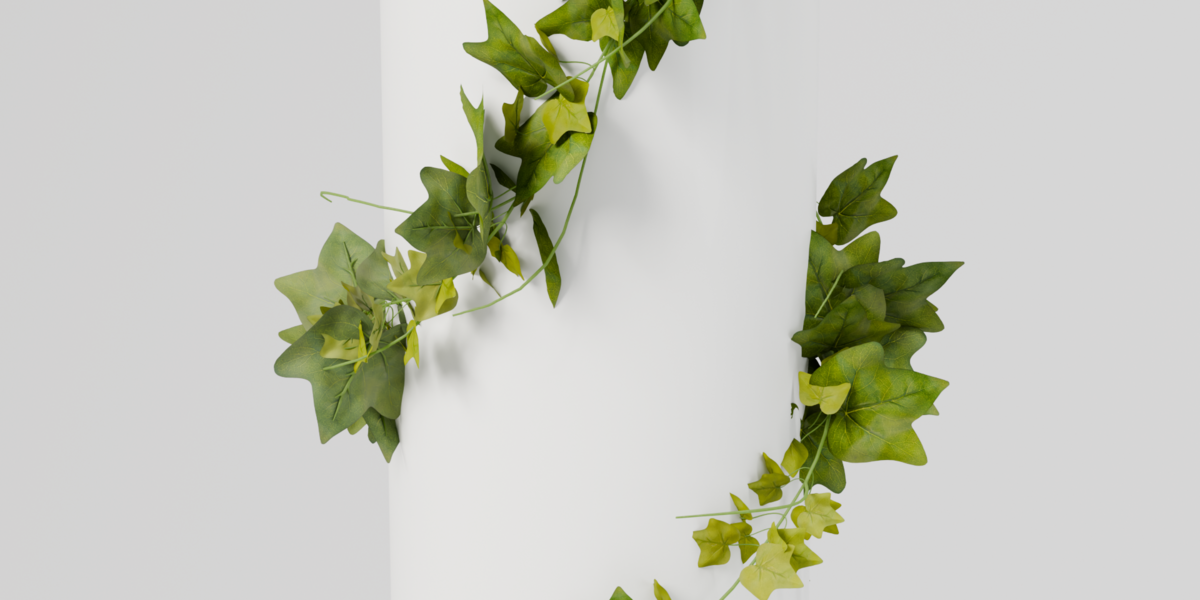
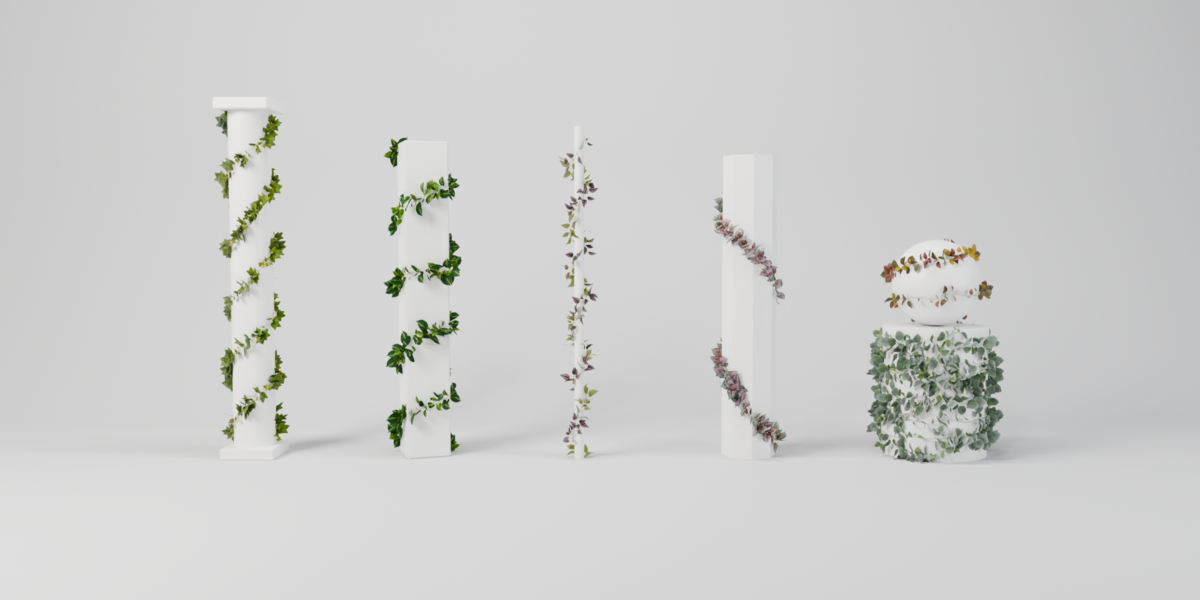
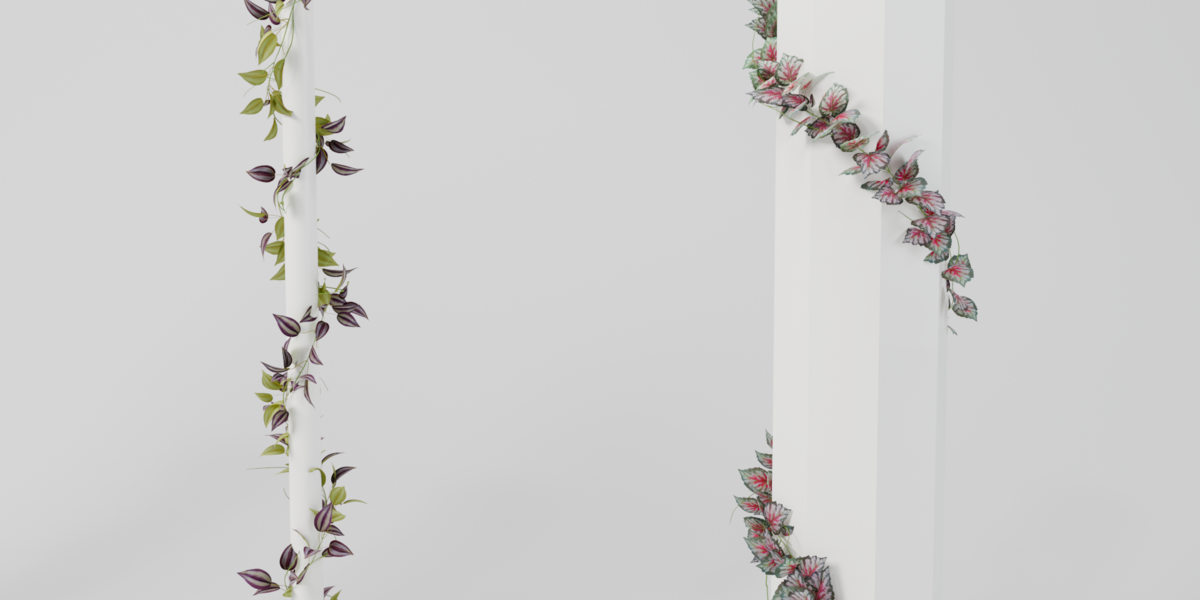
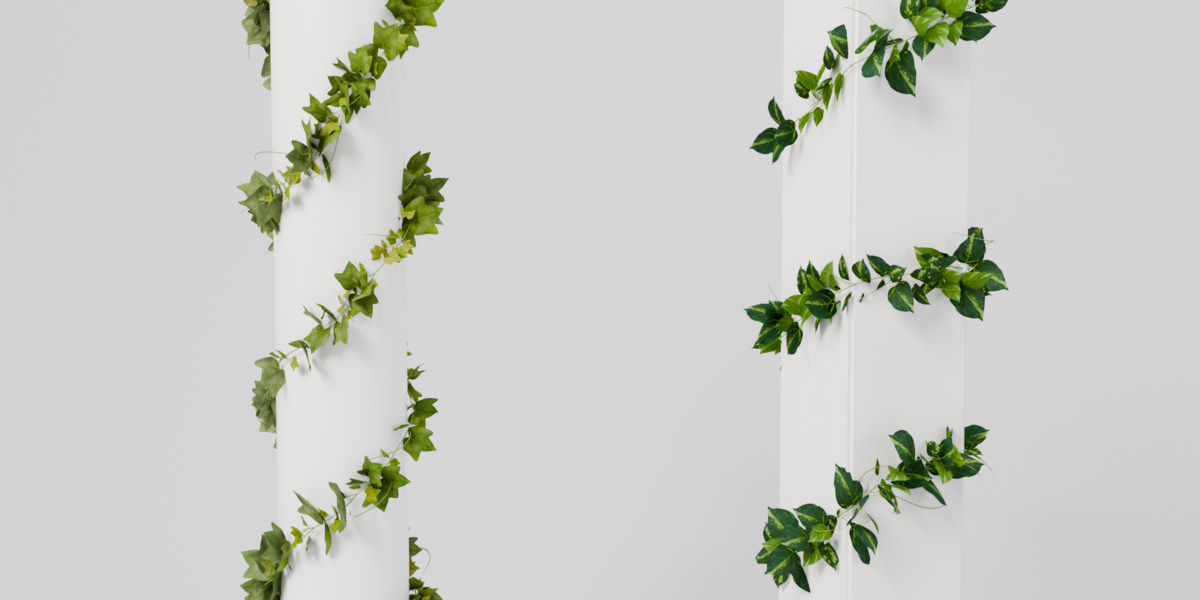
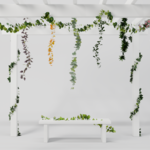
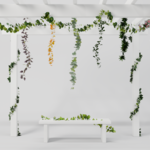
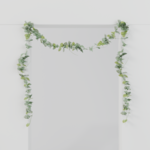
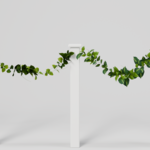

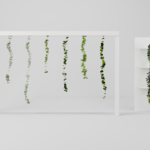
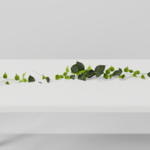
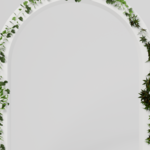
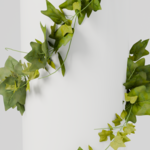

Green Garland – Documentation
Nov 3, 2026 · @Samuel
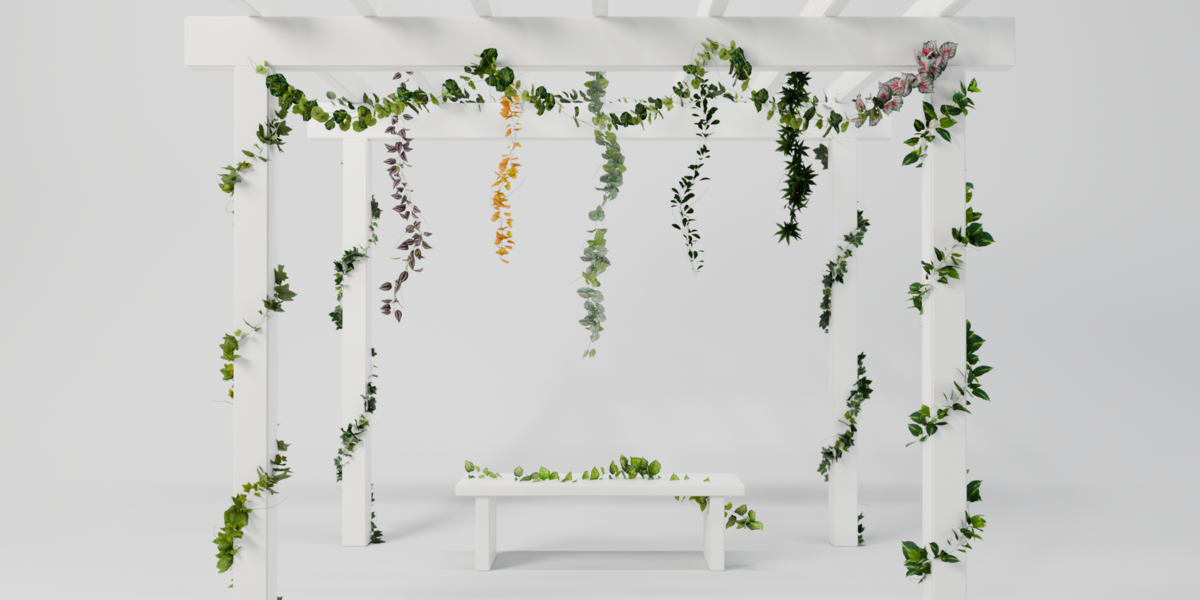
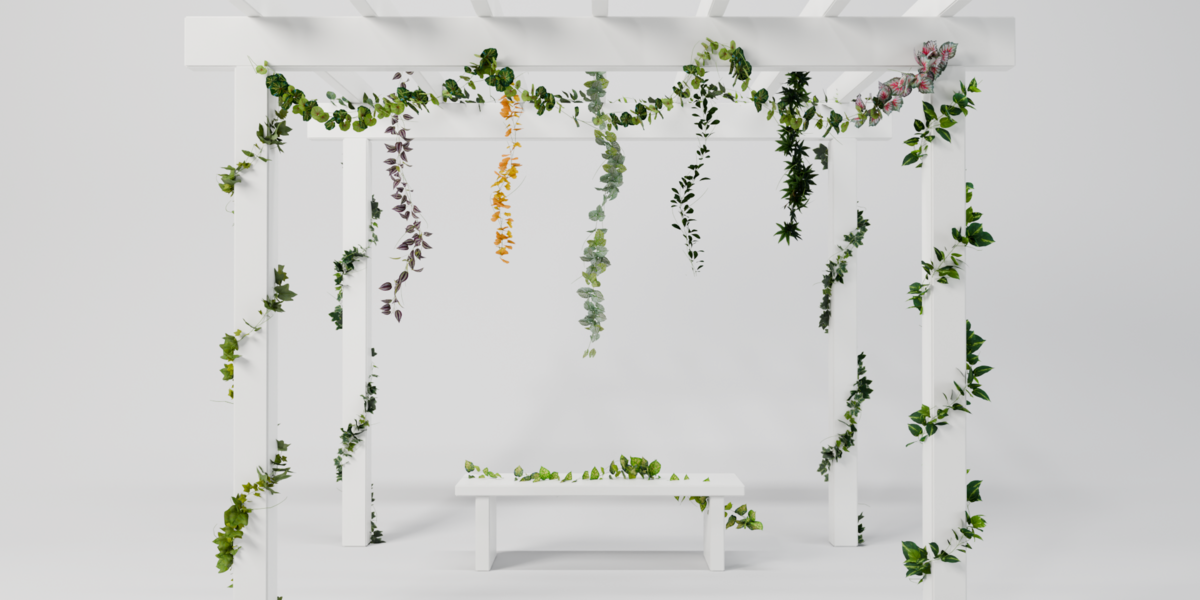
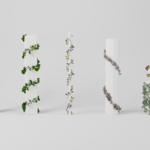
Green Garland adds artificial leaf garlands to Blender and places them four ways: wrapped around an object, along a curve, hanging, or draped in swags.
Installation
Green Garland needs Blender 4.2 or newer and runs on Windows, macOS and Linux.
1. Download green_garland-1.0.0.zip. Don't unpack it.
2. In Blender open Edit > Preferences > Get Extensions.
3. Click the arrow in the top right corner, choose Install from Disk and pick the zip.
4. Open the 3D Viewport sidebar (N). The Green Garland tab is there.
The zip is about 450 MB, because all 20 garlands and their 2K textures are inside. To update, install the new zip the same way.
Quick start
1. Add a cylinder, or select any mesh you want to dress.
2. In the Green Garland tab, pick a plant in the New Garland preview.
3. Click Wrap. The garland spirals around the selected object.
4. Change Turns Per Metre, or click Loose, Medium or Dense, until the spacing looks right.
For the other placements: select a curve and click Curve, or place the 3D cursor and click Hang or Swag. Every garland is a normal object with one Geometry Nodes modifier, so you can move, duplicate and hide it like anything else.
Placements
You pick the placement when you add a garland. You can switch it later in the Placement box.
Wrap
Select a mesh and click Wrap. The garland spirals around the object's local X, Y or Z axis and hugs its surface, so it works on round columns, square pillars, thin poles, spheres and your own models.
|
Setting |
What it does |
|
Wrap Around |
The object being wrapped (must be a mesh) |
|
X / Y / Z |
Which local axis of that object the garland turns around |
|
Loose / Medium / Dense |
Presets: 0.6, 1.5 and 3 turns per metre |
|
Turns Per Metre |
How tight the spiral is |
|
From / To |
Where on the object the wrap starts and ends (0 = bottom, 1 = top) |
|
Strands |
Several garlands spaced evenly around the object |
|
Reverse Direction |
Spirals the other way |
|
Irregularity |
Uneven spacing and angle, like wrapped by hand |
|
Distance From Surface |
Gap between the stem and the object |
|
Smooth Corners |
Rounds the path over sharp edges, such as a square pillar |
|
Keep Leaves Outside |
Turns away leaves that would go into the object |
Curve
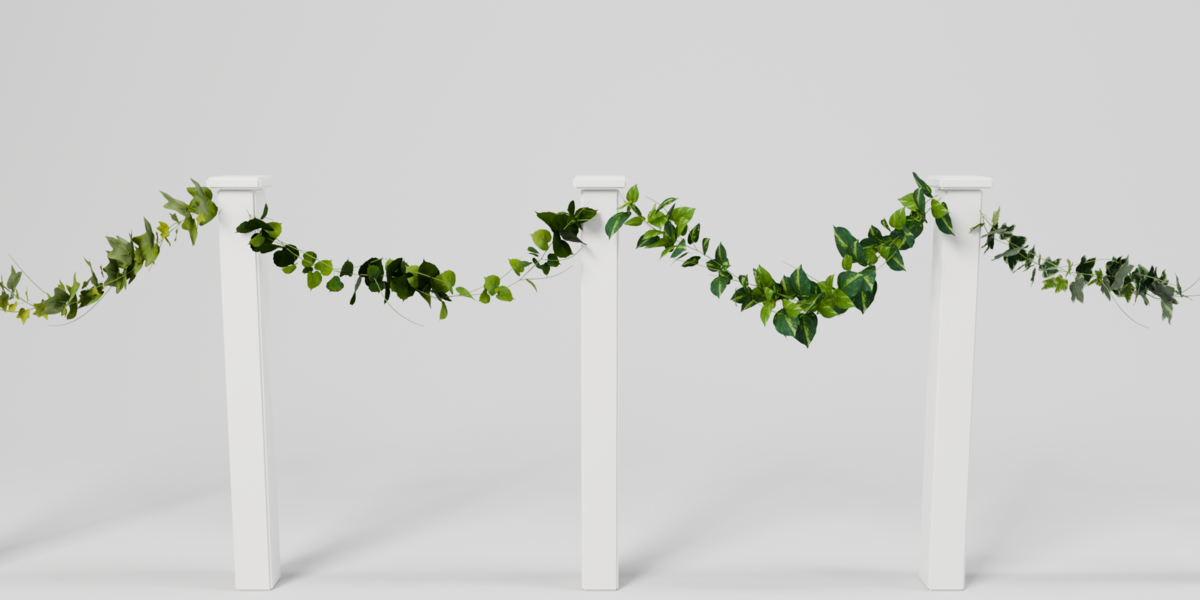
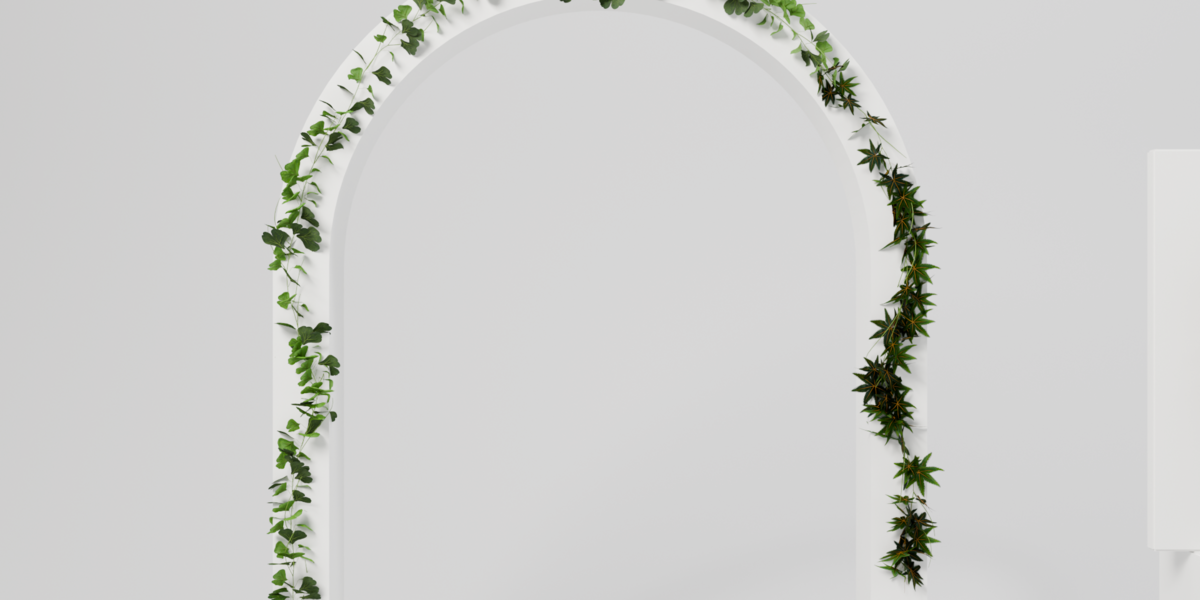
Draw a curve, select it and click Curve. The garland follows the curve from its first point to its last. If the leaves face sideways, change Roll in the Garland box or the tilt of the curve points. On a flat curve drawn in the front view, a tilt of 90° usually turns the leaves towards you.
Hang
Place the 3D cursor where the garland should hang from and click Hang. Set Length and Sway, a gentle S-shape. The garland always hangs straight down, even when the object is rotated.
Swag
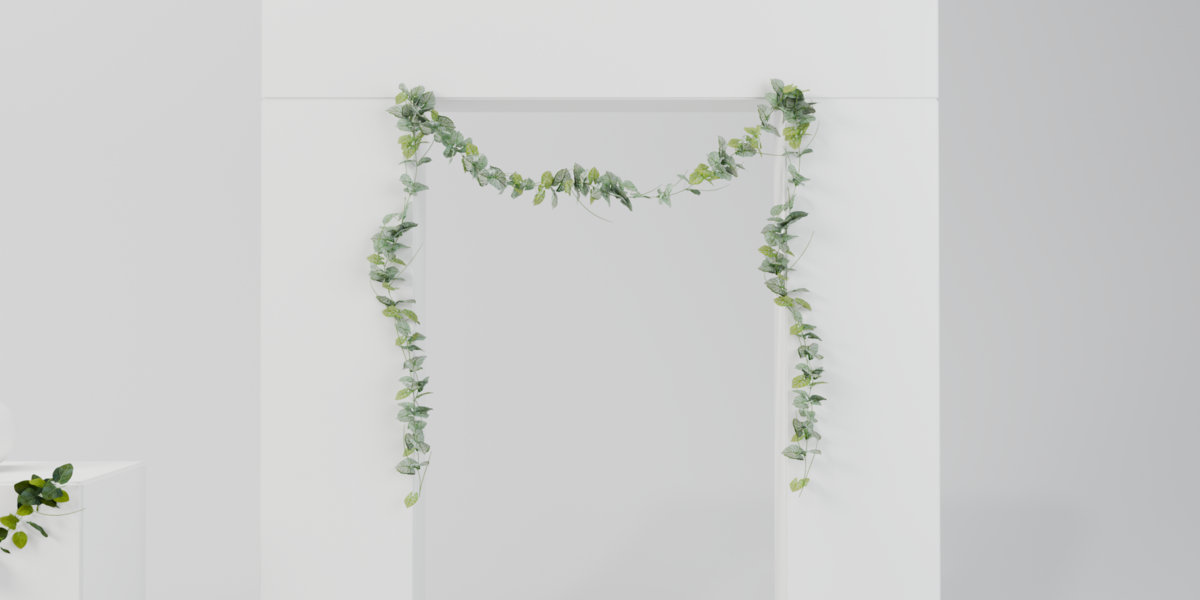
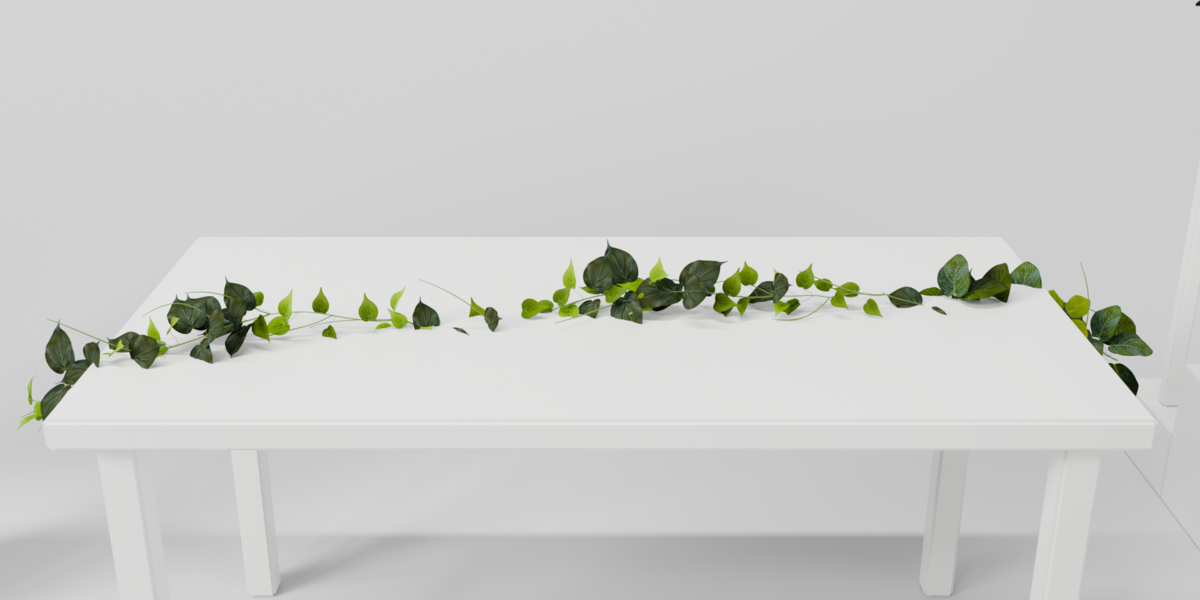
Place the 3D cursor at the start point. Select the end point object, or nothing at all – the add-on then creates an Empty called Garland End 2 m to the side. Click Swag. Move the Empty to set the span. Swags sets how many dips the garland makes between the two points, and Sag sets how deep they are. You can also pick another end object in the End Point field.
Panel reference
Select a garland to see its settings. All changes are live.
Viewport
|
Setting |
What it does |
|
Full / Low / Dummy |
What this garland shows in the viewport: full geometry, low-poly leaves, or flat cards. Renders always use full geometry. |
|
All: Full / All: Dummy |
Sets the preview of every garland in the scene at once |
|
Low-Poly Far From Camera (Render) |
In renders, pieces farther than Distance from the camera use low-poly leaves |
|
Show Path |
Shows the path the garland follows (viewport only) |
Garland
|
Setting |
What it does |
|
Scale, Random |
Size of the garland pieces and how much it varies |
|
Stem Wiggle, Depth |
How much of the stem's natural zig-zag is kept; Depth controls the part that moves off the surface |
|
Roll, Random |
Turns the garland around its own stem |
|
Twist Per Metre |
Twists the garland gradually along its length |
|
Piece Overlap |
How much the chained pieces overlap at the joins |
|
Start Offset |
Random shift of where the first piece starts |
|
Flip Pieces |
Share of pieces laid in the opposite direction |
|
Seed |
A new random arrangement (the button next to it picks one for you) |
Variants In The Mix
One garland can use up to ten plants. Add Variant adds a plant, Share sets how often it is used, and the X removes it. Change, at the top of the panel, swaps the main plant.
Leaves
|
Setting |
What it does |
|
Amount |
Thins out the leaves |
|
Scale, Random |
Leaf size and how much it varies |
|
Face Out |
Turns leaves away from the object or path |
|
Turn To Light |
Turns leaves upwards |
|
Turn Random |
Random turn of each leaf |
|
Avoid Collisions, Strength, Reach |
Leaves that would cross each other turn aside |
Color
Hue Shift, Saturation and Brightness change the whole garland. Random Per Piece and Random Per Leaf add natural variation.
Performance, rendering and sharing
• In heavy scenes set the viewport preview to Low or Dummy, or use All: Dummy. Renders still use full geometry.
• Wrapping is calculated against the wrapped object's surface. Very dense meshes can make changes slower; a simpler stand-in object works just as well.
• The garlands were made and tested in Cycles.
• The garland data is stored in your .blend file. The scene opens and renders on any computer with Blender 4.2 or newer, even without the add-on, and render farms need nothing extra.
• To get a plain mesh, apply the Geometry Nodes modifier like any other modifier.
• Garlands made with an older version of the add-on show an Update Garlands button. It converts them and keeps their settings.
Troubleshooting
|
Problem |
Fix |
|
Wrap or Curve does nothing |
Select the object or curve first, then click the button. The panel shows a reminder when nothing fitting is selected. |
|
The garland disappeared after switching to Wrap |
Pick a mesh in Wrap Around. Empties and curves can't be wrapped. |
|
The garland wraps the wrong way round the object |
Switch the axis (X / Y / Z) in the Placement box. |
|
Leaves on a curve face sideways |
Change Roll in the Garland box, or set the tilt of the curve points (often 90°). |
|
Leaves cut into the object |
Raise Distance From Surface and make sure Keep Leaves Outside is on. |
|
Visible joins between pieces |
Raise Piece Overlap, or change the Seed. |
|
The viewport is slow |
Set the preview to Low or Dummy. |
|
No plants in the New Garland list |
Reinstall the full zip and restart Blender. |
Variants
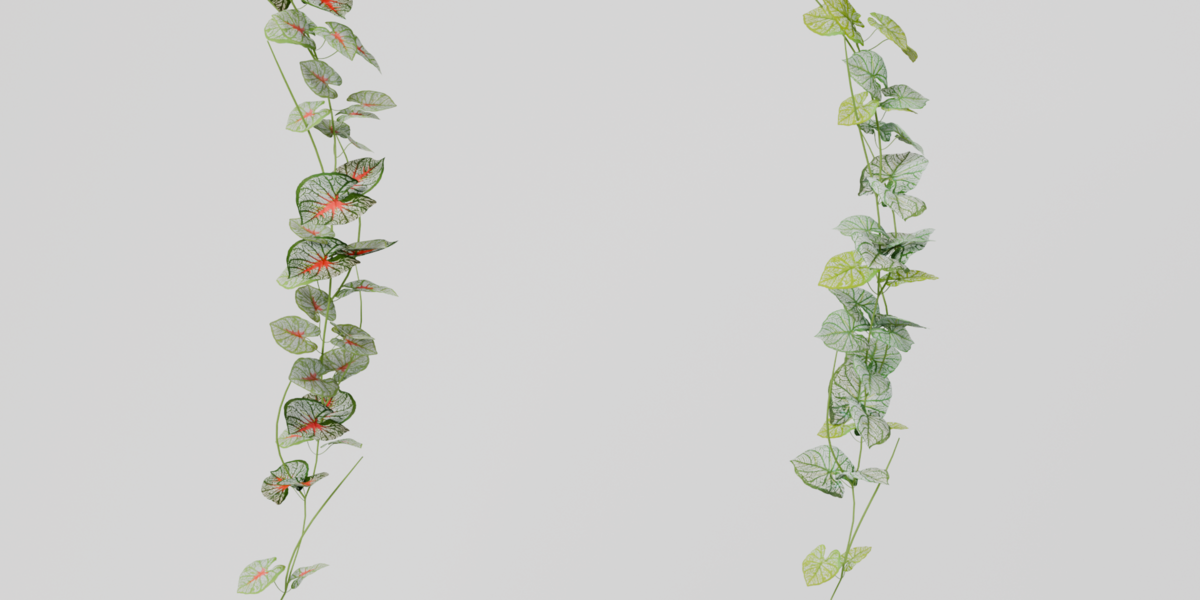
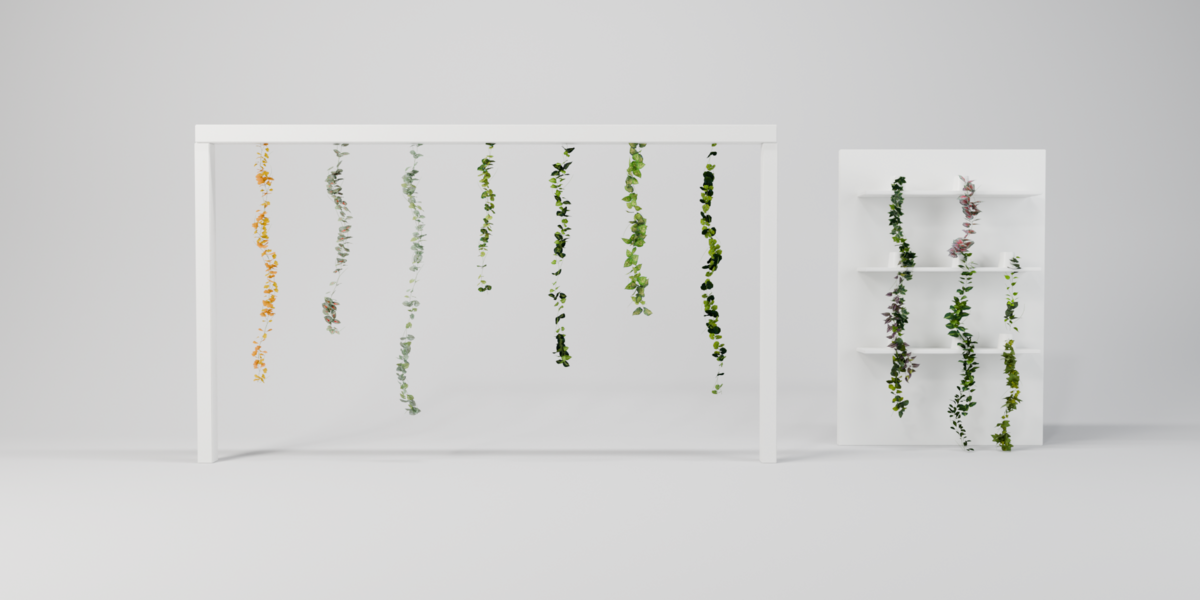
20 garlands, each about 1.76 m long before chaining, with 2K leaf textures.
|
Code |
Plant |
Code |
Plant |
|
20201 |
English Ivy |
20212 |
Philodendron |
|
20202 |
Variegated Ivy |
20213 |
Golden Pothos |
|
20204 |
Silver Fittonia |
20214 |
Grape Ivy |
|
20205 |
Red Fittonia |
20216 |
Ginkgo |
|
20206 |
Hoya |
20217 |
Golden Ginkgo |
|
20207 |
Dieffenbachia |
20219 |
Silver Caladium |
|
20208 |
Speckled Dieffenbachia |
20220 |
Red Caladium |
|
20209 |
Geranium |
20222 |
Japanese Maple |
|
20210 |
Begonia |
20223 |
Tradescantia |
|
20211 |
Rex Begonia |
20224 |
Ficus |
Green Garland 1.0.0 by SLAVIK DSGN.
Have questions about this product?
Login to message
| Blender Extension Compatible | Yes |
| Published | 3 days ago |
| Blender Version | 4.2 - 5.2 |
| Extension Type | Add-on |
| Render Engine Used | Cycles, Eevee |
| License | GPL |