Green Wall – Artificial Vertical Garden Generator
 slavik_dsgn
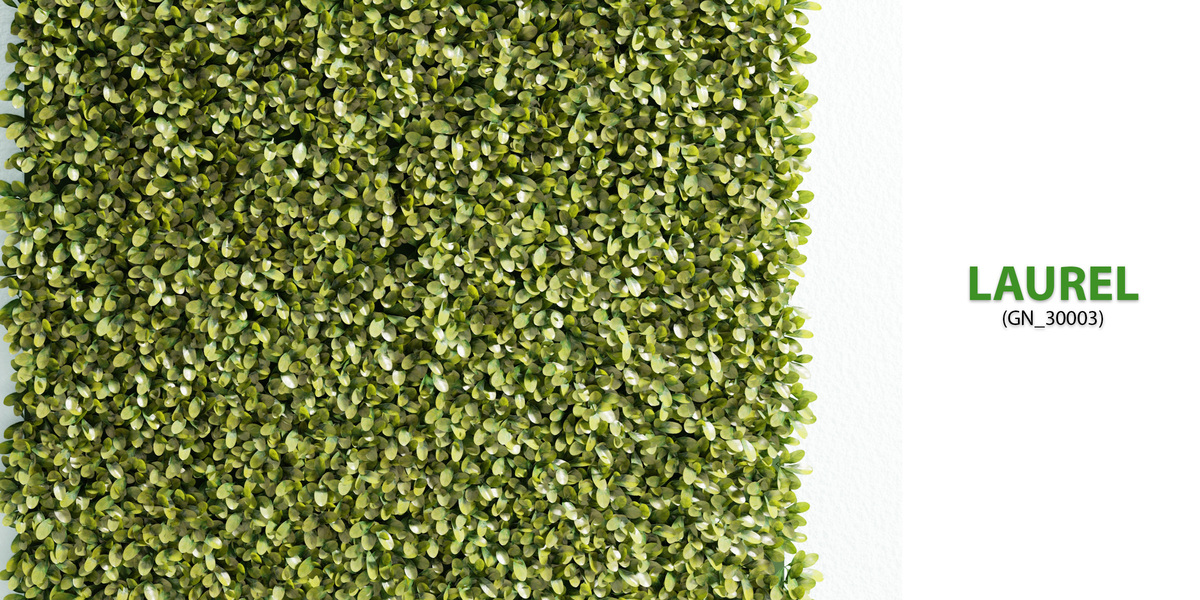
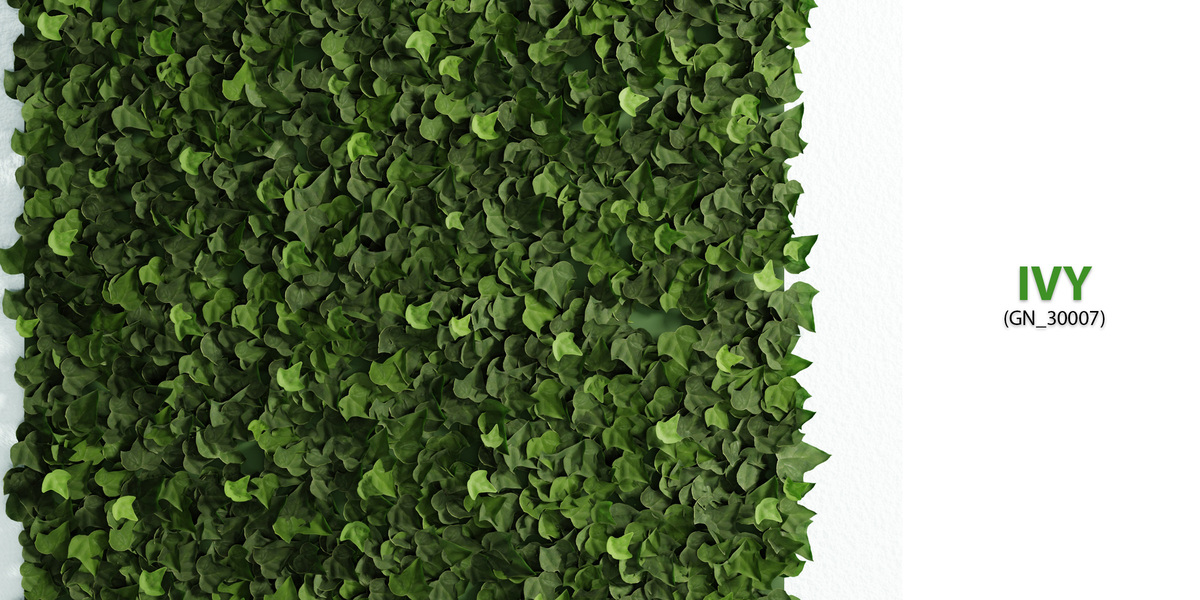
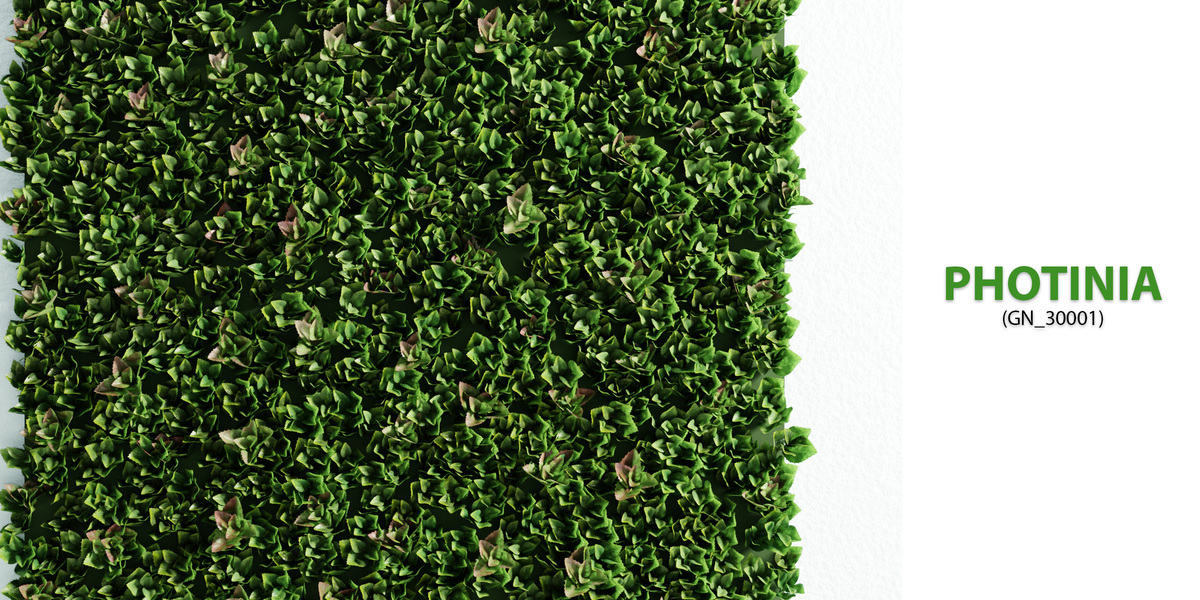
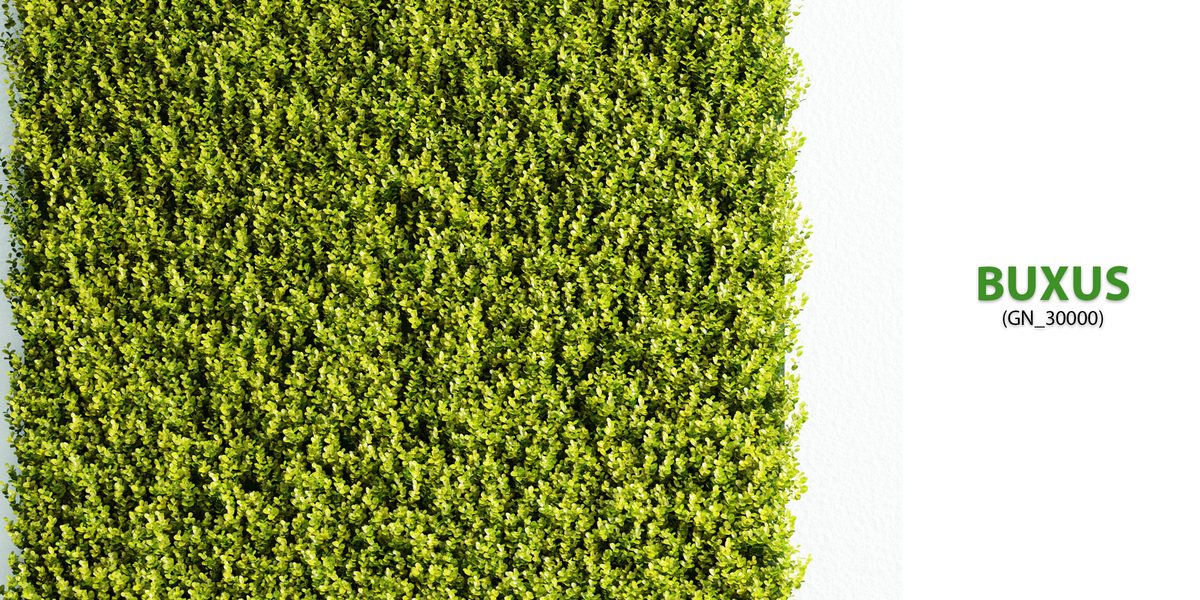
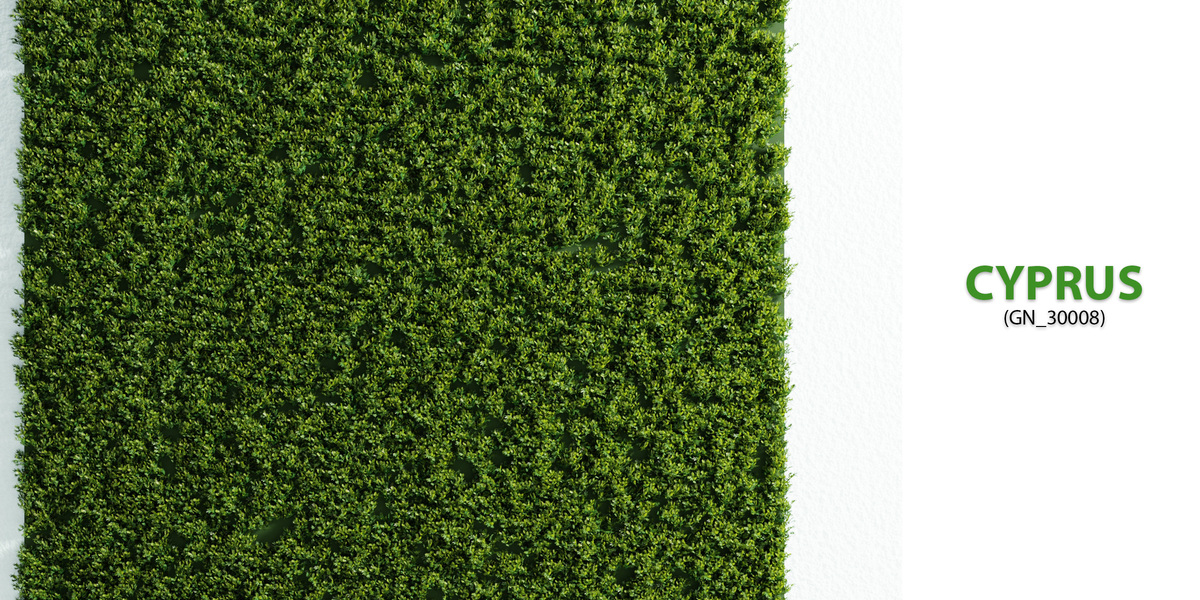
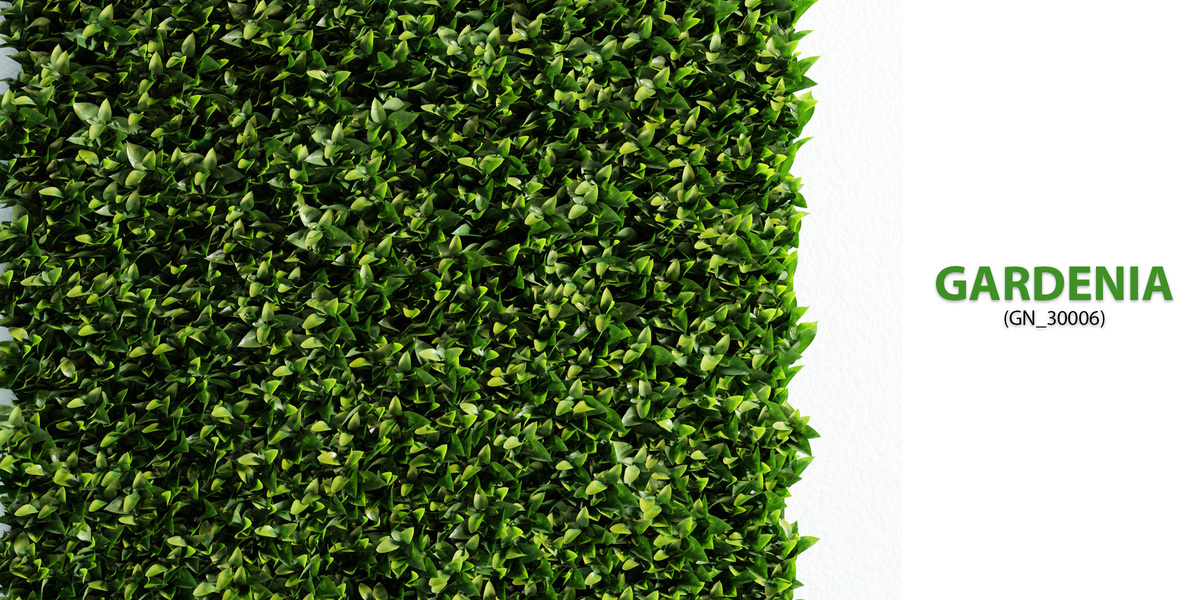

### Installation
1. In Blender open **Edit > Preferences > Get Extensions**.
2. Click the arrow in the top-right corner and choose **Install from Disk**.
3. Select the downloaded `green_wall` zip file. Do not unpack it.
4. Open the sidebar of the 3D Viewport (press **N**) and select the **Green Wall** tab.
### Creating a wall
At the top of the panel, under **New Wall**, click the thumbnail to choose a plant. Then use one of the three buttons:
- **Add Tiles** creates a wall of 50 × 50 cm tiles at the 3D cursor.
- **Add Free Plane** creates a wall of any size without a grid at the 3D cursor.
- **Cover Active Object** covers the surface of the selected mesh object. The button is available when a mesh object is active.
A wall stands upright, with its lower-left corner at its origin, and faces the front view (−Y). Move, rotate and duplicate it like any other object.
Select a wall to see its settings in the panel. Each wall has its own settings.
### Changing the plant
The name and thumbnail of the wall's plant are shown at the top of its settings. Click **Change** and pick another plant from the list. Tilt, direction, spacing and scale are reset to the defaults of the new plant. Size, seed, colour, leaf and overhang settings are kept.
### Viewport Preview
Controls what the viewport shows. Renders always use the full geometry, whatever is selected here.
- **Full**: full geometry in the viewport.
- **Low**: low-poly twigs.
- **Dummy**: simple cones. **Dummy Density** sets how many of them are shown.
- **All: Full / All: Dummy**: switch every wall in the scene at once.
- **Low-Poly Far From Camera**: twigs further than **Distance** from the active scene camera use the low-poly version. This applies to the viewport and to renders, and is decided for every twig separately. The distance is measured from the scene camera, not from the viewport view.
### Shape
Choose **Tiles**, **Free Plane** or **Object**.
**Tiles**
- **Columns, Rows**: the number of 50 × 50 cm tiles. The resulting size is shown below.
- **Show Grid**: show or hide the backing grid.
**Free Plane**
- **Width, Height**: the size of the wall in metres.
- **Background**: show or hide the plane behind the twigs.
- **Background Color**: the colour of that plane. Each wall can have its own.
**Object**
- **Object**: the mesh to cover. The whole surface is covered. To cover only part of a model, separate those faces into their own object.
- The wall follows the object when it is moved, rotated or edited.
- There is no grid or background in this mode. Give the object a dark material so it does not show through between the leaves.
### Distribution
- **Spacing**: the minimum distance between twigs. A smaller value gives a denser wall.
- **Density**: keeps only a share of the twigs, from 0 to 1.
- **Filler Leaves**: the amount of flat filler leaves lying on the grid. Shown only for plants that have them (Photinia, Privet).
- **Avoid Neighbours**: each twig leans away from its closest neighbour. **Strength** sets how far, up to 40°.
- **Limit Overhang**: twigs near the edge are moved inwards so that foliage sticks out by no more than **Max Overhang**. The number of twigs does not change. Available for Tiles and Free Plane.
- **Seed**: the random arrangement. The button next to it picks a new one.
### Twigs
Each setting has a **Random** value below it that varies it from twig to twig.
- **Tilt From Wall**: 0° points straight out of the wall, 90° lies flat against it.
- **Tilt Direction**: the direction the twigs lean. 0° is up, 90° is to the right, 180° is down.
- **Spin**: rotation of the twig around its own stem.
- **Scale**: the size of the twigs.
### Color
- **Hue Shift**: shifts the leaf colour around the colour wheel.
- **Saturation, Brightness**: 1 is the original colour.
- **Random Per Twig**: gives every twig a slightly different hue, saturation and brightness. 0 turns the variation off.
Colour settings affect the leaves. Stems, the grid and the background keep their colour.
### Leaves
- **Opening**: opens the leaves away from the stem (positive) or closes them (negative).
- **Twist**: rotates each leaf around its own axis.
- **Random** under each varies the value from leaf to leaf.
- **Twig Variations**: how many different versions of the twig are generated. More variations look less repetitive and use slightly more memory.
Opening and Twist work on Boxwood, Photinia, Pittosporum, Privet, Podocarpus, Laurel and the high-poly twigs of Ivy Mix. They have no effect on Ivy and Cypress.
### Walls from an older version
If a wall was created with an older version of the add-on, the panel shows **Update Walls**. One click converts every such wall in the file and keeps its settings.
### Performance tips
- Work in **Low** or **Dummy** preview and let the render use full geometry.
- Keep **Low-Poly Far From Camera** on for large scenes.
- For very large walls reduce **Density** slightly; at a distance the difference is not visible.
Have questions about this product?
Login to message
| Blender Extension Compatible | Yes |
| Published | about 4 hours ago |
| Blender Version | 4.2 - 5.2 |
| Extension Type | Add-on |
| Render Engine Used | Cycles, Eevee |
| License | GPL |
Discover more products like this
geometry nodes ivy vegetation Interior green wall ArchViz artificial plants vertical garden procedural boxwood Generator plant wall