 KacaDev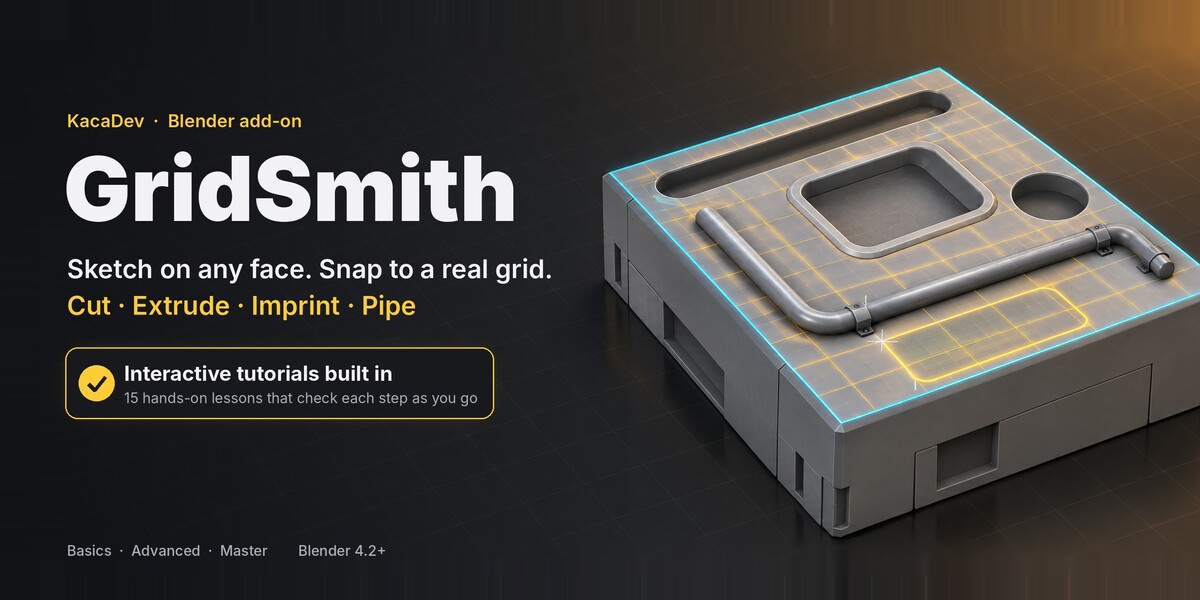
Getting started
- Install: Edit › Preferences › Get Extensions › ▾ › Install from Disk, choose
gridsmith-1.2.0.zip. - Press Alt+Q in Edit Mode or Object Mode (or N-panel › GridSmith › Sketch on Face).
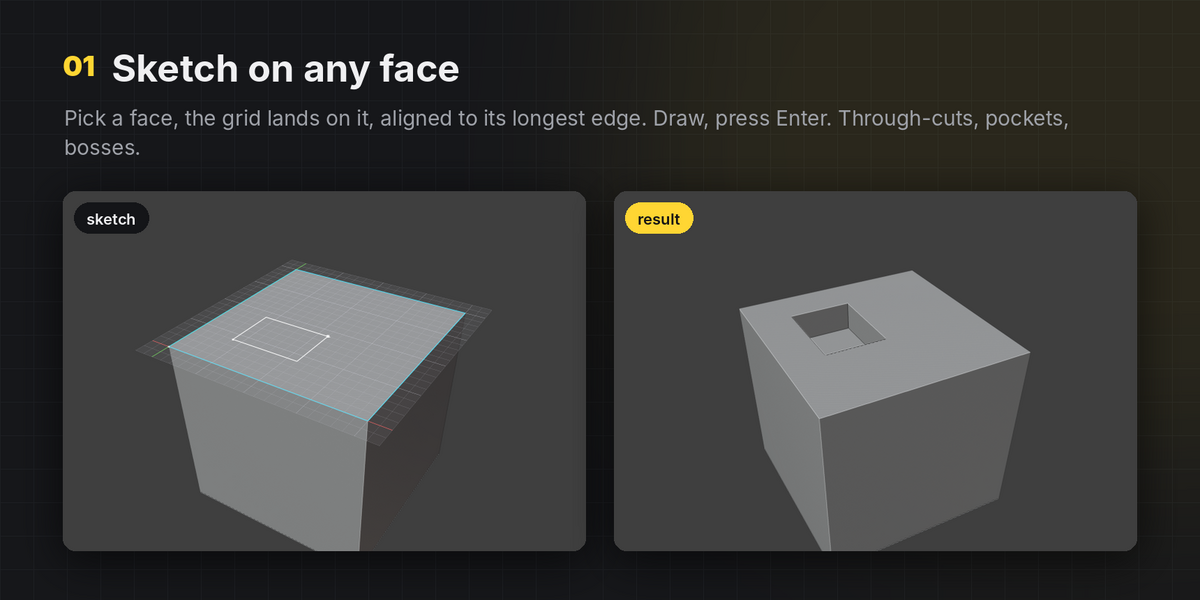
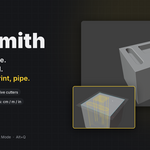
- Click a face, pick a tool, draw, press Enter.
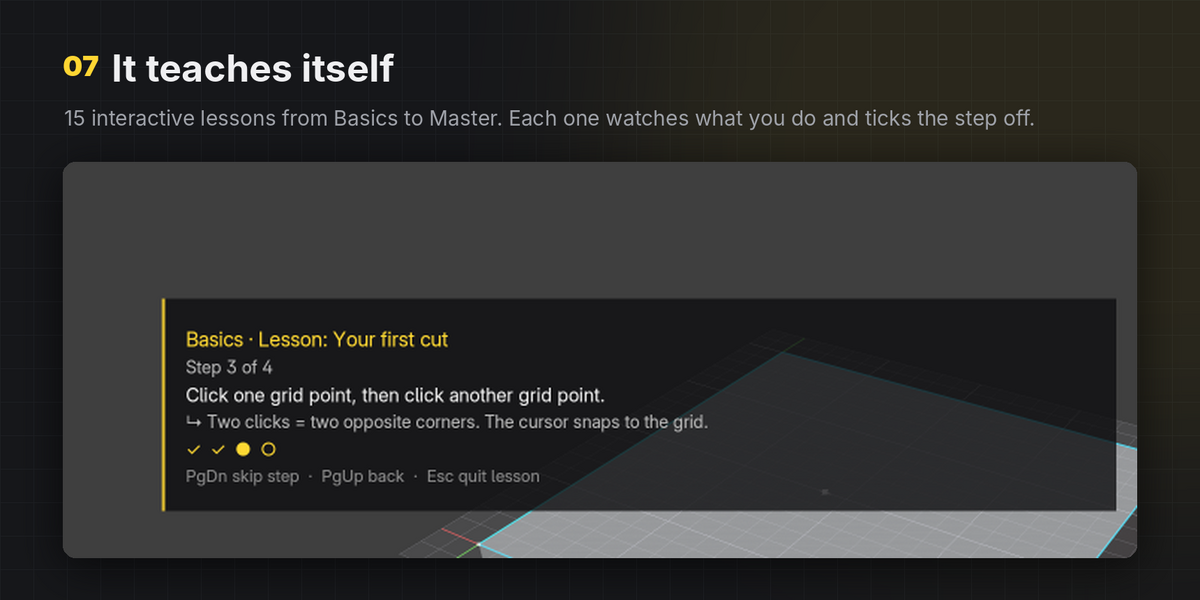
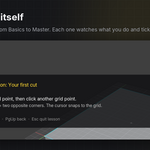
New to it? N-panel › GridSmith › Learn GridSmith: 15 interactive lessons, Basics to Master. Each step ticks itself off when you do it.
Tools
- L Line / polygon: click points, click the first point (or right-click) to close
- R Rectangle: two corners
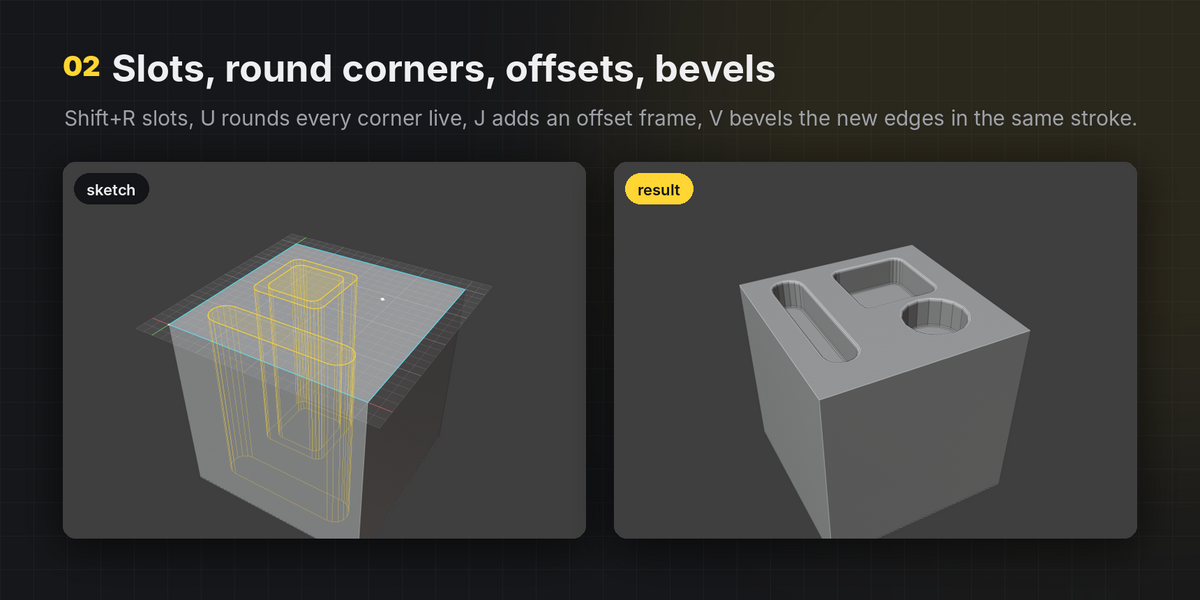
- Shift+R Slot: two centre-line points
- C Circle: centre, then radius
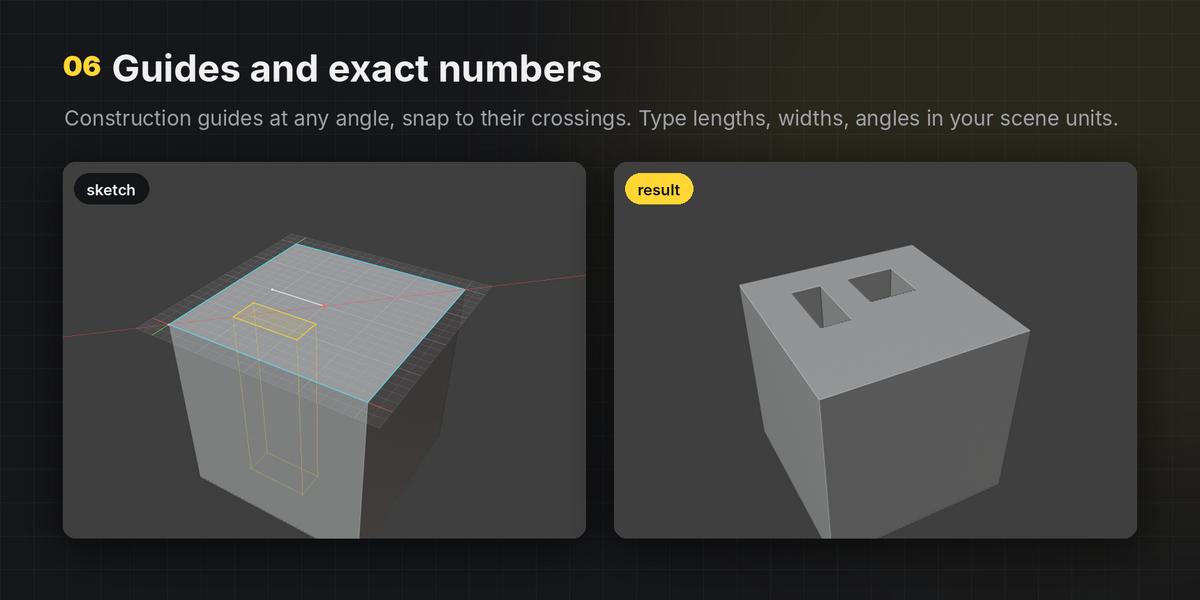
- G Guide: infinite construction line through two points
Output modes
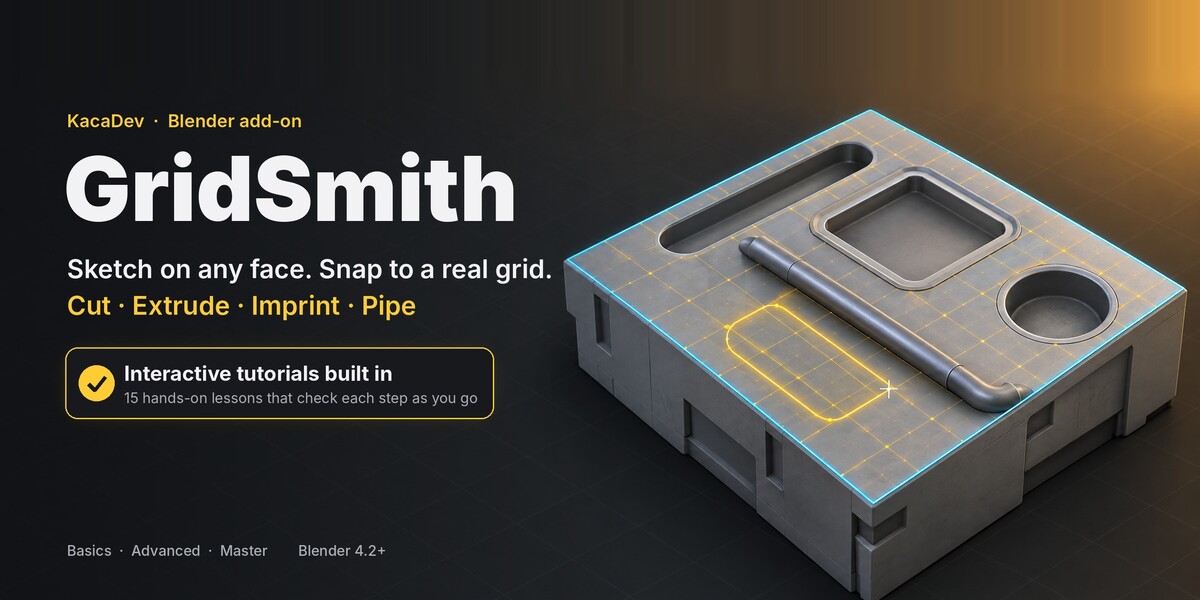
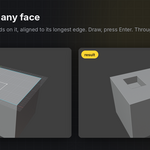
- F Face: imprints the shapes as new faces. No boolean.
- E Extrude: imprint + extrude by Height (negative = pocket). Clean quads. Shapes crossing the face border switch to a boolean automatically.
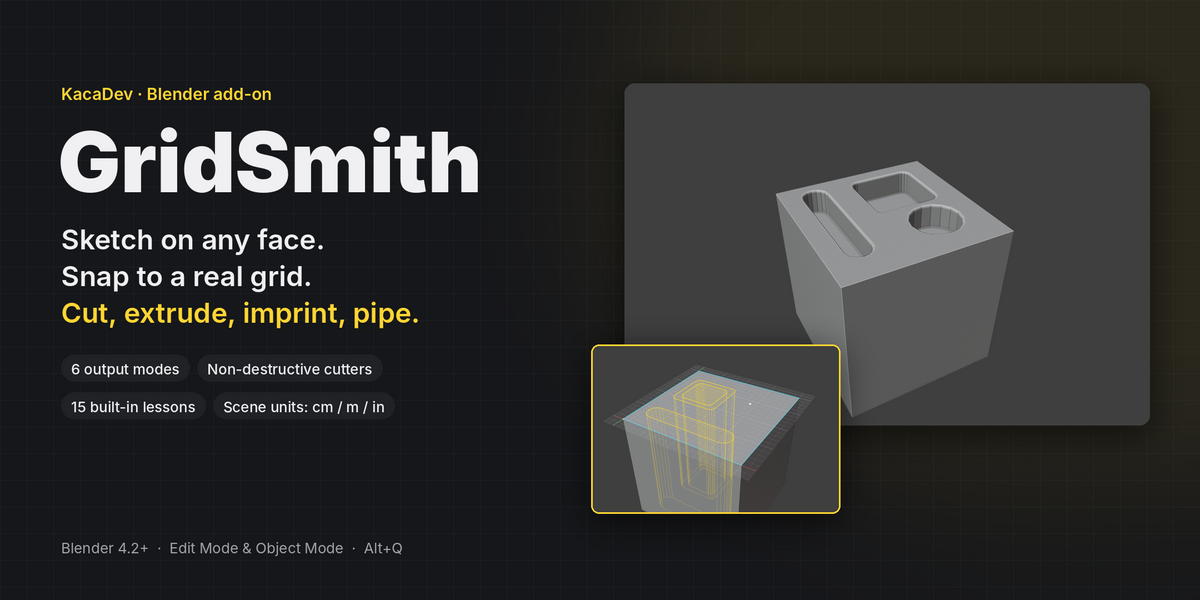
- X Cut: boolean difference. Height 0 = through.
- A Add: boolean union (boss). On a world grid, creates a new object.
- I Intersect: keeps only what is inside the shapes.
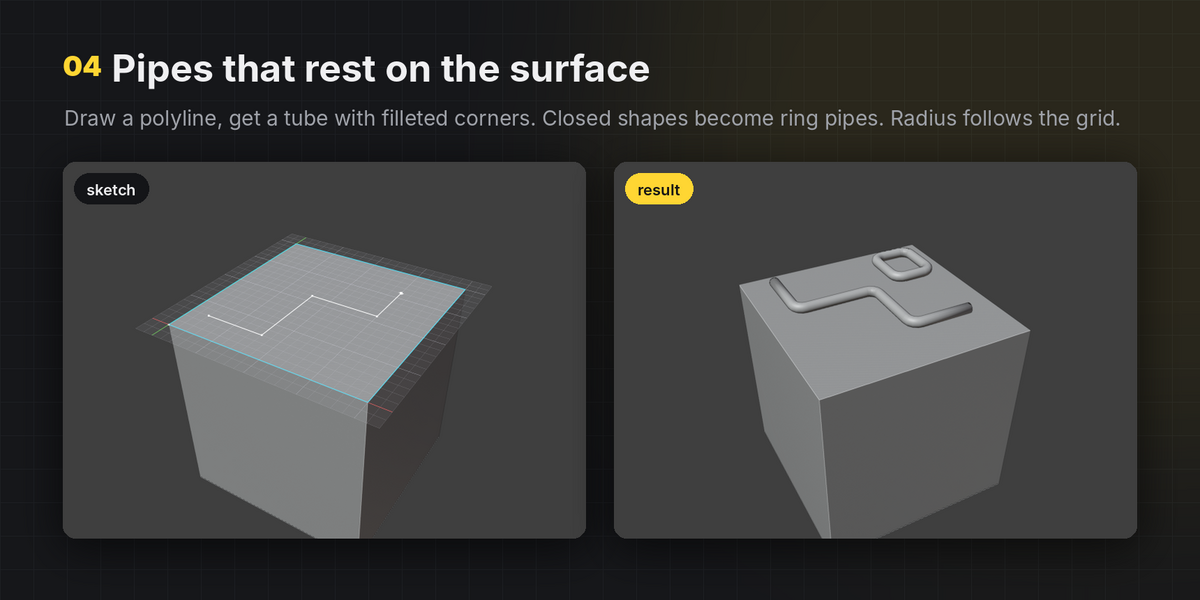
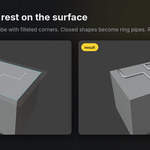
- P Pipe: polyline → tube with rounded corners. Closed shapes → ring pipes.
- Tab cycles modes.
Numbers (scene units)
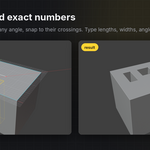
Type digits, then Enter. Units are allowed (25, 1m, 3in). Minus after the digits flips the sign.
- Drawing a line: segment length (snapped to 15° steps)
- Rectangle after first click:
w,h(one number = square) - Circle after centre: radius
- Slot: width before the first click, length after it
- Guide after first point: angle in degrees
- Otherwise: height / depth. H drags the height along the face normal.
Grid
- Ctrl+wheel or [ ]: grid size ÷2 / ×2
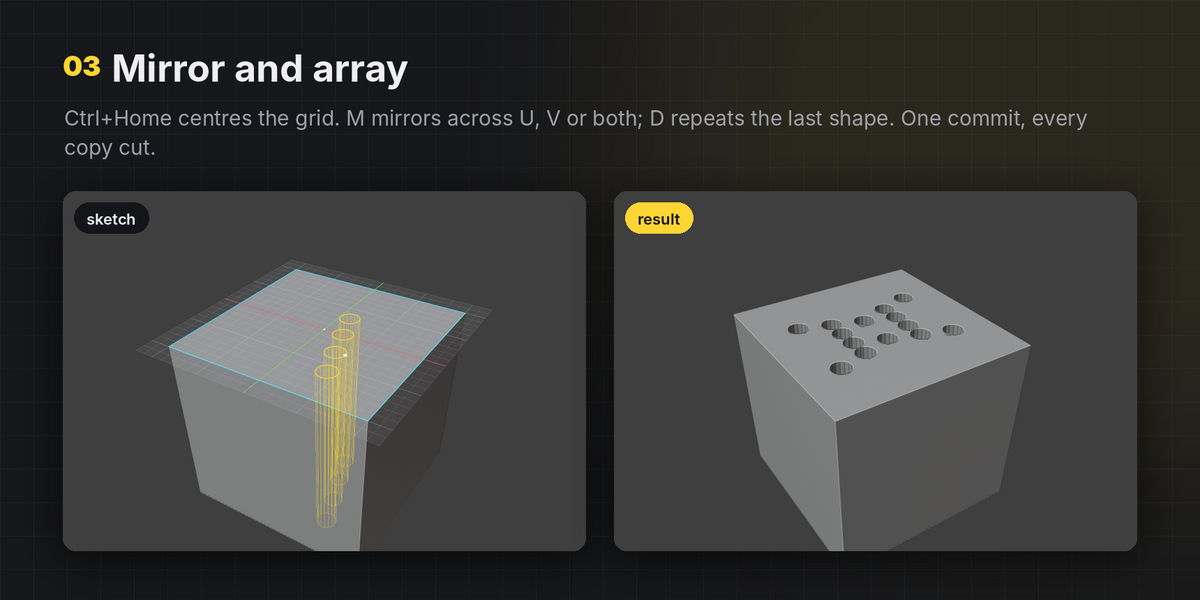
- Home: fit grid to the face · Ctrl+Home: origin to face centre · Shift+Home: reset alignment
- Ctrl+click edge / vertex: align grid to an edge / move origin to a vertex
- Q / W: rotate grid 15° (Alt: 5°) · Arrow keys: nudge one cell (Shift: half)
- Hold Shift: snap to half cells · hold Alt: no snapping · S: toggle mesh snapping
- Shift+click coplanar face: add it to the sketch region
- Home / F2 F3 F4 before picking a face: world XY / XZ / YZ grid at the 3D cursor
Shape helpers
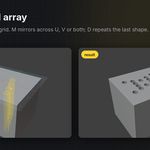
- M Mirror: none → U → V → both
- D Array the last shape: move to set spacing, Shift+wheel for count, click
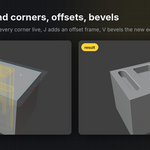
- J / Shift+J: offset copy / offset in place
- U: corner radius for rectangles, slots and polygons (0 = sharp)
- V: bevel the new edges after commit (0 = off)
- B: through-cuts also go above the face
- Shift+wheel or + / -: circle sides / slot width / array count / pipe sides
Commit, undo, exit
- Enter: commit and exit · Shift+Enter: commit and keep sketching · Alt+Enter: build as a new object
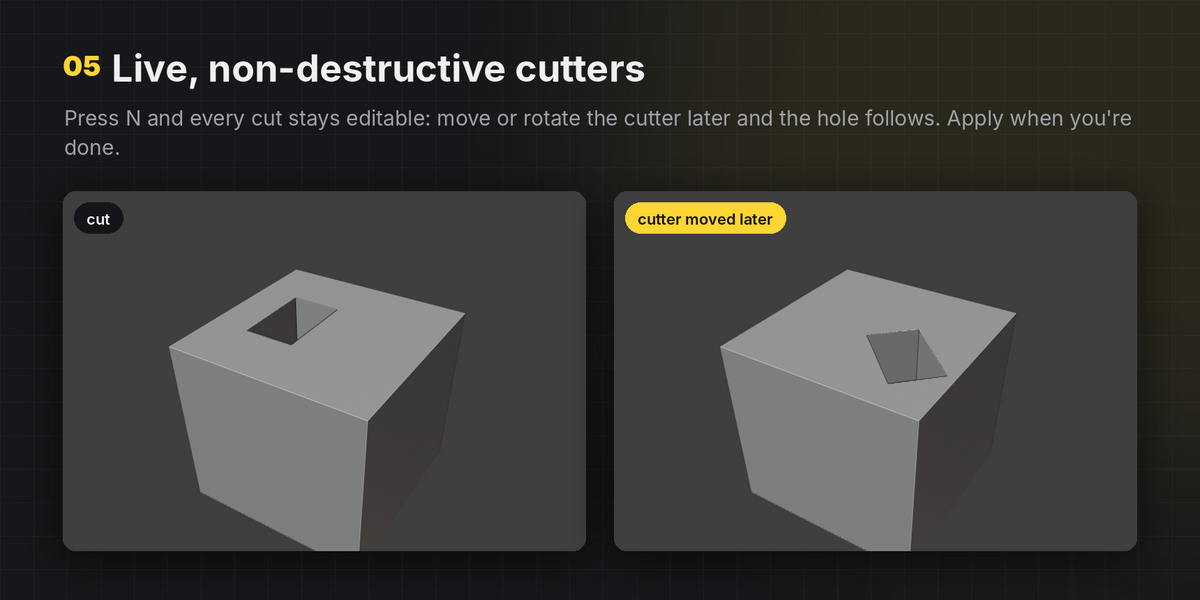
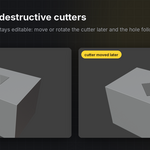
- N: non-destructive live cutters · T: pick a different face
- Backspace: remove last point · Ctrl+Z: remove last shape · Del: clear guides
- Esc / right-click: cancel the current shape, then exit · F1: show / hide key help
Live cutters
N-panel › GridSmith › Live Cutters: Apply, Show/Hide, Select. Cutters live in the GridSmith Cutters collection, are parented to the target, and the boolean is placed above your own modifiers so Bevel / Mirror still apply on top.
Preferences
Default grid size, snap radius, HUD scale, colours, sidebar tab name, default circle sides. The Alt+Q hotkey can be changed under Preferences › Keymap.
Have questions about this product?
Login to message
| Blender Extension Compatible | Yes |
| Published | 1 day ago |
| Blender Version | 4.2 - 5.2 |
| Extension Type | Add-on |
| License | GPL |