 young
young
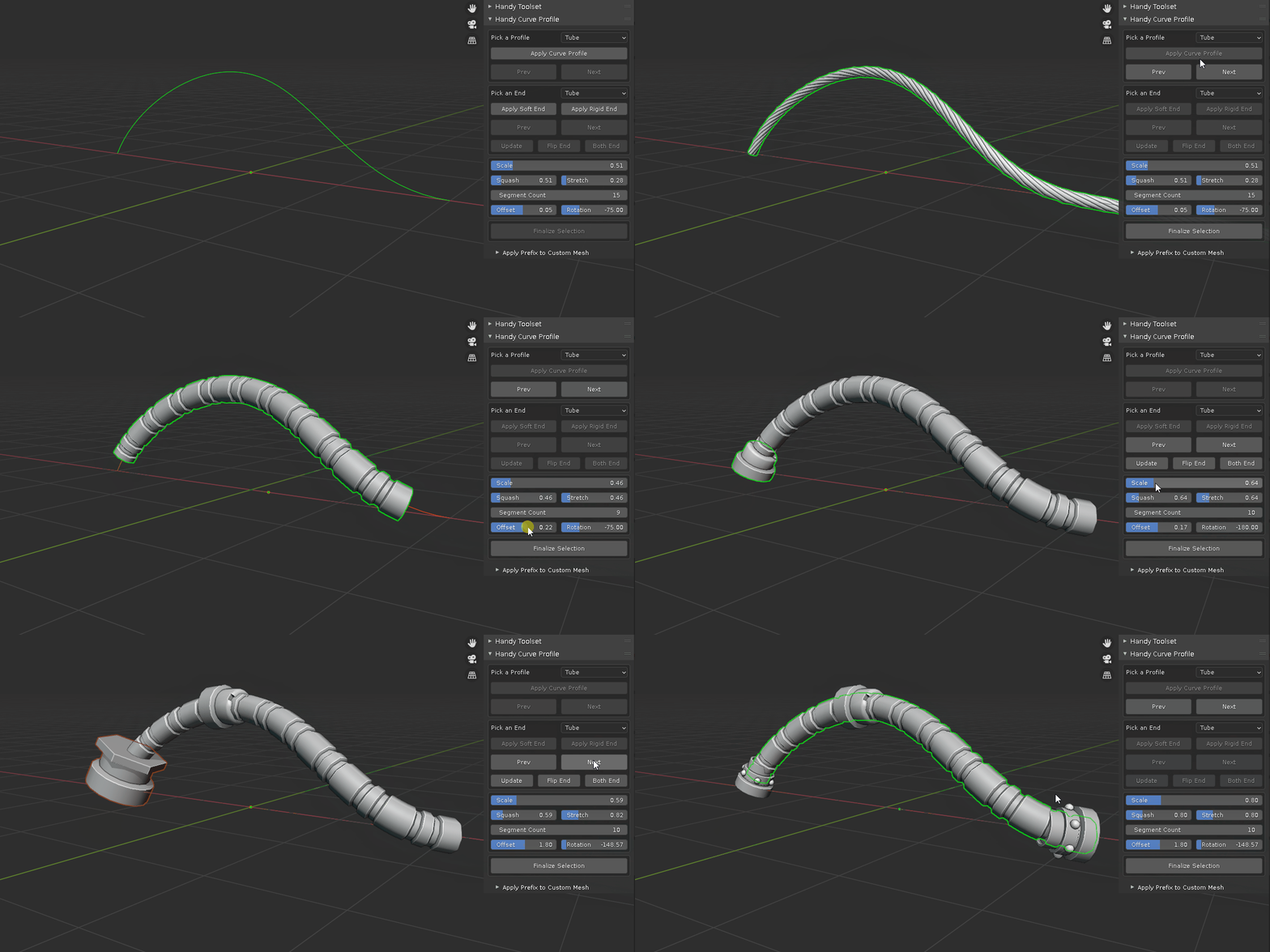
1. installation, recent Blender supports drag and drop the addon zip file to install, for earlier version, use "Install file from disk" in preference - addon tab.
2. with an active object selected, the addon is located on the right side of 3d viewport with tab name "HCP".
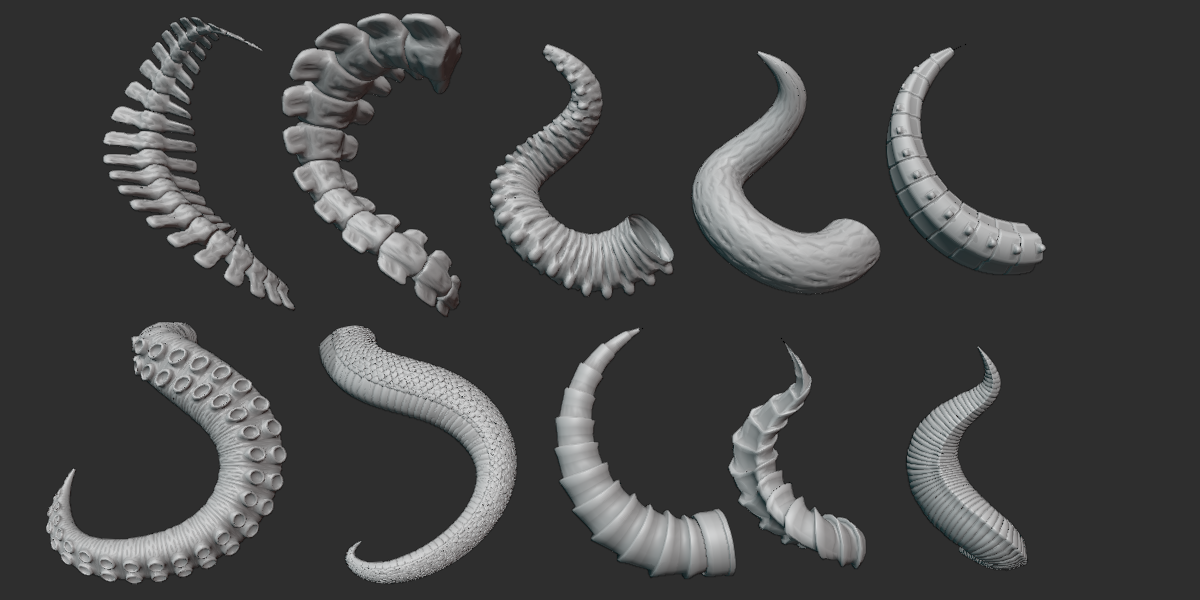
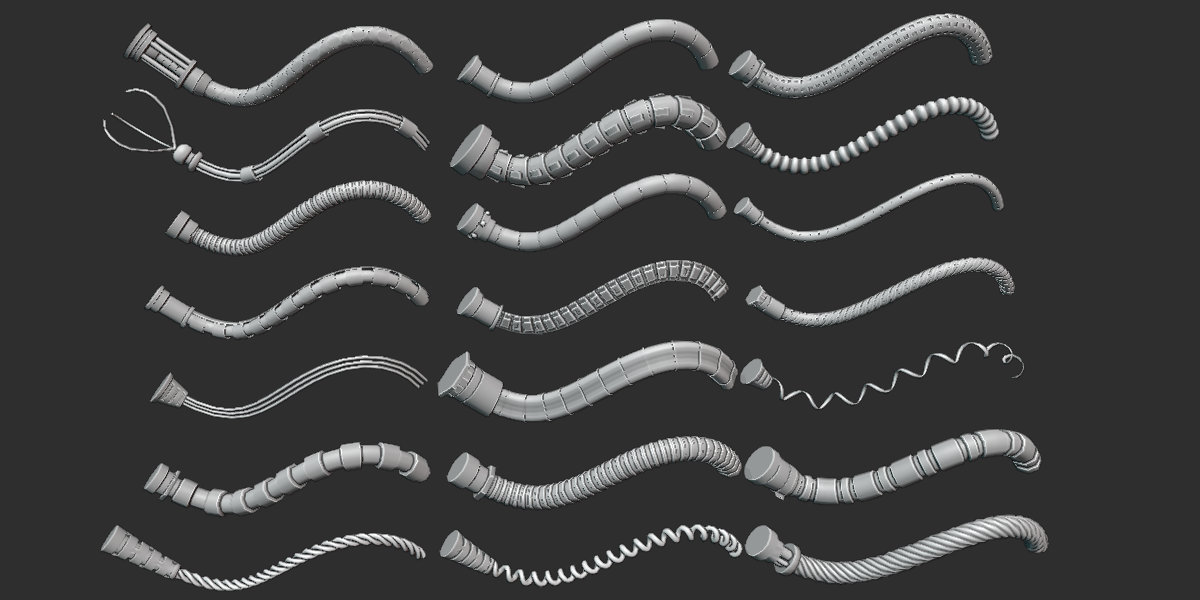
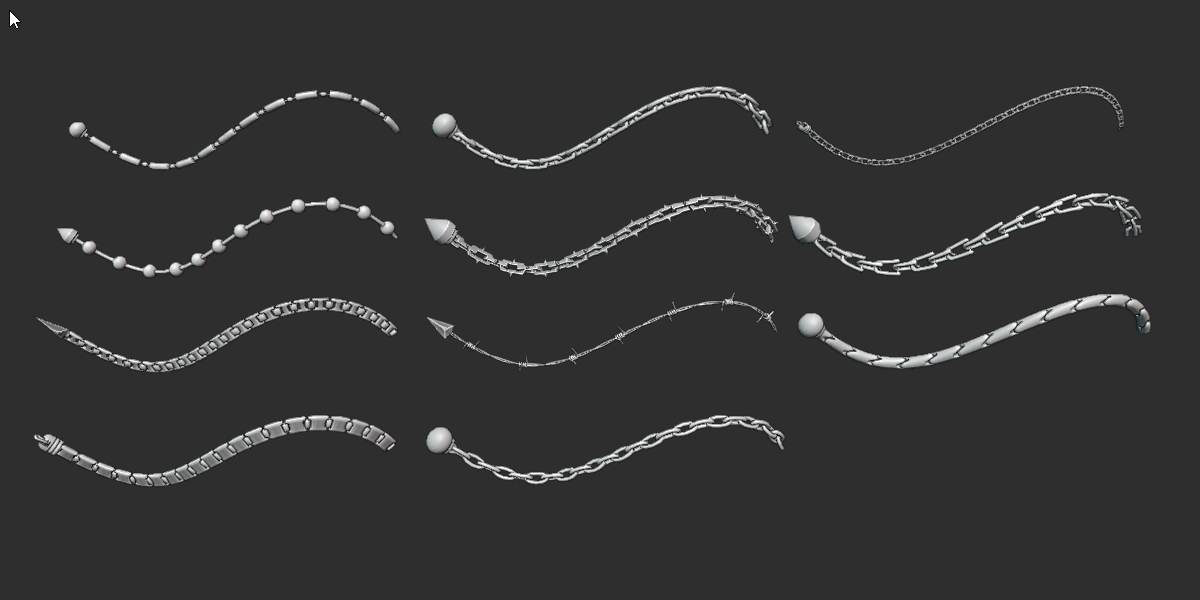
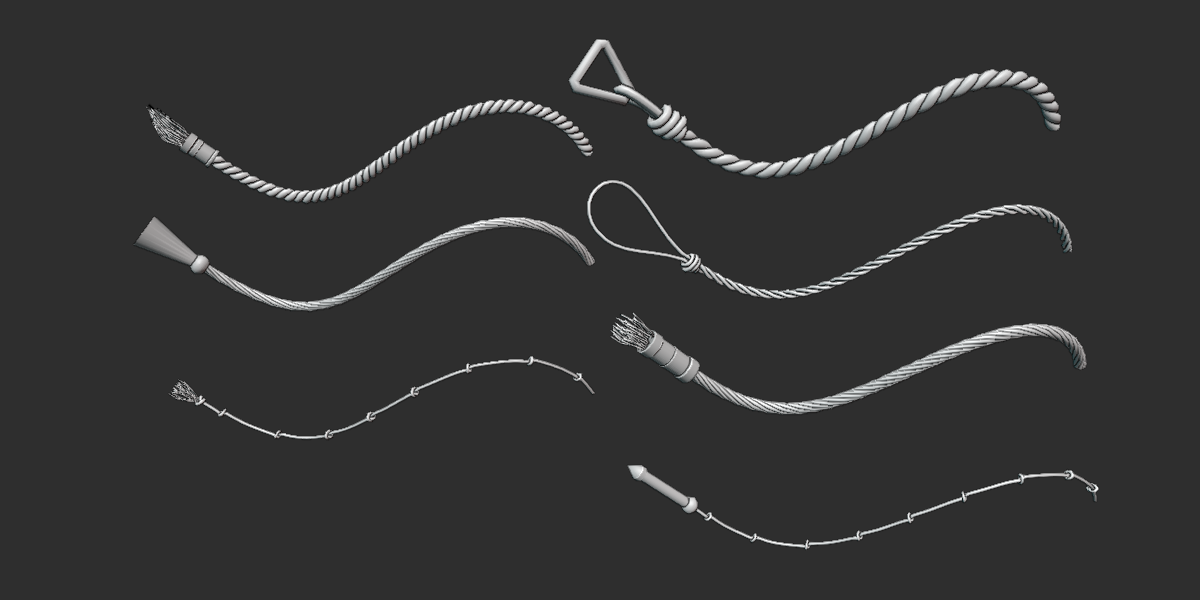
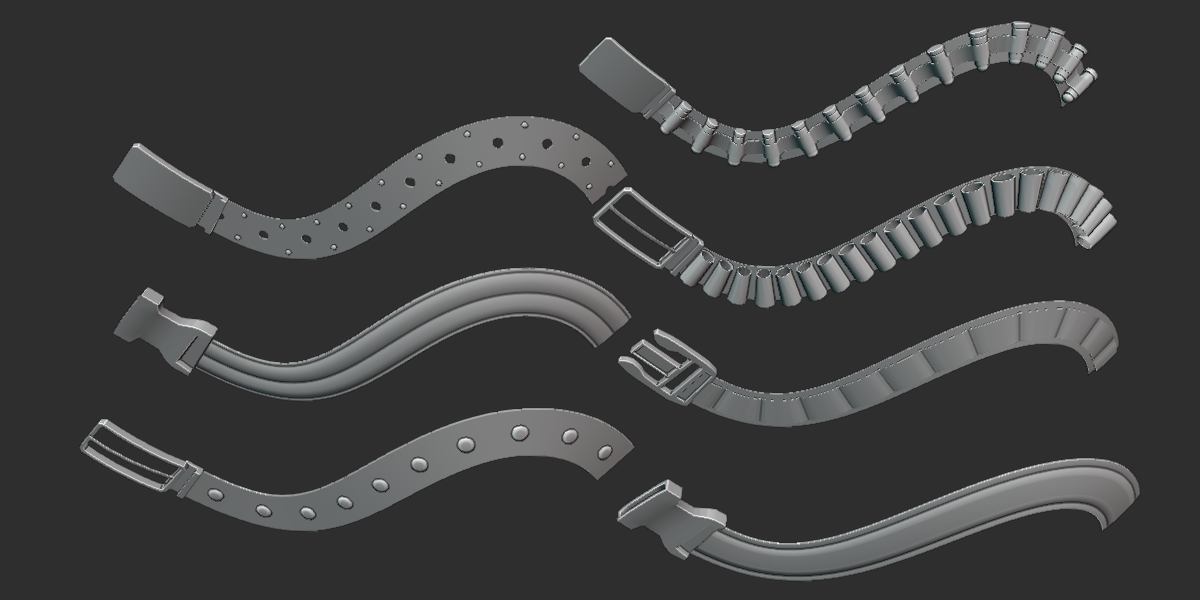
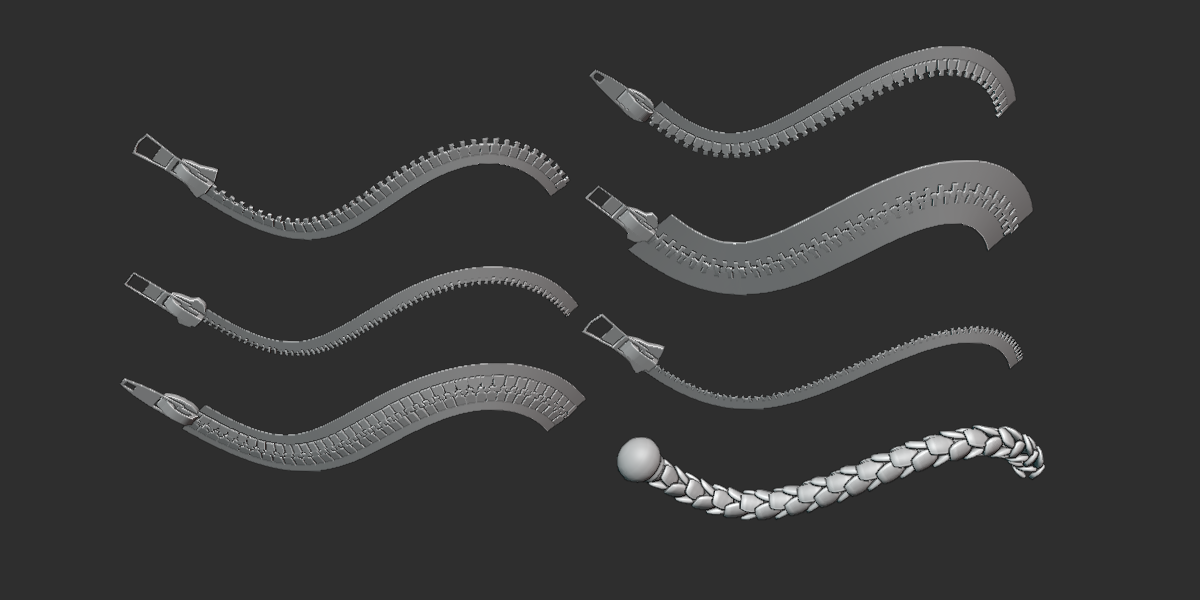
3. select a curve object, you can either add mesh profile along the curve such as tube, belt, rope etc, or mesh at end of curve end point such as belt buckle. for curve end mesh part, it can be either soft end which deforms along with the curve, or rigid end which does not deform with curve shape. use the drop down list to switch to different category, use Prev or Next to change mesh part.
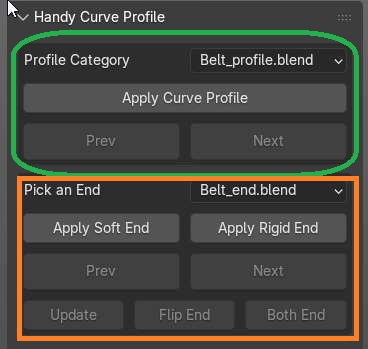
4. to change the curve shape, select the underline curve object, enter edit mode and move the curve point. for mesh end object, once the curve shape is modified, press Update to correctly reflect the change since it used proxy curves. "flip end" will modify the mesh position from one side of curve end to the other end. "Both end" will populate both end of curve with the same mesh.
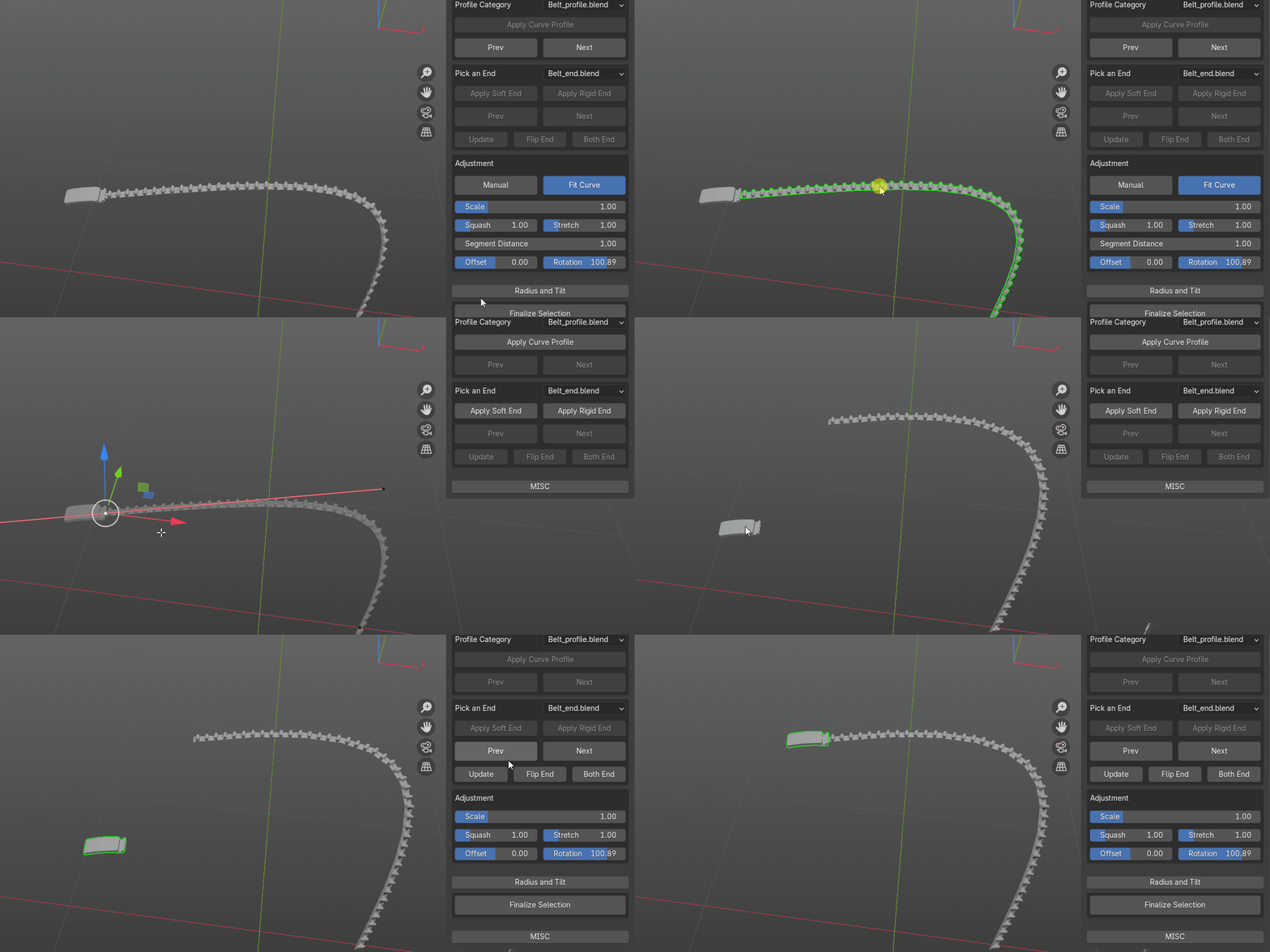
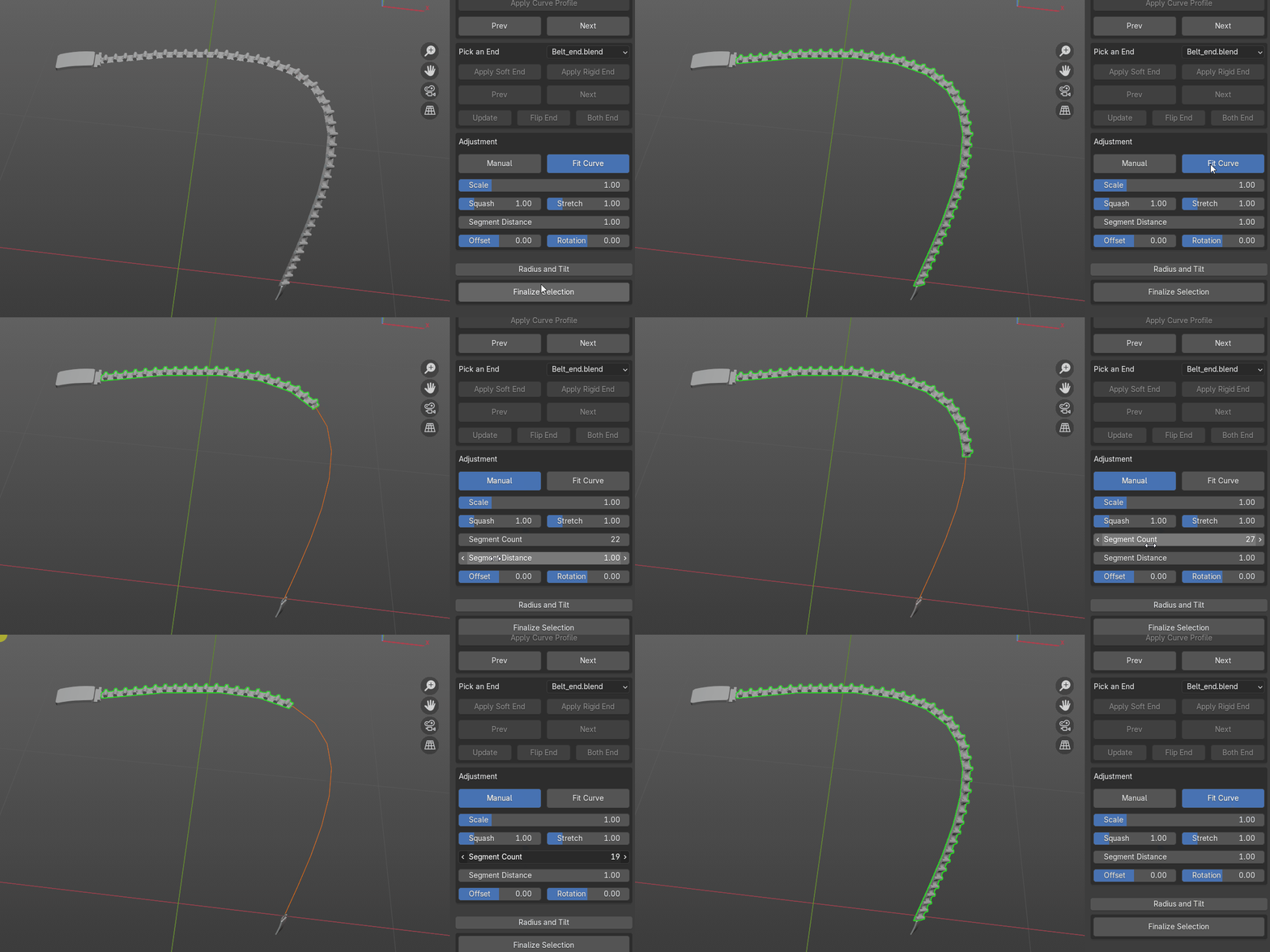
5. once you add mesh profile or end to curve object, use adjustment panel to modify the different aspect such as size, offset etc. for mesh profile, when "manual" is toggle on, you can set how many segment there is, when "Fit Curve" is on, it will populate along curve. rest of the sliders should be obvious, or slide it to see the effect.
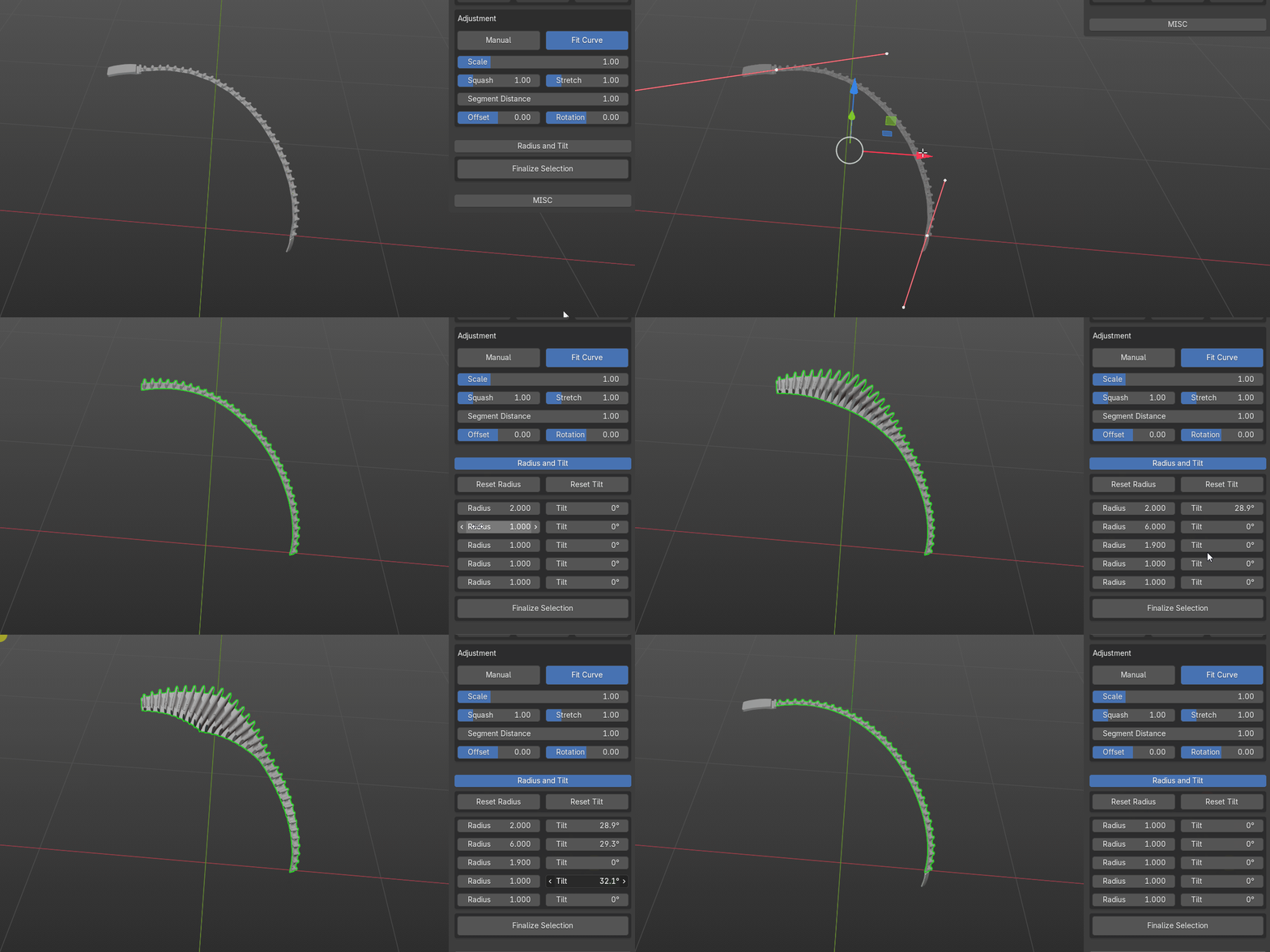
6. toggle Radius and Tilt on to adjust the mesh size and rotation near each curve point. subdivide curve points to add more control points.
7. use Finalize Selection to keep current result and remove any modifiers or proxy.
8. under MISC, create bones from curves does it says. bones counts depends on curve points.
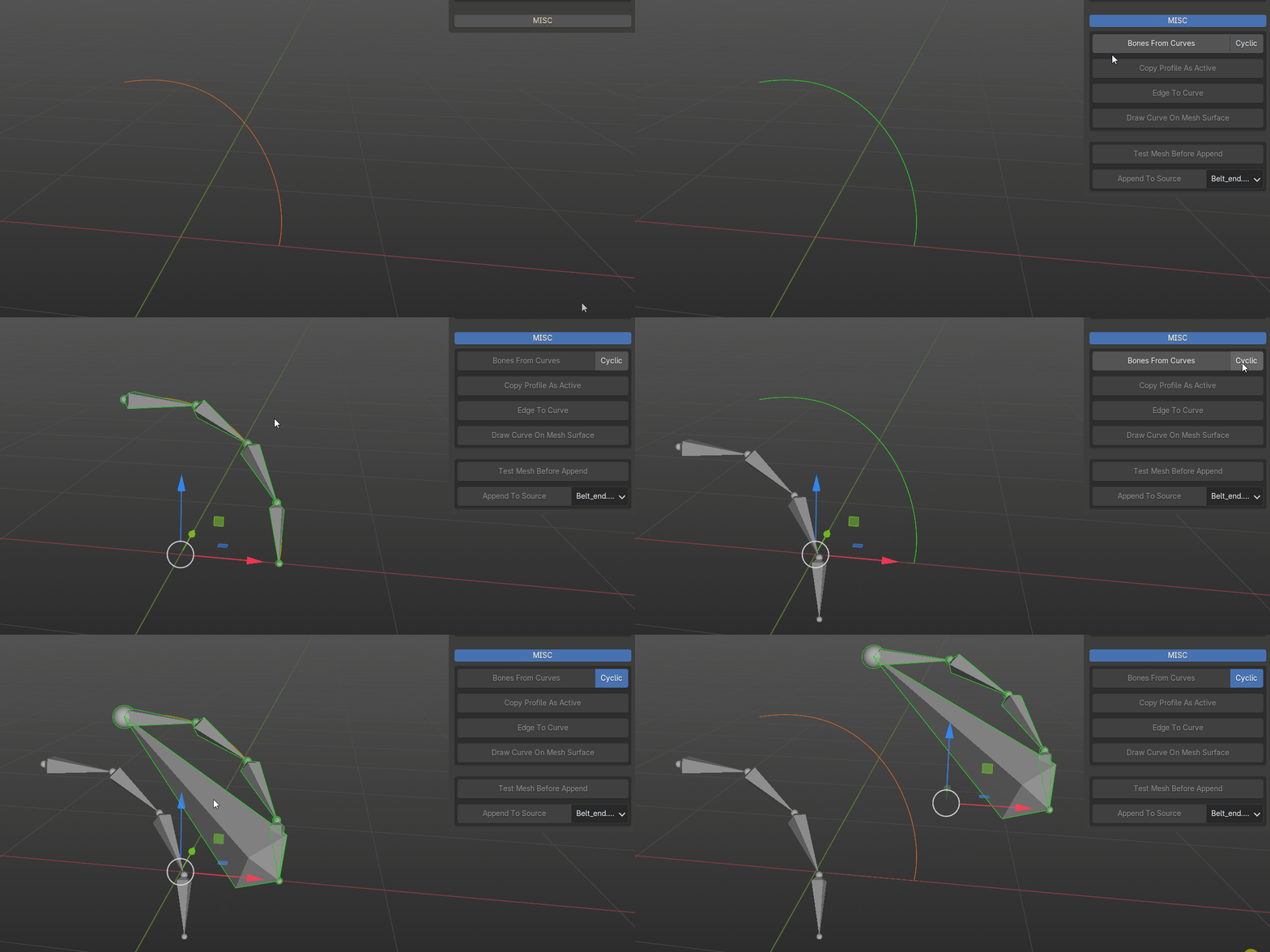
copy profile as active will copy the mesh part as active mesh
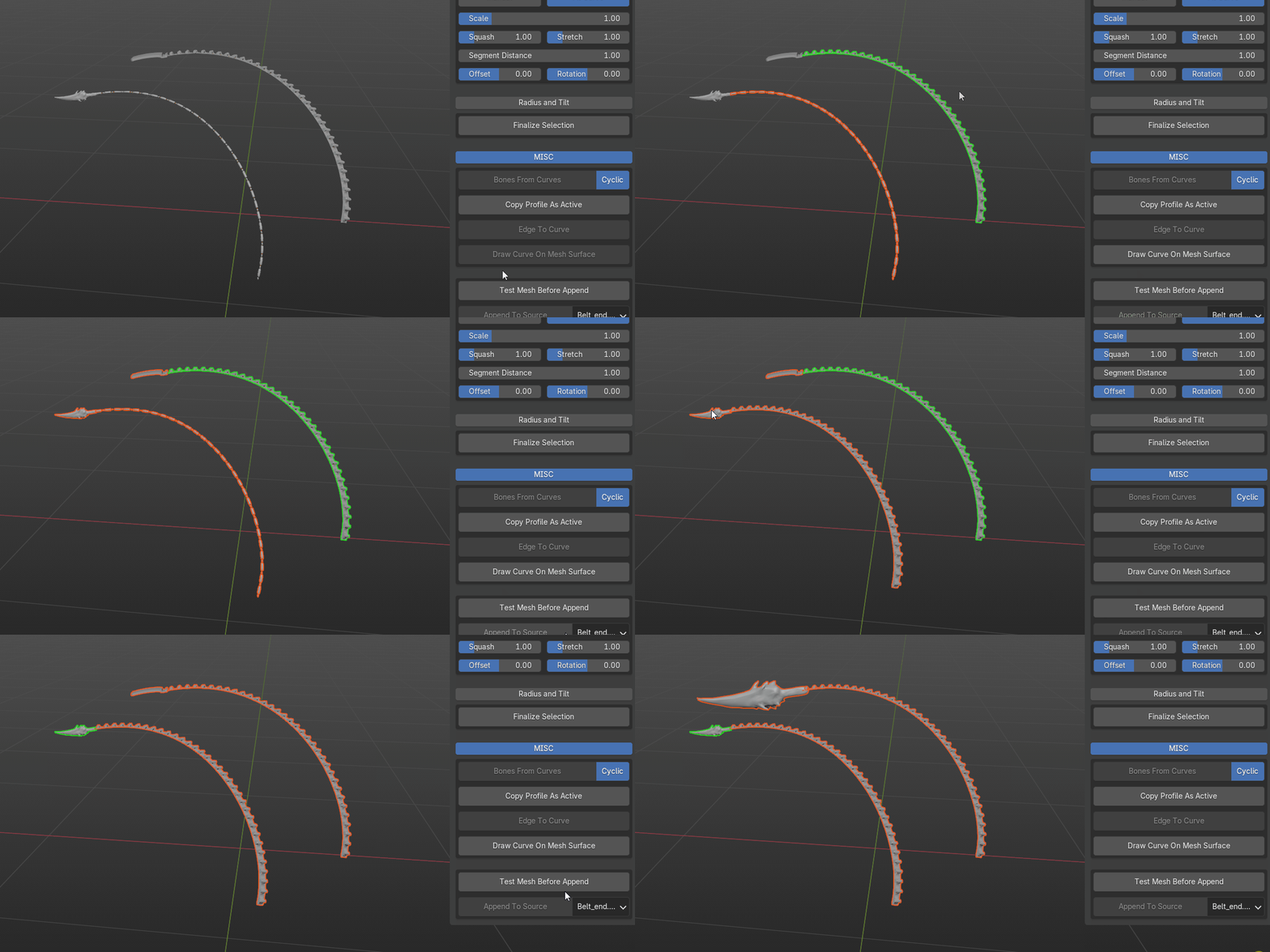
"edge to curve" convert selected edge to curve. "draw curve on mesh surface" provide convenient way to create curve object and later add mesh profile/end. while "draw curve on mesh surface", use left mouse click to add point, right mouse button/ESC to cancel, W or S to offset from mesh surface, space/enter to confirm.
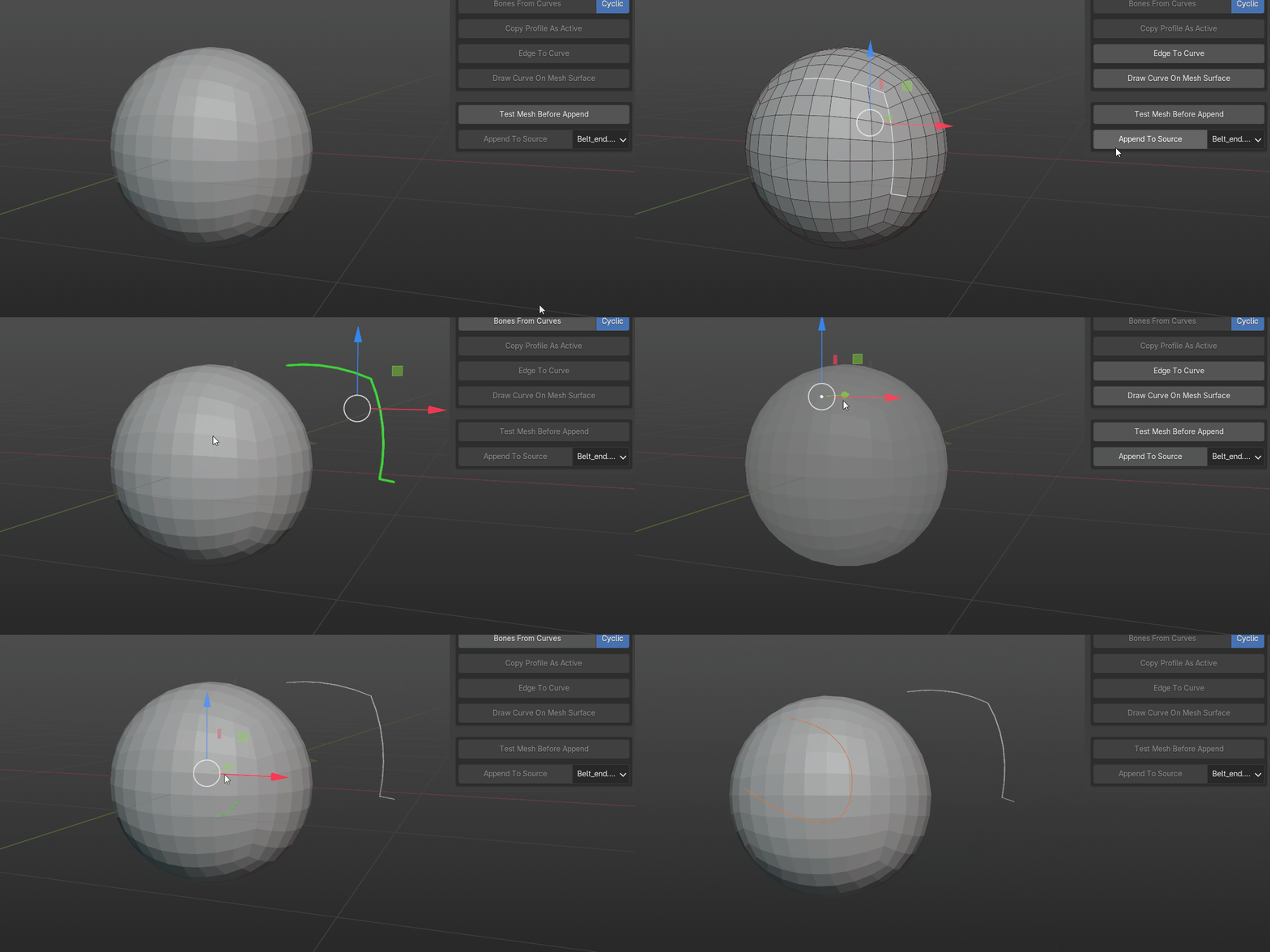
9. if you have custom mesh you want to add it to the addon library, you can test it and see if the result is good to you. append to selected blend file for future use. use the drop down list to set destination, note any blend file with suffix "_end" will be treated as curve end mesh. everything else will be treated as curve profile mesh.
in version 1.4.4 or later, each category is saved in a blend file separately. to add your own, for example, I have a cube, sphere and cylinder as profile mesh, simply save them in a collection such as "test", save the blend file named as "test" and drop it inside the addon folder. it will show up in the profile category drop down list. to make them for curve end mesh object, add a suffix "_end" to the collection name and blend file name. in this case, all mesh are in collection "test_end" and save the blend file as "test_end". it will show up in the pick an end drop down list.
if you'd like to start from scratch, you can save an empty blend file with any name such as "my mesh" for mesh profile or "my mesh_end" for curve end mesh. when you append a mesh to source, select the relevant blend file, append it and it is ready to be re used.
the default path for those blend files are inside the addon folder: C:\Users\UserName\AppData\Roaming\Blender Foundation\Blender\3.6\scripts\addons\Handy Curve Profile
you can change to a custom folder path to manage those blend files in addon preference

Have questions about this product?
Login to message

Discover more products like this
cablerator hard surface fantasy Pipe winter24 curvebasher bash sci fi Basemesh summer24 curve sci-fi pipes tentacle horn kitbash rope asset pack pipes hair presets loveblender creature Cable spring24 3d modeling tales creating cables bfcm24 base meshes