 Harbor


One shortcut
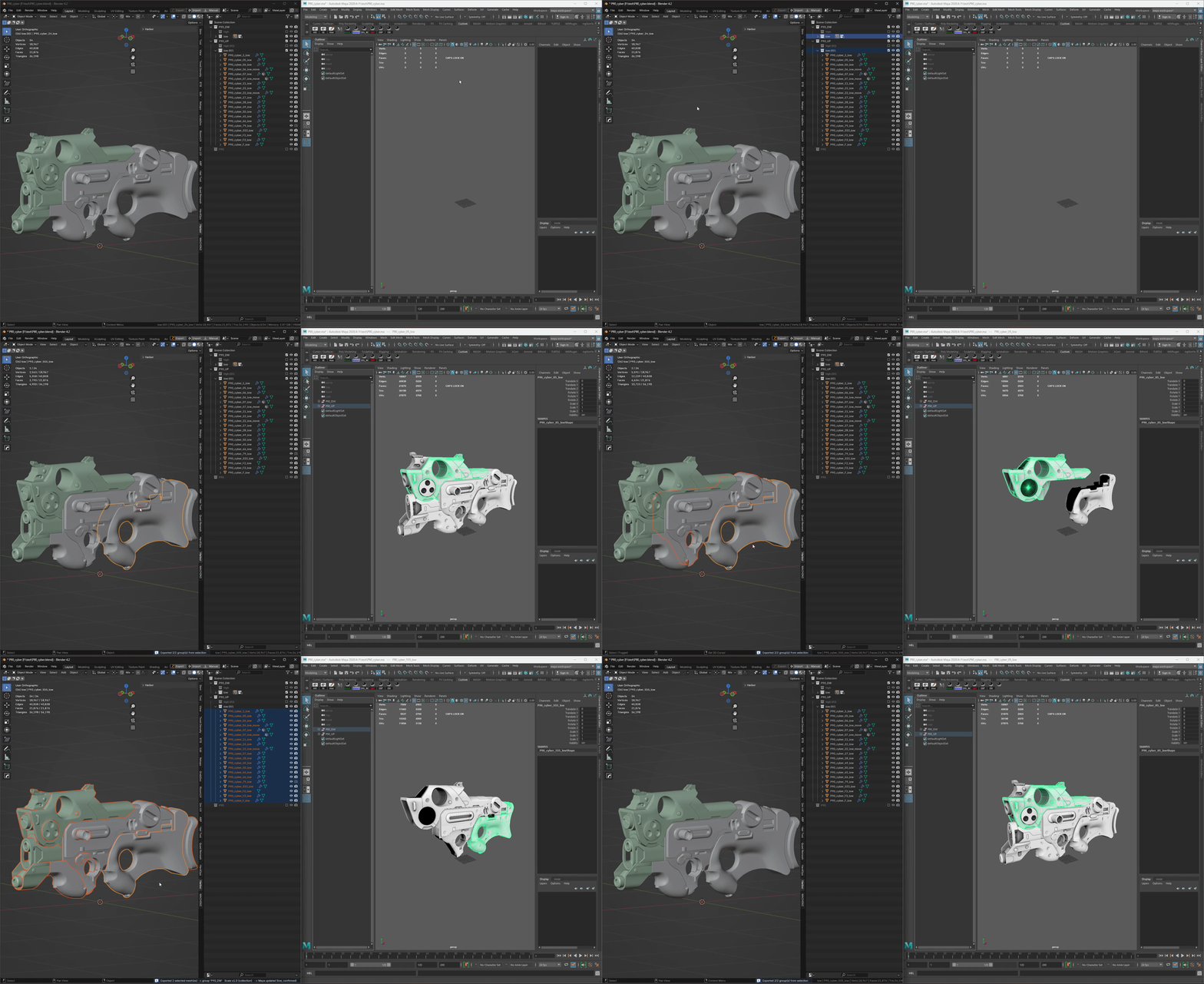
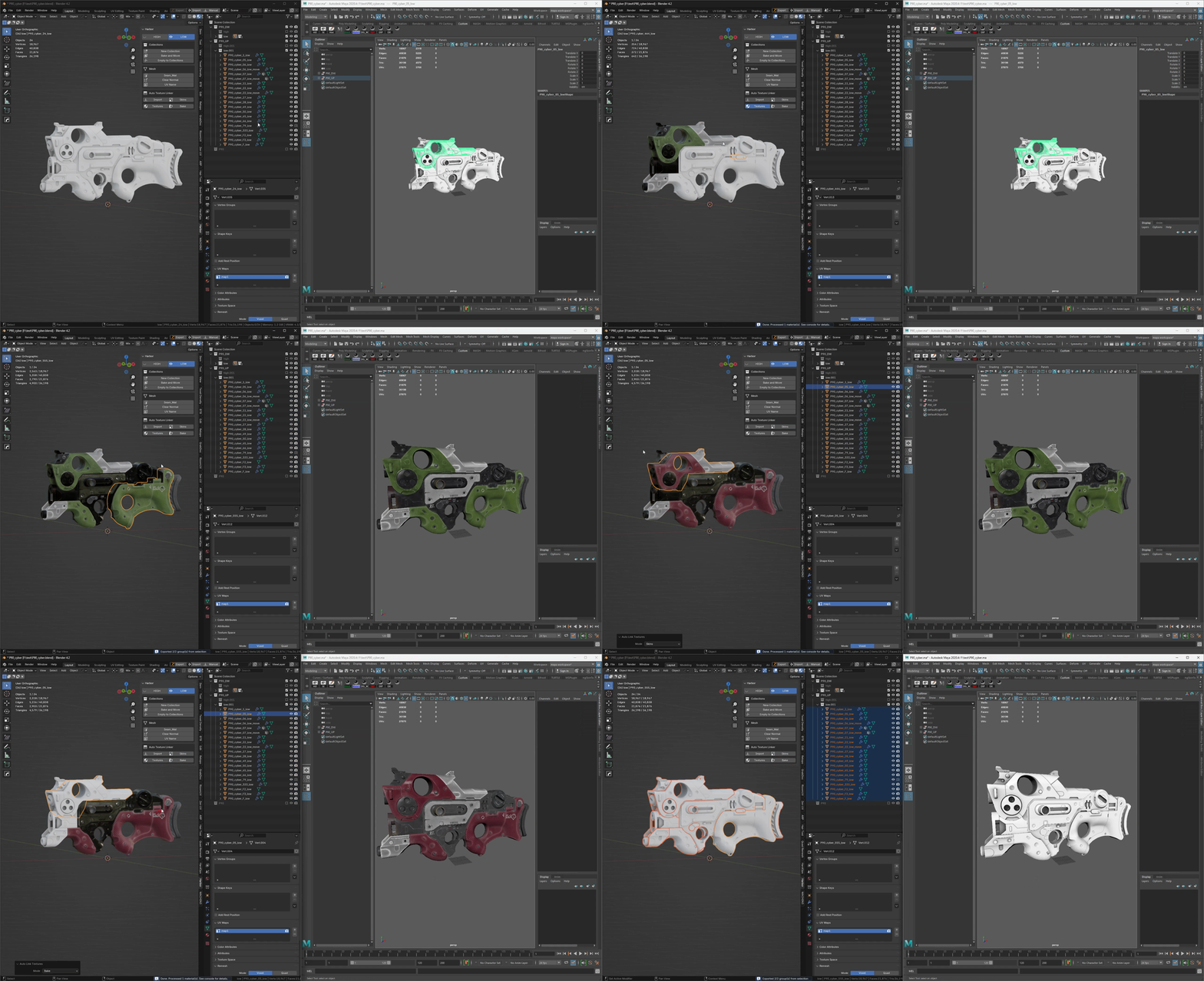
Pick meshes of your project — press the Harbor hotkey and it’ll open in Maya. Multi-group will ship one after another, each into its own Maya group. Helper sub-collections (high, low, bake, move) stay in Blender.
‼️Only the clean parent groups and their visible meshes make the trip
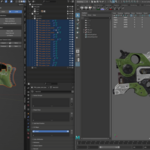
Select from 3D View or Outliner — Harbor reads both
One group, many groups — same hotkey
Only visible meshes travel; hidden variants are skipped
Existing Maya groups refresh in place. Missing ones are created
"I press the hotkey and my whole character is in Maya"
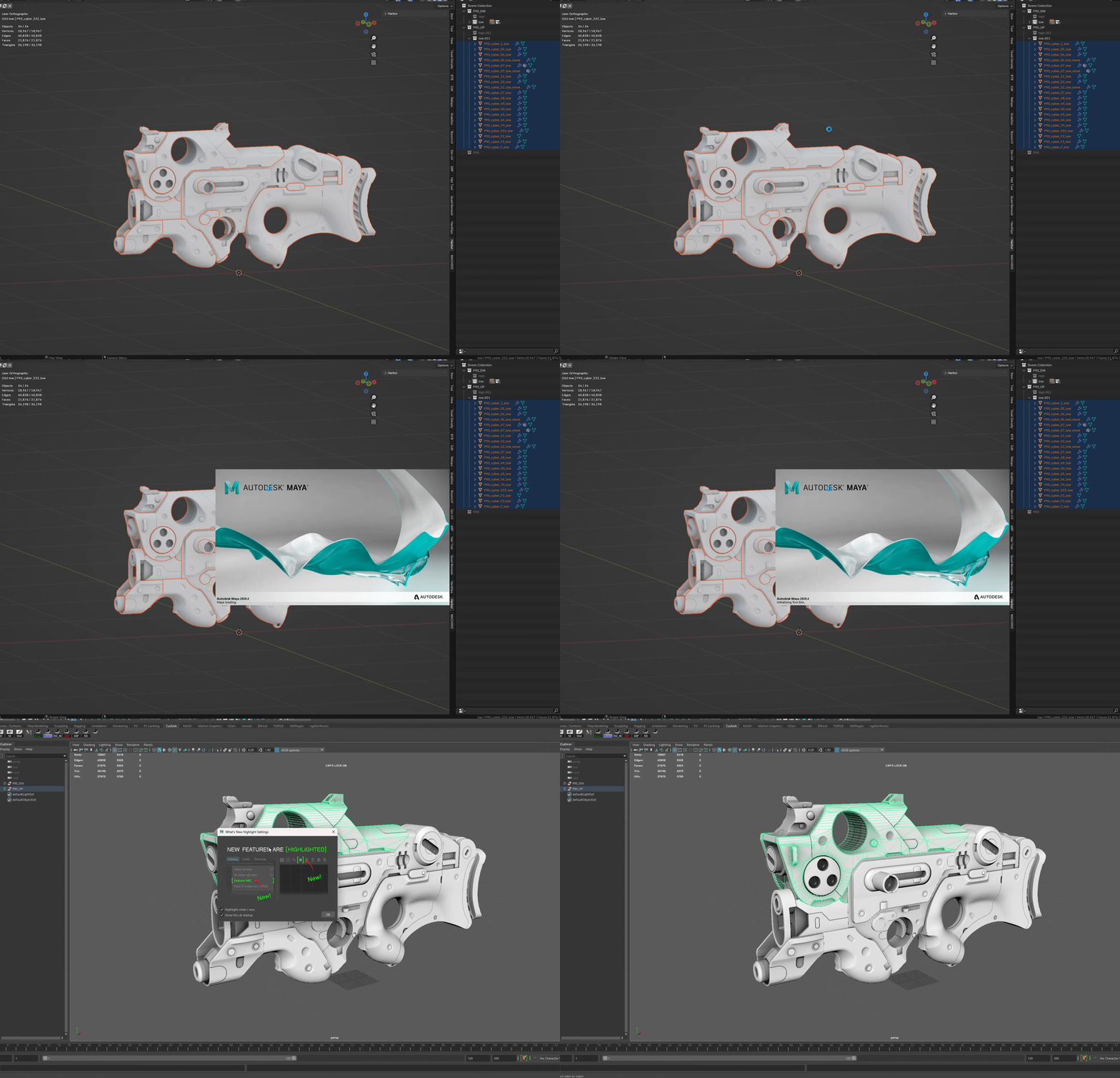
Maya opens automatically
The names and locations of your files play an important role.
💡Harbor will work with any Maya file that has the same name as your Blender file and is located in the same folder.
In other words, if such a Maya file already exists, Harbor will update it. If no such file exists, Harbor will create it.
Maya closed — Harbor starts it
Maya running — delivery goes into the current session, if file has same name as Blender file
Maya running another project — that session will be closed with saving, then new session starts
Maya scene — created or opened automatically
Blender stays responsive the entire time. Keep modeling while Maya loads
"It works the same whether Maya's open, closed, or somewhere in between — I stopped checking there"
Work with skeleton
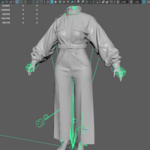
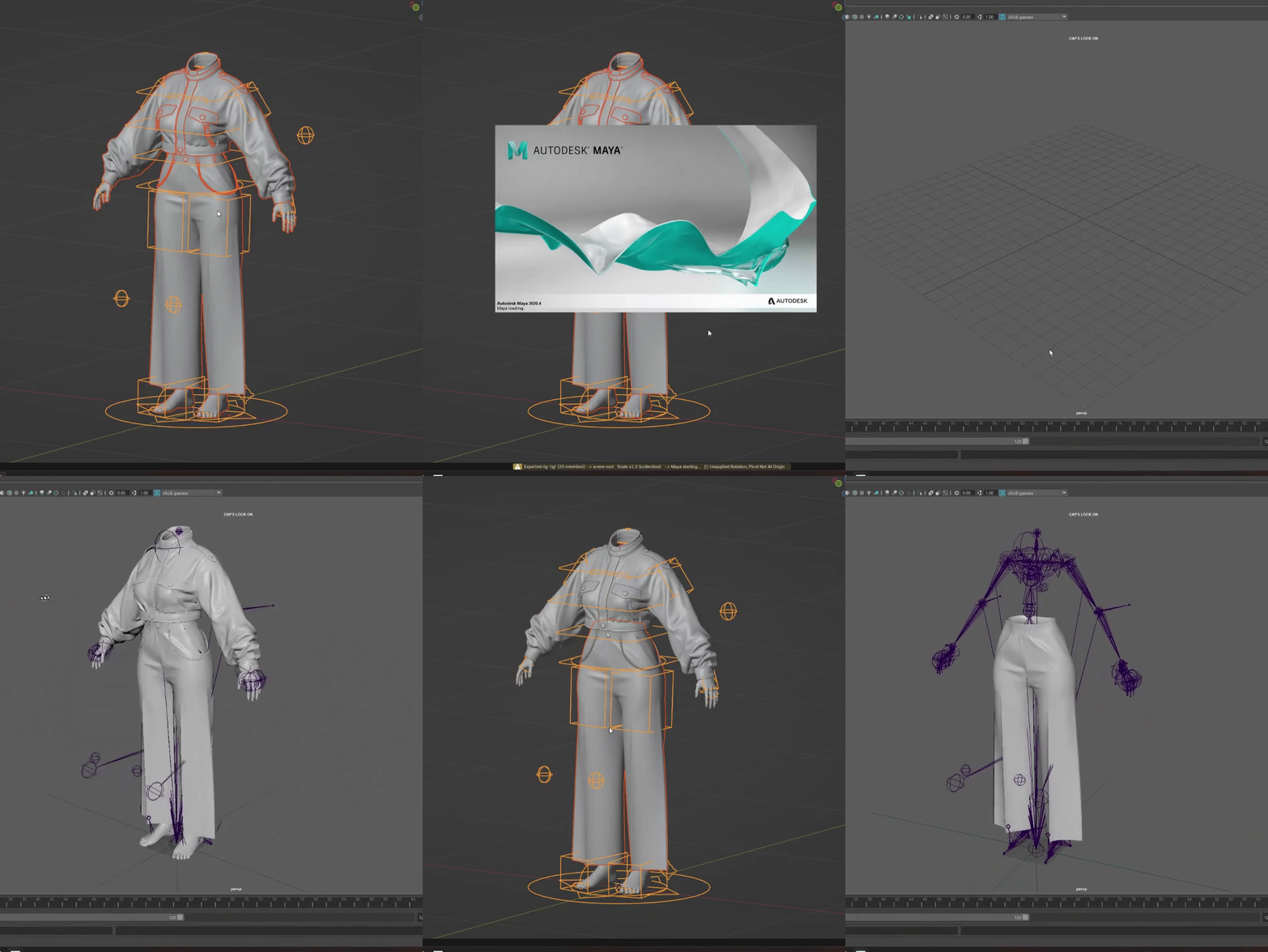
With skeleton + skinned meshes Harbor works the same way. Tweak weights, press the hotkey, test in engine, tweak again.
💡The mesh can be replaced on the same rig over and over without touching anything else in the Maya scene
Skeleton + skinned meshes delivered to scene root in one press
Clean transforms — no unwanted scale/rotation in Unreal or Unity
Iterate on weights → export → engine test → repeat, in seconds
"Paint weights, hotkey, engine — the rig-test loop is finally as fast as the modeling one!"
Texture features
Assign textures to your materials in Blender once — Harbor's Auto Texture Linker finds them by material name and wires Base Color, Normal, Roughness, and Metallic into the BSDF automatically.
On the Maya side, the same materials come through set up the way they should be: normals in Raw colorspace with tangent-space bumps, diffuse dialed to 1, reflected color off.
💡When you re-export, materials aren't duplicated — Harbor reuses the same one every time, so your Hypershade stays clean no matter how many revisions you push.
One click links Base Color · Normal · Roughness · Metallic in Blender
Separate modes for Bake · Textures · Skins — pull from the right folder for the pass you're on
Colorspaces and normal-map interpretation set correctly on the Maya side
Diffuse, reflected color, and bump wiring fixed automatically after import
Same material every time — no Material.001, .002, .003 pile-up in Maya
Suffix conventions (_d, _normal, _r, _m, or your own) fully configurable
"In Maya the textures just look right — no washed-out normals, no wrong colorspace, no manual fixing after every import"
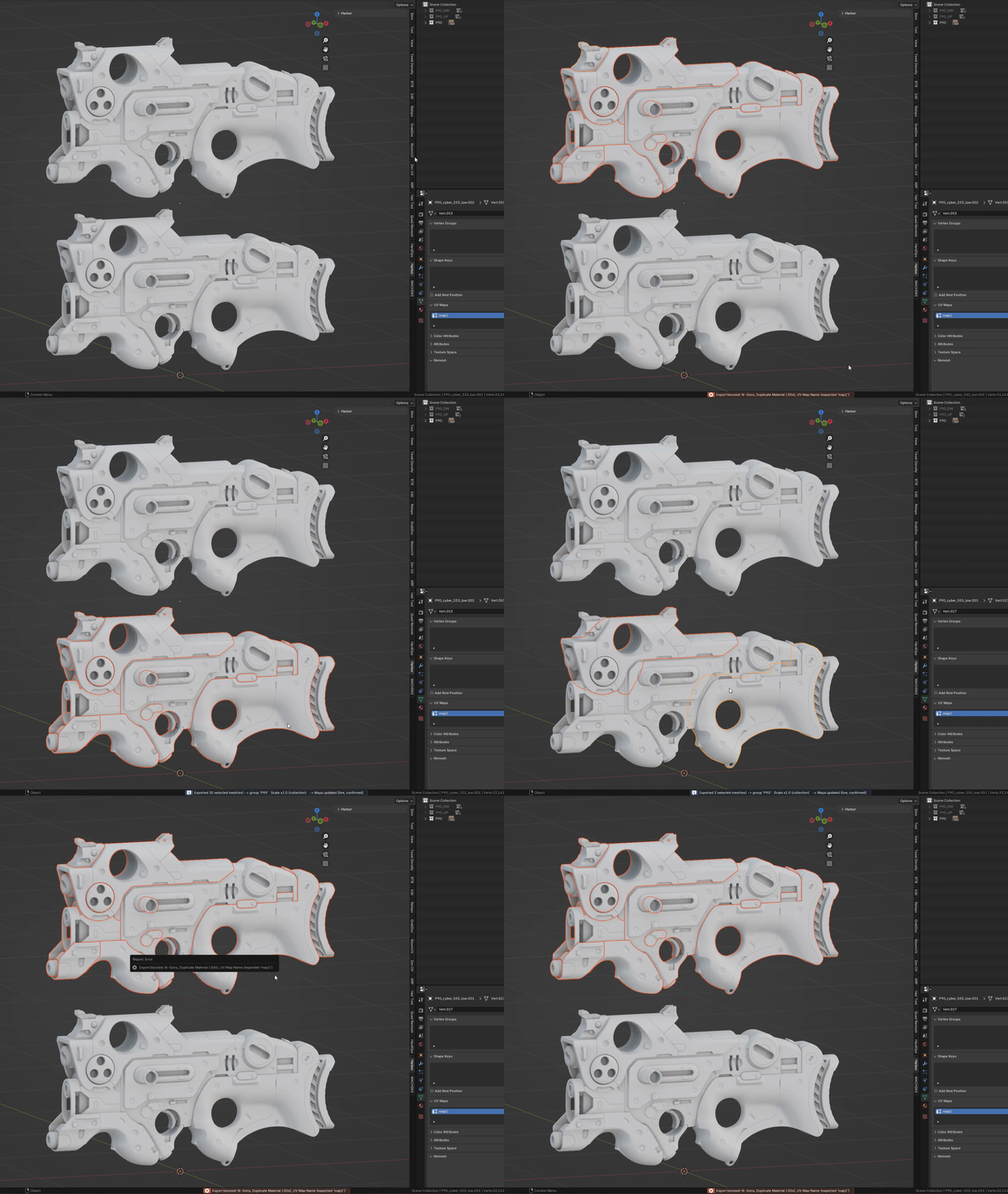
Bad geometry never reaches Maya
💡Harbor won't let broken meshes through and will notify you about the problem
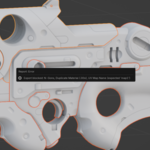
N-gons, missing materials, duplicate material names (Material.001), or the wrong UV map name — the export stops at Blender with a clear reason, so the FBX is never written and Maya is never touched. And on the way out, Harbor applies Shade Smooth so your mesh doesn't land in Maya with faceted shading.
💡Every check is a toggle: keep the ones that match your pipeline, turn off the ones that don't
Blocking — N-Gons · No Material · Duplicate Material (.00x) · UV Map Name
Warning — Unapplied Rotation · Pivot Not At Origin (you're informed, not stopped)
Auto-fix — Shade Smooth applied to every exported mesh (toggle in Export tab)
Every check individually toggleable in Preferences
Expected UV name is configurable — map1, UVMap, or whatever your studio uses
"I know that if Harbor let it through, it's clean — I stopped double-checking before I hand off"
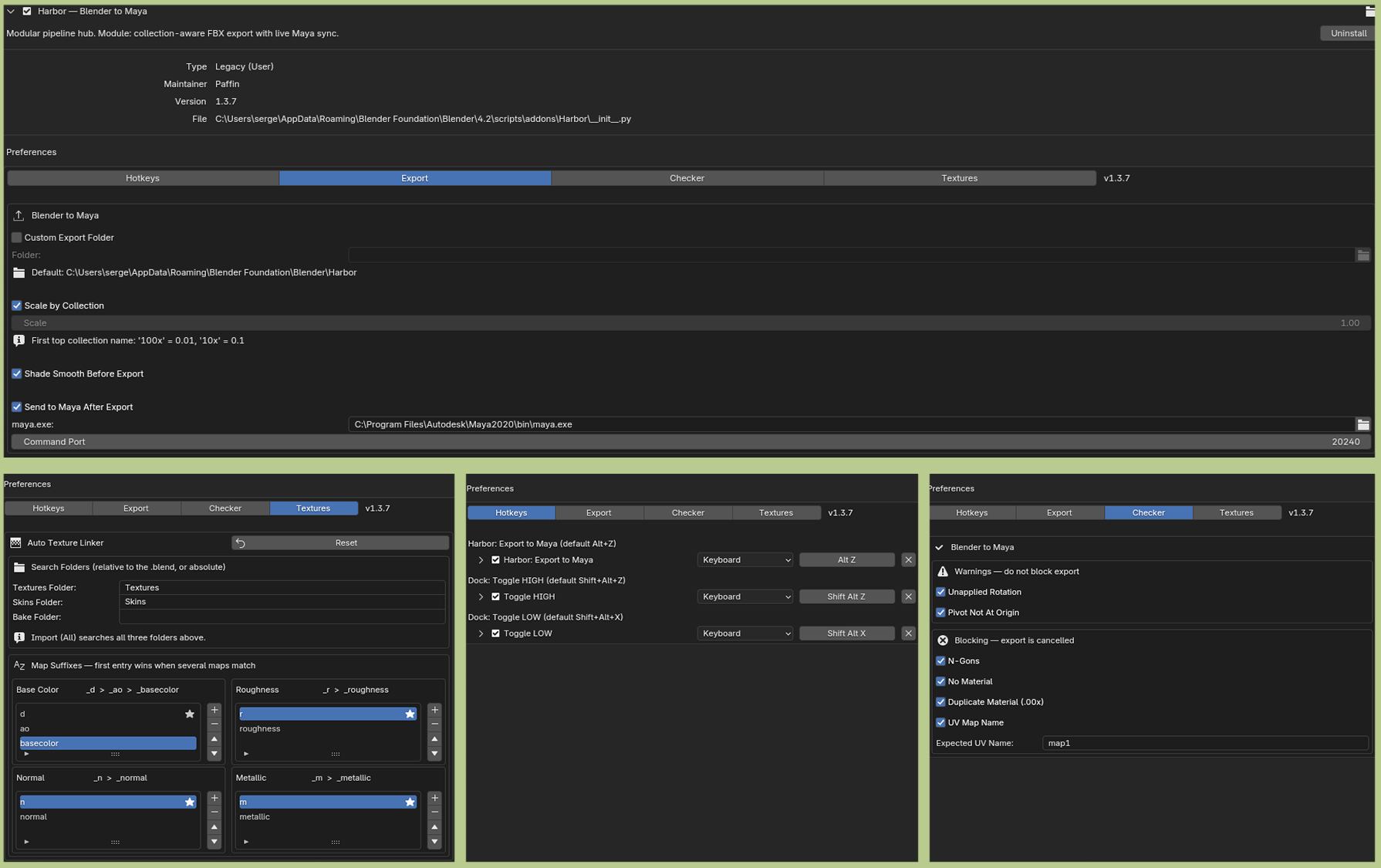
Every setting in one Preferences window
Configure Harbor once:
folder
scale
Maya link
FBX preset
hotkeys
blocking rules
texture suffixes
Then forget about it! Every setting mirrors to disk automatically and survives add-on updates, reinstalls, and even Blender version upgrades. Your maya.exe path doesn't get lost, your custom checker toggles don't reset, your texture suffix lists stay yours 🎉
💡Your settings will be saved to your device. Therefore, even after reinstalling Harbor, you won't need to reconfigure it.
Thank you🙂↕️
Every purchase goes back into building the next module. If Harbor makes your workflow faster, share it with someone else who'd benefit.
