Hidden Layer Finder: Find and Fix Everything That's Switched Off in Your Blender Scene
 Dani K Daniel
Hidden Layer Finder
By Dani K Daniel
Minimum Blender Version: Blender 4.5+
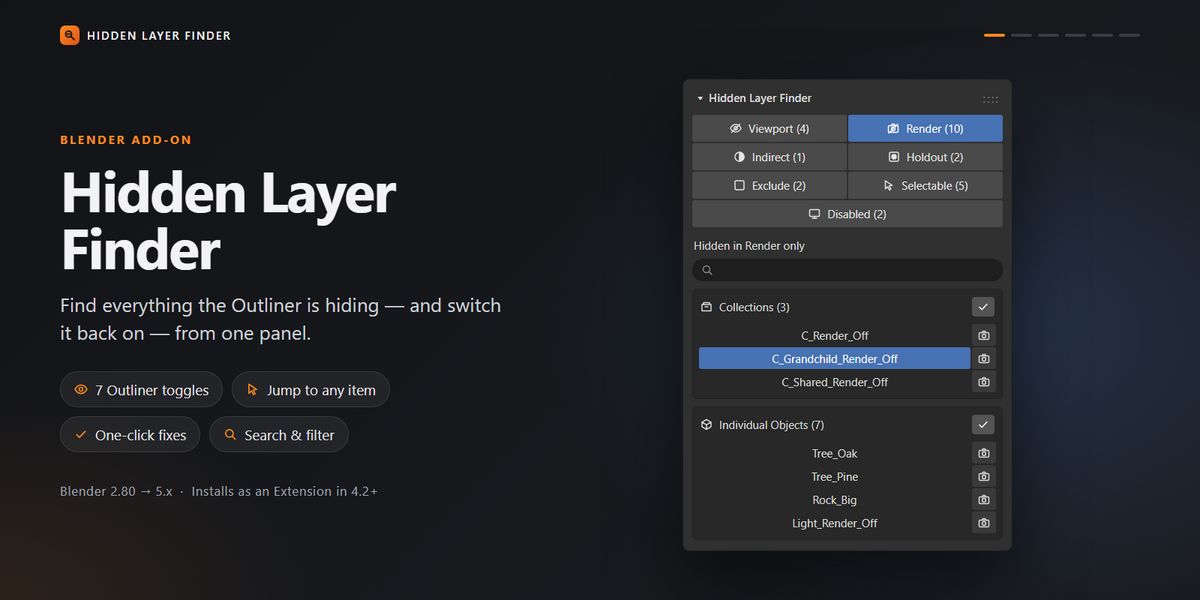
Hidden Layer Finder is a Blender add-on that finds collections and objects with an Outliner restriction toggle applied: hidden, disabled in renders, Indirect Only, Holdout, excluded, unselectable or disabled in viewports. From the same panel you can jump to each one and switch the toggle back on.
It scans the current view layer and shows the results in one panel, so you don't have to dig through a complex Outliner by hand.
Contents
Overview
Installation
Updating the Add-on
Where to Find Hidden Layer Finder
Understanding the Seven Tabs
How the Viewport and Render Tabs Avoid Overlap
Working with the Lists
Searching the Lists
Fixing Items
Fix All
Which Items Are Checked
Requirements and Compatibility
Troubleshooting
Frequently Asked Questions
Overview
Installation
Updating the Add-on
Where to Find Hidden Layer Finder
Understanding the Seven Tabs
How the Viewport and Render Tabs Avoid Overlap
Working with the Lists
Searching the Lists
Fixing Items
Fix All
Which Items Are Checked
Requirements and Compatibility
Troubleshooting
Frequently Asked Questions
1. Overview
Have you ever had everything look fine in the viewport, only for some objects to be missing from the final render?
Or the reverse: something appears in the render but you can't see it in the viewport?
These problems usually come from restriction toggles set in the Outliner, such as the eye, camera, monitor and arrow icons, the exclude checkbox, Indirect Only and Holdout.
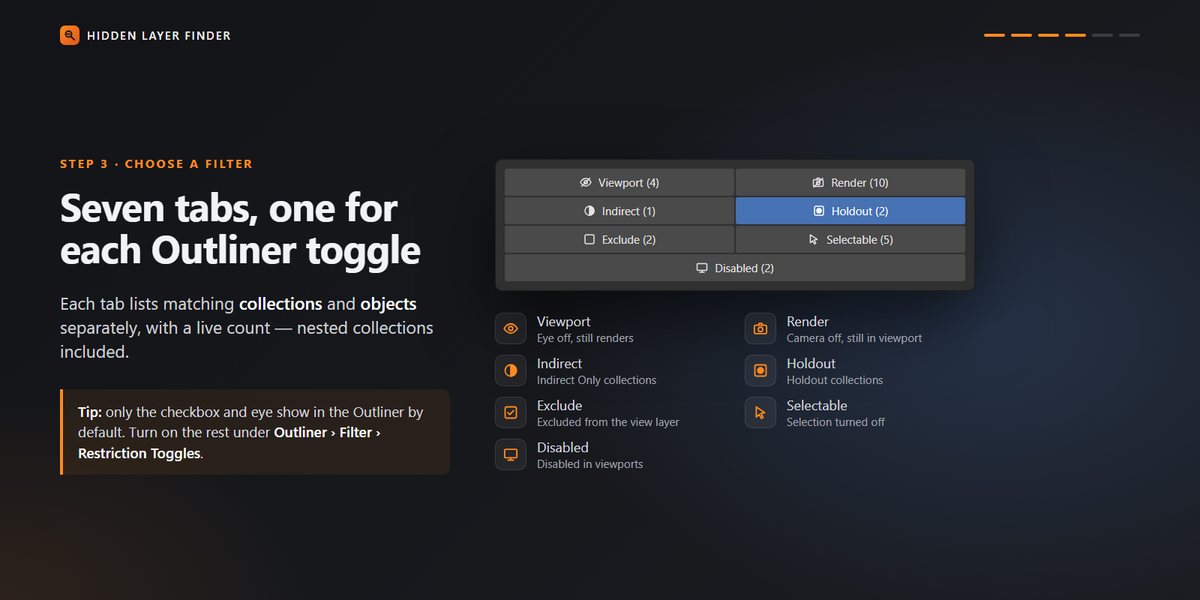
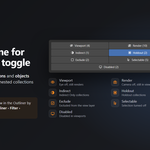
Hidden Layer Finder finds these settings and sorts them into seven tabs, one for each Outliner toggle:
Viewport
Render
Indirect
Holdout
Exclude
Selectable
Disabled
Each tab lists the matching collections and individual objects in the current view layer.
You can inspect any item, locate it in the Outliner, and switch the toggle back on with a single fix button or with Fix All.
Key Features
Seven tabs, one for each Outliner restriction toggle, each with a live count.
Find collections and objects hidden in the viewport but still enabled for rendering.
Find collections and objects visible in the viewport but disabled for rendering.
Find collections set to Indirect Only or Holdout.
Find collections excluded from the current view layer.
Find collections and objects that can't be selected.
Find collections and objects disabled in viewports.
Separate lists for collections and individual objects.
Nested collections are included, however deep they are.
A collection linked in several places is listed once and fixed everywhere it appears.
A search box filters both lists by name.
Locate items in the Outliner with one click.
Fix one item, or a whole list at once.
Every fix can be undone with Ctrl+Z.
Seven tabs, one for each Outliner restriction toggle, each with a live count.
Find collections and objects hidden in the viewport but still enabled for rendering.
Find collections and objects visible in the viewport but disabled for rendering.
Find collections set to Indirect Only or Holdout.
Find collections excluded from the current view layer.
Find collections and objects that can't be selected.
Find collections and objects disabled in viewports.
Separate lists for collections and individual objects.
Nested collections are included, however deep they are.
A collection linked in several places is listed once and fixed everywhere it appears.
A search box filters both lists by name.
Locate items in the Outliner with one click.
Fix one item, or a whole list at once.
Every fix can be undone with Ctrl+Z.
2. Installation
Follow these steps to install Hidden Layer Finder.
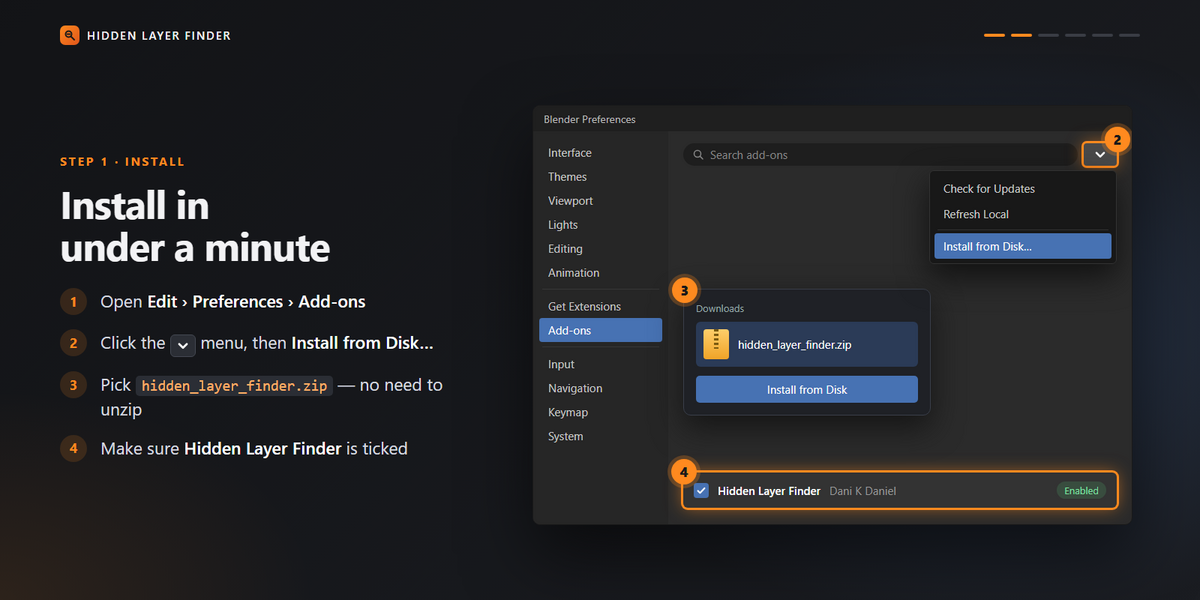
Download the hidden_layer_finder.zip file. Do not unzip it.
Open Blender.
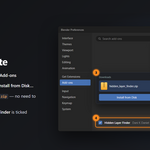
Go to Edit > Preferences > Add-ons.
Click the drop-down menu (⌄) in the upper-right corner and choose Install from Disk.
Browse to the downloaded hidden_layer_finder.zip file and confirm.
Find Hidden Layer Finder in the add-on list and make sure its checkbox is ticked.
Hidden Layer Finder installs as a Blender Extension. Once it is enabled, you'll find it in the 3D Viewport sidebar.
Minimum requirement: Blender 4.5 or newer.
3. Updating the Add-on
To update Hidden Layer Finder:
Download the latest hidden_layer_finder.zip file.
Open Edit > Preferences > Add-ons.
Click Install from Disk and choose the new zip. It replaces the installed version.
Restart Blender.
Check in Preferences > Add-ons that Hidden Layer Finder is enabled.
Turning an add-on off and on again doesn't always reload its code, so restart Blender after every update.
If an old version keeps appearing, you probably have two copies installed. Open Preferences > Add-ons, search for "Hidden Layer Finder", uninstall every copy, restart Blender, and install the latest zip again.
4. Where to Find Hidden Layer Finder
After enabling the add-on:
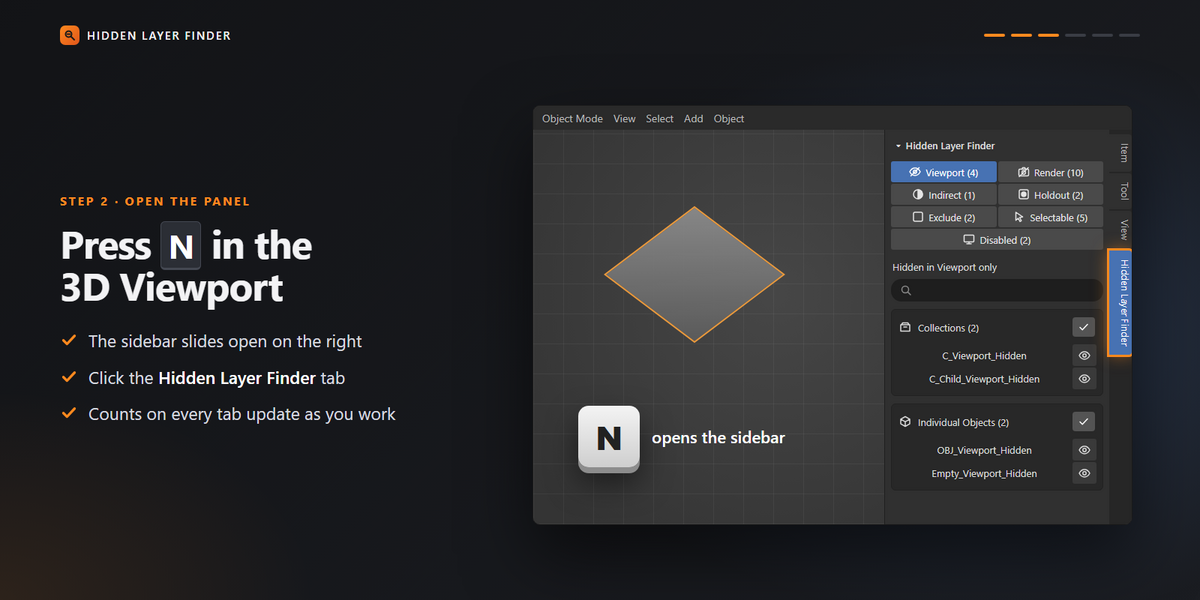
Open the 3D Viewport.
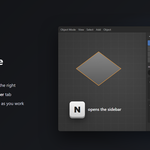
Press N to open the sidebar.
Click the Hidden Layer Finder tab.
The panel has seven tabs. Each one shows how many matching collections and objects there are in the current view layer.
Each scene remembers its selected tab and search text.
Interface Overview
From top to bottom, the panel contains:
Tabs: seven filter tabs, each with a count.
Title: the name of the current filter, for example "Hidden in Render only".
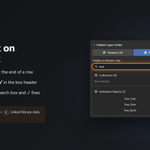
Search box: type part of a name to filter both lists.
Collections: collections that match the selected tab.
Individual Objects: objects that match the selected tab.
Each list has its own count and its own Fix All button.
5. Understanding the Seven Tabs
5.1 Viewport
Outliner toggle: eye icon.
The Viewport tab lists collections and objects hidden in the viewport with the eye icon but still enabled for rendering.
Common symptom: an object appears in the final render but can't be seen in the viewport.
What the fix does: turns the eye back on, so the item shows in the viewport again.
5.2 Render
Outliner toggle: camera icon.
The Render tab lists collections and objects that are disabled in renders but still visible in the viewport.
Common symptom: an object is visible while you work but disappears from the final render.
What the fix does: turns rendering back on for the item.
5.3 Indirect
Outliner toggle: Indirect Only (collections only).
The Indirect tab lists collections set to Indirect Only. Objects in these collections don't appear directly to the camera, but they still affect lighting, shadows and reflections.
What the fix does: turns Indirect Only off.
Indirect Only is a Cycles feature. The Outliner only has this toggle on collections, so the Individual Objects list shows "Not applicable: collection-only toggle".
5.4 Holdout
Outliner toggle: Holdout (collections only).
The Holdout tab lists collections set to Holdout. Holdout collections cut a transparent hole in the render where their objects would be. This is mostly used for compositing.
What the fix does: turns Holdout off.
The Outliner only has this toggle on collections, so the Individual Objects list shows "Not applicable: collection-only toggle".
5.5 Exclude
Outliner toggle: the checkbox next to a collection.
The Exclude tab lists collections excluded from the current view layer.
Common symptom: objects seem to be missing from the scene even though their collection still exists.
What the fix does: includes the collection in the view layer again.
Only collections can be excluded, so the Individual Objects list shows "Not applicable: collection-only toggle".
Excluded collections have no fix button on their rows. Use Fix All to include every listed collection again, or tick individual checkboxes in the Outliner.
5.6 Selectable
Outliner toggle: arrow icon.
The Selectable tab lists collections and objects that can't be selected.
Common symptom: an object is visible, but clicking it in the viewport doesn't select it.
What the fix does: makes the item selectable again.
Selection is often switched off on purpose, to lock items while you edit the rest of the scene, so check the list before fixing it.
5.7 Disabled
Outliner toggle: monitor icon.
The Disabled tab lists collections and objects disabled in viewports.
The monitor and the eye do different things. The eye hides an item temporarily in this view layer. The monitor disables it in all viewports, which is a stronger setting.
What the fix does: enables the item in viewports again.
Tip: by default the Outliner only shows the checkbox and the eye. To see the other toggles, open the Outliner's Filter menu (the funnel icon) and turn them on under Restriction Toggles.
6. How the Viewport and Render Tabs Avoid Overlap
The Viewport and Render tabs look for mismatches, not for items that are hidden everywhere.
An item that is hidden in the viewport and also disabled in renders appears on neither tab, because it is consistently off in both places.
The rules are:
Viewport: hidden on screen, but still enabled for rendering.
Render: visible on screen, but disabled for rendering.
This way the same problem never shows up on both tabs, and you can see straight away what is causing the difference between the viewport and the render.
If you can't find an item on these tabs, check the other tabs as well.
7. Working with the Lists
Each tab contains two lists.
Collections
Shows the collections that match the selected tab. The header shows how many there are and has a Fix All button (✓).
Individual Objects
Shows the objects that match the selected tab. The header shows how many there are and has its own Fix All button (✓).
The number on each tab is the count of matching collections plus objects in the current view layer.
Clicking an Item Name
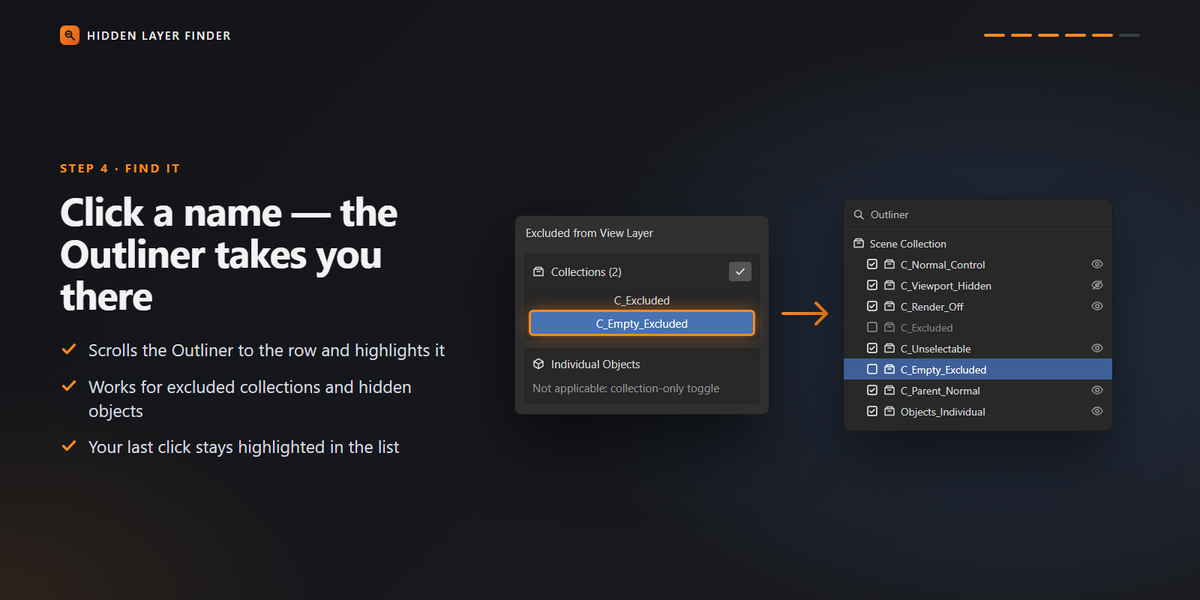
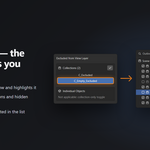
Click a name to find the item.
For objects:
The object becomes selected and active.
The Outliner scrolls to the object's row and highlights it.
Hidden objects can't be selected in the viewport, but they are still made active and highlighted in the Outliner.
For collections:
The collection becomes the active collection.
The Outliner scrolls to the collection's row and highlights it.
Your previous active object and selection are restored afterwards.
Excluded collections can't be made active, but the Outliner still finds and highlights them.
The last item you clicked stays highlighted in the add-on's list, so you can keep your place.
Outliner Requirement
For the Outliner to scroll and highlight, an Outliner editor has to be open somewhere in the current workspace. Without one, the item is still selected or made active in the scene.
8. Searching the Lists
The search box under the tab title filters both lists by name.
Type any part of a name. Upper and lower case don't matter.
The lists update as you type.
If nothing matches, the list shows "No matches".
The counts on the tabs always show the full totals, whatever is in the search box.
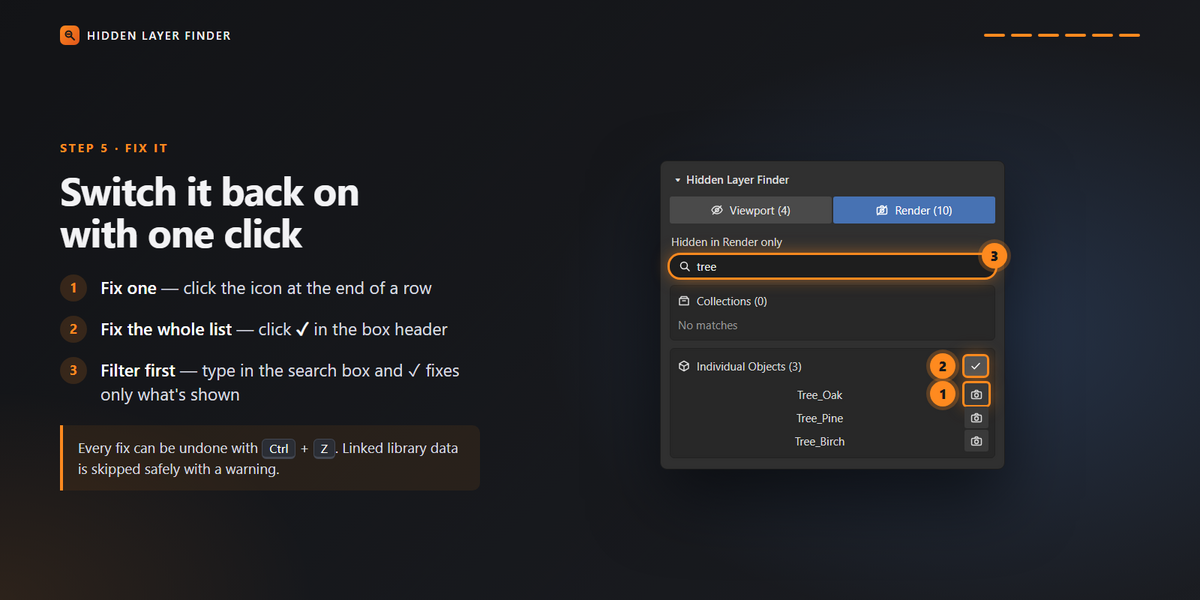
Fix All only fixes what the search leaves visible.
Example: on the Render tab, type "tree" to list only objects such as Tree_Oak and Tree_Pine. Then click Fix All to turn rendering back on for just those objects.
Clear the search box to see everything again.
9. Fixing Items
Every row has a small fix button on the right, except on the Exclude tab.
Clicking it switches the toggle back on for that item. The item then disappears from the list, because it no longer matches.
Fix Actions by Category
Collections Linked in Several Places
A collection can be linked under more than one parent. It still appears only once in the list, and fixing it fixes it everywhere it is linked.
Linked Library Data
Collections and objects linked from another .blend file can't be edited. If you try to fix one, the add-on shows a warning and leaves it unchanged.
Undoing a Fix
Every fix, including Fix All, can be undone with Ctrl+Z.
10. Fix All
Fix All switches a toggle back on for every item in one list at once.
The checkmark button (✓) in each list header applies that tab's fix to every item in the list. If the search box has text in it, only the filtered items are fixed. Blender's status bar shows how many items were fixed.
For example:
Fix All in the Viewport tab's Collections list turns the eye back on for every listed collection.
Fix All in the Viewport tab's Individual Objects list turns the eye back on for every listed object.
Fix All in the Render tab turns rendering back on for the listed items.
Fix All in the Exclude tab includes every listed collection again.
Fix All only affects the selected tab and list. It never fixes every category in the whole scene.
Recommended Workflow
Open Hidden Layer Finder.
Pick the tab that matches the problem.
Look through the listed collections and objects.
Click a name to locate the item in the Outliner if you need to.
Use the fix button on a row to change a single item.
Use the search box to narrow the list, then Fix All to change several items at once.
Check the viewport or render again.
Open Hidden Layer Finder.
Pick the tab that matches the problem.
Look through the listed collections and objects.
Click a name to locate the item in the Outliner if you need to.
Use the fix button on a row to change a single item.
Use the search box to narrow the list, then Fix All to change several items at once.
Check the viewport or render again.
Look at the list before using Fix All. In complex scenes, some items may be hidden on purpose.
11. Which Items Are Checked
Hidden Layer Finder checks the collections and objects in the active view layer only. It doesn't show results for other view layers.
Every object type is checked, including meshes, curves, lights, cameras, empties and armatures.
Collections are checked at any depth. The top-level Scene Collection isn't listed.
Objects inside excluded collections aren't part of the view layer, so they don't appear under Individual Objects until you include their collection again.
Only Outliner restriction toggles are checked. Settings found only in the Properties editor, such as an object's Ray Visibility options or its own Holdout setting, aren't listed.
Hidden Layer Finder checks the collections and objects in the active view layer only. It doesn't show results for other view layers.
Every object type is checked, including meshes, curves, lights, cameras, empties and armatures.
Collections are checked at any depth. The top-level Scene Collection isn't listed.
Objects inside excluded collections aren't part of the view layer, so they don't appear under Individual Objects until you include their collection again.
Only Outliner restriction toggles are checked. Settings found only in the Properties editor, such as an object's Ray Visibility options or its own Holdout setting, aren't listed.
12. Requirements and Compatibility
Minimum Blender Version
Blender 4.5 or newer.
Render Engines
Hidden Layer Finder works with both Cycles and EEVEE.
The Viewport, Render, Exclude, Selectable and Disabled tabs cover general visibility settings that apply to any render engine.
Indirect Only is a Cycles feature. Holdout is mainly used in compositing workflows.
Outliner Behaviour
Clicking a name scrolls the Outliner to the item and highlights it, as long as an Outliner editor is open in the current workspace.
13. Troubleshooting
Problem: The sidebar tab still has an old name, or the panel looks out of date.
Cause: Blender is still running an older copy of the add-on.
Solution:
Open Preferences > Add-ons and search for "Hidden Layer Finder".
Uninstall every copy listed.
Restart Blender.
Install the latest hidden_layer_finder.zip and make sure it is enabled.
Problem: The Outliner doesn't scroll or highlight when I click an item.
Possible causes:
No Outliner editor is open in the current workspace.
The Outliner is filtered so that the item's row is hidden.
Solution: open an Outliner editor in the current workspace and clear any Outliner filters or search text.
Problem: An item isn't listed on any tab, but I know it is hidden.
Possible causes:
The item belongs to a different view layer.
The item is hidden in both the viewport and render.
The setting comes from the Properties editor rather than an Outliner toggle.
The search box still contains text.
Solution: make sure the correct view layer is active, clear the search box, and check all seven tabs. An item hidden in both the viewport and render appears on neither the Viewport nor the Render tab, by design.
Problem: An object is hidden but isn't listed on the Viewport tab.
Cause: the object is also disabled in renders.
Explanation: the Viewport tab only lists items that are hidden on screen but still enabled for rendering.
Solution: check the Disabled tab and the Outliner.
Problem: The Indirect or Holdout tab never lists objects.
Cause: in the Outliner, Indirect Only and Holdout only exist on collections.
Solution: look for the collection that contains the object.
Problem: Fix All changed items I wanted to keep hidden.
Cause: Fix All applies the fix to every item in the list, including items that were hidden on purpose.
Solution: press Ctrl+Z to undo. Next time, narrow the list with the search box or use the individual fix buttons.
Problem: A fix shows a warning and nothing changes.
Cause: the item is linked from another .blend file and can't be edited here.
Solution: change the setting in the source file, or make the data local or a library override first.
Problem: The add-on doesn't appear after installation.
Possible causes:
The zip was unzipped before installing.
The add-on isn't enabled.
The Blender version is older than 4.5.
Solution:
Install the original hidden_layer_finder.zip without unzipping it.
Check the add-on list in Preferences and enable Hidden Layer Finder.
Restart Blender.
Make sure you are running Blender 4.5 or newer.
14. Frequently Asked Questions
What does Hidden Layer Finder do?
It lists collections and objects with an Outliner restriction toggle applied: hidden, disabled in renders, Indirect Only, Holdout, excluded, unselectable or disabled in viewports. You can then locate each one and switch it back on.
Does it fix problems automatically?
No. Nothing in your scene changes until you click a fix button or Fix All.
Does Fix All fix the entire scene?
No. Fix All only affects the items in the selected tab and list, in the current view layer. If the search box has text in it, it only affects the filtered items.
Can I undo a fix?
Yes. Every fix, including Fix All, can be undone with Ctrl+Z.
Why are collections and objects listed separately?
Collections and objects have their own toggles. Separate lists make it easier to find and fix the right one.
Why can an object be visible in the viewport but missing from the render?
Its rendering may be turned off with the camera icon. Check the Render tab.
Why can an object appear in the render but not in the viewport?
It may be hidden with the eye icon while rendering is still on. Check the Viewport tab.
Why doesn't an excluded collection have its own fix button?
Excluding is a per-view-layer checkbox. Use Fix All to include every listed collection again, or tick individual checkboxes in the Outliner.
Why do the Indirect and Holdout tabs never show objects?
In the Outliner, these toggles only exist on collections.
I can't see the camera, monitor or arrow icons in my Outliner. Why?
They are hidden by default. Open the Outliner's Filter menu and turn them on under Restriction Toggles.
Does the add-on work with EEVEE?
Yes. All tabs work with any render engine. Indirect Only only affects Cycles renders.
Which Blender versions are supported?
Blender 4.5 and newer.
Does Hidden Layer Finder scan every view layer?
No. It scans the active view layer only.
What should I do if the Outliner doesn't highlight an item?
Make sure an Outliner editor is open in the current workspace and that the Outliner isn't filtered.
Conclusion
Hidden Layer Finder makes it quick to find and fix visibility and rendering problems in Blender.
It sorts every Outliner restriction toggle into seven tabs, so you can find unexpected settings without digging through a complex Outliner.
Use the individual fix buttons for precise control, or the search box with Fix All to change many items at once.
Hidden Layer Finder — Find it. Locate it. Fix it.
By Dani K Daniel · Minimum Blender version: 4.5+
Have questions about this product?
Login to message
| Blender Extension Compatible | Yes |
| Published | 13 days ago |
| Blender Version | 4.3 - 5.2 |
| Extension Type | Add-on |
| Render Engine Used | Cycles |
| License | GPL |