HiPhyEngine
 HiPhyEngine LLC








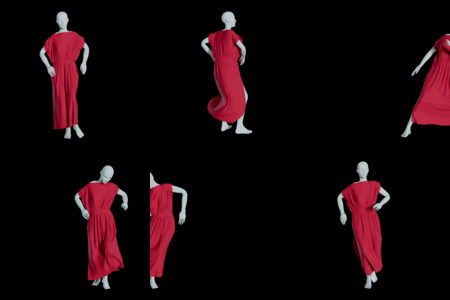
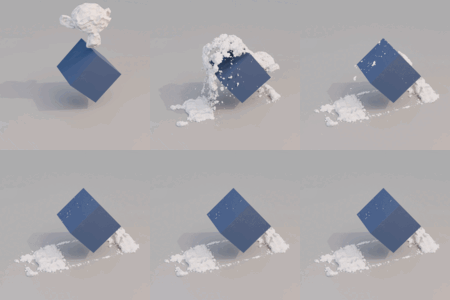
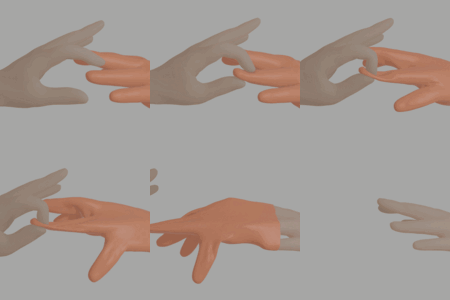
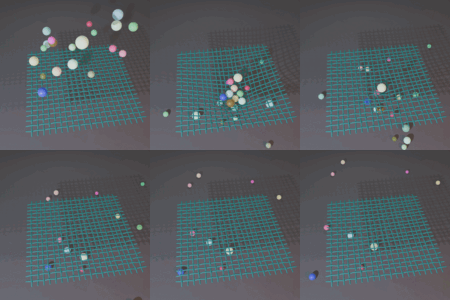

HiPhyEngine Blender Quick Start
System Requirement
HiPhyEngine supports Windows and Linux. It requires an x64 CPU with AVX2 support. Any Intel/AMD CPU from last decade should be enough.
Install Addon
HiPhyEngine can be installed through the add on menu(edit->preferences->Add-ons)

Install Menu
For the first time HiPhyEngine is loaded, it will automatically install its dependancy Intel's MKL and PyBind11 using python wheels bundled with the addon. Blender's python manages its own environment, and those packages will be installed in the Blender's python environment. Due to those installations, the first time loading HiPhyEngine can take a few seconds. User can check the install progress on the terminal/console.
Note
HiPhyEngine is currently complying to the VFX2025 standard. Specifically, Python 3.11. It is comes with Blender 4.5+.
Creating Your First Simulation Setup
In this section, we will show user how to set up a simple rigid body (affine body) simulation.
After installation, HiPhy panel will show in the physics menu.
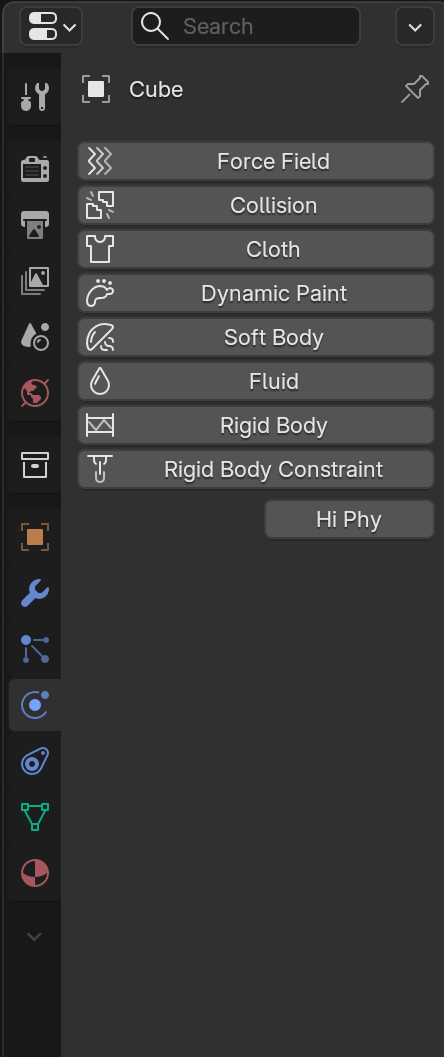
By checking Hi Phy, it enables HiPhyEngine on the selected object.
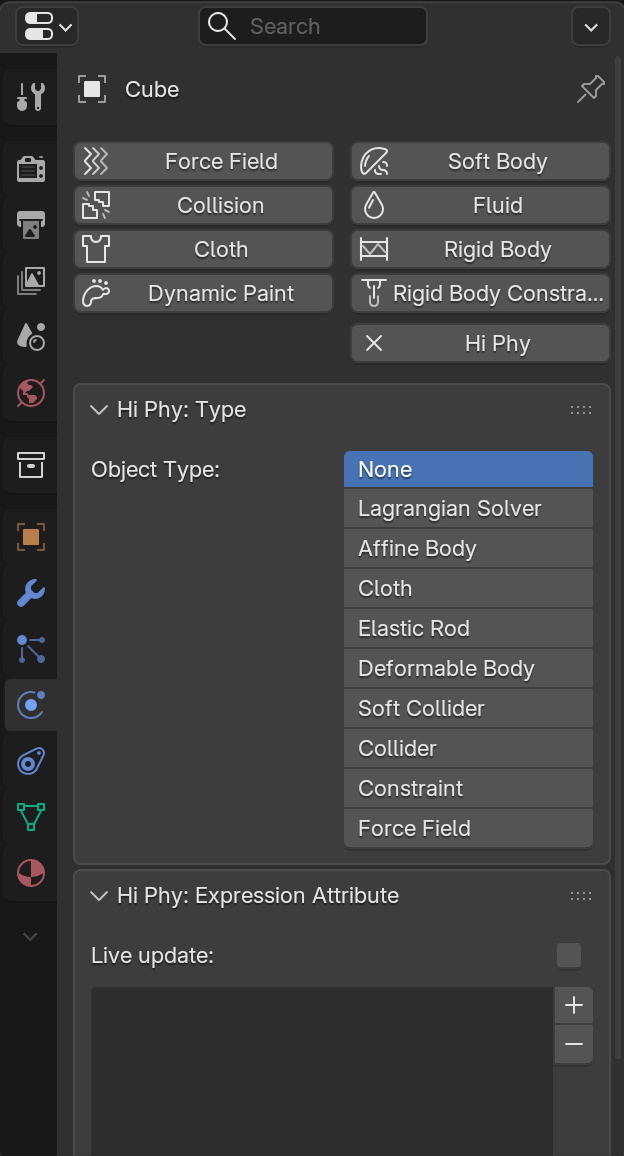
The panel lists the different supported materials and nodes for HiPhyEngine. For this tutorial, we will use the Lagrangian Solver, Affine Body, and Collider.
Creating Affine Bodies
Create two cubes and places them above each other for some interesting collision.
Enable Hi Phy in the Physics panel and select Affine Body as the material model.
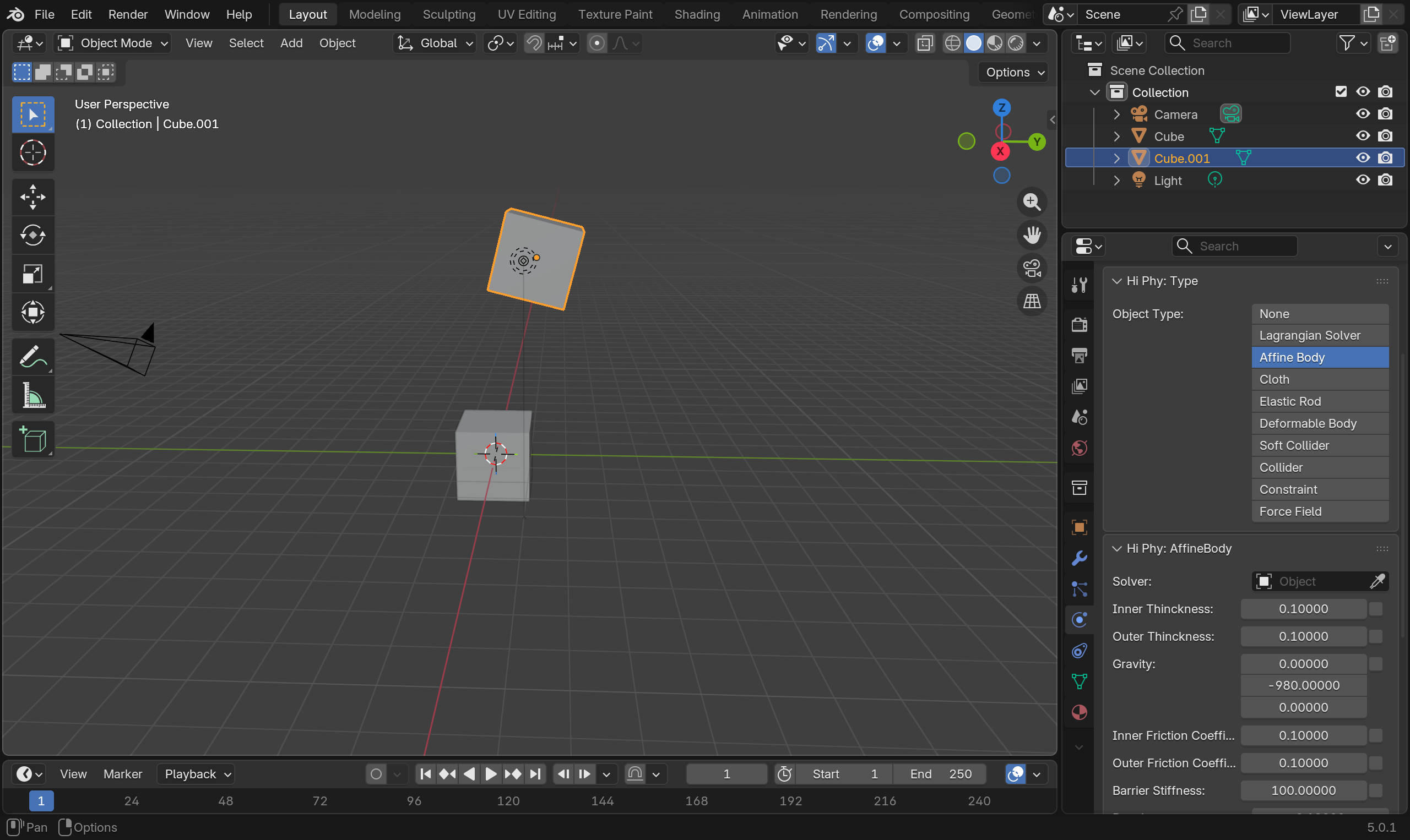
Note
Affine Bodies are material models for simulating very stiff objects. From the simulator's perspective, they are preferred over rigid bodies for their mathematical properties. For the purpose of simulation setup, they can be treat as rigid bodies without differentiation.
In the Modifiers panel, add a Triangulate modifier to both cubes. Check the Keep Normals option to ensure the normals are preserved by the triangulation.
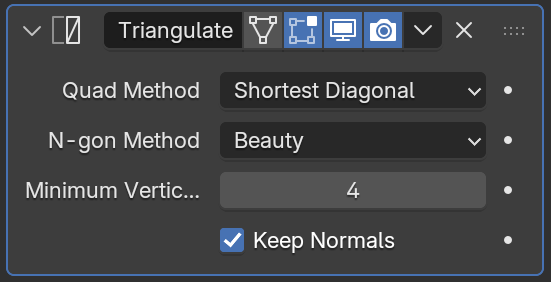
Note
All meshes in HiPhyEngine simulation must be triangle meshes. To ensure maximum transparency, HiPhyEngine does not perform any internal triangulation, so the simulation mesh will always matches what is in the scene.
Also change the Gravity property on the affine bodies from [0, -980, 0] to [0, 0, -980].
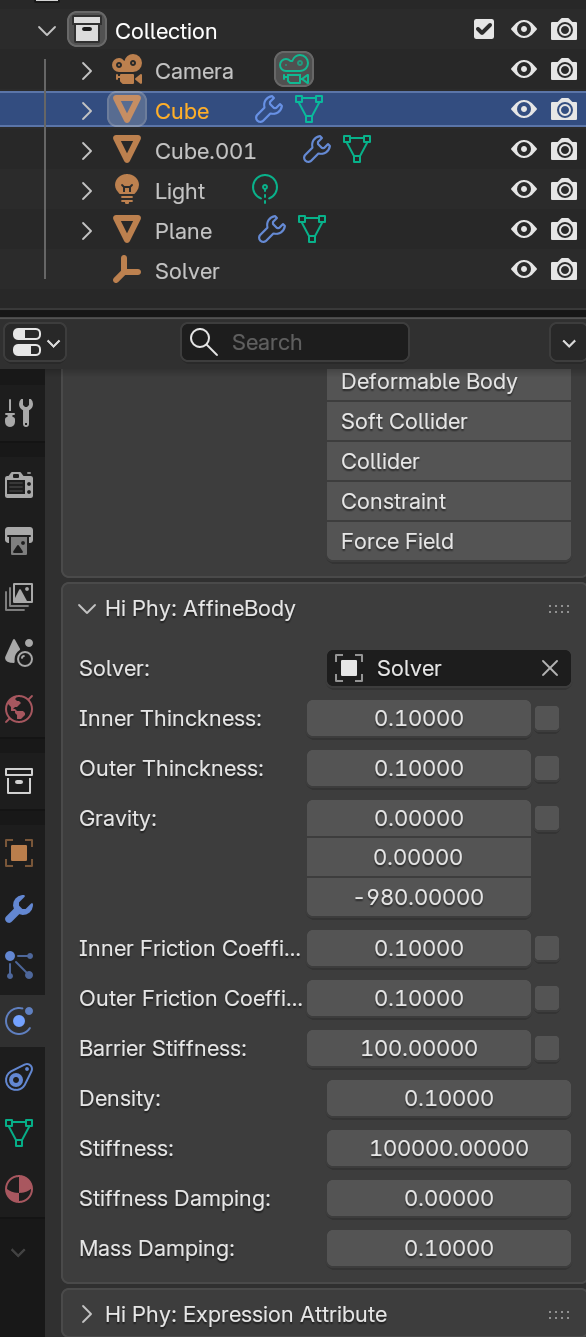
z-up vs y-up
HiPhyEngine is generally coordinate system agnostic, besides the Gravity property. Even though Blender is default z-up, we choose to be y-up to be consistent with industry standard to make it easier working with assets from other packages.
Unit
The unit of length in HiPhyEngine is cm. There is a Solver Scale property on the solver node for convert units if the scene unit is not cm.
Creating A Collider
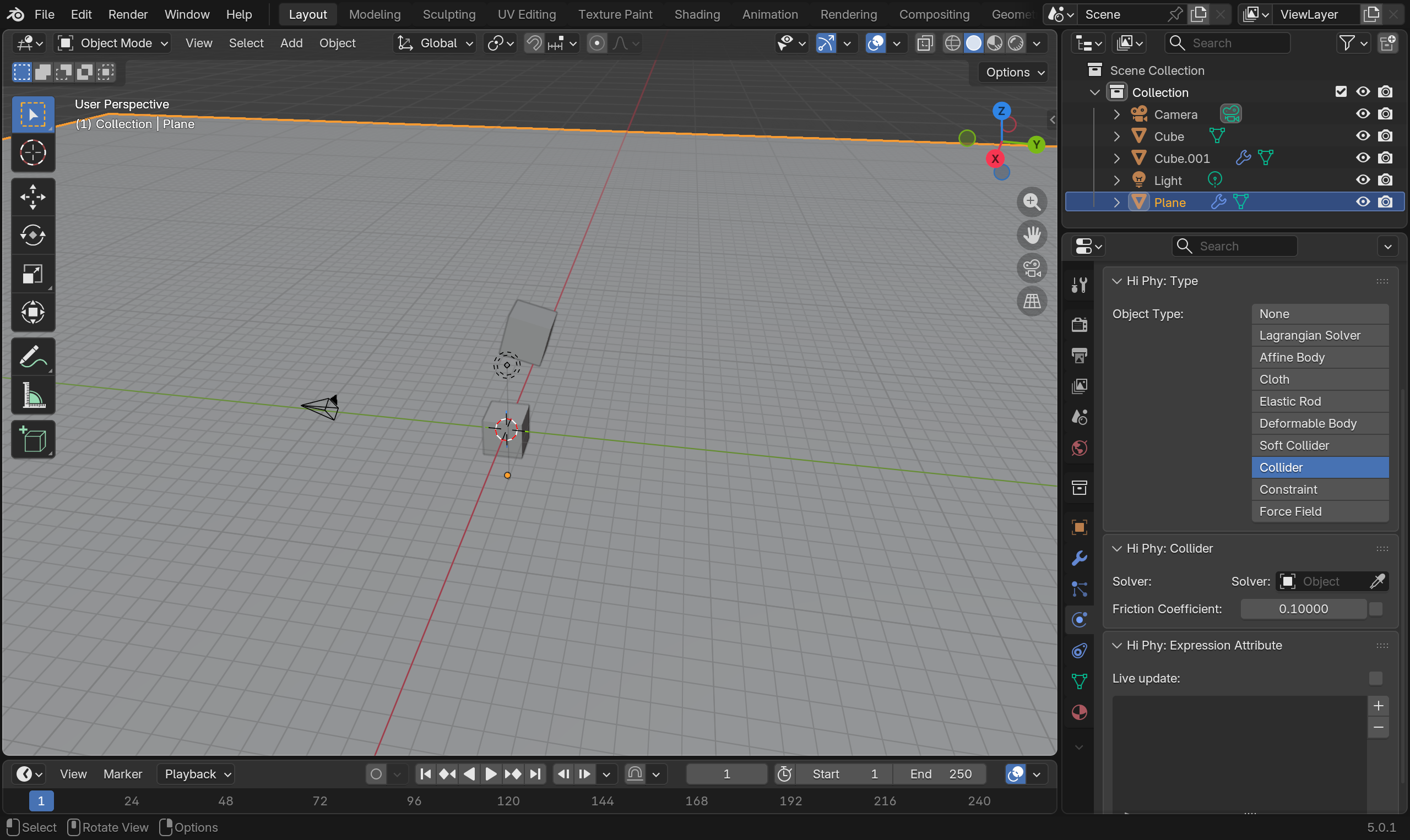
Create a plane and scale it up and move it below the cubes. Enable Hi Phy and select Collider. Don't forget to triangulate it as well.
Creating A Solver
A solver node is in charge of gathering the information of all the simulation objects connected to the solver, running the simulation and maintaining the cache for simulation.
Create an empty plane axis (or any invisible object you prefer). Enable Hi Phy and select Lagrangian Solver.
Connect Objects To the Solver
The last thing you need to do, is to connect the simulation objects to the solver.
In the Hi Phy panel, assign the solver node to the Solver property for the two affine bodies and the collider.
Running The Simulation
Click the Run Sim button on the solver node's Hi Phy panel, the simulation will be kicked off asynchronously. You can see the progress of the simulation under the Run Sim button.
You can change the frames on the timeline. The simulation meshes will be updated with frame change when the simulation frames are available.
HiPhyEngine comes with 6 different material models, and affine bodies is just one of them!
For more, check out our website for more examples, full feature list, documentation, and the trial version of HiPhyEngine!
A purchase of a HiPhyEngine license will also come with a offline version of the documentation, along with all the examples.
 Included
Includes 12 months of
- Support from HiPhyEngine LLC
- Product updates
Extend this product’s Support Period +12 months: 50% of product price
Have questions before purchasing?
Login to message
Discover more products like this
rigid body softbody simulation cloth-physics dynamics rigid body physics cloth mpmsolver garment cloth collision hair physics hair cloth simulation simulation physics sand snow fabric avoid collision Soft Body Physics