 GEO Forge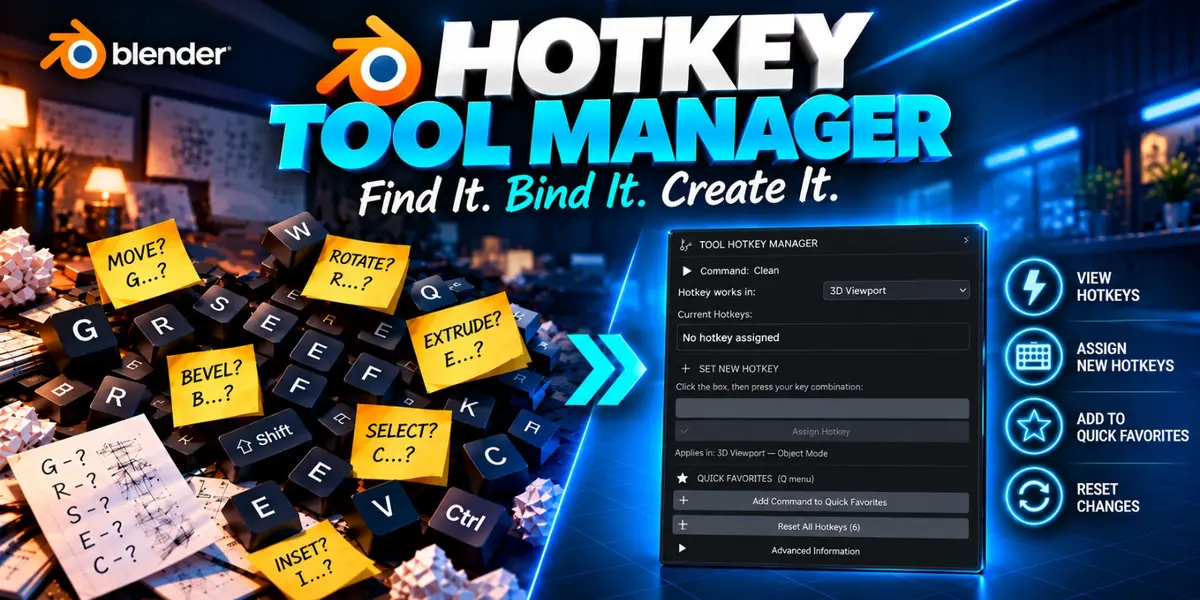



Hotkey Tool Manager for Blender
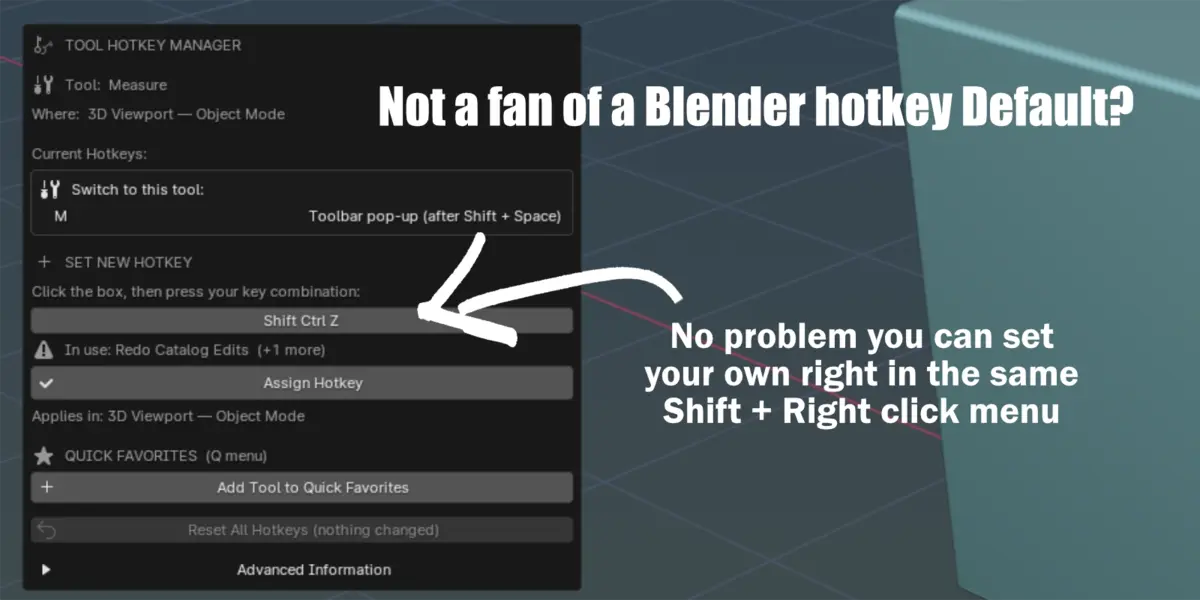
Set a hotkey for almost anything in Blender by hitting Shift + Right Click on a tool.
Set your hot keys with the peace of mind that you're not overwriting anything and that you can always undo it in one button click.
Blender has hundreds of tools, menu commands and settings. Finding their shortcuts, or giving them new ones, usually means digging through Preferences › Keymap and deciphering operator names. Hotkey Tool Manager moves all of that into a small popup that opens right where you click.
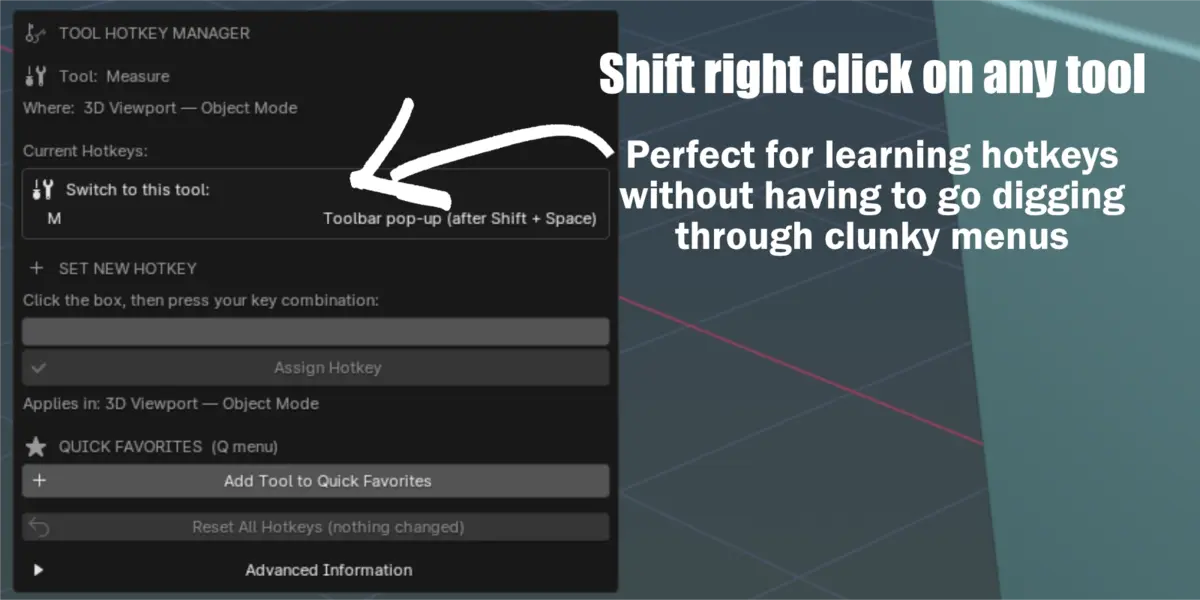
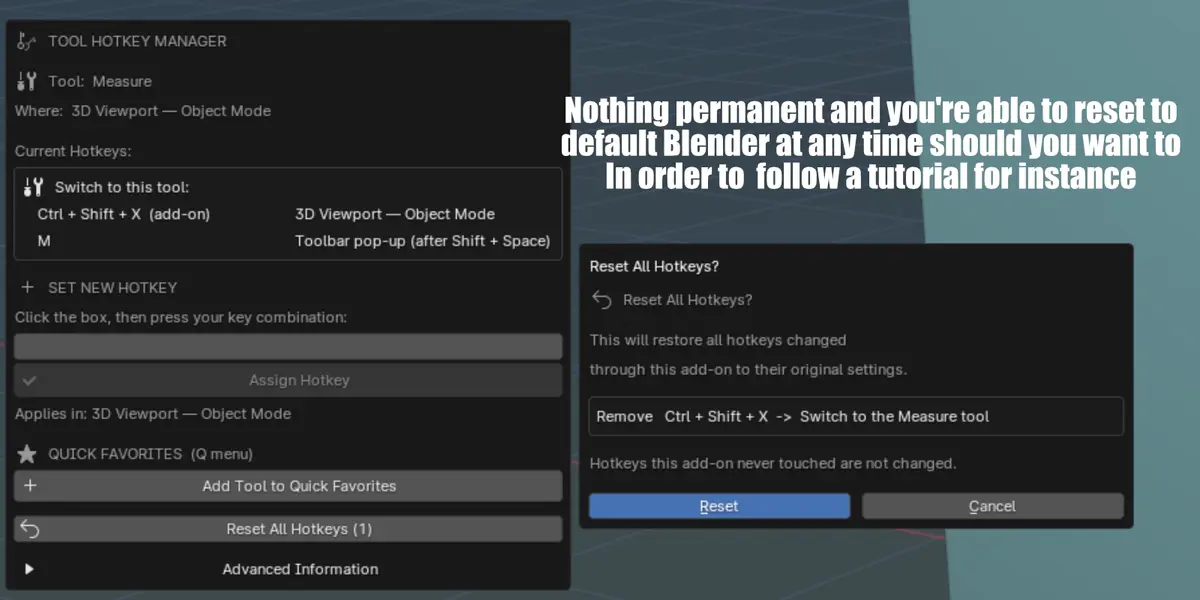
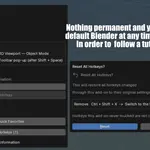
Hover over a tool, hold Shift, right-click, and you'll see:
- Its current hotkeys, in plain language
- A box to record a new shortcut
- A one-click Quick Favorites button
- A reset button that undoes every change the add-on has made
What you can set hotkeys for
- Toolbar tools: Move, Rotate, Scale, Knife, Bevel, Loop Cut, Inset, Extrude, Select Box and every other toolbar tool, in any mode.
- Menu commands: anything in Blender's drop-down menus, such as UV › Unwrap, Smart UV Project, Follow Active Quads, Mark Seam, or File › Save Copy.
- Modifiers: pick any modifier from the Add Modifier menu, like Bevel, Array, Mirror or Solidify, and add it to the active object with a single key while working in the 3D Viewport.
- Snapping: the snap toggle, Snap To (Vertex, Edge, Face…), Snap With, Align Rotation, Backface Culling and more.
- Viewport and header settings:
- Viewport Shading, Overlays and X-Ray
- Transform Orientation (including your own custom orientations)
- Pivot Point and Proportional Editing
- Properties editor tabs: jump straight to Modifiers, Material, Object and the other tabs.
- Other add-ons: buttons, checkboxes and option lists from add-ons you've installed work too.
How it works
1. Shift + Right Click a tool or button. For items inside open menus and pop-overs, right-click the item and choose Hotkey Tool Manager….
2. See the current hotkeys in plain language, for example "Ctrl + Shift + G", along with where each one works.
3. Click the box and press your new key combination. A live preview tells you right away whether the key is free.
4. Click Assign Hotkey. The shortcut goes into Blender's real keymap and saves automatically.
For settings with several options, you choose what the hotkey does. It can switch to a specific option (say, Material Preview), or step through every option with each press.
Safe by design
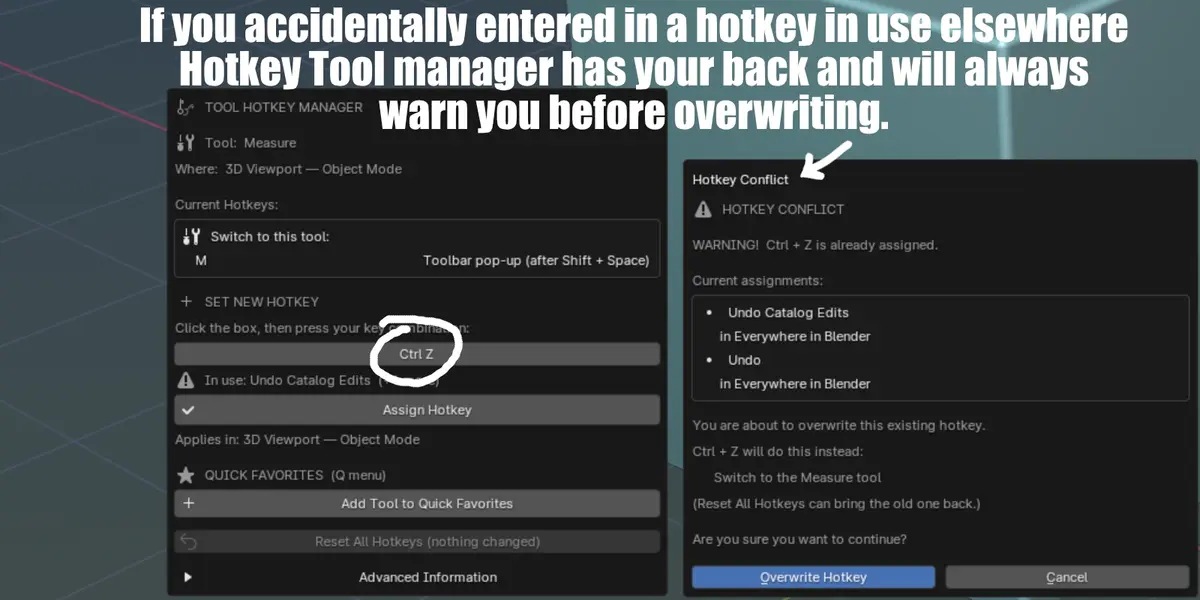
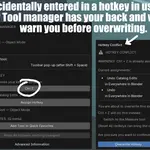
- It never overwrites a shortcut silently. If your key is already in use, a warning names the exact command that uses it and asks you to confirm before anything changes.
- One-click Reset All Hotkeys. The add-on remembers the original state of every shortcut it touches, including ones you chose to overwrite, and puts them all back. Shortcuts it never touched are left alone.
- It uses Blender's own systems. Hotkeys live in Blender's keymap (the same one you see in Preferences › Keymap) and favorites live in Blender's own Quick Favorites menu. Nothing is hidden in a separate system.
Quick Favorites
Add any tool, command or setting to Blender's Quick Favorites (Q) menu while you're at it
Lightweight
The add-on does nothing while you work: no timers, background loops or scanning. It only wakes up when you open its popup. Shift + Right Click in the viewport still does its normal job.
Details
- Compatibility: Blender 4.0 and newer, including Blender 5.2
- Installation: one small ZIP. Install it from Edit › Preferences › Add-ons and enable it. There's nothing else to install and no internet connection is needed.
- Hotkeys are saved with your Blender preferences, so they're there every time you open Blender, in every project.
Good to know
- Blender doesn't let add-ons react to Shift + Right Click inside open drop-down menus. For items inside menus, use a normal right-click and choose Hotkey Tool Manager….
- Number fields (like Location X), text fields and menu headings themselves (like the "UV" title) aren't supported. For menu headings, use Blender's built-in right-click › Assign Shortcut.