 GEO Forge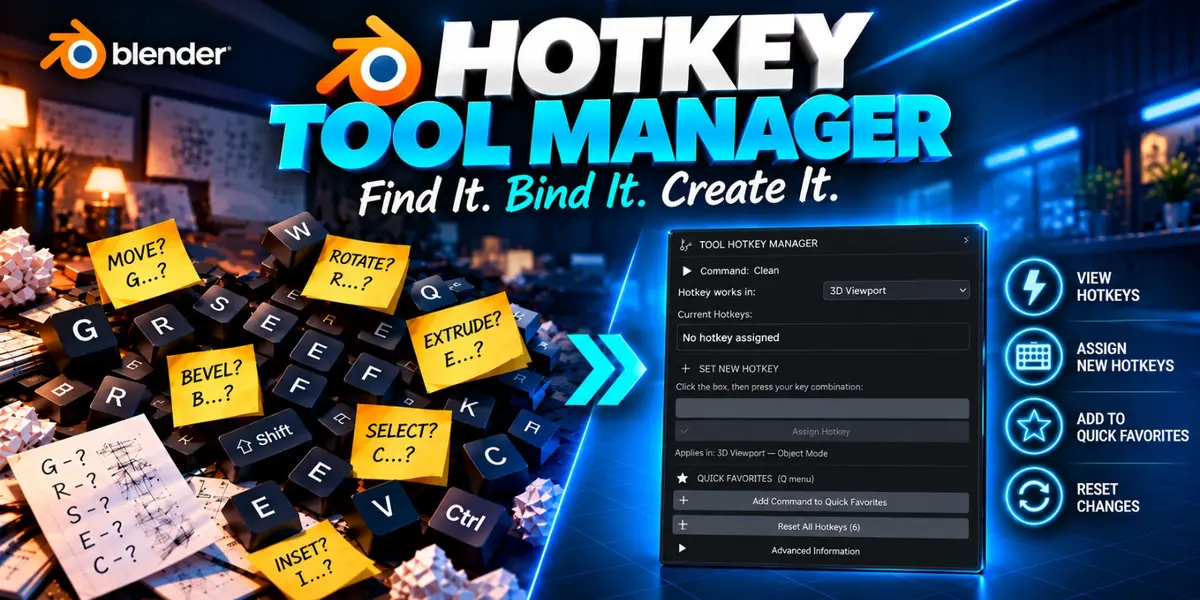


WHAT IT DOES
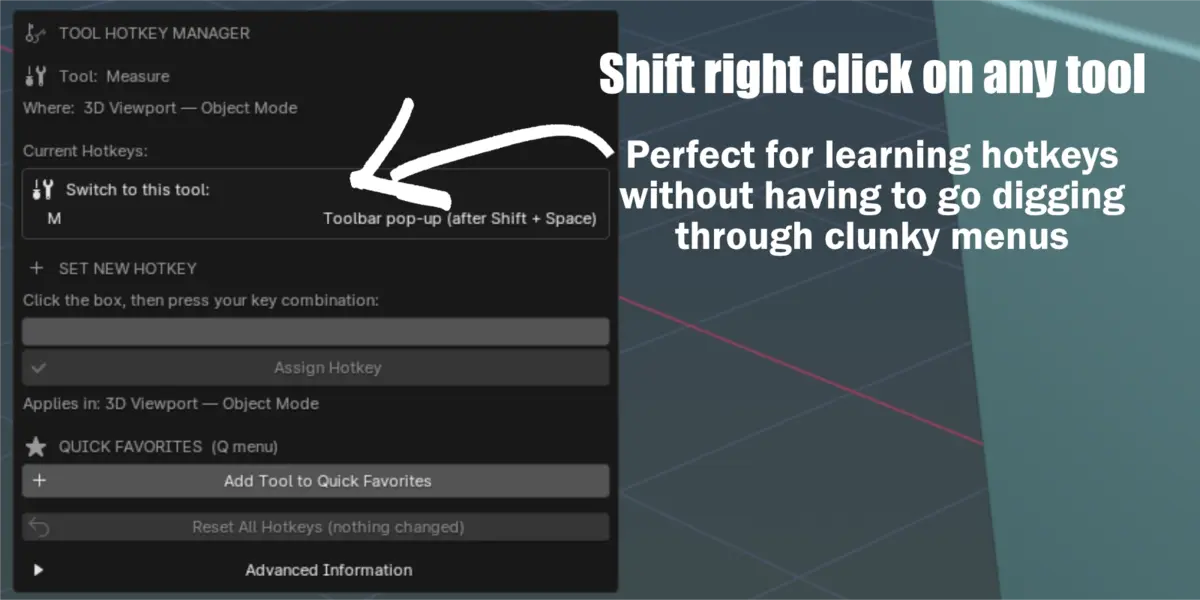
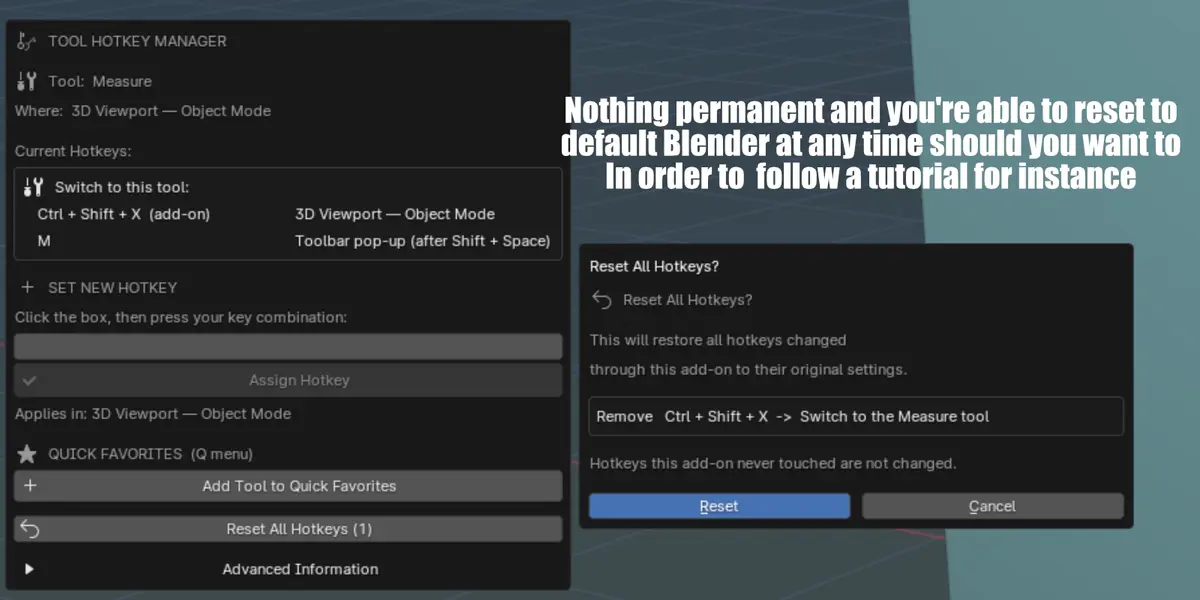
Shift + Right Click on just about anything you can click in Blender - a tool, a menu command, a setting, a modifier, even buttons from other add-ons you have installed - and a small window appears that lets you:
1. See which keyboard shortcuts (hotkeys) it already has.
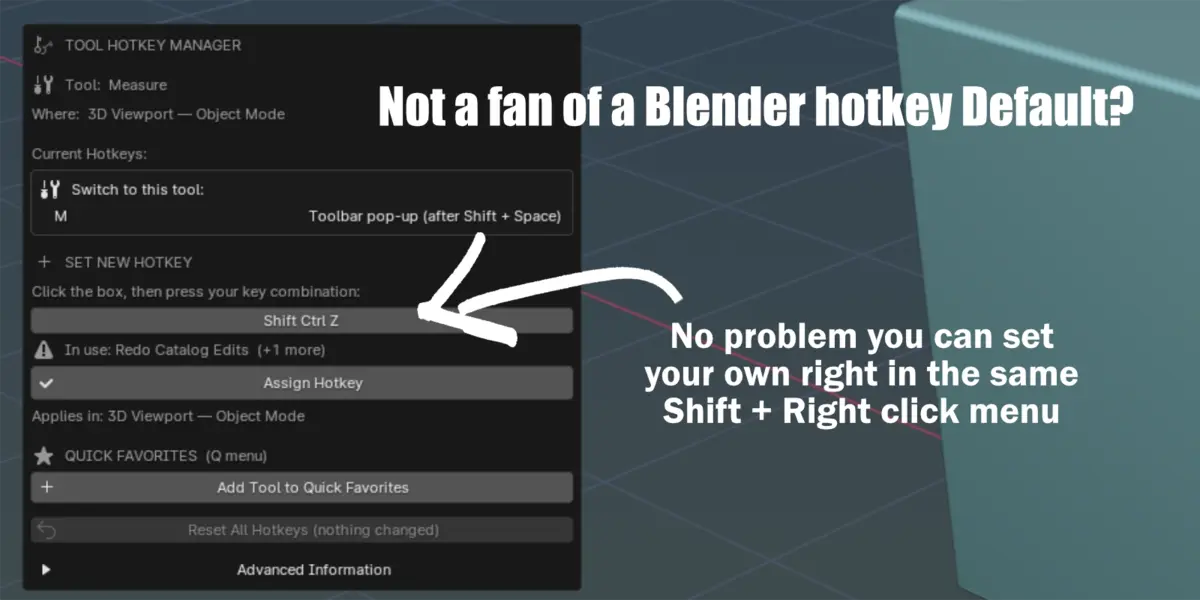
2. Give it a new shortcut.
3. Add it to your Quick Favorites menu (the Q key menu).
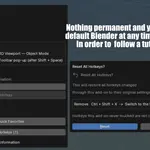
4. Undo every change this add-on has made ("Reset All Hotkeys").
It works in the 3D Viewport, UV / Image Editor, Node Editor, Video Sequencer, Properties editor, Timeline, Graph Editor and the top bar menus (File, Edit, Render, Window ...).
Part 1 - You received two files
HotkeyToolManager.zip <- this is the add-on. NO NEED to unzip it.
README.txt <- (instructions only).
PART 2 - OPENING THE HOTKEY WINDOW
There are TWO ways to open it. Which one you use depends on WHERE the thing you want is.
WAY A - Shift + Right Click
For anything that's always visible on screen:
- tools in the toolbar (left edge of the 3D view)
- buttons in the header along the top of the 3D view, like the snapping magnet, Pivot Point, Transform Orientation, Shading
- the tabs down the side of the Properties editor
- buttons in side panels, including other add-ons' panels
1. Put the mouse on the button.
2. Hold Shift.
3. Right Click.
WAY B - Right Click, then "Hotkey Tool Manager..."
For anything INSIDE a drop-down menu or pop-up panel, like:
- the UV, Mesh, Edge, Face, Select or Add menus
- the Snapping options (the small arrow next to the magnet)
- the Add Modifier menu (e.g. Generate > Bevel)
- the File, Edit and Render menus at the top of Blender
1. Open the menu (e.g. click "UV").
2. Move the mouse onto the item you want - don't click it.
3. Right Click it (normal right click, no Shift).
4. Click "Hotkey Tool Manager..." at the bottom of the menu that
pops up.
Why not Shift + Right Click inside menus? While a menu is open, Blender keeps all clicks for itself and doesn't pass them on to add-ons. The normal right-click menu is the one thing that does work there, so that's where the add-on lives.
Way B also works on toolbar tools and header buttons, so if you ever aren't sure, just use Way B.
PART 3 - USING THE HOTKEY WINDOW
THE WINDOW AT A GLANCE
- At the top: what you picked (a tool, a command or a setting).
- Current Hotkeys: the shortcuts it already has, or "No hotkey assigned".
- Set New Hotkey: record a new shortcut.
- Quick Favorites: add it to your Q menu.
- Reset All Hotkeys: undo everything this add-on has changed.
To close the window, move the mouse away or press Esc.
ASSIGNING A SHORTCUT
1. Click the empty box under "Set New Hotkey".
2. Press the keys you want, all at once (for example Ctrl + G).
3. Check the line under the box: "is free to use" - good to go. "In use: ..." - something else already uses it (see below).
4. Click "Assign Hotkey". Done - it's saved automatically.
Good to know:
- Tools and commands work in the mode you set them in. If you set one in Edit Mode and also want it in Object Mode, switch to Object Mode and assign it again.
- Settings like Snap or Pivot Point work in every mode.
- If you give the same thing a new key later, the old key you made is replaced - you won't end up with a pile of shortcuts.
WHEN THE KEY IS ALREADY TAKEN
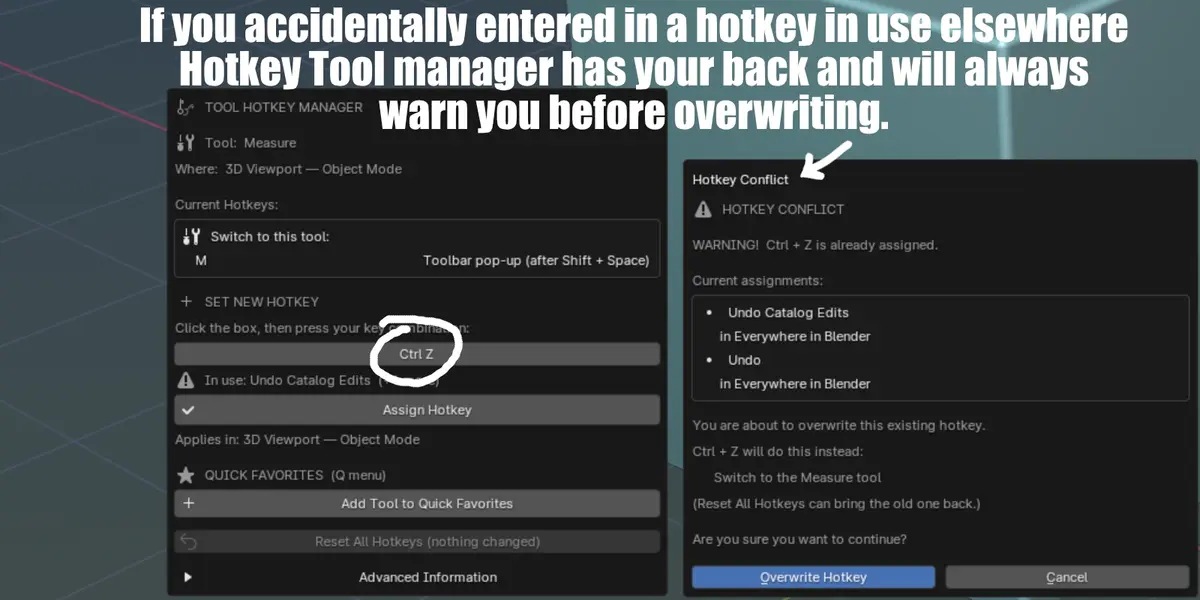
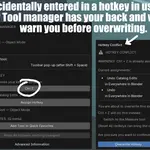
The add-on never replaces a shortcut without asking. If your keys are already in use, a "Hotkey Conflict" window tells you what they currently do and asks you to confirm:
- Cancel (or Esc) - nothing changes.
- Overwrite Hotkey - your new shortcut takes over. The old one is switched off, not deleted, so Reset can bring it back.
QUICK FAVORITES
Quick Favorites is Blender's own personal menu - press Q over the 3D view to open it.
In the window's Quick Favorites section there's a copy of the button you picked. Right-click that button and choose "Add to Quick Favorites". If it says "Remove from Quick Favorites" instead, it's already in your Q menu. To remove an item later: press Q, right-click it, and choose "Remove from Quick Favorites".
RESET ALL HOTKEYS
Click "Reset All Hotkeys" to put everything back the way it was before you used this add-on. It removes the shortcuts you added and restores any you overwrote. Shortcuts the add-on never touched are left alone. You'll be asked to confirm first.
The same button is in Edit > Preferences > Add-ons > Hotkey Tool Manager.
HOW SHORTCUTS ARE SAVED
Automatically. Your shortcuts are stored in Blender's own preferences, so they're there every time you open Blender, in every project. (They belong to your Blender install, not to a single .blend file.)
When you upgrade Blender, choose "Load Previous Settings" on the splash screen and your shortcuts come with you.
PART 4 - TROUBLESHOOTING
A HOTKEY FOR A "PICK ONE" SETTING DOES NOTHING
- Most likely it sets the value the setting already has (for example "Viewport Shading: Solid" while the view is already Solid). Switch the view to something else and press it again, or open the popup again and pick a different option / "Cycle".
SHIFT + RIGHT CLICK SAYS "BLENDER DOESN'T REVEAL THIS BUTTON"
- A few header toggles (for example the Gizmo toggle) are not identified by Blender for Shift + Right Click. Use normal Right Click on the button and choose "Hotkey Tool Manager..." - that always works.
THE POPUP DOES NOT APPEAR
- Make sure the add-on is turned on (see "installed but disabled").
- Is the item inside an open drop-down menu or pop-over (UV menu, Mesh menu, Snapping pop-over ...)? Then Shift + Right Click can't work there - use normal Right Click > "Hotkey Tool Manager..."
- For Shift + Right Click, the mouse must be exactly on the button, and you must hold Shift FIRST, then Right Click.
THE POPUP APPEARS WHEN IT SHOULDN'T
- Shift + Right Click in the 3D view itself keeps doing its normal job (placing the 3D cursor, or extending a selection with right-click select). The popup only opens over buttons. If it keeps appearing somewhere unwanted, turn the add-on off (checkbox in Preferences > Add-ons) and please let me know where so I can try to get you a fix.
A TOOL / COMMAND / SETTING HAS NO HOTKEY
- Completely normal. The popup shows "No hotkey assigned". Use SET NEW HOTKEY to give it one.
A SHORTCUT DOES NOT WORK
- Check you are in the same editor and mode listed in "Applies in:".
- Modifier hotkeys need an active object that can have that modifier (e.g. a mesh for Bevel). Otherwise Blender shows a message at the bottom, just like the menu would. A command set in Edit Mode doesn't work in Object Mode.
- The mouse must be over the editor (e.g. the 3D view) when you press the key - Blender sends key presses to whatever is under the mouse.
- Some commands only work in certain situations (e.g. UV commands need a mesh in Edit Mode with faces selected). If the command can't run, Blender shows a message at the bottom, exactly as if you had picked it from the menu.
- Open the popup again: if your key is listed under "Current Hotkeys", it is set up correctly.
- If you are typing in a text field, shortcuts are paused until you finish typing.
A SHORTCUT CONFLICTS WITH ANOTHER SHORTCUT
- You'll always be asked first. If you overwrote something by mistake, click "Reset All Hotkeys".
- Or choose different keys - the preview under the key box shows "is free to use" before you click Assign.
THE ADD-ON IS INSTALLED BUT DISABLED
- Edit > Preferences > Add-ons, type "Hotkey" into the search box, and tick the checkbox next to "Interface: Hotkey Tool Manager".
- In Blender 4.2 and newer, make sure the "Enabled Add-ons Only" filter is off and the search box contains "Hotkey".
AN ITEM CANNOT BE IDENTIFIED
- You will see "Tool Not Identified". This means Blender didn't give enough information about the button under the mouse. Try again with the mouse right in the middle of the button, or use Right Click > "Hotkey Tool Manager...".
KNOWN LIMITATIONS (honest notes)
- Inside open drop-down menus and pop-overs Blender does not let add-ons react to Shift + Right Click. Use Right Click > "Hotkey Tool Manager..."
- For list-type settings (Snap To, Snap With ...) Blender tells the add-on which list you clicked but not which row, so you need to pick the option in the popup.
- Sub-menu / pop-over titles themselves (e.g. the "UV", "Snap" or "Generate" menu headings), number fields, text fields, single parts of a list of values, Outliner row toggles and add-on Preferences are not supported. Everything else that is a button, a checkbox or a pick-from-a-list setting should work - including other add-ons'. Blender's own right-click "Assign Shortcut" can do sub-menus.
- To find out what is under the mouse for Shift + Right Click, the add-on uses Blender's built-in "Copy Python Command" / "Copy Data Path" for a split second and then puts your clipboard text straight back. If you had an IMAGE (not text) on your clipboard, it may be cleared.
- Shortcuts are saved for your whole Blender installation, not per project file (that is how Blender stores all shortcuts).
- If you tick "Replace the old shortcut(s)" and the old shortcut was a general one (for example W for Select Box, or Shift + Tab for Snap, which work in every 3D view mode), it is turned off everywhere. Reset brings it back.
- If you later switch Blender's keymap style (for example to "Industry Compatible"), click Reset All Hotkeys BEFORE switching for the cleanest result.
- In Blender 4.0 and 4.1, confirmation windows only have an "OK" button. To cancel, press Esc or move the mouse away from the window.
PERFORMANCE
The add-on does nothing at all while you work. It adds one shortcut entry (Shift + Right Click over buttons) and one line to Blender's right-click menu. There are no timers, no background loops and no scanning. It only looks things up at the moment you open its window.
FILES THE ADD-ON TOUCHES
- Blender's Preferences file (userpref.blend) - where Blender itself stores your shortcuts.
- A tiny list of changes for Reset, stored next to it in Blender's "config" settings folder, named: hotkey_tool_manager_changes.json This file is deleted automatically after a Reset.
You made it to the end,
Thank you :)
Have questions about this product?
Login to message
| Published | 1 day ago |
| Blender Version | 4.0 - 5.2 |
| Extension Type | N/A |
| Render Engine Used | Eevee |
| License | GPL |
Discover more products like this
custom hotkey Hotkeys hotkey reference hotkey-addon hotkey Blender hotkeys learn blender hotkeys visually