Hotkeyboard - Interactive Keyboard Shortcut Overlay For Blender
 Salman Naseem


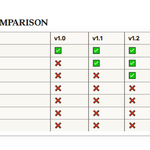
Version History
v2.0.0 (November 2025)
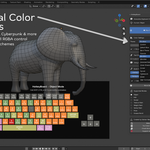
12 color presets
Full custom color editor
Import/Export system
Blender 5 support
v1.2.0 (October 2025)
Font controls
Multi-line text
v1.1.0 (October 2025)
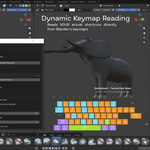
Dynamic keymaps
v1.0.0
Initial release
HotkeyBoard - Quick Installation Guide
📦 Package Contents
Your HotkeyBoard addon package includes:
__init__.py - Main addon initialization file
blender_manifest.toml - Addon metadata for Blender 4.2+
keyboard_data.py - Complete shortcuts database for all modes
keyboard_overlay.py - Core overlay rendering and modal operator
panel.py - User interface panel
preferences.py - Addon preferences and settings
README.md - Comprehensive documentation
.gitignore - Git ignore file (for developers)
🚀 Quick Start (3 Steps)
Step 1: Install the Addon
Option A: Install from ZIP (Recommended)
Download HotkeyBoard-v1.0.0.zip
Open Blender → Edit → Preferences → Add-ons
Click "Install..." button
Select the ZIP file
Enable the addon by checking the checkbox
2. 3. 4. 5. 1.
Option B: Manual Installation
Extract the HotkeyBoard folder from the ZIP
Copy it to your Blender addons directory:Windows: C:\Users\[YourUsername]\AppData\Roaming\Blender Foundation\Blender\[Version]\scripts\addons\
macOS: /Users/[YourUsername]/Library/Application Support/Blender/[Version]/scripts/addons/
Linux: ~/.config/blender/[Version]/scripts/addons/
If you are facing issue in installing the addon just watch this video, that will solve the problem
Restart Blender
Enable in Preferences → Add-ons
2. 3. 4.
Step 2: Open the Panel
Open the 3D Viewport
Press N to show the sidebar
Click on the "HotkeyBoard" tab
2. 3.
Step 3: Show the Overlay
Click the "▶ Show Overlay" button
Start exploring your keyboard shortcuts!
2.
⚡ First Use Tips
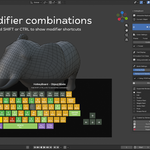
Try holding modifiers: Press and hold SHIFT, CTRL, or ALT to see combination shortcuts
Watch your keys: As you press keys, they'll light up in yellow
Adjust the scale: Use the slider in the panel to make it bigger or smaller
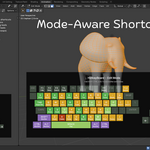
Change modes: Switch between Object/Edit/Sculpt modes to see different shortcuts
1. 1. 1.
🎯 Understanding the Colors
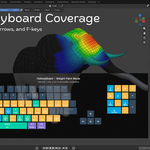
🟦 Blue = Primary shortcuts (most important)
🟩 Green = Secondary shortcuts (common tools)
🟧 Orange = Tertiary shortcuts (specialized)
🟪 Purple = Modifier keys
🟡 Yellow = Keys you're pressing right now
⬜ Gray = No shortcut assigned
⚙️Customization
Access more settings:
Edit → Preferences → Add-ons
Find "HotkeyBoard"
Expand the addon details
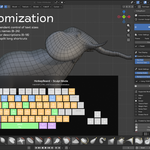
Adjust:Auto Scale (on/off)
Manual Scale (0.4 - 2.0)
Background Opacity (0.5 - 1.0)
2. 3. 4.
❓ Troubleshooting
Addon won't enable:
Make sure you're using Blender 4.0 or later
Check the Blender console for error messages
1.
Can't see the overlay:
Make sure you clicked "Show Overlay" in the panel
Check that you're in the 3D Viewport
Try pressing N to show the sidebar
Overlay is too small/large:
Adjust the "Overlay Scale" slider in the panel
Or try enabling "Auto Scale to Viewport" in preferences
📞 Need Help?
Email: [email protected]
Website: https://salmannaseem.com
YouTube: https://www.youtube.com/BeingAnimator
💰 Support Development
If you find HotkeyBoard useful, consider sharing it with your friends
Thank you for using HotkeyBoard!
Made with ❤️by Salman Naseem
