 MeshMind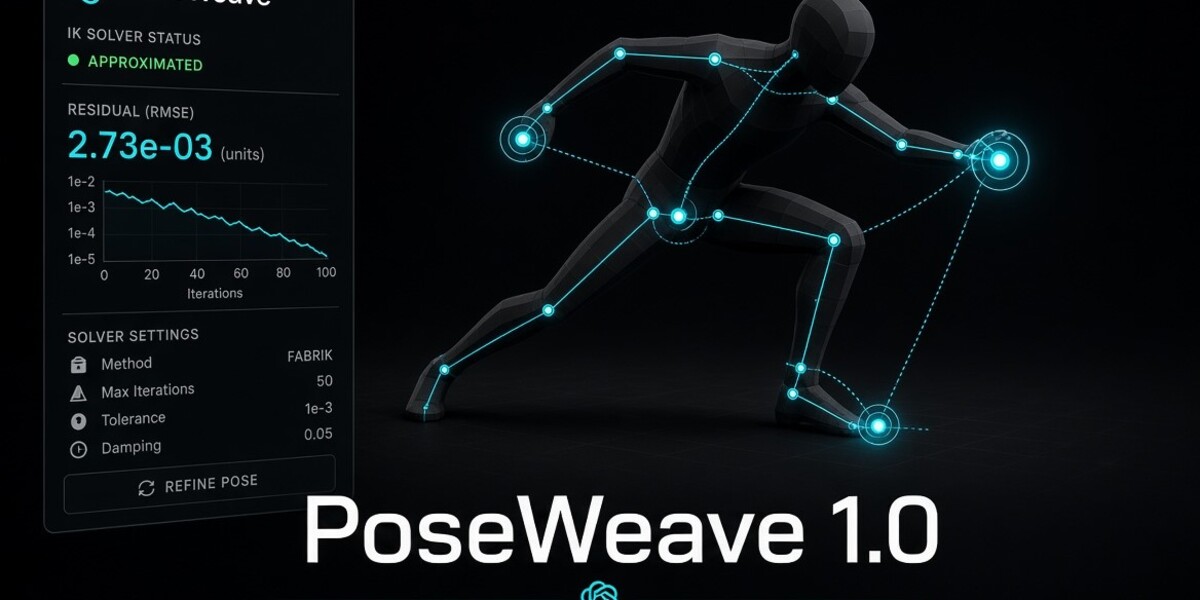
PoseWeave User Manual
Interactive IK Character Posing Tool for Blender
Overview
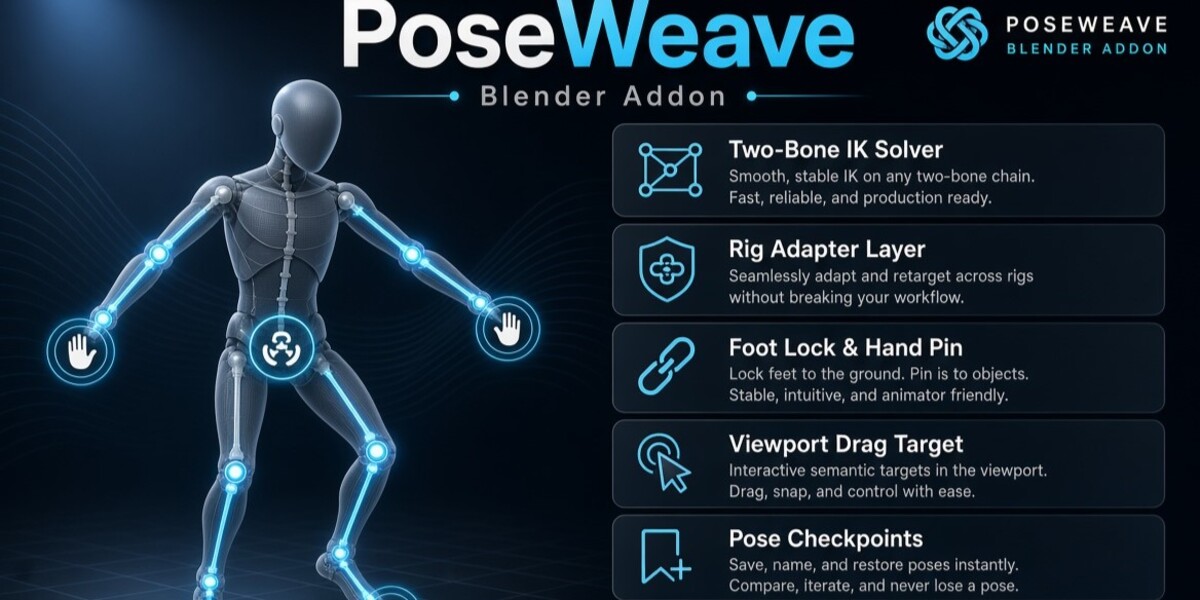
PoseWeave helps Blender artists pose supported humanoid armatures using target-driven inverse kinematics (IK). It combines limb posing, rig mapping, contact controls, checkpoints, pose mirroring, and keyframing utilities in one workflow.
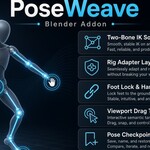
Main features
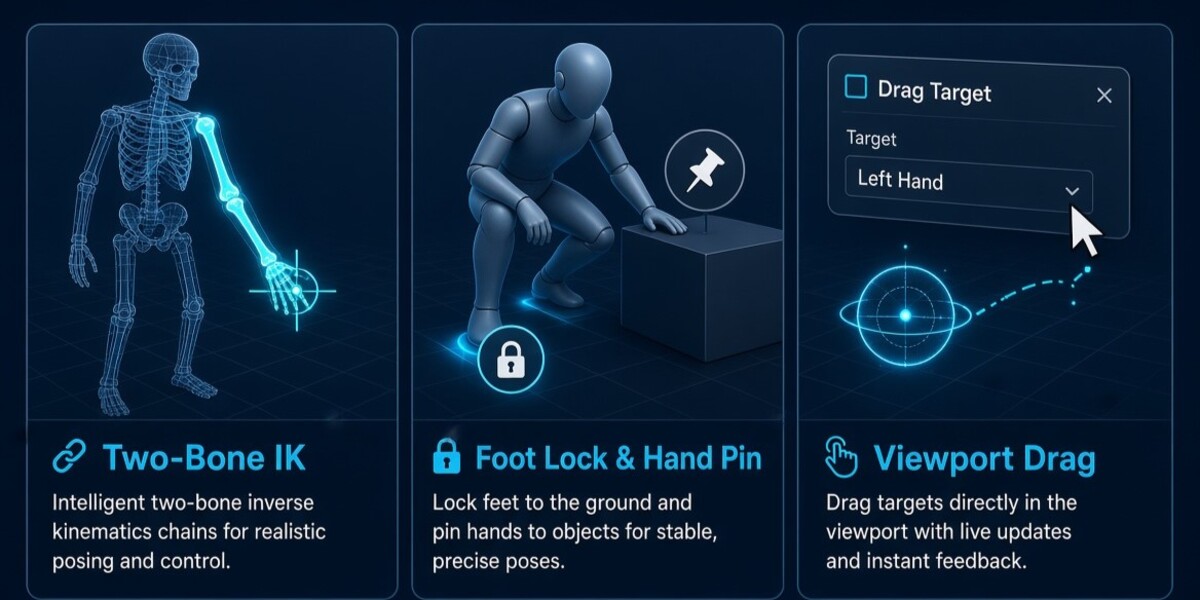
Two-bone IK for supported arms and legs.
Interactive hand and foot targets.
Viewport target dragging with axis and plane constraints.
Rig discovery, mapping, and validation.
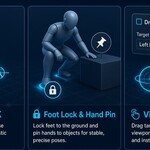
Foot locking and hand pinning.
Named pose checkpoints.
Pose mirroring.
Keyframe insertion.
Reachability and contact diagnostics.
1. System requirements
Blender: 4.2 LTS or 4.5.
Software category: Animation and rigging.
License: MIT.
Rig compatibility depends on the armature structure and rig adapter. Mapping a rig's bone names does not guarantee compatibility with its constraints, drivers, or control system.
2. Installation
Download the PoseWeave ZIP supplied by the publisher.
Open Blender and navigate to Edit → Preferences.
Open the add-on or extension installation area available in your Blender version.
Install PoseWeave from the supplied ZIP.
Enable the add-on.
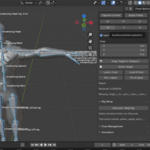
Open the 3D Viewport and press N to display the Sidebar.
Select the PoseWeave tab.
If the panel does not appear, verify that the add-on is enabled and check the Blender console for errors.
3. Your first posing session
Open a scene containing a humanoid armature.
Select and activate the armature.
Open PoseWeave in the 3D Viewport Sidebar.
Run Discover / Map Rig.
Inspect the mapping and validation messages.
Resolve missing or ambiguous bone roles before continuing.
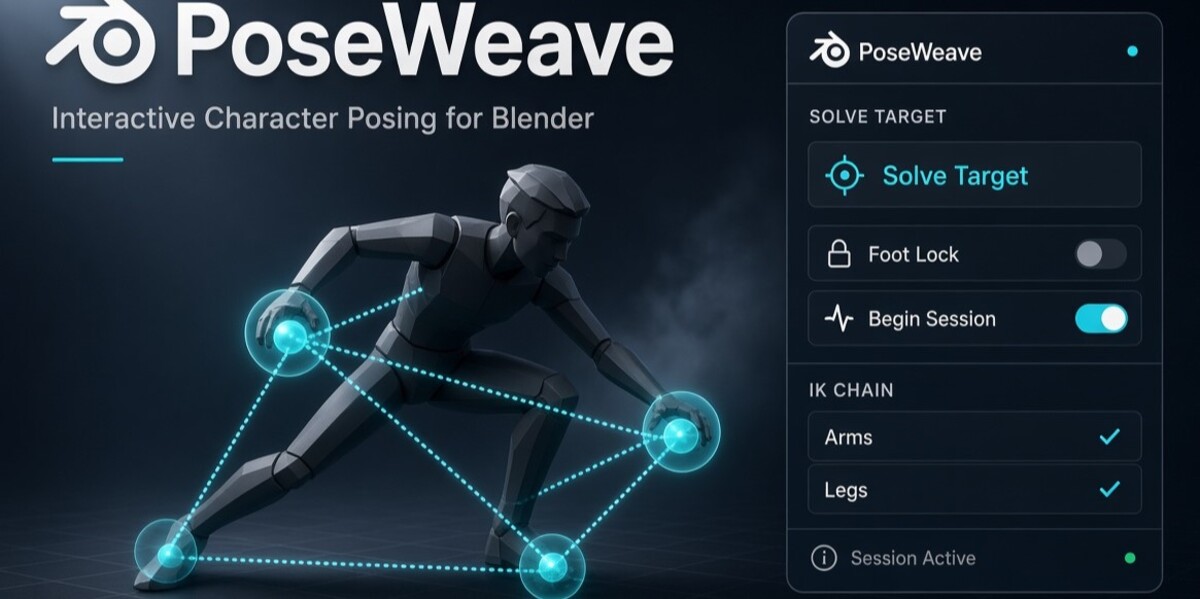
Begin a posing session.
Select the hand or foot target you want to manipulate.
Set the target position or use the viewport dragging tool.
Run Solve Target.
Inspect the reachability status and residual.
Apply contact controls, create checkpoints, or mirror the pose as needed.
Insert keyframes when you want to record the pose.
Commit the session to keep your changes or cancel it to restore the starting state.
Panel labels may vary slightly between builds.
4. Working with IK targets
Inverse kinematics calculates a supported limb configuration to move an endpoint toward a target.
PoseWeave uses two-bone IK. A target may be unreachable if it lies outside the limb's geometric reach.
Reachable: The requested target is within the solver's valid range.
Approximated or unreachable: The exact target cannot be achieved; inspect the reported status.
High residual: The resulting endpoint or contact differs noticeably from the requested position.
To troubleshoot an unreachable target, move it closer to the limb, check the mapping, and inspect active contacts.
5. Viewport target manipulation
PoseWeave provides a target-dragging workflow with axis and plane constraints.
Use the available controls to constrain movement along X, Y, or Z.
The documented plane constraints use Shift+X, Shift+Y, and Shift+Z.
Confirm the drag with a click.
Press Right Mouse Button or Esc to cancel and restore the drag's starting position.
If viewport dragging behaves unexpectedly, cancel the operation and use numeric target-position controls where available.
6. Foot locking and hand pinning
These controls capture an endpoint position and ask the solver to preserve it as a high-priority contact during subsequent posing operations.
For best results:
Position the foot or hand where you want the contact.
Enable the appropriate lock or pin.
Make further posing changes.
Review the contact residual and diagnostic messages.
Conflicting contacts or unreachable targets may prevent perfect contact. Object-relative contact locks are not implemented in this release.
7. Pose checkpoints
Checkpoints let you save named pose states before experimenting.
Create a checkpoint.
Give it a meaningful name.
Modify the pose.
Restore the checkpoint if you want to return to the saved state.
Rename or delete checkpoints as needed.
Avoid deleting or replacing the active armature while a posing session is running.
8. Pose mirroring
Pose mirroring reflects target records between sides and re-solves the corresponding limbs. It can speed up the creation of symmetrical starting poses.
Always inspect the result. Asymmetrical rigs, custom bone axes, different limb proportions, and unsupported constraints can affect the mirrored pose.
9. Keyframing
PoseWeave can insert keyframes on mapped control bones at the current frame.
Move the timeline to the desired frame.
Create and inspect the pose.
Use the keyframing action.
Scrub the timeline to check the result.
Repeat on other frames as required.
Existing keys on relevant channels are protected unless overwrite is explicitly requested. A Python API utility, animation_tools.bake_frames, is documented for frame baking; this should not be interpreted as a complete one-click baking interface.
Save a separate project copy before substantial animation edits.
10. Rig mapping and compatibility
PoseWeave recognises common humanoid naming conventions, including some Mixamo-style names and common prefixes.
The supplied rig documentation explicitly marks test_humanoid_v1 as tested. Other rigs may be mapped, but successful name matching does not guarantee full support.
For unsupported or incorrectly mapped rigs:
Confirm the correct armature is selected.
Inspect the relevant bone names.
Resolve missing or ambiguous roles using available mapping controls.
Run validation again.
Test a simple pose before production use.
Universal compatibility with Rigify, Auto-Rig Pro, Mixamo, or arbitrary custom rigs is not claimed.
11. Troubleshooting
| Problem | Recommended action |
|---|---|
| Select an armature | Activate an Armature object before discovery. |
| Missing bone roles | Inspect names and resolve missing assignments. |
| Ambiguous mapping | Review candidate bones and validate again. |
| Session will not start | Run rig discovery and inspect validation messages. |
| Target cannot be reached | Move it closer and check mapping and limb lengths. |
| Contact is not exact | Inspect residuals and conflicting contacts. |
| Mirrored pose looks wrong | Check left/right mapping and rig orientation. |
| Keyframes behave unexpectedly | Check the current frame, mapped bones, and animation channels. |
| Add-on will not enable | Confirm Blender compatibility and inspect the console. |
| Rig maps but behaves incorrectly | Mapping is not proof of compatibility; use a verified rig or dedicated adapter. |
12. Known limitations
Full-body IK optimisation and automatic balance are outside the scope of this release.
Only
test_humanoid_v1is explicitly marked as tested in the supplied rig-support documentation.Generic bone-name matching does not guarantee third-party rig compatibility.
Object-relative contact locks are not implemented.
Non-uniform armature-object scale is detected and may cause validation to reject the setup.
Poses and keyframes should be verified on the specific rig before production use.
13. Support
For support, include your PoseWeave version, Blender version, operating system, rig type, steps to reproduce the problem, and any exact error message.
Support email: [email protected]
14. License
PoseWeave is distributed under the MIT License. See the included LICENSE file for the full terms.
Have questions about this product?
Login to message
| Blender Extension Compatible | Yes |
| Published | about 5 hours ago |
| Blender Version | 4.2 - 5.2 |
| Extension Type | Add-on |
| Render Engine Used | Cycles, Eevee |
| License | Mit |

Discover more products like this
Inverse Kinematics blender humanoid rig models pose tool rigging IK blender character animation