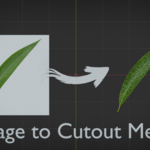
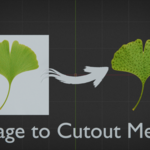
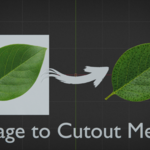
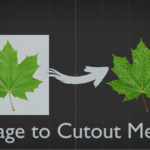
Image to Cutout Mesh
 P2_limit_sadge


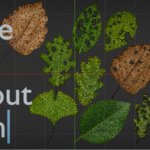
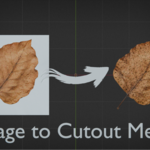
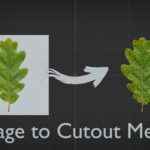
Quick Start
1. Open or append the included .blend file in Blender 5.0 or newer.
2. Select the demo object, or append the Image To Cutout Mesh Geometry Nodes asset into your own file.
3. Assign your source image to Input Image.
4. For transparent PNGs or prepared alpha cutouts, enable Use_alpha.
5. Adjust Outline Length to control the silhouette boundary resolution.
6. Adjust Poisson Spacing and Sample Limit to control the internal tessellation density.
7. Use Global Scale to resize the generated result if needed.
Recommended Image Setup
For the cleanest result, use a transparent PNG or an image with a prepared alpha channel.
The color-difference mask can work for simple images with clear foreground/background separation, but difficult images should be prepared with alpha first. Simple alpha cutouts can be made with standard Windows tools such as Microsoft Paint, Photos, or Designer before loading the image into Blender.
Main Controls
Input Image:
Source image used to generate the cutout mesh.
Threshold:
Mask smoothing iterations. This is not a simple brightness threshold.
Use_alpha:
Uses the image alpha channel as the mask source when enabled.
Outline Length:
Controls the extracted silhouette boundary resolution.
Poisson Spacing:
Controls the internal tessellation spacing. Smaller values create denser mesh output.
Sample Limit:
Controls the point distribution and tessellation limit.
Global Scale:
Scales the generated result.
Known Limitations
This is not a photo-to-3D or AI depth reconstruction tool.
Delaunay-like describes the generated visual triangular mesh structure. It is not a strict mathematical Delaunay solver guarantee.
Complex silhouettes can show uneven point density. Start with moderate density settings and reduce spacing gradually.
 Included
Includes 12 months of
- Support from P2_limit_sadge
- Product updates
Extend this product’s Support Period +12 months: 25% of product price
Have questions before purchasing?
Login to message
| Sales | 30+ |
| Rating | 2 ratings |
| Published | 5 months ago |
| Blender Version | 5.0 - 5.2 |
| Render Engine Used | Cycles, Eevee |
| License | Royalty Free |
Discover more products like this
tessellated mesh cutout mesh Image to Mesh blender 5.0 transparent-png delaunay style procedural-mesh outline control png-to-mesh silhouette mesh geometry nodes alpha mask