ImageNode - Images as Nodes in the Node Editor
 codesignprojects
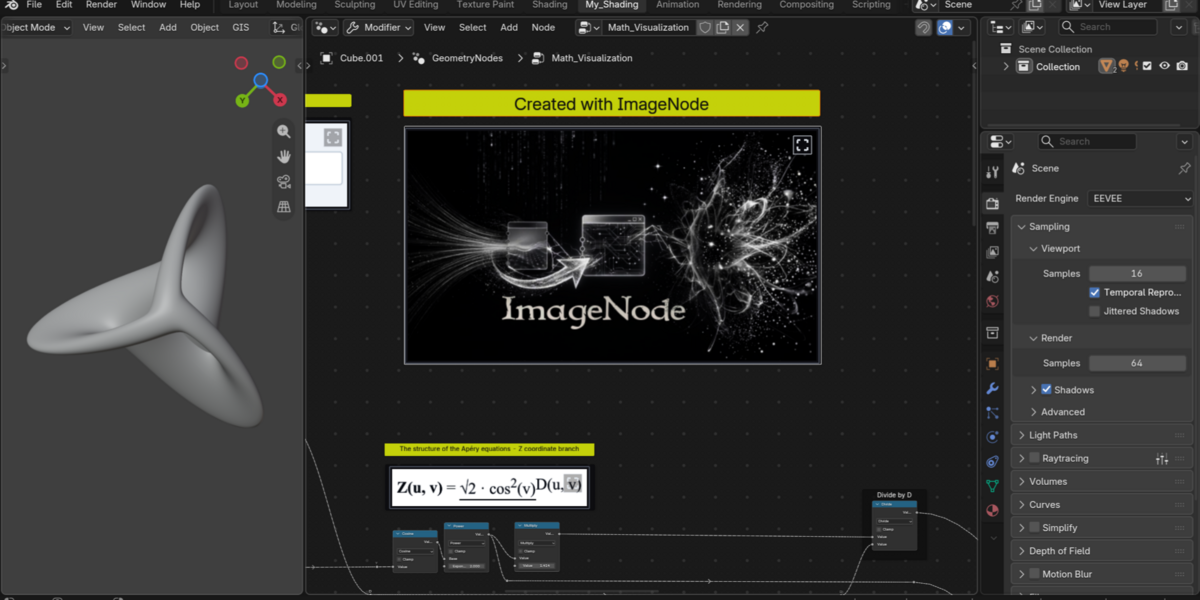

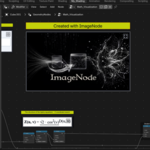
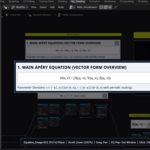
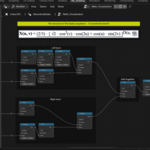
ImageNode — Quick Documentation
1. Installation & Activation
- Download
ImageNode_v1.6.zip(do not unzip). - In Blender, go to Edit > Preferences > Add-ons.
- Click Install... (or top-right arrow > Install from Disk... in Blender 4.2+ / 5.x), select the
.zipfile, and enable Node: ImageNode. - Open any Node Editor (Geometry Nodes, Shader Editor, or Compositor). Access ImageNode via Shift+A > ImageNode or the N-Panel > ImageNode tab.
2. Adding Images to Your Node Tree
Press Shift+A > ImageNode (or click Add ImageNode in the N-Panel) and choose an Image Source:
-
Paste Clipboard: Copy any image or take a screen snip (
Win+Shift+S), then click OK (or click Paste Clipboard in the N-Panel for instant 1-click placement). - Hard Drive: Select Hard Drive and click OK. The File Browser opens immediately and spawns the card at your cursor as soon as you pick an image file.
-
Existing: Select any image datablock already loaded in the current
.blendfile.
3. Titles, Resizing & Aspect Ratio
-
Pure Image Card vs. Titled Card: Leave Title empty for a clean card with symmetrical 4-side margins, or enter a Title (
S / M / L / XL / Customsize) to reserve a top header. Editing or clearing the Title in the N-Panel updates the card bounds live. -
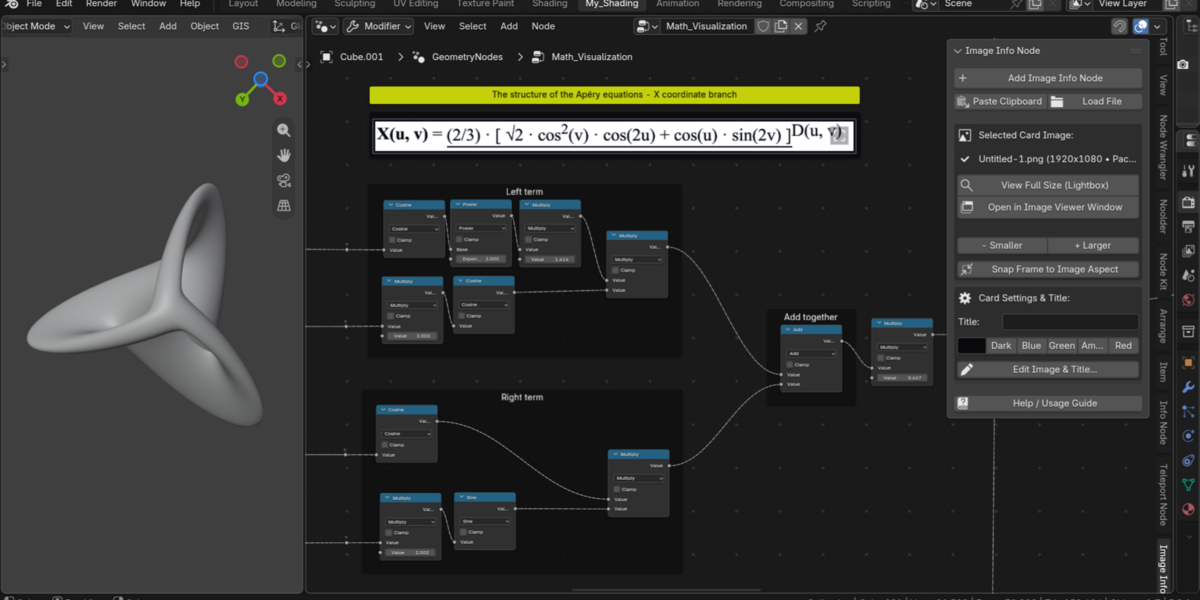
Freehand & Step Resizing: Drag any border or corner of the card to scale the image smoothly in real time, or use the
- Smaller/+ Largerbuttons in the N-Panel. - Snap Frame to Image Aspect: If freehand dragging leaves extra margin, click Snap Frame to Image Aspect in the N-Panel to tightly fit the Frame to the image.
4. Full-Size Lightbox & Pop-Out Viewer
-
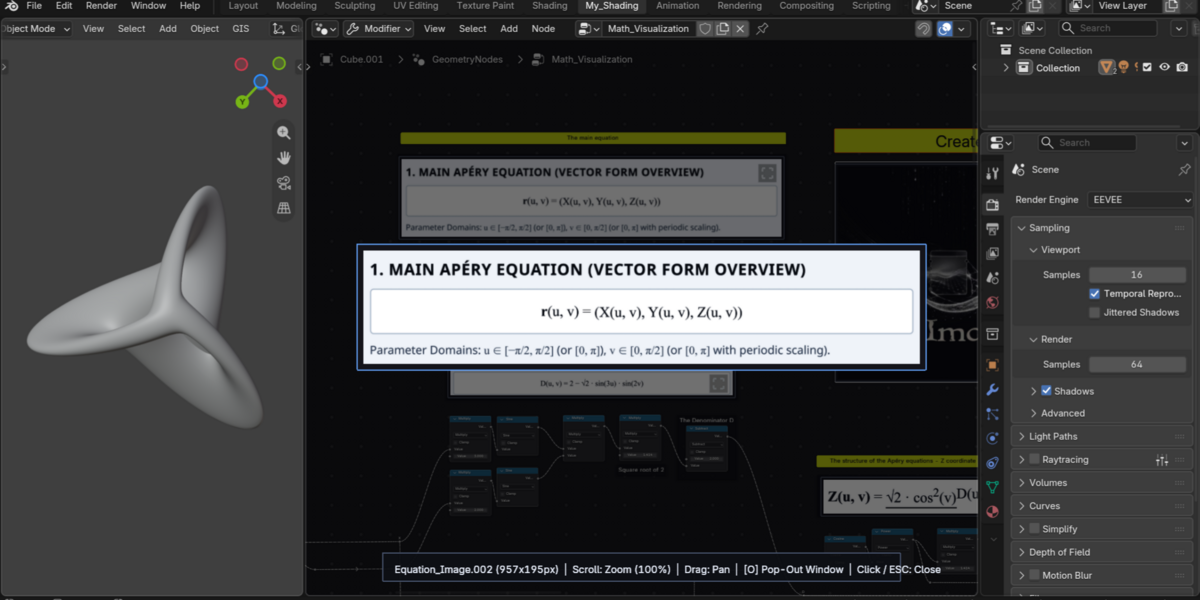
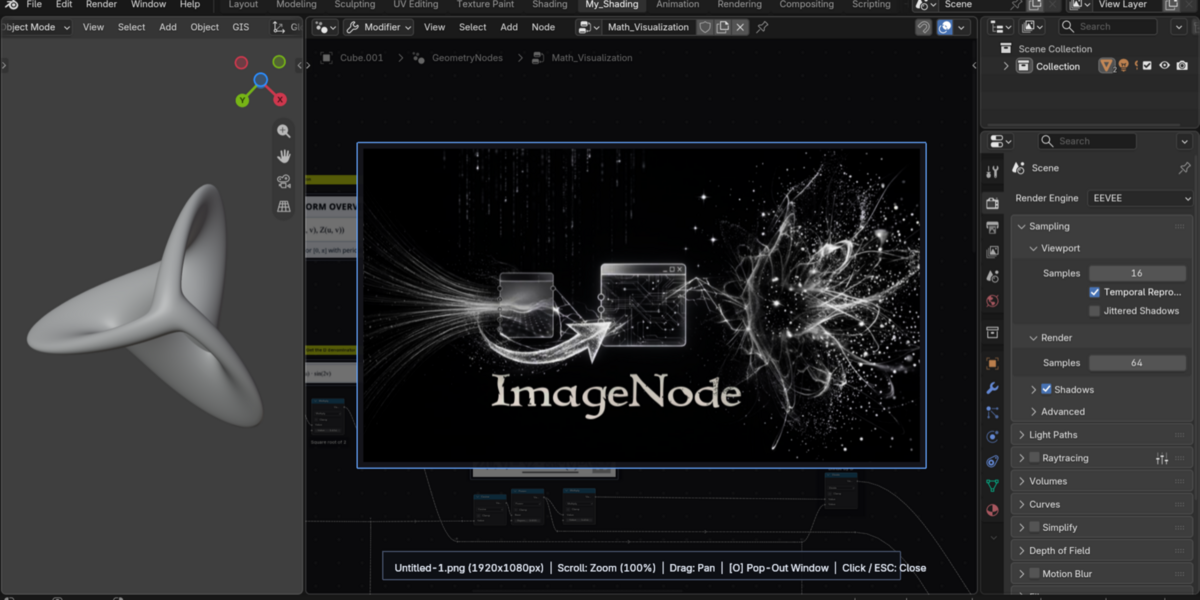
Open Lightbox: Click the subtle Full Screen
[ ]icon in the top-right corner of any card, double-click anywhere on the image, or click View Full Size (Lightbox) in the N-Panel. -
Lightbox Controls:
Scroll Wheelto Zoom (25%–800%),LMB / MMB Dragto Pan, press[O]to pop out into a floating Blender Image Editor window, orClick / ESC / Spaceto close.
5. Styling, Links & File Hygiene (N-Panel)
- Dark Backing Plate: Toggle ON for a dark high-contrast plate behind dark-ink transparent PNGs, or toggle OFF to blend transparent images directly into the card's background color.
-
Colors & Custom Slots: Choose from 1-click presets or save 5 persistent Custom Color Slots (
Slot 1–5) across all your Blender projects. - Reference URL: Paste a web link to add a 1-click Open Link button to the card.
-
Purge Unused Images: Click Purge Unused Images in the N-Panel to remove unreferenced (0-user) images and keep
.blendfile sizes minimal.
Have questions about this product?
Login to message
| Published | about 3 hours ago |
| Blender Version | 4.2 - 5.2 |
| Extension Type | N/A |
| Render Engine Used | Cycles, Eevee |
| License | GPL |
Discover more products like this
Node Shader reference procedural organization utility nodes geometry nodes compositor documentation image Workflow