 Oculis Studio



Blender add-on
Inertia
Retime blocked animation to weight, then add lag, overshoot and follow-through — without rebuilding it by hand.
v1.3.0Regular free updatesBuy once · keep getting more
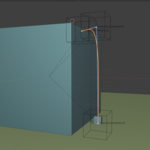
Turn blocked location keys into an editable path, reshape the motion with cube controls, retime travel so it feels heavy or light, then dial in lag and bounce — and bake standard Blender keyframes when it feels right.

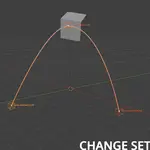
Live preview while you tune — blue target path, orange inertia result, magenta retime ticks.
Latest update
What's new in v1.3
The path can now carry weight before the spring even runs. Same shot length — the object just travels that path like something with mass. Free for everyone who already owns Inertia.
Updated · included free
|
Retime to Weight Rewrite timing along the path so travel feels light or heavy — then the spring still runs after. |
Retime presets Feather, Natural, Heavy, Boulder, Vehicle — one-click starting feels, then fine-tune. |
|
Weight knobs Weight, Corner Bite, Push / Brake, Physicality. Magenta ticks bunch where the move is slow. |
Pin story beats Pin selected cubes so important poses keep their timing while the rest of the path retimes. |
|
Edit path points G/R/S with Proportional Editing on the dense path. Tab out — cubes snap back on. |
Cineflow-style cubes Move the point, rotate steers the tangent, scale sets handle length. |
Typical use cases
Where it helps
|
Weight Props, cameras & vehicles Retime the travel so it feels heavy, then add lag and settling — without hand-keying every overshoot. |
Polish Stiff blocking Take linear or mechanical moves and add organic timing, lag and recovery. |
|
Shape Path controls Move, rotate and scale cube controls — or edit path points with falloff — before you commit the spring. |
Iterate Live preview Trails update as you drag. With Live Update on, keys update too — bake only when locked in. |
Core loop
Create path → shape → retime → spring → bake
Inertia sits between blocking and polish. You keep your poses, edit the trajectory in 3D, give the travel weight, then simulate how the object follows that path.
1 |
Create a path From existing location keys — sampled every frame, so the path matches the motion you already blocked. |
2 |
Shape the motion Cube controls: move poses, rotate to steer the tangent, scale to set handle length. Or edit path points with Proportional Editing. |
3 |
Retime to weight Same shot length. Heavy objects spend more time ramping; light ones cruise. Magenta ticks bunch where it slows. Pin cubes to keep story beats. |
4 |
Dial in the feel Presets, then Lag, Bounce, mass and smoothing. Orange = result, blue = target path — updated live. |
5 |
Apply and restore Apply writes standard location keyframes (and optional rotation). Restore Original puts your stash back. Live Update can write keys while you tune. |
|
START  Block out location keys as usual. |
1 · CREATE PATH  Build a path from the selected object's keys. |
|
2 · TWEAK PATH  Move, rotate and scale controls to reshape arcs. |
4 · TUNE SPRING Tune Lag, Bounce and presets — trails update live. |
Timing
Retime to Weight
New in v1.3. Optional, duration-locked retiming so the object travels the path like something with mass. Off, the path keeps your blockout timing. On, the spring still runs after — retime is the weight of the travel, not a replacement for lag.
Weight 0 = light/snappy cruise. 1 = heavy triangle — always pushing or braking. |
Corner Bite How hard the move takes bends. 0 = slow into curves, 1 = hold speed. |
Push / Brake Negative = struggles to start, stops hard. Positive = launches easier, coasts into stops. |
Physicality Blend of blockout timing (0) vs weighted timing (1). |
— Presets: Feather · Natural · Heavy · Boulder · Vehicle
— Magenta ticks = one frame each on the orange trail (bunch = slow)
Control
Feel first — Lag, Bounce, Mass
Primary spring controls are designer-friendly Lag and Bounce (plus Mass and Smoothing). Named presets jump to a starting feel. Raw stiffness and damping stay under Advanced.
Lag How late / heavy the follow feels. 0 = snappy, 1 = very laggy. |
Bounce How much overshoot and oscillation. 0 = settles clean, 1 = very bouncy. |
Mass Heavier feel — more lag and overshoot before it catches up. |
Smoothing Optional Gaussian soften after the spring. Set to 0 to disable. |
— Presets: Soft · Natural · Snappy · Heavy · Floppy
— Advanced: stiffness and damping when you want the raw physics knobs
Interface
In the N-panel
Everything lives in 3D Viewport → N-panel → Inertia. Five numbered steps keep create, edit, retime, tune and apply in order — expand only what you need.
STEP 1 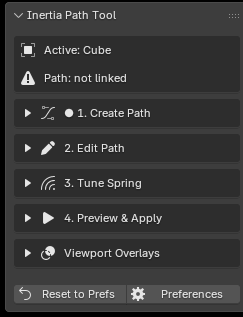 Create Path One click builds a path from the selected object's location keys. |
STEP 4 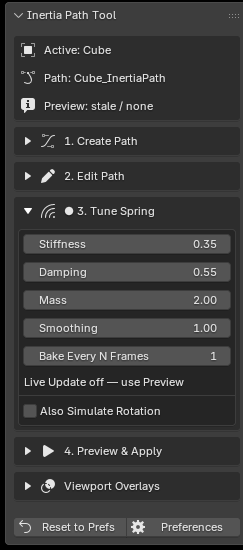 Tune Spring Presets, Lag, Bounce, mass and smoothing — Advanced for stiffness / damping. |
— Status shows active object, linked path, and preview state
— Prefs and Reset live at the bottom of the panel
Depth
What's in the box
Editable path 3D Bezier path from your location animation, with cube controls and proportional point edits. |
Retime to Weight Duration-locked speed profile — presets, pins, and magenta frame ticks. |
Live spring Presets + Lag / Bounce / mass / smoothing — trails update as you drag. |
Viewport trails Blue target · orange result · white key poses · magenta ticks. |
Bake & rotation Standard F-Curves on Apply, plus optional rotation inertia. |
Restore Original Auto-stash before the first Apply. Put original curves back anytime. |
— Live Update can write keys while tuning; Apply still works for a clean commit / Undo
— Adjustable bake density
Coming next
Upcoming features
Still on the roadmap — included free for everyone who owns Inertia. No paid upgrade path.
In development
NEXT UP Ground interaction Keep springy motion believable when objects meet the floor — contact, settling, and follow-through that respects the ground instead of sliding through it. |
NEXT UP Bone support Bring the same path → retime → spring → bake workflow to armature bones — lag and overshoot on character and creature secondary motion, not just objects. |
Buy now, get these when they ship. Early buyers grow with the tool.
Why buy early
Regularly updated — for free
Ongoing development
Inertia is actively shipped and regularly updated. Lag/Bounce, presets, cube controls and now Retime to Weight landed as free updates. v1.3 is production-ready today, and still growing.
— One purchase — every future update included
— Roadmap features ship to your copy automatically
— Feedback from users shapes what gets built next
The goal: make believable secondary motion in Blender faster to dial in — without taking control away from you.
Questions before you buy
FAQ
Does Inertia change my original animation?
With Live Update on, location keys update as you tune (trails always update). With it off, trails update and Apply writes keys. Before the first Apply, Inertia auto-stashes your original curves — use Restore Original anytime (or Blender Undo).
Can I edit the path before adding inertia?
Yes — that’s the point. Reshape with cube controls (move / rotate / scale) or Edit Path Points with Proportional Editing, then retime and tune Lag and Bounce.
What does Retime to Weight actually change?
It rewrites when the object travels along the path, not the path shape. Shot length stays the same. The spring still runs after, so you get weighted travel plus lag and overshoot. Turn it off to keep your original timing.
Does it work on bones / armatures?
Not yet — object-level only today (props, cameras, empties, vehicles, motion graphics). Bone support is on the roadmap and will ship as a free update.
Will I get ground interaction and bones if I buy now?
Yes. Purchase once and you receive every update — including upcoming ground interaction and bone support — at no extra cost. Retime to Weight already shipped that way.
Can I use it on rotation?
Yes, separately. It springs existing rotation_euler curves — it does not invent rotation from the path.
What setups are unsupported?
Best for unparented objects with local location keys. Parenting, constraints that drive location, non-uniform scale, and animated path transforms can warp results and are not supported.
What do I need to start?
An object with at least two location keyframes. Sparse blocking keys work well.
What if something breaks?
Email [email protected] with steps to reproduce or a scene file. Fixes go out in regular updates.
Specs
Details
| Blender | 4.2+ |
| Panel | 3D Viewport → N-panel → Inertia |
| Category | Animation |
| Version | 1.3.0 |
| Updates | Regular free updates for owners |
| License | GPL-3.0-or-later |
| Dependencies | None |
| Author | oculis.studios |
