Inertia — Dynamic Animation Made Easy
 Oculis Studio



Documentation
Inertia
Inertia turns an object's location animation into an editable path, then applies a spring simulation so the motion can lag, overshoot and settle with follow-through.
Open the panel from the 3D Viewport N-panel under Inertia.
Getting started
Basic workflow
The panel is four numbered steps:
1 |
Create Path Builds an editable Bezier path from the selected object's location animation. |
2 |
Edit Path Move, rotate and scale cube controls to reshape the movement while keeping path timing. |
3 |
Tune Spring Presets, then Lag, Bounce, mass and smoothing. Trails update live; Live Update can write keys as you tune. |
4 |
Apply Bake density, Apply Inertia, and Restore Original. Use Apply for a clean commit even when Live Update is on. |
01
Create Path
Create Path reads the active object's location F-Curves and builds a 3D Bezier path from the existing animation.
The object needs at least two location keyframes. Inertia samples every frame between the first and last location key, so the path matches the current motion rather than a simplified version of it.
Cube control empties are placed along the path. When there are few enough source keys, one control is created per key pose. If there are too many keys, controls are spaced evenly up to the Max Controls setting.
The path and target object are linked internally so Inertia knows which animation the path belongs to. Running Create Path again replaces the previous path and controls for that object, and clears any Apply stash so the next Apply can capture a fresh original.
Best results come from unparented objects with local location keys. Parenting, constraints, and non-uniform scale are unsupported (Create Path warns when it detects them).
Viewport trails refresh immediately after the path is created.
02
Edit Path
The path controls change the shape of the animation without changing the spring settings.
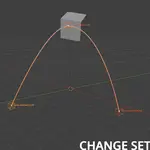
Updated: controls are cube empties. Move shifts poses, rotate bows the arc mid-span, and scale fattens rest detail — timing on the path stays the same.
Paths are created with VECTOR handles so segments stay faithful to the sampled animation instead of being auto-smoothed.
Control Size and Max Controls are in the panel. Selection helpers can select the controls, path or target object. Operators resolve correctly when a control, path or target is active.
03
Tune Spring
The simulation treats the edited path as the target the object is trying to follow.
It uses a mass-spring-damper system. Each frame advances the simulation by one step, so the object can lag behind the target, overshoot it and settle back toward the path. Tune with Lag and Bounce (or a preset); Advanced still exposes stiffness and damping.
| Preset | Soft, Natural, Snappy, Heavy, or Floppy starting feels. Custom when you drag manually. |
| Lag | How late / heavy the follow feels. 0 = snappy, 1 = very laggy. Default (Natural): ~0.58. |
| Bounce | How much overshoot / oscillation. 0 = settles clean, 1 = very bouncy. Default (Natural): ~0.50. |
| Mass | How much inertia the object has. Higher values generally create more lag and overshoot. Default: 1.0. |
| Smoothing | Gaussian smoothing applied after the spring pass. 0 disables it. Default: 1.0. |
| Advanced | Raw Stiffness and Damping — the values the solver uses. Lag/Bounce map into these. |
| Bake Every N Frames | Sample and key spacing for Live Update / Apply (under 4. Apply). Default: 1. |
Changing these settings refreshes the orange result trail live, so you can tune behaviour before applying. A short feel line under the sliders shows whether the spring is under-, critically, or over-damped.
04
Live Update & trails
Updated: trails always refresh as you edit the path or tune springs. Live Update (in Tune Spring) also writes location keys while you tune — like Apply on every change. Turn it off to keep keys until you hit Apply.
The viewport can show three motion trails:
| Blue | Target path the simulation is following. |
| Orange | Simulated result after spring behaviour and smoothing. |
| White | Original key / control poses. |
Trail visibility and line width are under Viewport Overlays in the panel.
05
Apply Inertia
Apply Inertia commits the current simulation to the object's animation. Even with Live Update on, Apply is useful for a clean Undo step and for bake density changes.
The edited path is resampled, the spring simulation and optional Gaussian smoothing are calculated, and the result is written back to the object's location F-Curves.
Keys are created at the interval set by Bake Every N Frames.
Important: Applying overwrites location animation within the path's frame range. If rotation simulation is enabled, existing rotation_euler keys in that range are overwritten too.
Before the first Apply, Inertia auto-stashes the original location (and rotation_euler if present) curves. Use Restore Original in the panel to put them back. The stash is kept across re-Applies until you Restore or run Create Path again. Blender's Undo still works as usual.
Rotation
Rotation simulation
Rotation can be simulated separately from the location path with Also Simulate Rotation.
When enabled, Inertia runs a spring on the object's existing rotation_euler curves. Rotation uses its own stiffness and damping, and shares mass and smoothing with the location simulation. Location Lag/Bounce presets do not change rotation springs.
Rotation is not derived from the path. The object must already have rotation animation for this option to do anything.
Requirements
Compatibility
| Blender | 4.2+ |
| Panel | 3D Viewport → N-panel → Inertia |
| Animation | Object-level location (optional rotation_euler) |
| Location | At least 2 location keys |
| Dependencies | None |
Limitations
Unsupported setups
Inertia is built for unparented, unconstrained objects animated with local location keys, and a static path at identity transform.
The following are unsupported and may produce warped or wrong-space results:
- Parented targets (static or moving parents)
- Constraints that drive location (Child Of, Copy Location, Follow Path, etc.)
- Non-uniform scale on the target or path
- Animated / moving path object transforms
Create Path will still run, but reports a warning when it detects parent, constraints, or non-uniform scale.
 Included
Includes 12 months of
- Support from Oculis Studio
- Product updates
Extend this product’s Support Period +12 months: 50% of product price
Have questions before purchasing?
Login to message
| Blender Extension Compatible | Yes |
| Dev Fund Contributor | |
| Published | about 2 months ago |
| Blender Version | 4.2 - 5.2 |
| Extension Type | Add-on |
| Render Engine Used | Arnold, Blender-Internal, Blender-Game-Engine, Cycles, Eevee, Freestyle, Luxrender, Mental-Ray, Octane, Vray, Yafaray |
| License | GPL |
Discover more products like this
Animation Smoothing Motion design animation tools Motion Polish Follow Through animation secondary-motion Inertia