 Arch on Arch
Design by drawing. Build with AI.
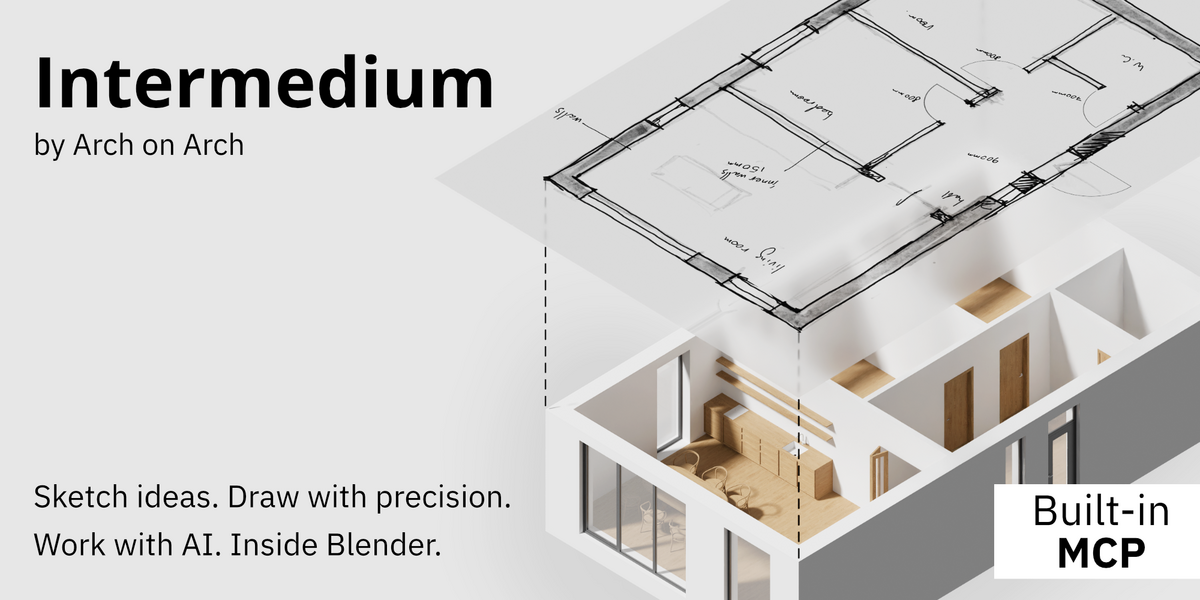
For designers, drawing is a natural way to think. Intermedium makes it the way you work with a 3D model in Blender.
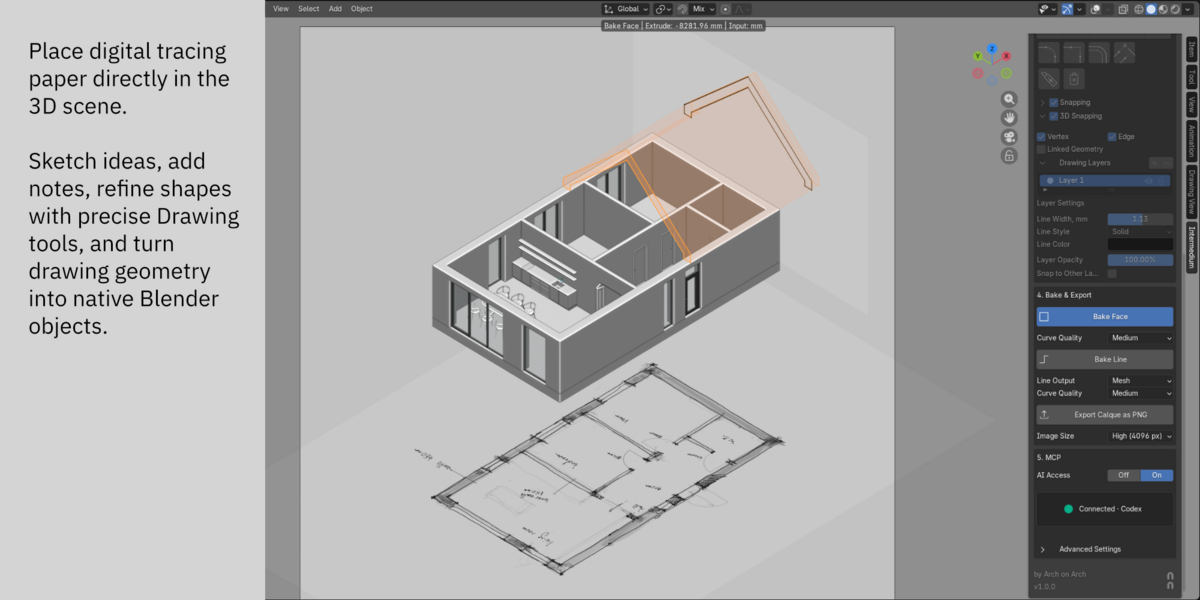
Sketch and draw on Calques, drawing planes placed right in the 3D scene. Your AI agent, connected through Intermedium, reads them in the context of the model and builds alongside you, while your attention stays on the design. Bake turns the same drawings into precise geometry in one move.
Sketch for the idea. Draw for the exact size. The model follows.
Connects to your own AI agent: Codex or Claude Code. Sketching, Drawing and Bake also work without AI.
From idea to model
Each tool in Intermedium is simple and familiar. Here is one way they work together:
- Place a Calque where the decision is: on a facade, through a section, over a plan.
- Sketch the idea freehand, with pens and pencils that behave like the real ones.
- Draw what must be exact: a wall thickness, an opening, the profile of a handle. Bake turns it into Blender geometry with a click or a drag.
- Hand it to your agent. It reads the sketch and the drawing together and builds. Review the result, sketch over it and develop the idea further, with the agent or with Blender’s own tools.
Calques: a place to think inside the model
Tracing paper, rethought as a design interface.
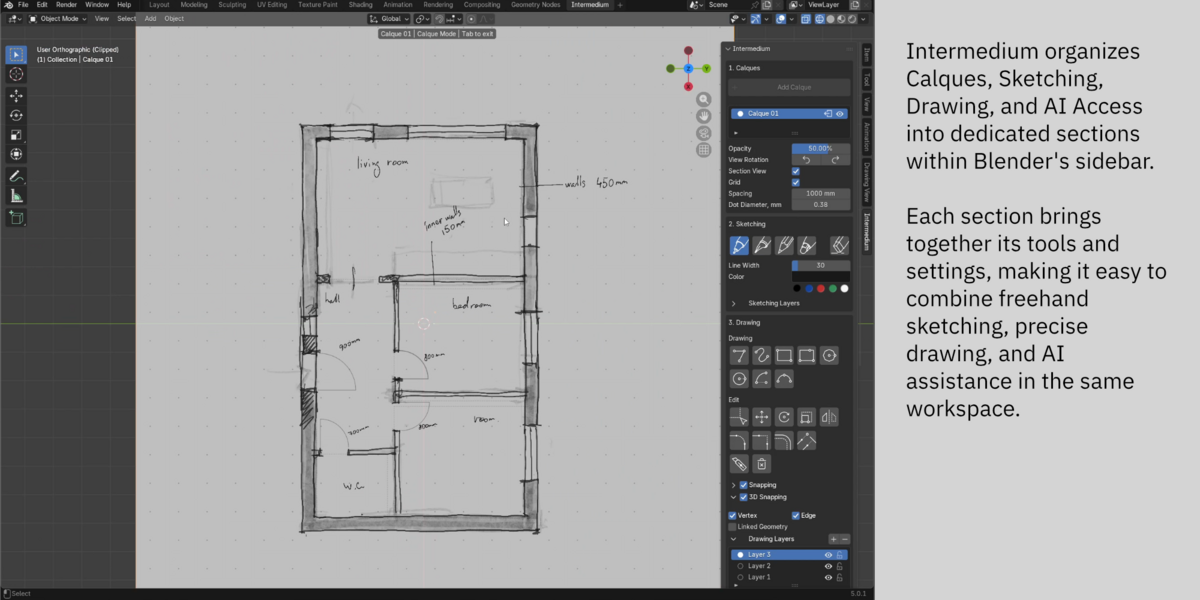
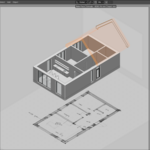
In architecture and design, tracing paper lets you draw over existing work, test alternatives and mark changes without touching the original. A Calque brings this way of working into the 3D scene: each sketch and drawing sits right where the change belongs, visible to you and to the agent. Keep a drawing as a study, build from it or use it to brief the agent.
Place a Calque on a model surface or along a world axis, then press Tab for a clean orthographic working view. Section View cuts through the model on screen, so you can draw directly on a plan or section. Calques and their content are saved with the .blend file.
Sketching: the fastest way to say what you mean
From an early concept to a construction detail.
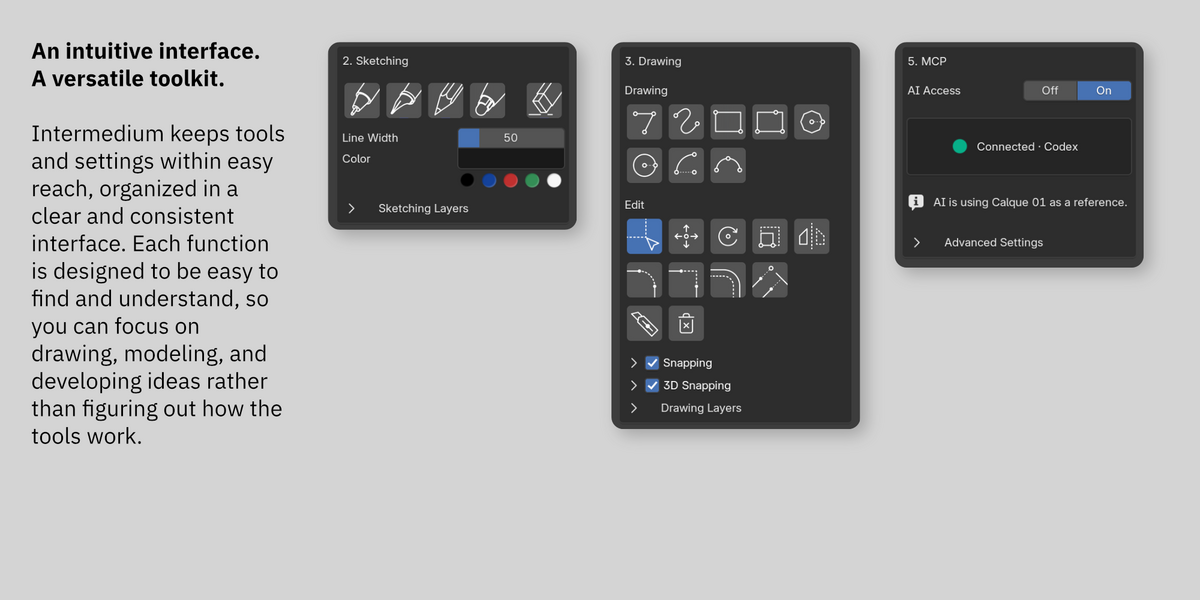
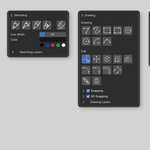
A freehand sketch expresses what words struggle to: an idea, a proportion, a spatial relationship, a technical solution. Liner, fountain pen, pencil and clutch pencil each have a distinct character and their own response to a pen tablet.
Sketch over the model to study proportions, mark a change or explain a detail. Independent layers keep alternatives apart.
Drawing: exact where it matters
The precision of CAD drafting, put to work for the model.
Blender can model precisely, but setting precise dimensions is rarely the most direct route. The Drawing tools make it direct: outlines, distances and positions are set to size in seconds, with numerical input in real units.
Snapping works on the Calque and to the model itself. Vertices and edges are projected onto the plane, so new linework can start from existing geometry. Editing tools such as offset, trim and mirror refine it quickly.
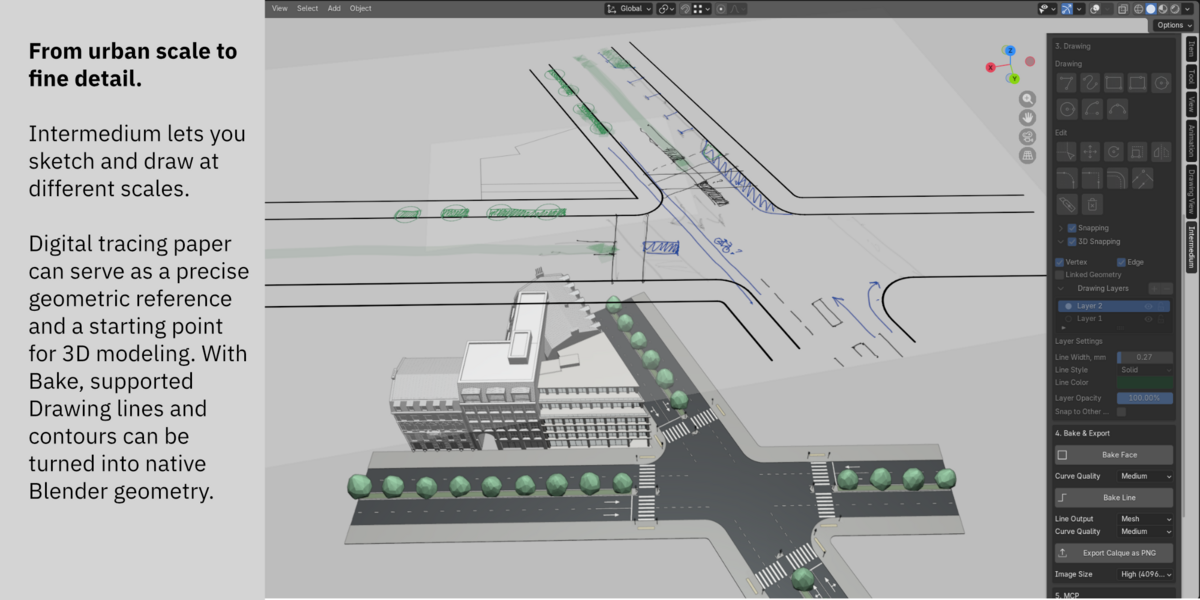
The agent reads Drawing as precise geometry, and Bake turns it into Blender objects.
AI Access: let your agent build from your drawings
Show an agent what you mean, then keep thinking while it builds.
Intermedium connects your own AI agent, Codex or Claude Code, to Blender through a local MCP Gateway, a catalogue of modeling operations and built-in guidance. No AI model is included, and no additional Blender MCP add-on is required.
Your intent, in context
Sketches reach the agent as images. Drawing reaches it as exact geometry: where an element belongs, what shape it should have and which dimensions must be respected. Both stay tied to their place in the model, so a request such as “Use the closed contour on Calque 03 as the profile and make it 0.20 m deep” has a precise meaning. A task keeps its references even when you orbit the view or open another Calque.
Working alongside you
You define the intent and scope of each task. Keep drawing while the agent works: its changes are applied between your actions, and if you are in the middle of a stroke or using a tool, it waits for you to finish.
Guidance for the agent
Intermedium provides more than access to tools: it also helps the agent use them well. Built-in guidance covers Intermedium’s tools and general modeling practice, such as topology, materials, and the layout of shader and Geometry Nodes setups. Task guides for architectural work start with walls, windows, doors and kitchen cabinetry, and the library will grow with future updates.
Guidance helps the agent get there with less trial and error and more consistent results, which also keeps AI usage down.
Not every task needs a drawing. The agent also works from direct requests and can inspect and edit the scene: mesh and curve modeling, modifiers, Geometry Nodes, materials, shader nodes, cameras and lighting.
Safe defaults
The agent works through validated operations and receives structured results to check its own work. Arbitrary Python execution is off by default and can be enabled separately for tasks that need it.
Connection setup
Copy MCP Settings prepares a ready-to-paste connection message for your AI client. Review the setup actions it requests. After that, the saved connection is reused in later sessions.
AI Access deploys a local gateway and connection keys to the Intermedium data folder. The gateway may continue running for approximately 120 seconds after the last Blender instance with AI Access closes. The data folder and temporary caches may remain after uninstalling Intermedium and must be removed manually for complete removal.
Bake: turn drawings into Blender geometry
The quickest way from a drawing to exact geometry.
Click inside a closed contour to create a native Blender face, or drag to extrude it into a solid and type a value to set the height. Connected lines, open or closed, become Mesh edges or a Curve, depending on the Line Output setting. The source drawing stays on the Calque for the next iteration.
Export Calque as PNG saves visible sketches and drawings on a white background, up to 8192 px, without the 3D model.
Who it’s for
Built by practicing architects (Arch on Arch) for architects, interior and urban designers, and for anyone who thinks with a pencil: product designers, set designers and environment artists.
Key features at a glance
| Express intent | Build the model |
|---|---|
| Calques in the 3D scene with Section View and grid | Local MCP Gateway for your own agent: Codex or Claude Code |
| Liner, fountain pen, pencil and clutch pencil; pen-tablet input; independent layers | The agent reads sketches as images and Drawing as exact geometry |
| Precise Drawing with numerical input and editing tools | Built-in guidance for tools, modeling practice and architectural tasks |
| Snapping on the Calque and to model geometry | Works alongside you; Python execution off by default |
| PNG export up to 8192 px | Bake Face with extrusion; Bake Line to Mesh or Curve |
New Intermedium versions are available through Superhive and can be installed from Blender when Superhive is connected as a Remote Repository . Updates can also be downloaded from your Orders page. To receive update emails from Arch on Arch, enable Creator Emails in your Superhive account settings. Release news, feature updates and previews are also shared on Arch on Arch’s Instagram and YouTube channels.
Requirements and compatibility
Platform: Windows. Blender 5.0.1 or newer, tested with 5.0.1, 5.1.0 and 5.2.0.
AI agents: Codex and Claude Code, both tested for connection and modeling workflows. Compatibility with other agents has not been verified. Intermedium includes the MCP Gateway, not an AI model. AI service requirements and usage costs are separate.
How the agent interprets sketches and the quality of its result depend on the connected agent. Review important dimensions and the resulting model before continuing.
