 Jarek Dudziński


18 Jun 2026 - updated to GeoSketch 0.3.25 (small tweaks and fixes)
GeoSketch
GeoSketch is lightweight drawing tool for Blender. It allows you to sketch, create and modify existing geometry in precise way, with complete snapping system.
It doesn't try to replace other applications, or create "app-inside-app" - with completely different "philosophy" or workflow.
Instead it tries to integrate into Blender for seamless workflow.
Why it exists?
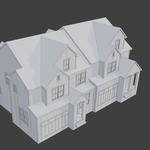
GeoSketch started as one of internal tools build for production use - a more precise way to create geometry. We use it mostly for architectural modelling and for 3D printing.
It's part of our studio's daily workflow, actively used on real projects. The tools evolve with time, getting more functionality and polish.
In GeoSketch I'm including main Draw tool with few small utilities (Edge divide, Orient 3D Cursor).
Future plans
Blender version compatibility: for now the addon will be kept compatible with newest Blender version and at least one, latest, LTS release. New functionality will be implemented for those versions only - as those are the ones we use the most internally.
Until we reach release version 1.0, UI and functionality may change at any time - based on tool improvements and users feedback.
For internal use "rough edges" here and there were fine, same with lack of documentation. Now I'm focusing on perfecting those and integrating more of our internal tools and utilities (we have huge collection of those) that can be useful for wider audience.
Instructions
Draw
Main functionality, used in Mesh Edit Mode. Allows precise 3D drawing and geometry creation with automatic intersection and overlap handling.
Also allows for precise cuts on existing geometry.
Usage:
Default Mesh Edit mode shortcut is D.
With LMB you are placing consecutive points on the edge chain. Edge chain ends when RMB is pressed, or automatically, when the edge chain closes a loop.
Shortcuts:
-
EnterorSpace- confirm, exit tool. -
Esc- cancel, exit tool. -
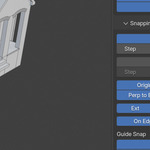
S- opens popup with snap settings. -
D- toggles distance unit snapping (USNAP) -
A- toggles angle snapping mode (ASNAP) -
R- if ASNAP is active, toggles between absolute and relative mode -
Shift(hold) - locks direction of the line being drawn, allows to project other objects onto the line. - Numeric input - locks line length.
Snapping system - common for all tools
- Dominant Plane - default drawing plane, if no OSNAP / DSNAP used, guessed from the viewport orientation. Small origin gizmo shows which plane will be used while drawing.
- OSNAP - object snapping system (vertex, midpoint, perpendicular to edge, ...)
- DSNAP - direction snapping system (world / local / 3D Cursor axis, extension, perpendicular), with direction lock (SHIFT key).
- USNAP - snaps to nearest value of distance unit multiplier.
- ASNAP - snaps to nearest angle multiplier.
Edge divide
Simple operator that divides selected edge(s) into segments, doesn't destroy existing connected faces.
Usage: select edges, run the tool and select number of divisions.
Orient 3D Cursor
Allows precise positioning and alignment of 3D Cursor (Blender itself does this in somewhat chaotic way). It also automatically sets the 3D Cursor as Transform Orientation - so the 3D Cursor starts acting like custom origin in other applications.
Usage:
Default shortcut key is Alt-C.
First point sets 3D Cursor position, second aligns the orientation of it's X axis, third fully orients the cursor to the plane created by all three points.
You can stop the tool after any of the three points - so for example when you stop the tool after 1st point, the cursor will be moved, but it's orientation stay the same as before.
Guides system
This is initial implementation of my other tool. The guides are not a real geometry - those are kept as pure mathematical geometry concepts, so any intersections with it is precise. It's especially important with circles - because it's not relying on any mesh edges, it allows for real intersections.
