 JAYANAM
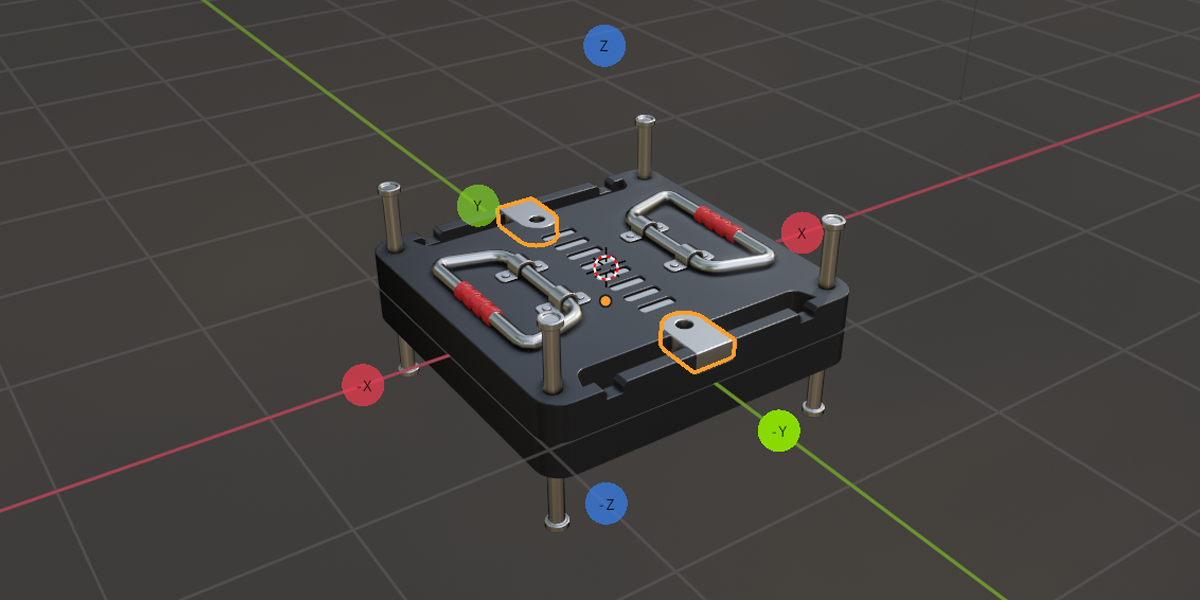
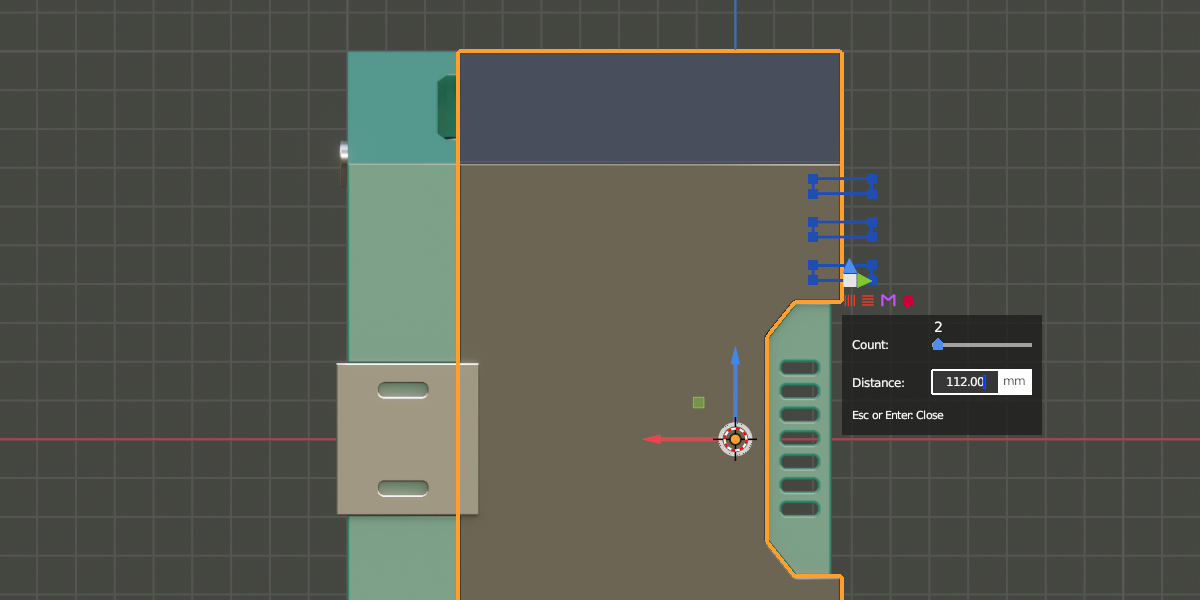
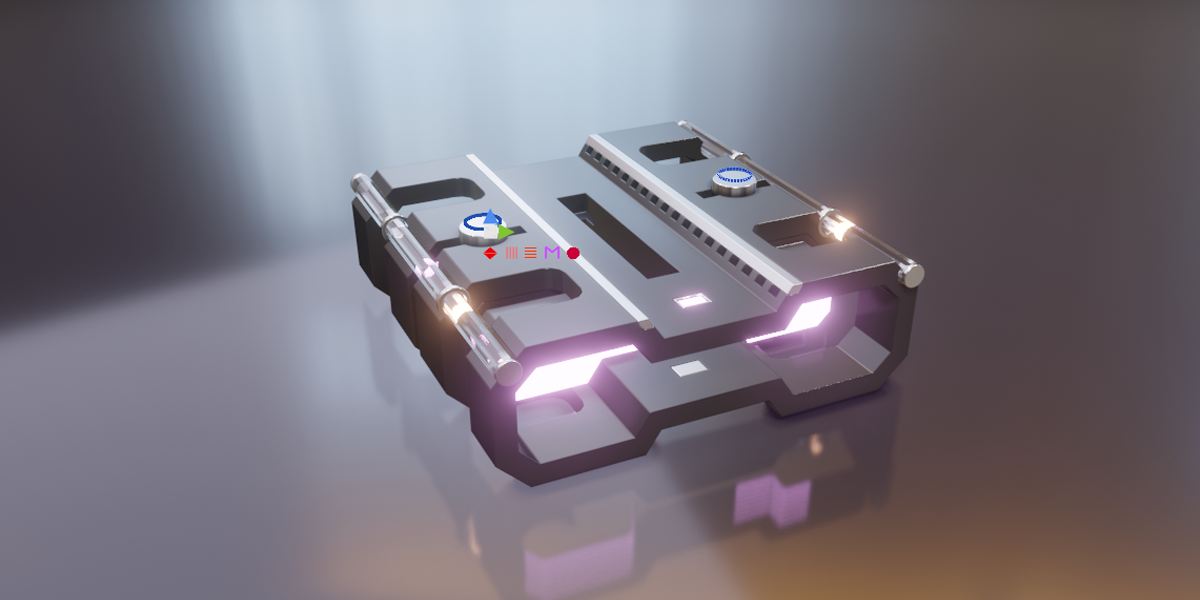

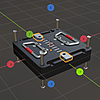
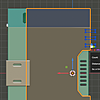

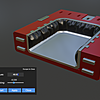
JMesh Tools is a Blender addon for hard surface modeling. It streamlines common modeling tasks with features like Booleans, Arrays, Bevels, and a powerful Shape Mode for drawing 2D shapes directly onto meshes.
Object Booleans
The JMesh Tools panel includes Object Booleans tool with four operations:
- Difference - Subtracts the selected object from the target
- Union - Combines both objects into one
- Slice - Cuts the target along the selected object's boundary
- Intersect - Keeps only the overlapping volume
Select an object, set your target in the panel, and click the desired operation.
Shape Booleans
These are the core features of JMesh Tools. It allows you to draw 2D shapes directly onto mesh surfaces in the 3D viewport.
Works in: Object Mode, Edit Mode, and Sculpt Mode
Available shapes:
- Circle
- Rectangle
- Polyline
- Curve
The current operation is displayed in the lower left corner of the viewport.
Example: Cutting a Circle into a Mesh
- Enter Shape Booleans tool (Tools Panel on the left)
-
Ctrl + Left Clickon a mesh to place a circle - Press
Oto set the operation to Difference - Press
Eto extrude, thenLeft Clickto confirm the depth -
Ctrl + Left Clickto apply the boolean cut - Press
Escapeto exit
Video Tutorial
For advanced features like arrays and mirrors in Shape Mode, watch this tutorial:
https://www.youtube.com/watch?v=lp6Z2j1QX7Y
Shape Library
The Shape Library lets you save and reuse custom 2D shapes for boolean operations.
Features:
- Export shapes to JSON files
- Import previously saved shapes
- Load default shape presets with one click
Usage:
- Draw a shape in Shape Mode
- Export it to your library
- Import and reuse it anytime
- Default shapelib is included
Editable Shapes
Shapes can be edited after creation. Enter Edit Mode to adjust individual vertices before applying the boolean operation. This is useful for creating custom panel lines or non-standard cut patterns.
Bevels
Add smooth, properly shaded bevels to any object.
- Select an object
- Click Bevel in the JMesh Tools panel
- Adjust settings in the popup:
- Segments - Number of bevel subdivisions
- Width - Bevel size
Arrays
Quickly add Array modifiers to objects.
Linear Array:
- Click Array in the panel
- Set the number of copies in the popup
- Click Apply when finished
Circular Array:
- Click Circle Array in the panel
- Set the number of copies
- The objects are distributed radially around the origin
In Shape Mode, circular arrays are also available via the blue shape action button.
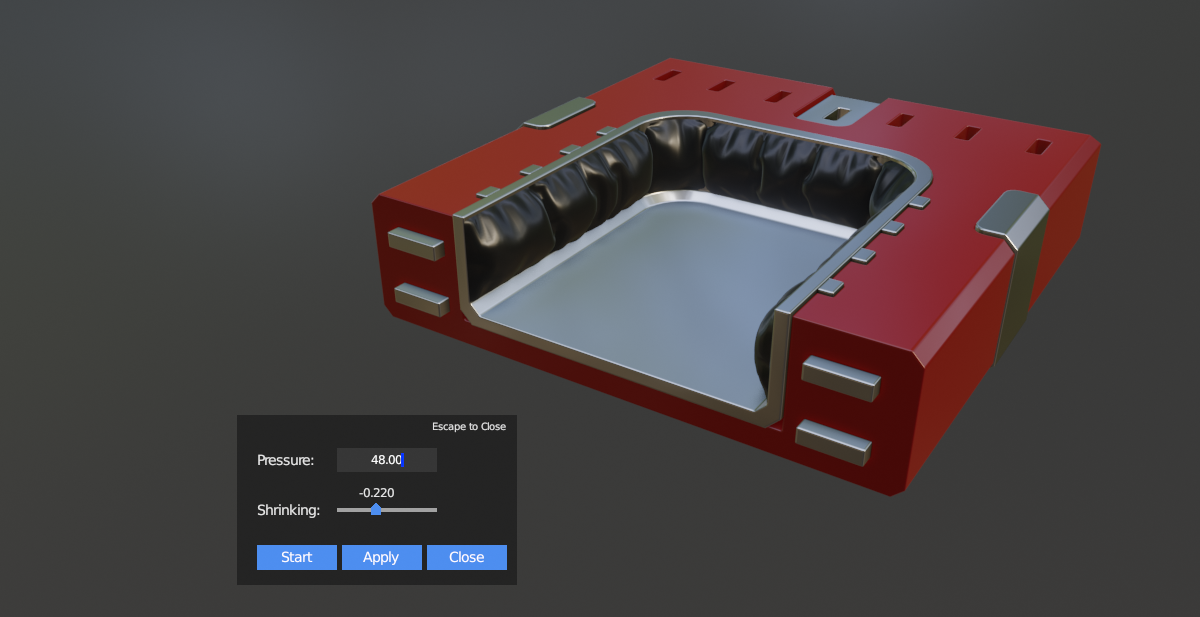
Clothify
Add a cloth simulation with pressure to any mesh with one click.
Setup:
- Create a mesh (e.g., a subdivided plane)
- Click Clothify in the JMesh Tools panel
- Adjust settings in the overlay:
- Pressure - Inflation strength
- Shrinking - Fabric tension
- Click Start to run the simulation
Edges are automatically pinned to maintain the boundary shape.
License
JMesh Tools is released under the GNU GPL license. Source code is available upon request.
The addon includes Shapely wheels for Windows, Linux, and macOS.
 Included
Includes 12 months of
- Support from JAYANAM
- Product updates
Extend this product’s Support Period +12 months: 25% of product price
Have questions before purchasing?
Login to message