OFFICIAL USER GUIDE · v1.90
Joint Snapping System Documentation
Build modular assets directly in Blender, preserve their connection logic, and carry them from scene authoring to engine export.
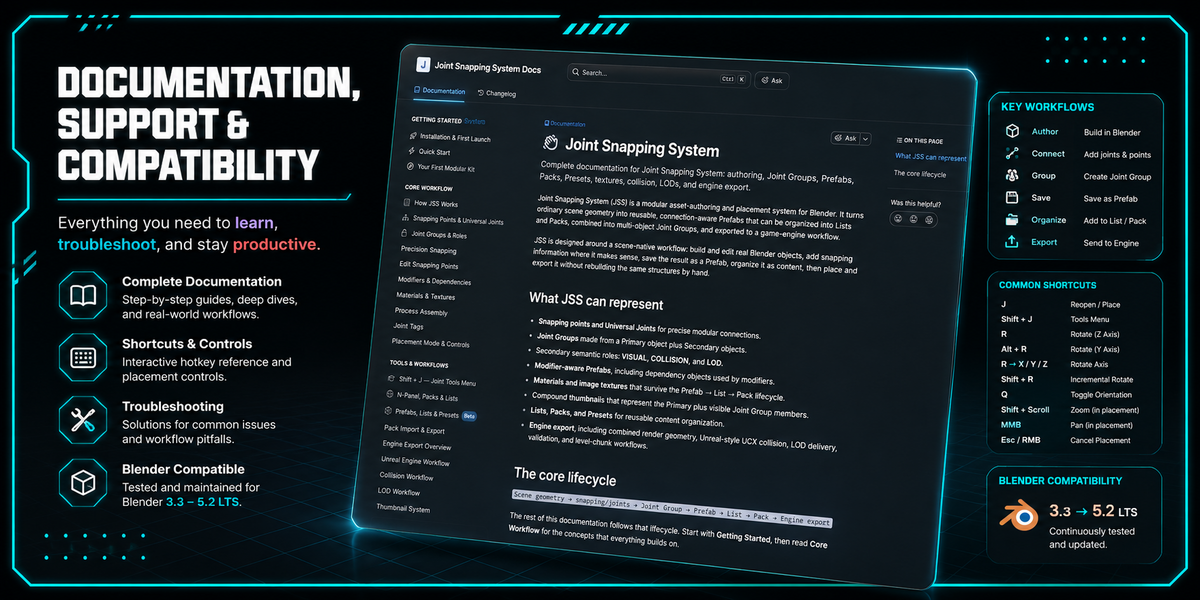
This guide covers the modern Joint Snapping System workflow: scene-native Joint authoring, Universal Joints, Joint Groups, Prefabs, Lists, Packs, Presets, Precision Snapping, tagged procedural tools, compound thumbnails, and Unreal-focused engine export.
SCENE-NATIVE UNIVERSAL JOINTS JOINT GROUPS ENGINE EXPORT
IMPORTANT · MODERN WORKFLOW
All authoring now happens directly in the Blender scene
Prefab Edit Mode, From Active Mesh Mode, and Edit Prefab Mode are retired. Create and edit geometry with Blender's normal tools, author Joints directly on scene objects, then use Save Prefab or Update Prefab when you are ready to store the asset.
QUICK START
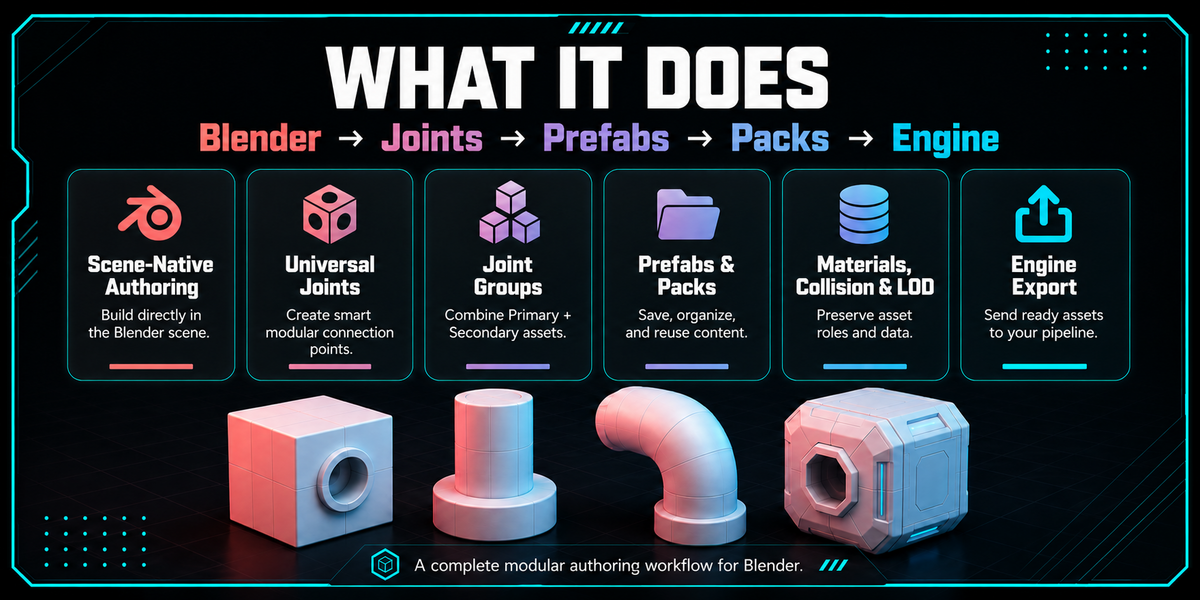
Blender → Joints → Prefabs → Packs → Engine
1. Model
Create or edit geometry normally.
2. Author Joints
Add connection points in the scene.
3. Save Prefab
Store geometry, Joints and asset data.
4. Build & Export
Snap, organize and export to engine.
INSTALLATION
Install and open JSS
- In Blender, open Edit → Preferences → Add-ons → Install…
- Choose the Joint Snapping System .zip file.
- Enable Joint Snapping System.
- In a 3D Viewport, press N and open the Joint Snap tab.
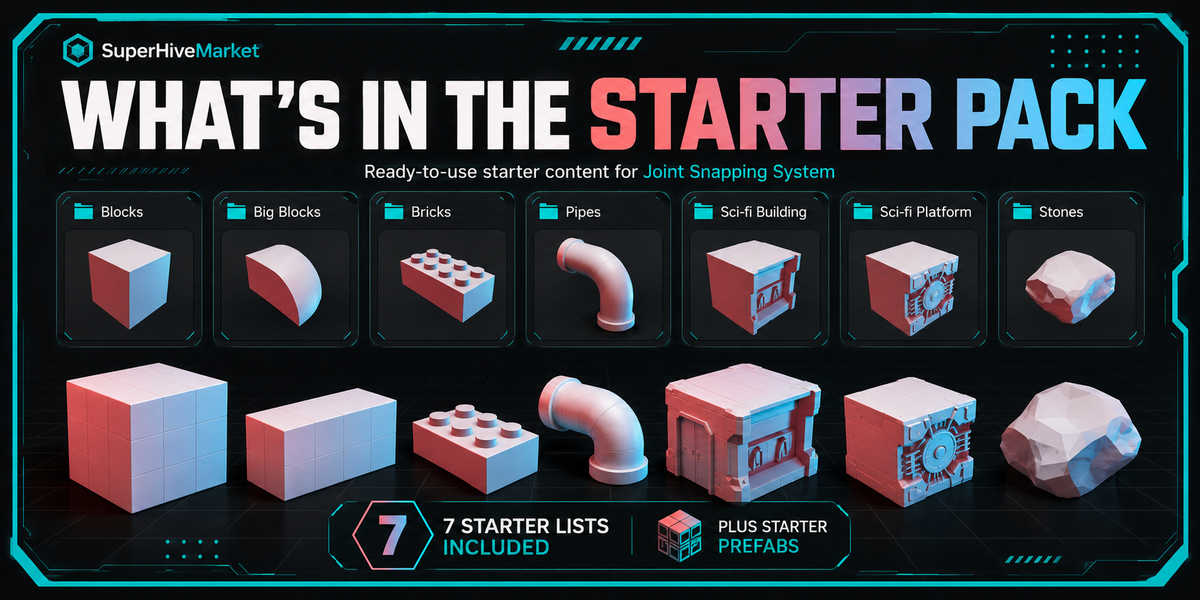
The bundled Starter Pack is initialized automatically on first run. Modern startup only prepares missing content and previews.
CORE CONCEPTS
How the system is organized
JOINTS
Connection points
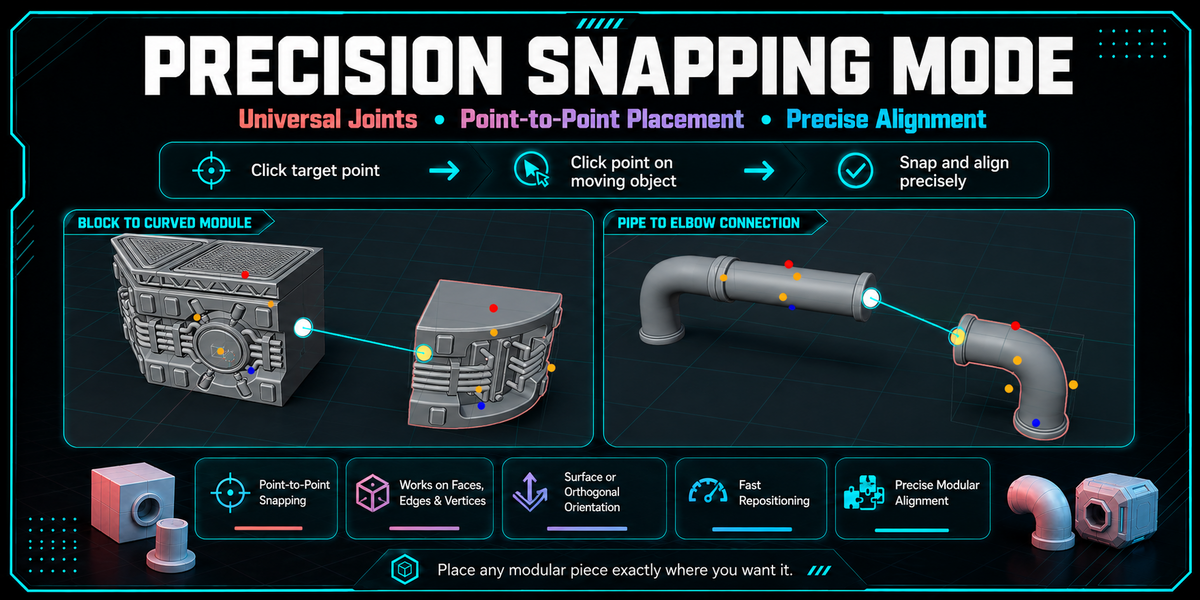
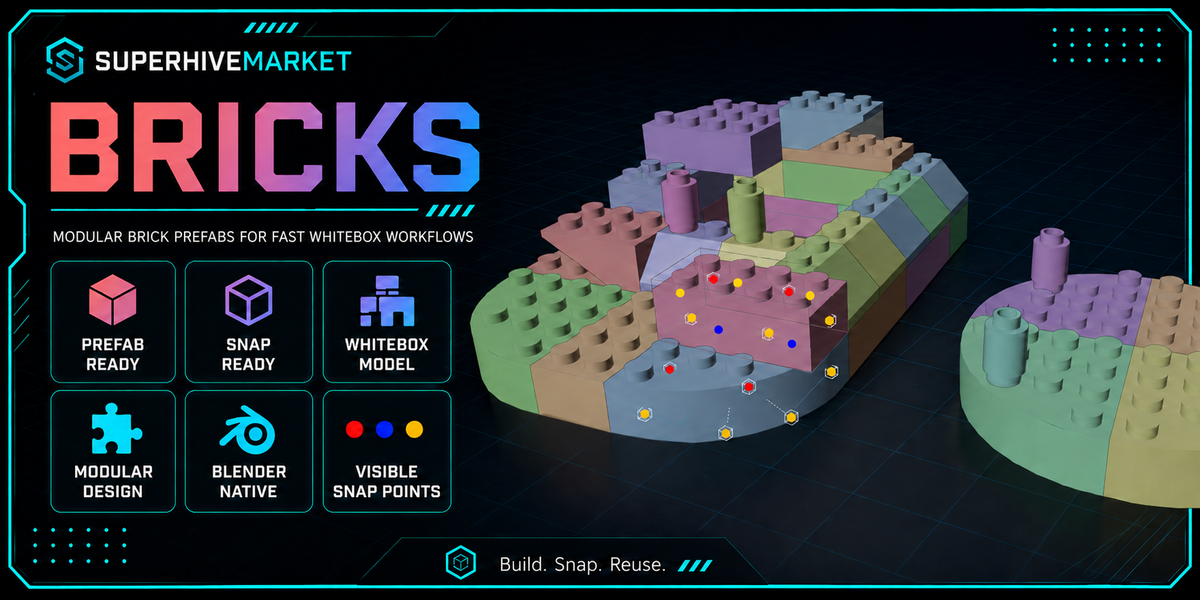
Joints define where modular parts connect. JSS supports legacy snapping layouts and orientation-aware Universal Joints. Top points are red, bottom points are blue, and side points are orange.
PREFABS
Reusable authored assets
A Prefab stores scene-authored geometry plus its Joint data, source identity, shading, thumbnail information, materials, textures and supported relationships.
LISTS & PACKS
Organize content
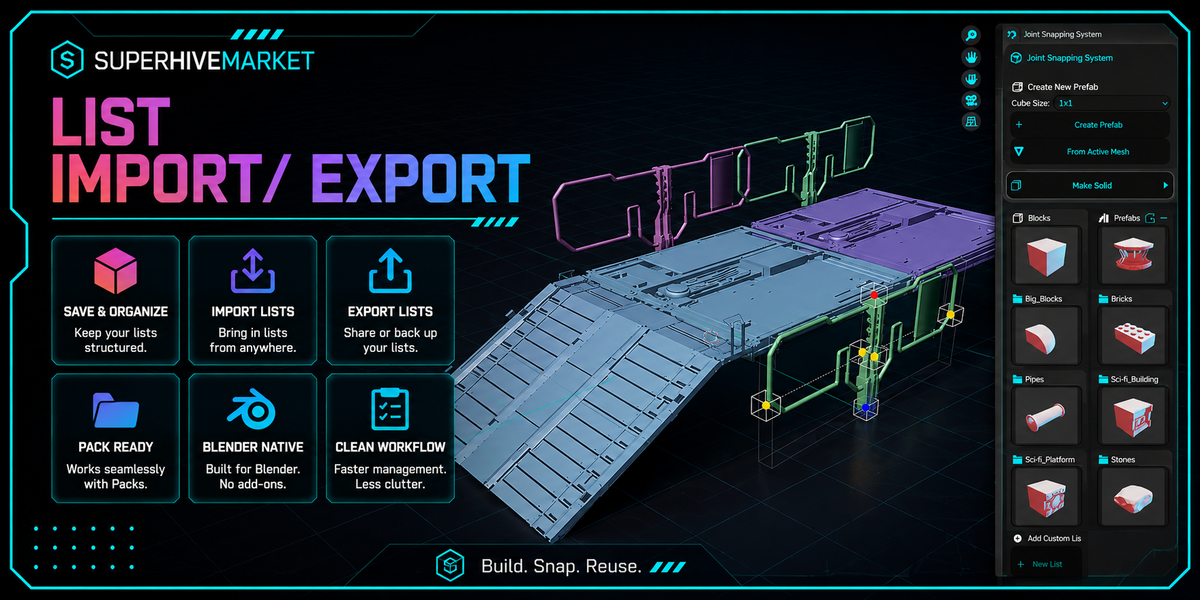
Lists organize reusable Prefabs inside a Pack. Packs are portable content libraries with their own artwork, Prefabs, Lists, Presets and export/import support.
PRESETS
Reusable list setups
Presets store reusable Custom List configurations. Create new Lists from Presets, update them through a working copy, and include them in portable Pack workflows.
SCENE-NATIVE AUTHORING
Create Joints directly on scene objects
Select a mesh and press Shift+J to open Joint Tools.
-
Add Universal Joint From Selection — create a Joint from selected faces, edges, or vertices.
-
Batch Jointify From Selection — create multiple Joints from selected geometry.
-
Magical Jointify — automatically create useful Joints from mesh surfaces.
-
Generate Joint Cage — build a configurable Legacy-style X/Y/Z Joint layout around a scene mesh.
-
Stamp Snapping Points — transfer an authored Joint layout to another scene object while preserving compatible metadata.
UNIVERSAL JOINTS
Orientation-aware modular connections
Universal Joints can store position and orientation. Surface follows the authored surface, Orthogonal uses position-only behavior, and manually rotated Joints become Custom. Use Flip Joint Direction when a Joint faces the wrong way.
EDIT SNAPPING POINTS
Edit legacy and Universal Joints together
| G |
Move selected Joint |
| R |
Rotate a Universal Joint |
| Q |
Toggle Surface / Orthogonal orientation behavior |
| X |
Delete selected Joint |
| Enter |
Accept edits |
| Esc |
Cancel the edit session |
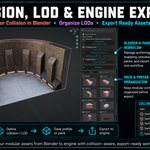
JOINT GROUPS
Multiple Blender objects, one logical asset
Select the objects that belong together, make the intended Primary active, then use Shift+J → Create Joint Group.
-
Primary — the structural owner and main selectable object.
-
VISUAL — additional visible geometry that travels with the asset.
-
COLLISION — semantic collision geometry; displayed as wire for clarity.
-
LOD — alternate level-of-detail geometry with an assigned LOD level.
-
Modifier dependencies stay dependencies and are not incorrectly treated as visible Joint Group members.
PREFAB AUTHORING
Save and update directly from the scene
Use Save Prefab to store the selected Joint-Ready object or Joint Group in the active Pack/List. Spawned Prefabs retain stable source identity, so they can be renamed and edited in Blender and later written back with Update Prefab.
Spawned Prefabs use independent editable mesh datablocks, so editing one placed instance does not modify other existing or future copies.
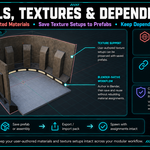
MODIFIERS, MATERIALS & TEXTURES
Keep the Blender asset intact
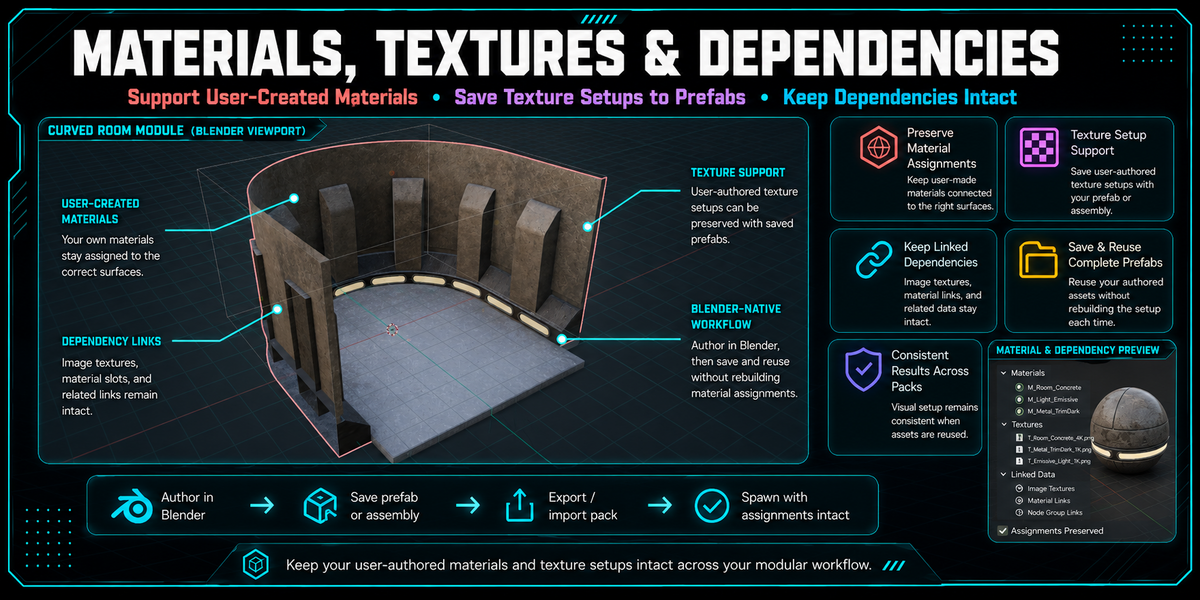
Modern Prefabs preserve supported modifier relationships, dependency objects, material assignments, image textures, shading information and Joint metadata throughout the Prefab → List → Pack → shipping lifecycle.
PLACEMENT
Snap, rotate, reposition and refine
| LMB |
Place on the active highlighted Joint |
| J |
Reposition an existing Joint Snapping object |
| R |
Quick 90° rotation around world Z |
| Alt+R |
Quick 90° rotation around world Y |
| Shift+R |
Incremental / advanced rotation workflow |
| Ctrl |
90° Force Snap |
| Ctrl+Shift |
15° Incremental Force Snap |
| Mouse Wheel |
Cycle available List items while placing |
| Shift+Mouse Wheel |
Zoom the viewport during placement |
| Esc |
Cancel / exit placement |
PRECISION SNAPPING
Choose the exact two Joints that connect
Hold Shift during placement to select a precise target Joint and source Joint. JSS aligns their positions and orientation frames. Press Q for Position Only behavior, or use Shift+R for incremental rotation while preserving the connection.
TAGGED JOINTS
Socket / Attachment rules for procedural building
Assign Tags to Legacy or Universal Joints and classify them as Socket or Attachment. Populate Tagged Joints can then choose compatible Prefabs using seeded variation, density, orientation rules and cascade depth. Randomize Selected can reroll individual generated branches.
PROCESS ASSEMBLY
Convert a Blender-authored multi-object build into a modern Joint Group
Process Assembly is now a scene-authoring helper, not the retired saved-Assembly asset workflow. It analyzes selected geometry, prepares connection information, and hands the result into Joint Group creation so the build can continue through the modern Prefab pipeline.
THUMBNAILS
Automatic compound asset previews
Prefab thumbnails are generated and cached automatically. Joint Group thumbnails render the Primary + VISUAL members while excluding COLLISION, LOD, helper geometry and hidden dependencies. Textured Prefabs use their authored materials and textures in thumbnail rendering.
PACKS, LISTS & PORTABILITY
Build reusable content libraries
- Open a Pack from the N-panel to access that Pack's Prefabs, Lists and Presets.
- Use Pack-owned Prefabs as a staging area before organizing assets into named Lists.
- Use Export Pack and Import Pack for portable content sharing.
- Use Share A List / Import List for narrower content exchange.
ENGINE EXPORT
From Blender-authored assets to Unreal-ready files
ASSET export
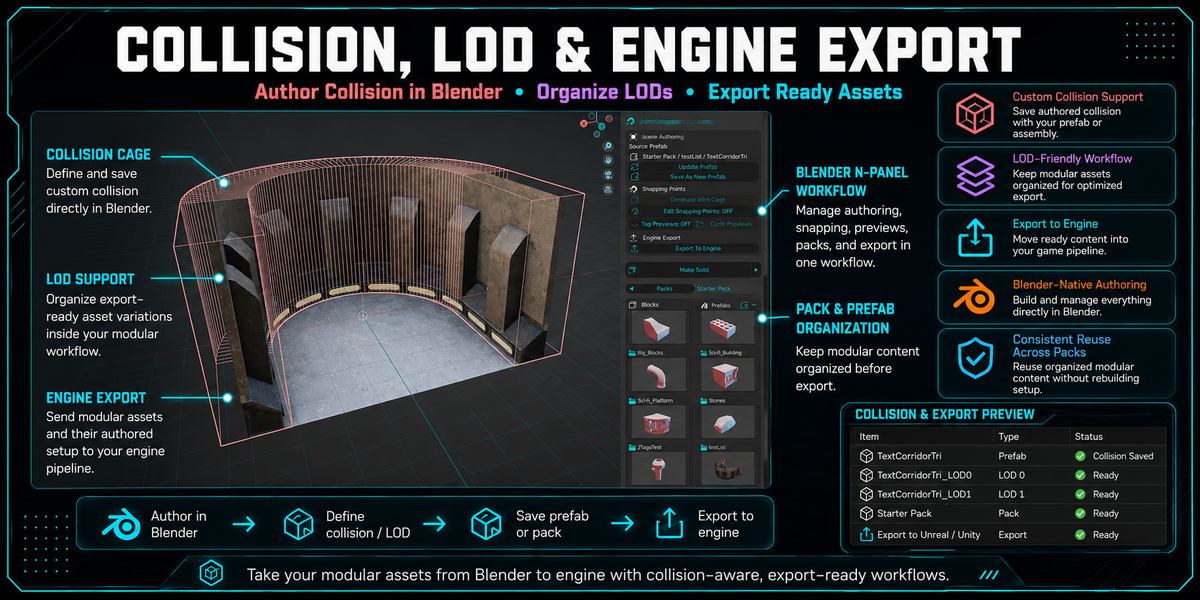
A logical Joint Group becomes one visible static mesh built from the Primary and VISUAL members. COLLISION members export separately with Unreal-compatible UCX naming.
LEVEL_CHUNK export
Selected logical roots can be combined into a larger visible chunk mesh for Blender-authored environment sections. Use JSS for modular authoring and chunk preparation; use Unreal for the final world/runtime layer.
Collision, LODs and validation
- COLLISION members export as deterministic UCX collision meshes.
- LOD members can export as separate _LOD1, _LOD2... FBX files.
- Portable textures are copied into the export package where supported.
- Preflight reports PASS / WARNING / ERROR states before files are written.
MAKE SOLID
Mesh cleanup with shading preservation
Make Solid includes Join / Boolean-based cleanup workflows, interior-face removal, Fix N-Gons, and shading options. Original Shading preserves authored shading where possible, while Blender-version-specific Auto Smooth / Smooth by Angle behavior is handled compatibly.
TROUBLESHOOTING
Common checks
No snapping points appear
Confirm the target has authored Joints and that placement or Edit Snapping Points is active. Modern snapping targets are virtualized internally, so persistent helper objects are not required.
Prefab does not update
Spawn or open the source-aware Prefab in the scene, edit it normally, then use Update Prefab. Renaming the Blender object does not remove its saved source identity.
Thumbnail is missing
JSS normally creates only missing previews and reuses cached thumbnails. Reopen the affected List/Pack or rebuild only the missing preview if needed.
Export is blocked
Read the Export To Engine preflight. ERROR states intentionally stop writing so invalid collision, missing resources, bad paths or unsupported export conditions can be fixed first.
COMPATIBILITY
Blender 3.3 → 5.2 LTS
Joint Snapping System is designed for Blender 3.3+ and includes compatibility handling for Blender 3.x, 4.x and 5.x API differences, including shading, normals, previews, scene behavior and asset persistence.
QUICK GLOSSARY
Joint: authored snapping connection point · Universal Joint: orientation-aware Joint · Joint Group: Primary + semantic Secondary objects treated as one logical asset · Prefab: saved reusable authored asset · List: ordered Prefab collection · Pack: portable content library · Preset: reusable List configuration.
JOINT SNAPPING SYSTEM
Build modular. Stay in Blender.
If you hit an edge case, include your Blender version, the JSS version, the workflow you were using, and a short screen recording or reproducible scene when possible.
 Joshua Schafer